
Connect to eduroam wi-fi: Windows
Connect to eduroam wi-fi: Windows
The eduroam wireless network is available on-campus to all staff and students. It’s also available in other university campuses around the world.
For more general information about this network, see connect to eduroam wi-fi.
- On the desktop, click on the wireless icon at the bottom-right of the screen to show the list of networks available.
- Select eduroam from the list of networks displayed.
- Enter your Monash email address as your username, then add your Monash password and click OK.
- STAFF: firstname.lastname@monash.edu
- STUDENTS: username@student.monash.edu
- A security prompt will appear. Click Connect to complete the connection to eduroam.
You'll now be connected to the eduroam network.
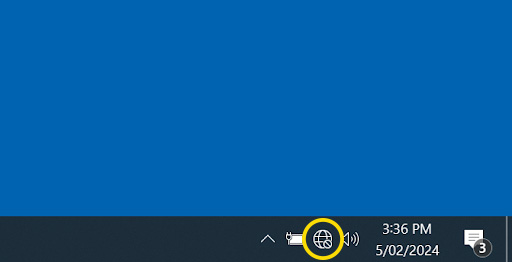


- On the desktop, click on the wireless icon at the bottom-right of the screen to show the list of networks available.
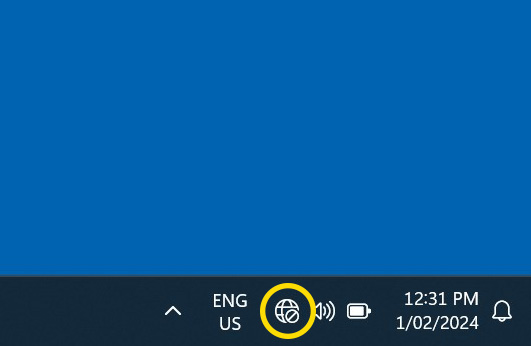
- Click the > symbol to see a list of available networks.

- Select eduroam from the list of networks displayed.

- Enter your Monash email address as your username, then add your Monash password and click OK.
- STAFF: firstname.lastname@monash.edu
- STUDENTS: username@student.monash.edu
- A security prompt will appear. Click Connect to complete the connection to eduroam.
You'll now be connected to the eduroam network.

