
Safe Exam Browser
Safe Exam Browser
Some eExams use a locked-down browser to prevent you from accessing your desktop and other programs during your exam. To find out whether you need to use the Safe Exam Browser check your assessment timetable in Allocate+.
If your eExam requires a Safe Exam Browser, you’ll need to install it on the laptop/desktop that you’ll be using for your eExam. You’ll also need to ensure your device meets the recommended minimum specifications to avoid technical issues.
Safe Exam Browser can’t be installed on smartphones (including iPhones, Android devices and any other mobile OS devices), iPads or Chromebooks.
Moodle quizzes
If you have a Moodle quiz that requires you to install Safe Exam Browser, check with your Unit Coordinator – the installation requirements may be different for assessments in Moodle.


Prepare your device for Safe Exam browser
To avoid problems during your eExam, you may need to change the sleep and region settings.
Sleep settings
- Click the Start menu, then search for Power & sleep settings.
- Under On battery power, turn off after, select 1 hour.
Region settings
If you have a Windows laptop, set your region to the location where you’ll be sitting your eExam.
- Click the Start menu, then search for Region settings.
- Under Country or region, select the location.
Sleep settings
- Click the Apple icon > System Preferences > Energy Saver > Battery.
- Turn off Enable Power Nap while on battery power.
- Under Turn display off after, select 1 hour.
Install Safe Exam Browser
Download the latest version of Safe exam Browser for your device.
Confirm Safe Exam Browser works on your computer
Now you’ve installed the software, you need to check it works.

Step 1
Open this webpage in Google Chrome and close down any other open applications on your device.

Step 2
Open the Safe Exam Browser Test eExam.

Step 3
Click Enrol Me.

Step 4
Click Launch Safe Exam Browser and enter your Monash username and password – you’ll be prompted to authenticate using multi-factor authentication (MFA). This activates the lock-down functionality on your device so you have access only to the test eExam.
To restore your device’s normal functionality you’ll need to exit Safe Exam Browser – see step 6.
Step 5
Click Start Exam to start the test.

Step 6
To end the test and restore your device’s normal functionality, navigate to the test exam summary page and click Submit all and finish. You’ll then return to the exam landing page where you need to click Exit Safe Exam Browser.

Help and questions
If Safe Exam Browser doesn't seem to be working on your device, or you have any questions, contact the Service Desk.
Safe Exam Browser Troubleshooting
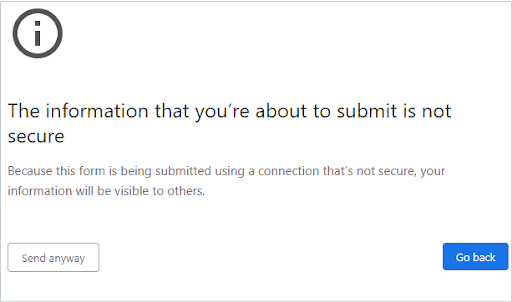
Warning message
Click Send anyway.
This will launch Safe Exam Browser automatically.

Message on the eExam landing page
Ignore this message and click Launch Safe Exam Browser.