
Monash International VPN for China
Students
Staff
Research students
Monash International VPN for China
We recommend you use the Monash International VPN if you’re wanting to access Monash University applications and services from within mainland China.
If you’re outside mainland China, use the Monash VPN.
Before connecting
Before connecting using the Monash International VPN, make sure you’re not connected to any other VPN. You can use only one VPN at a time.
- Log into GlobalProtect using your Monash email address and password and authenticate:
- if using Okta Verify, click Send Push and then approve the sign in on your mobile phone
- if using Google Authenticator, enter your authentication passcode, then click Verify.
- Select the appropriate GlobalProtect installer based on the operating system you're using.

- Click Keep if you see a message that the file you're downloading may be harmful to your computer.
Once the file has downloaded, double-click it to launch the installer.
- Follow the instructions in the Setup Wizard.
When the installation finishes, the application will launch. - Type vpn.monashuniversity.cn into the text box, then click Connect.
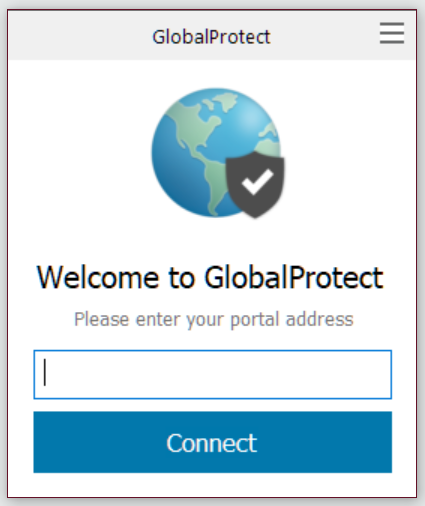
- Sign in using your Monash email address and password and authenticate:
- if using Okta Verify, click Send Push and then approve the sign in on your mobile phone
- if using Google Authenticator, enter your authentication passcode, then select Verify.
- When successfully connected, you'll see the Connected window.
When you've finished using the VPN, click Disconnect.
- Once the installation is complete, you'll find GlobalProtect in your applications menu.
- Find and launch the GlobalProtect application.

- Click Connect.
- Sign in using your Monash email address and password and authenticate:
- if using Okta Verify, click Send Push and then approve the sign in on your mobile phone
- if using Google Authenticator, enter your authentication passcode, then select Verify.
- When successfully connected, you'll see the Connected window.
Now you're connected, continue to use your computer as usual.
When you've finished using the VPN, click Disconnect.