How to setup MFA on custom accounts
How to setup MFA on custom accounts
A custom account can serve as a central point of contact for a faculty, department or team within the University. A custom account has a primary account owner and any number of account users. It may also have some additional account owners. With a custom account, several Monash staff members will use a single account.
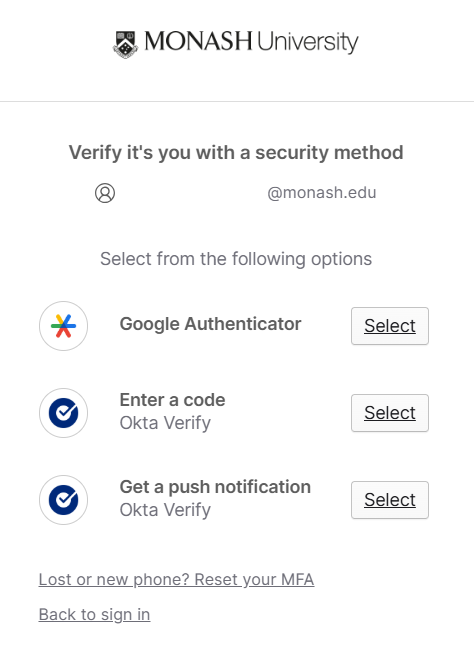
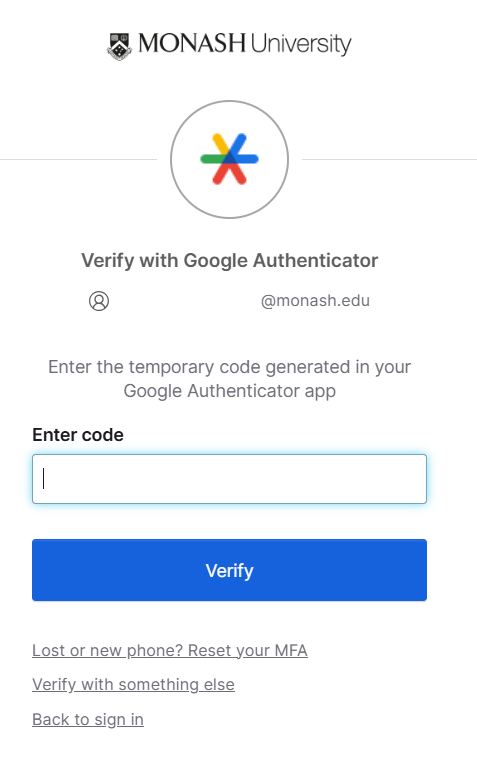
To log into a custom account with multi-factor authentication (MFA), each owner or user will first need to install the Google Authenticator app on their smartphone. The primary account owner may also install the Okta Verify app for MFA if preferred.
| User type | Okta Verify app | Google Authenticator app |
|---|---|---|
| Primary account owner | Yes | Yes |
| Additional account owner | No | Yes |
| Users of the account | No | Yes |
How to set up MFA
Follow the steps to activate your account to set up MFA on your custom account.
A primary account owner can guide a group of additional account owners and account users through the set-up steps, or simply share the printed QR code with individuals so that they can set up MFA on their own.