Using multi-factor authentication (MFA)
Using multi-factor authentication (MFA)
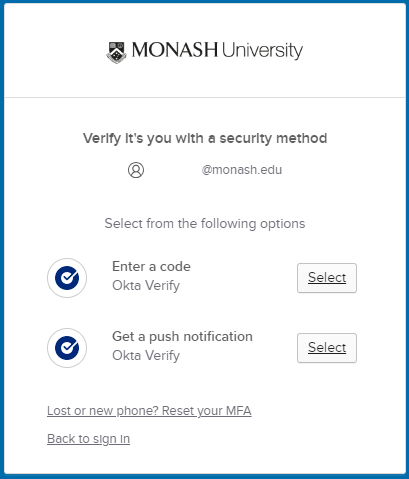
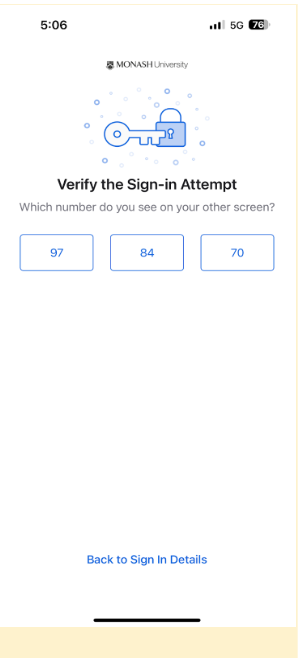
Whenever you log into your Monash account, you’ll need to verify your identity with multi-factor authentication (MFA). This means using Okta Verify, Google Authenticator or a YubiKey, in addition to your password.
If you’re travelling outside Australia, see how to use MFA overseas.
How to log in using MFA






Matching the date and time to your location
If the date and time on your smartphone don’t match those of your current location, you can’t receive Okta Verify push notifications or use Okta Verify or Google Authenticator codes.
To find out how to set up time zones on your smartphone, go to our set your smartphone's date and time page.
Locked out of your account because your smartphone is lost, damaged or replaced?
If you’ve got backup codes, and Okta Verify or Google Authenticator installed on another smartphone, you can use our self-service MFA reset tool to get back into your account.
For step-by-step instructions, go to how to reset MFA with a backup code.
Lost or stolen YubiKey?
If your YubiKey is lost or stolen, you’ll need to order a replacement at your own cost. If you need to access your Monash account right away, you should phone your local Service Desk to discuss your options – don’t email from a non-Monash address. Or you can simply order a replacement online by filling in the form as a guest.