
Connect Google apps on your smartphone
Connect Google apps on your smartphone
Before you get started connecting your Google Apps, make sure you’ve set up MFA for your Monash account.
For the best experience, you can get the Official Google Apps and use them on your mobile.
- Swipe up from the home screen to access your apps.

- Find the Settings app and tap to open.

- Tap Accounts and backup > Manage Accounts, scroll to the bottom of the screen and tap Add account, then select Google.
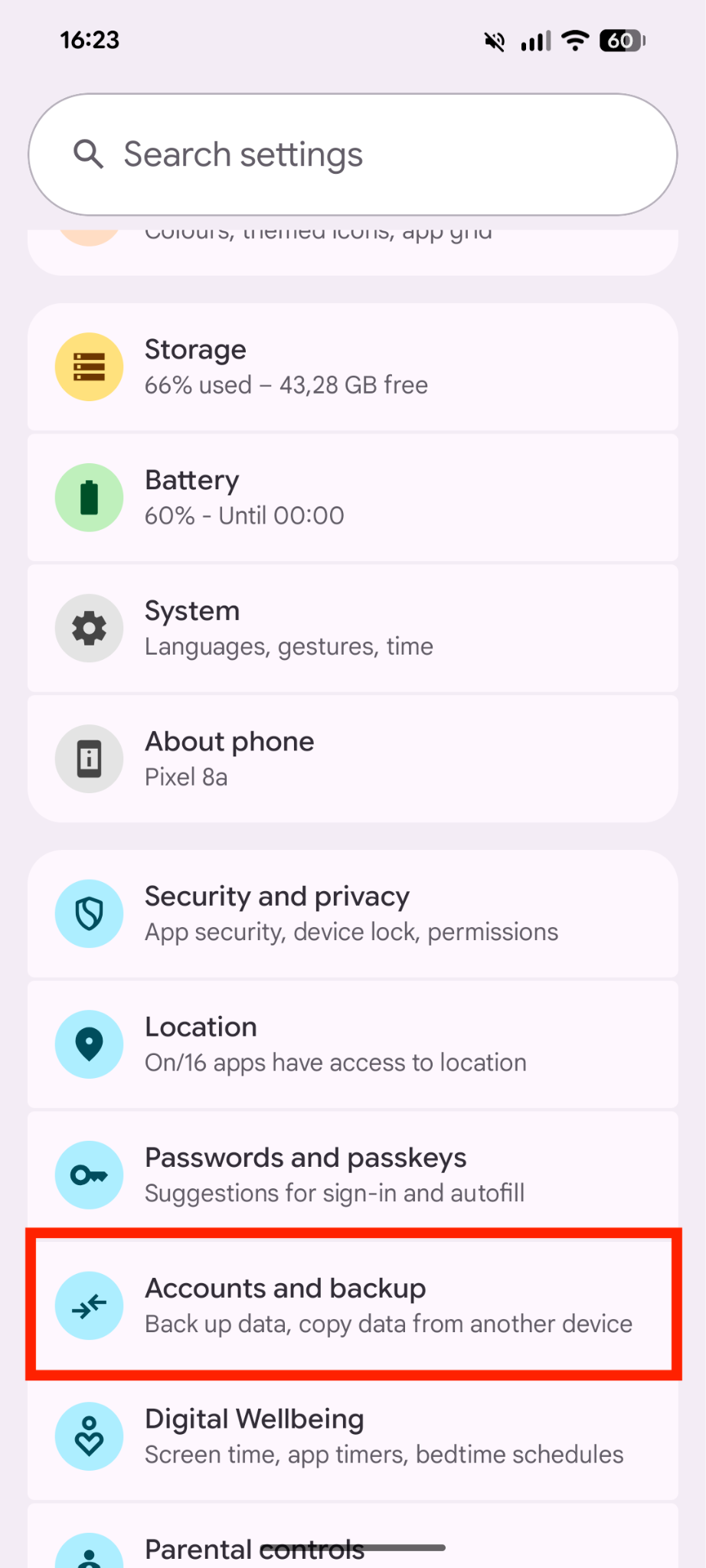
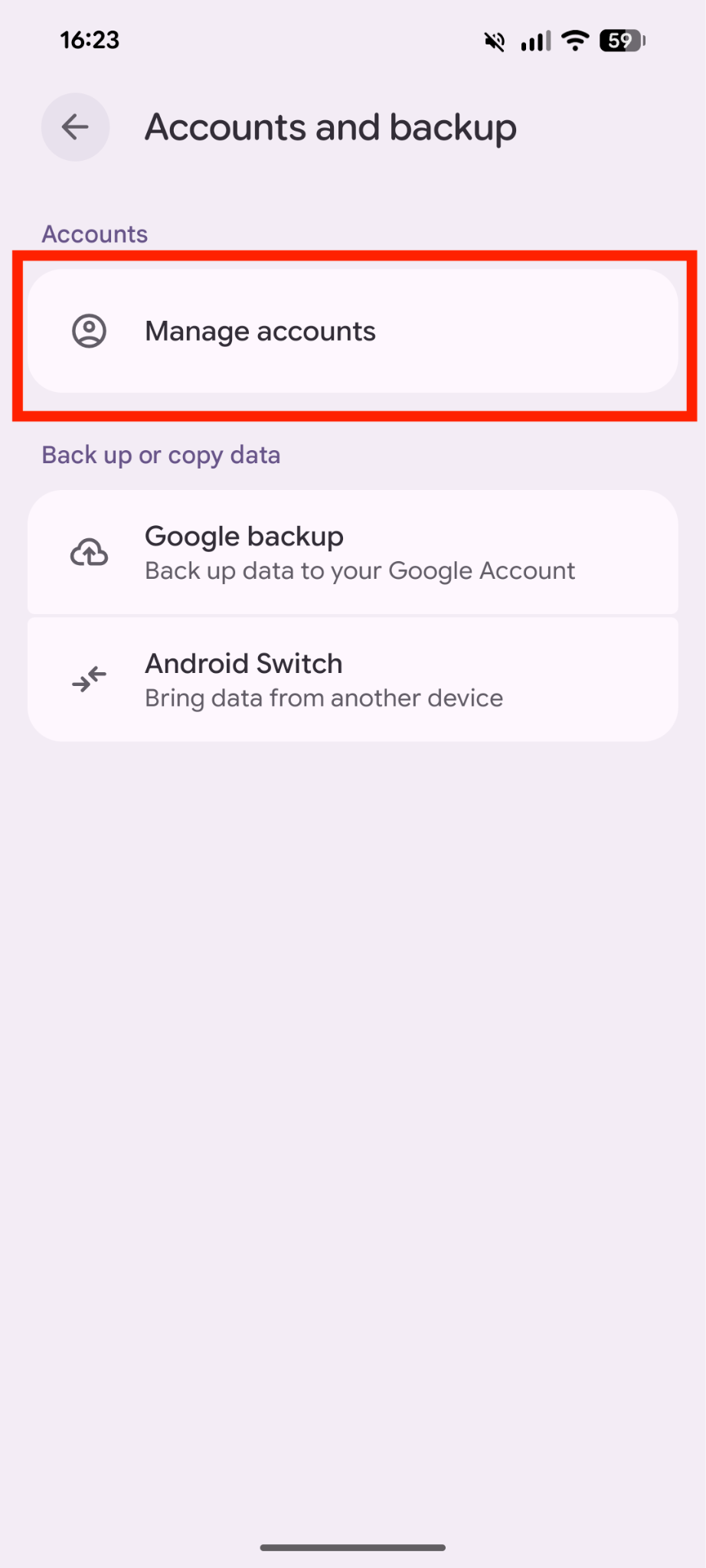
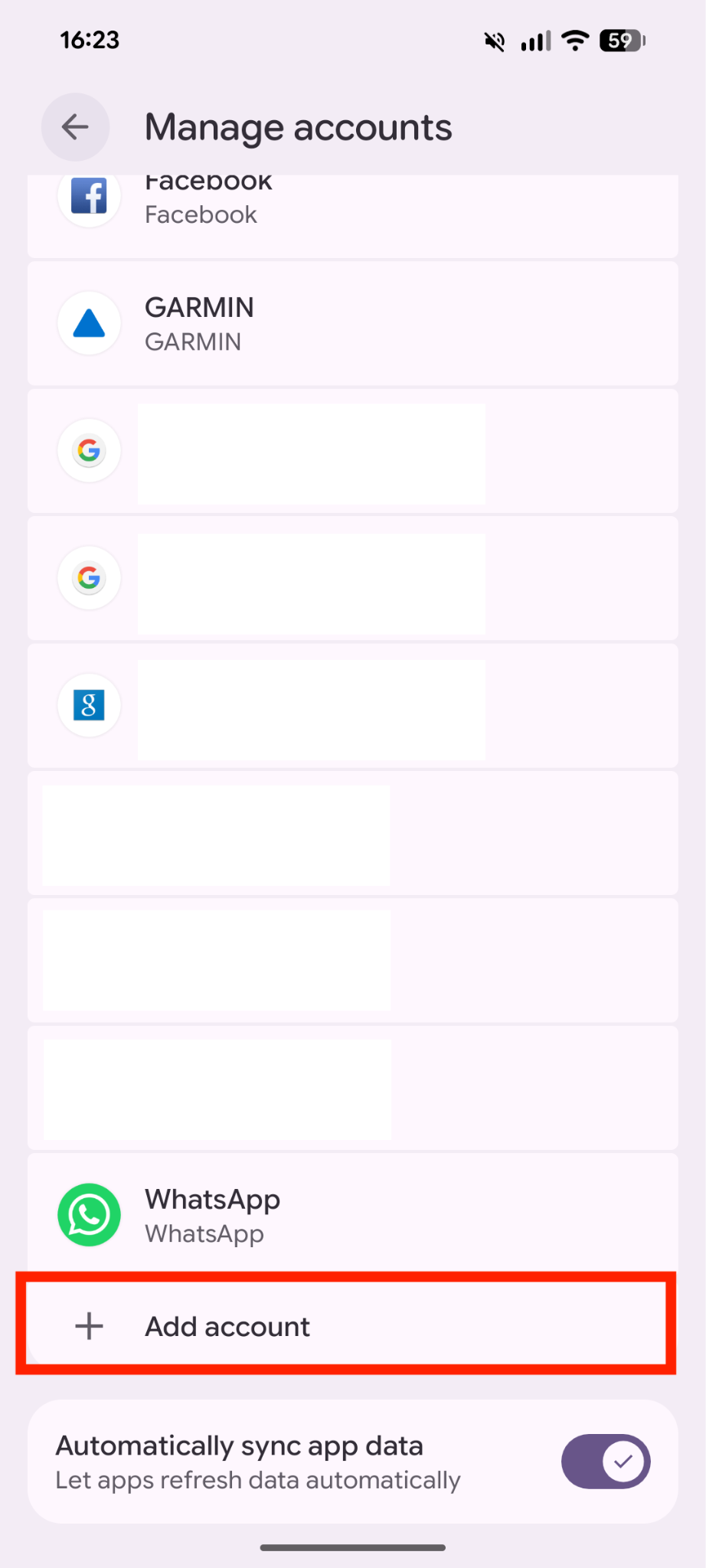
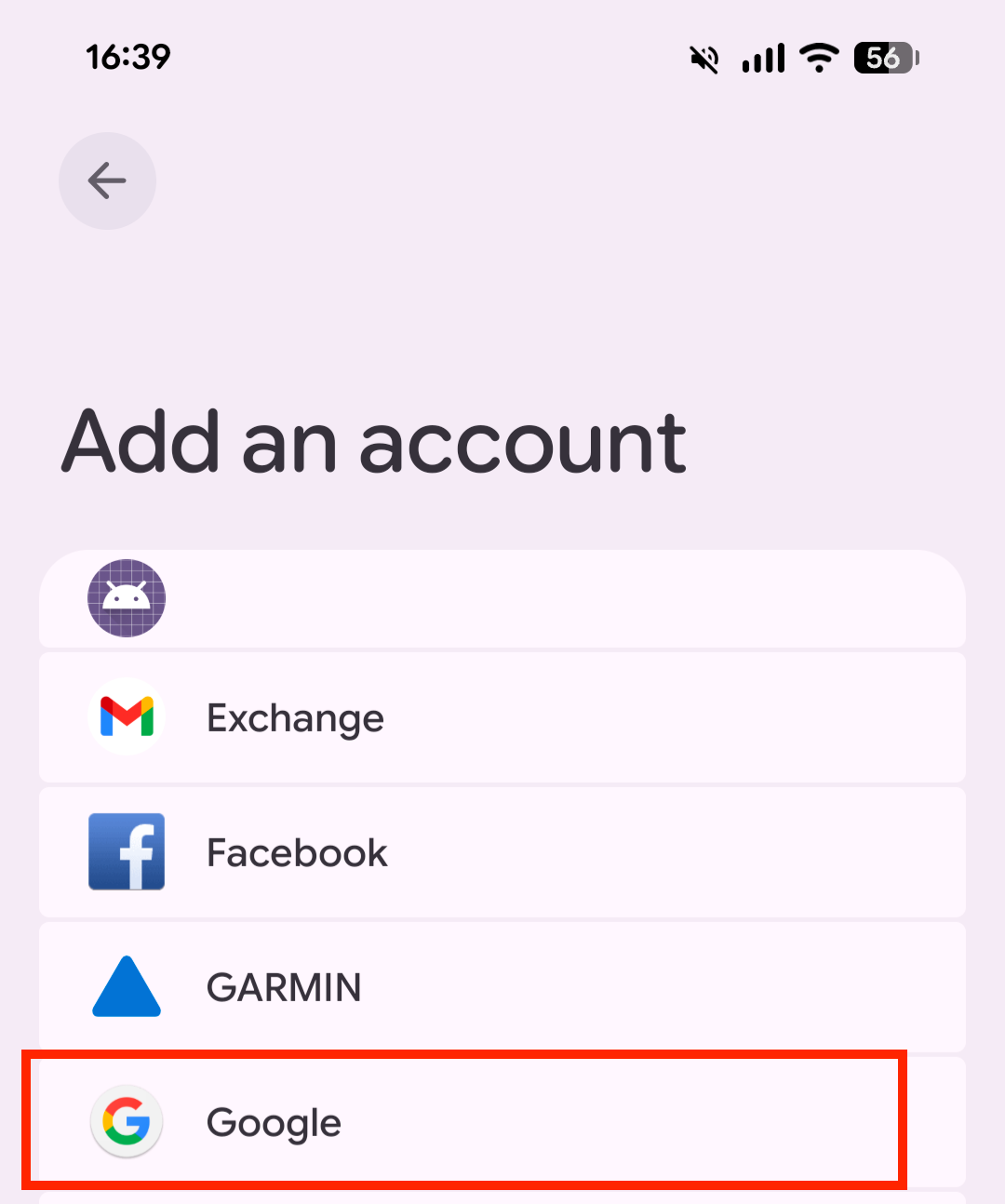
- Enter your Monash email address, tap Next, you’ll be redirected to Okta – enter your email address again and tap Next. Then enter your password and tap Next.
Your email address needs to be in one of the following formats:
- Staff: firstname.lastname@monash.edu
- Student: abcd00123@student.monash.edu
- Affiliate: firstname.lastname@hudson.org.au
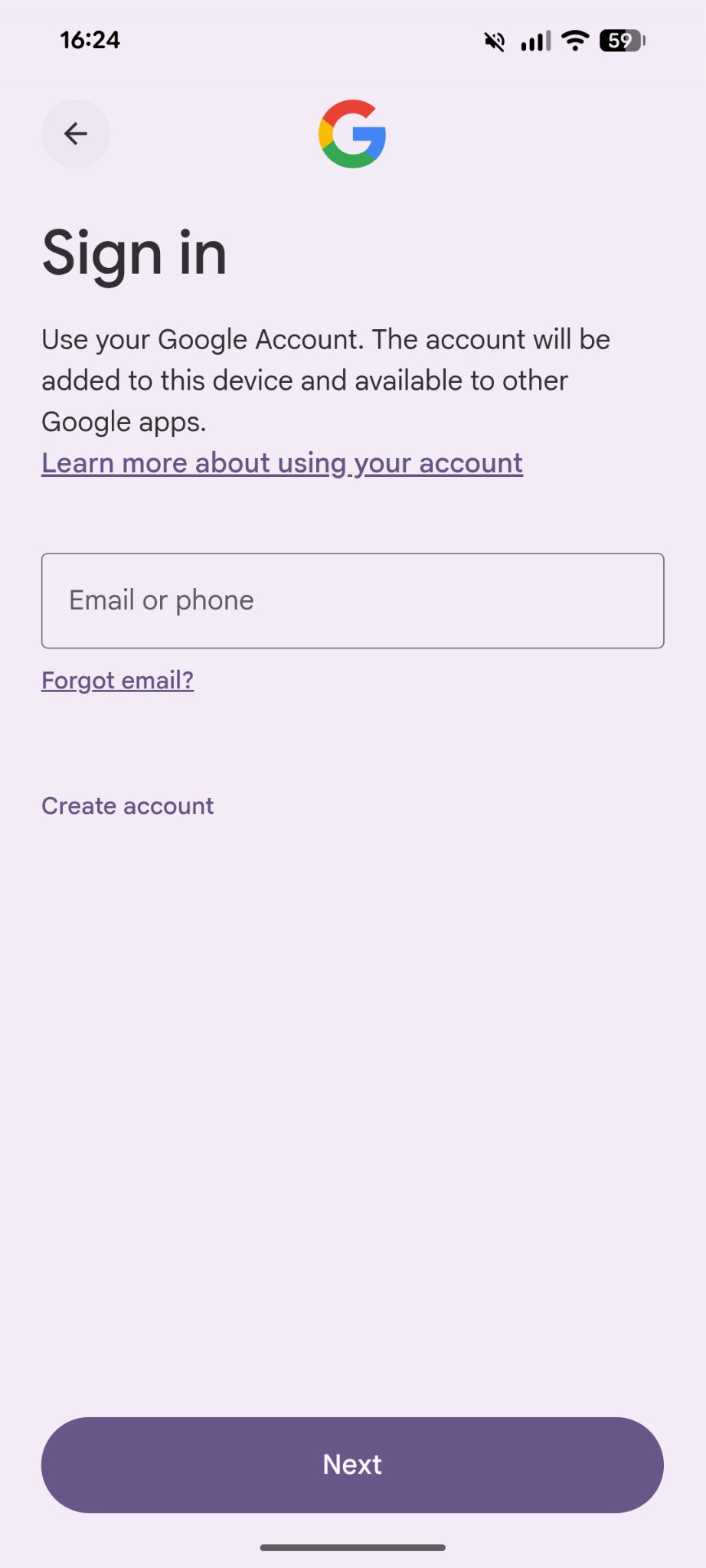
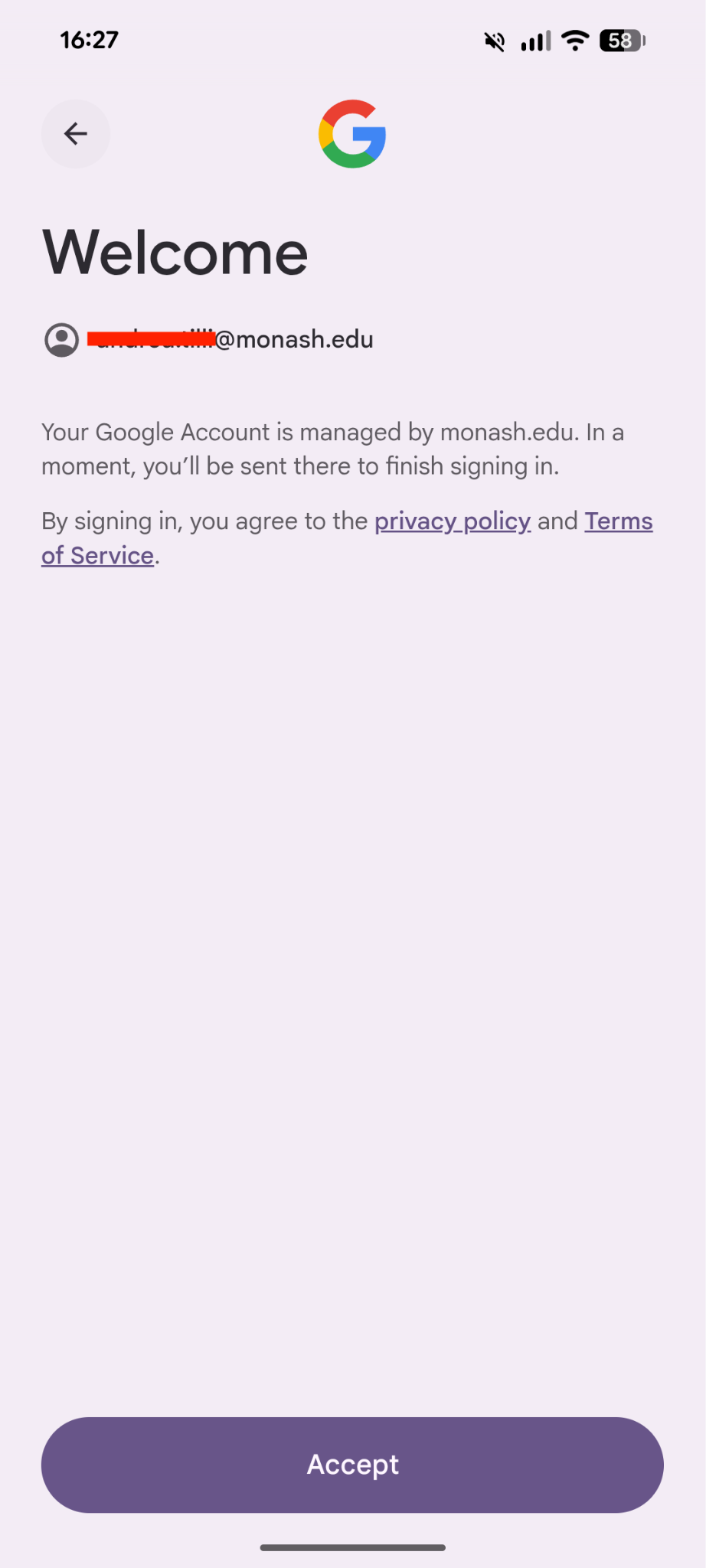
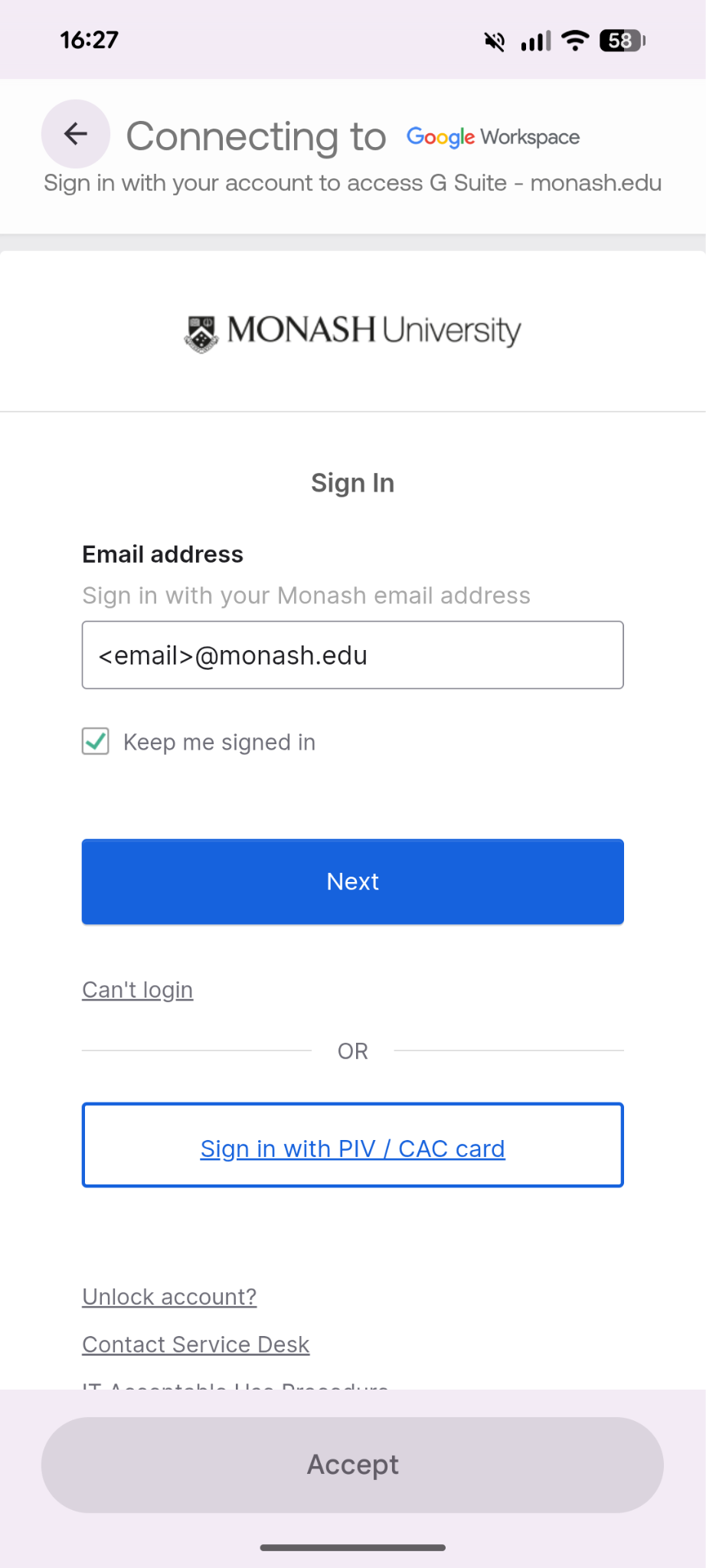
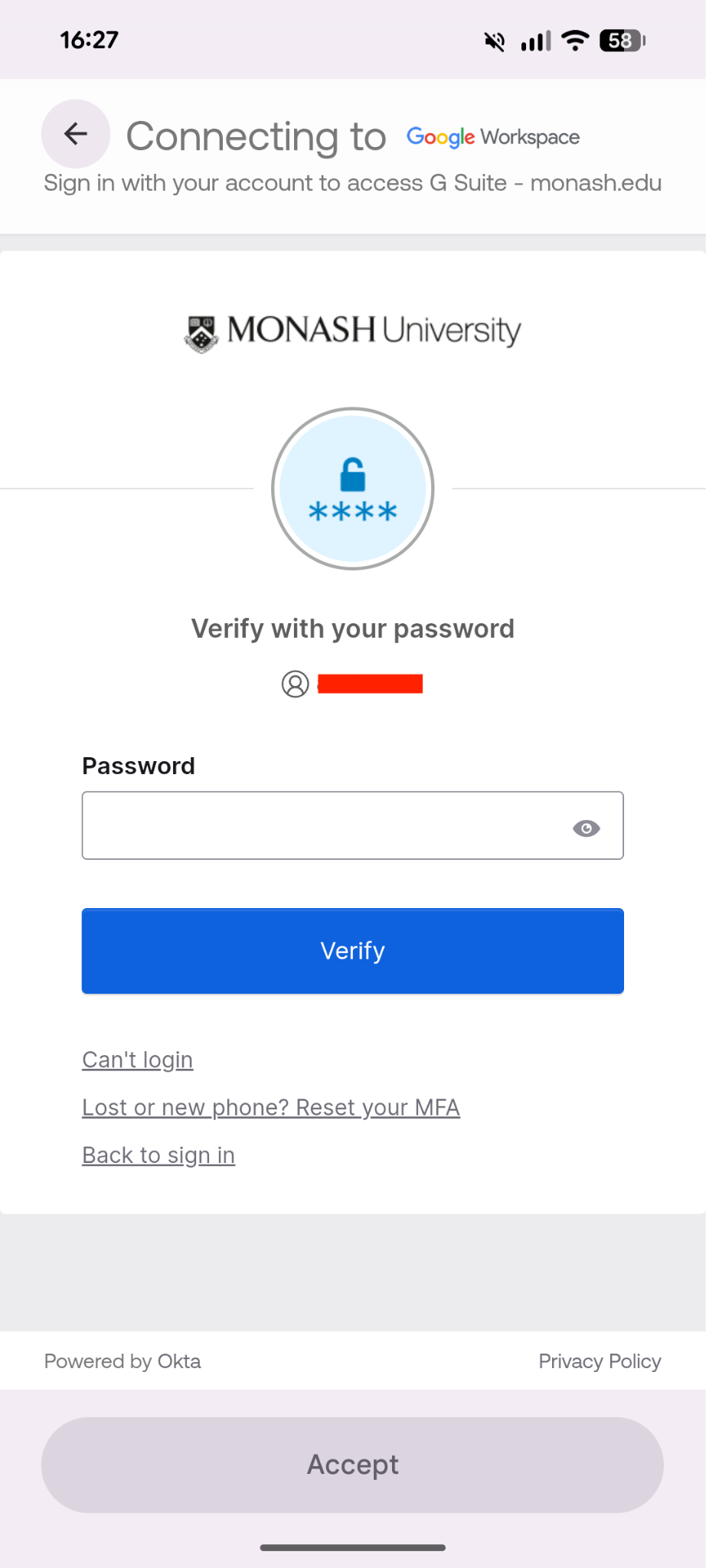
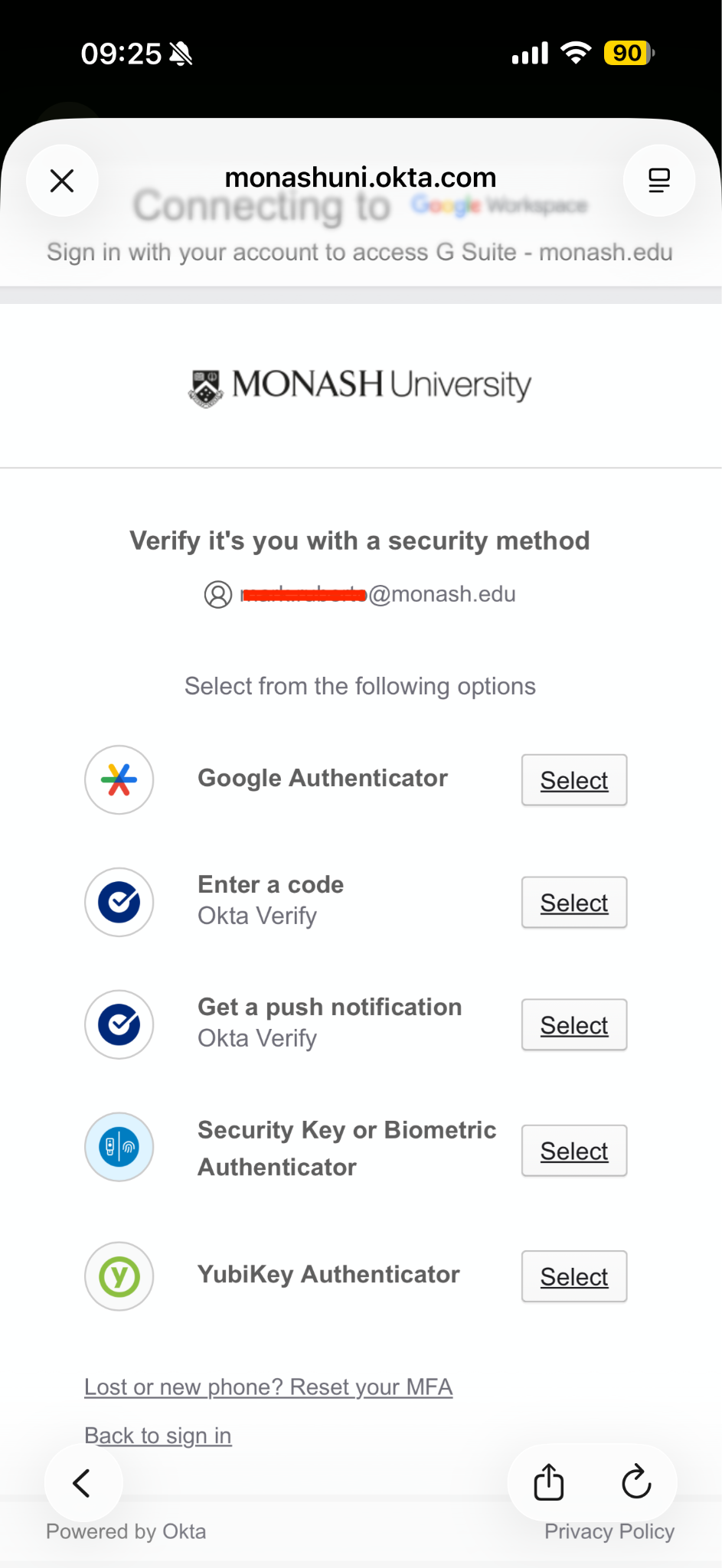
- Select your preferred Okta verification method and follow the steps to authenticate.
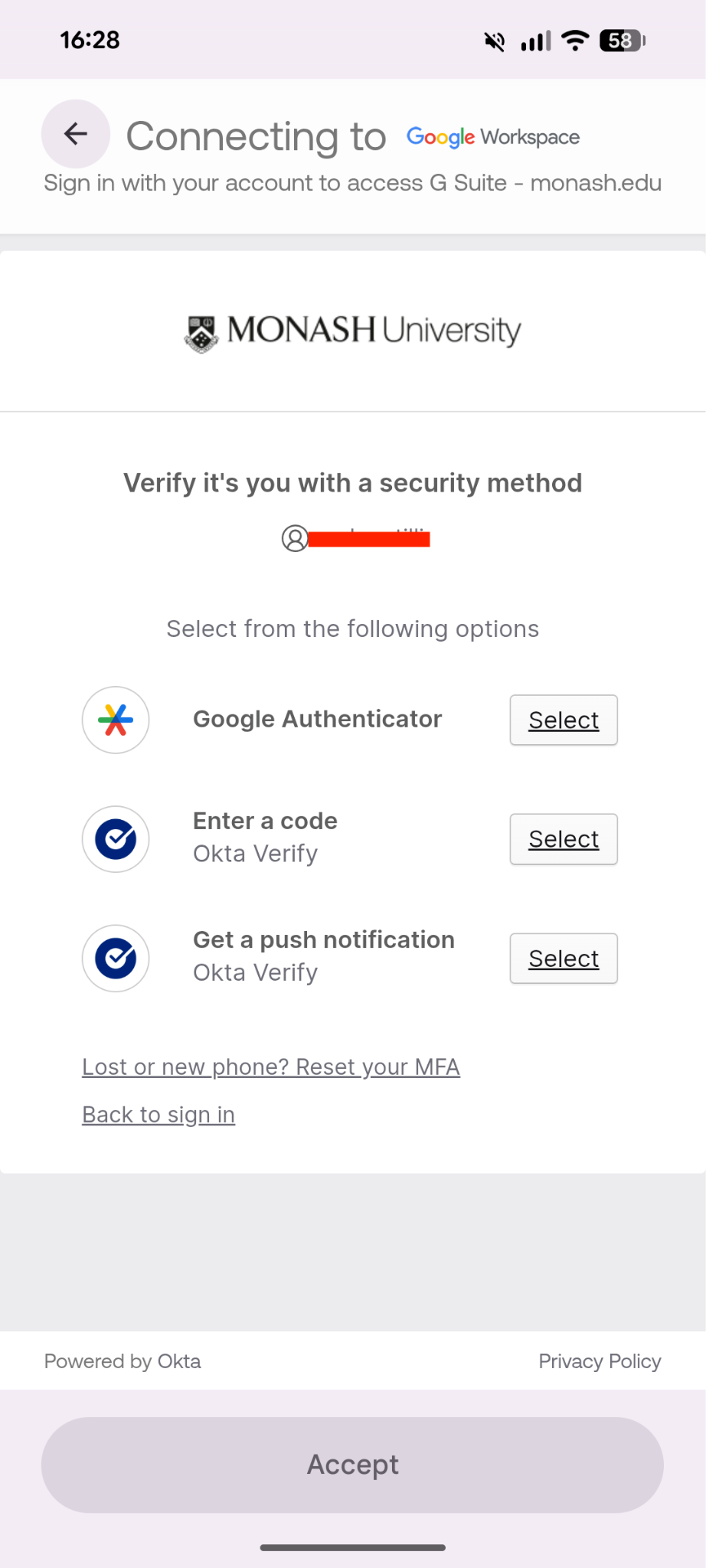
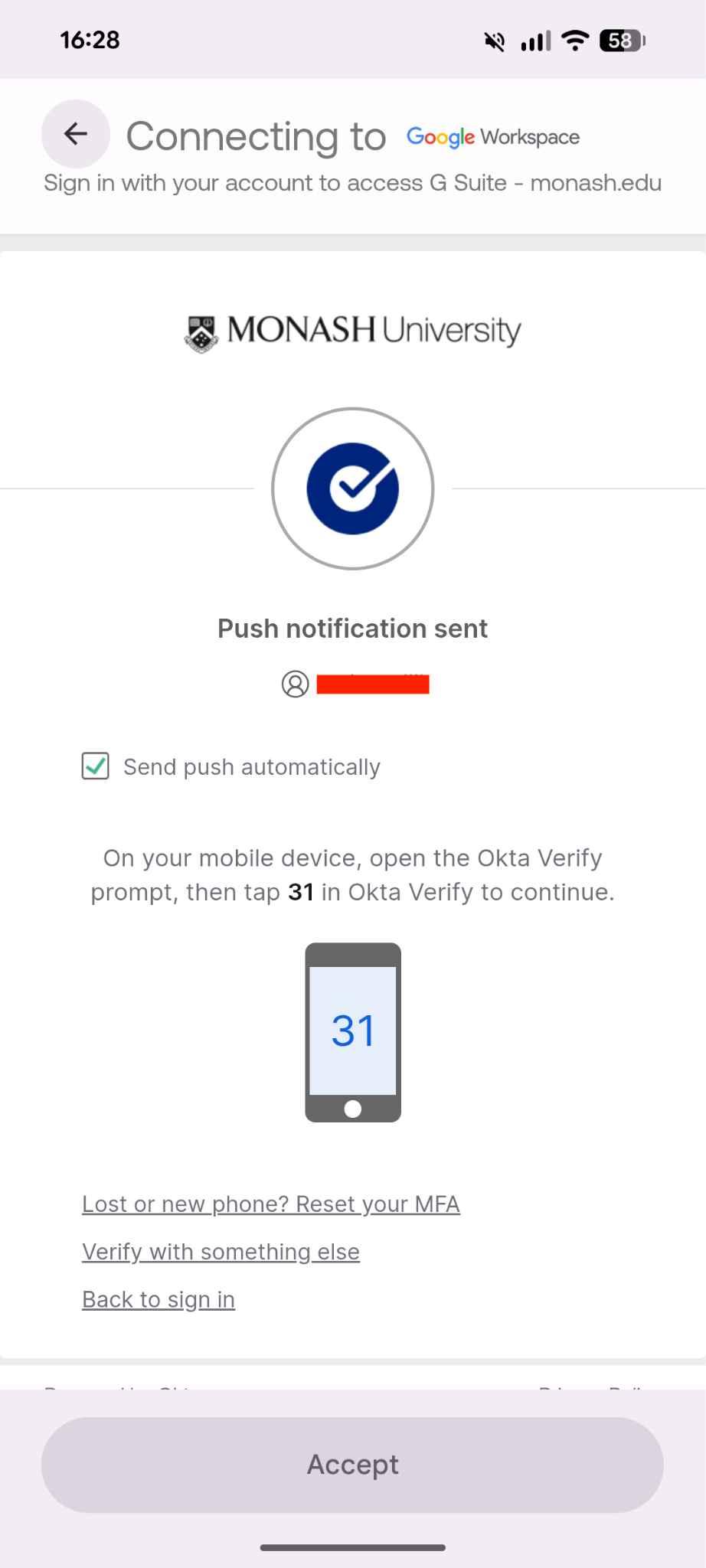
If you select Get a push notification, you’ll need to switch to Okta Verify and tap the same number that was in the app.
Your Monash account is now listed under the Passwords, passkeys and accounts section on your smartphone.
For the best experience, you can get the Official Google Apps and use them on your mobile.
- Go to Settings > Apps > Contacts > Contacts Accounts > Add Account and select Google.
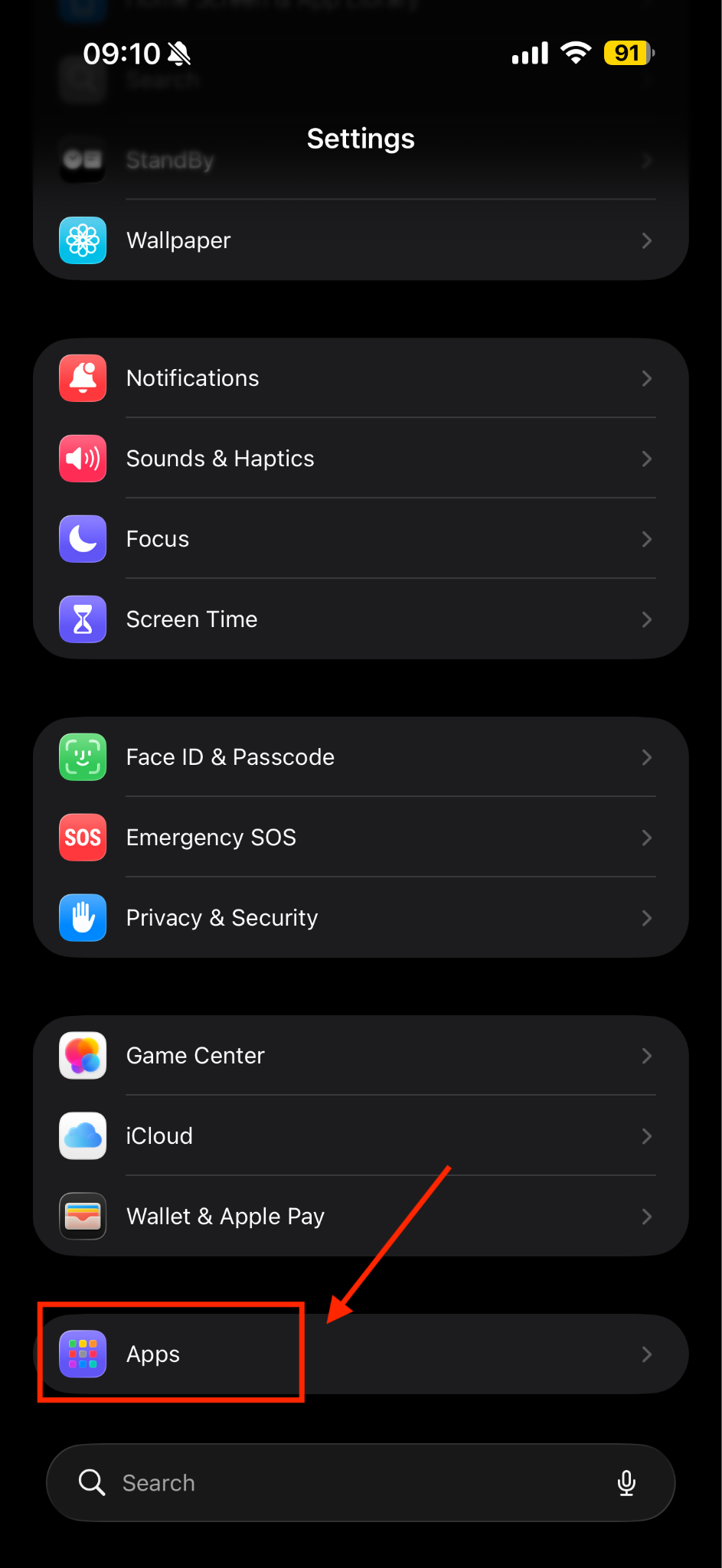
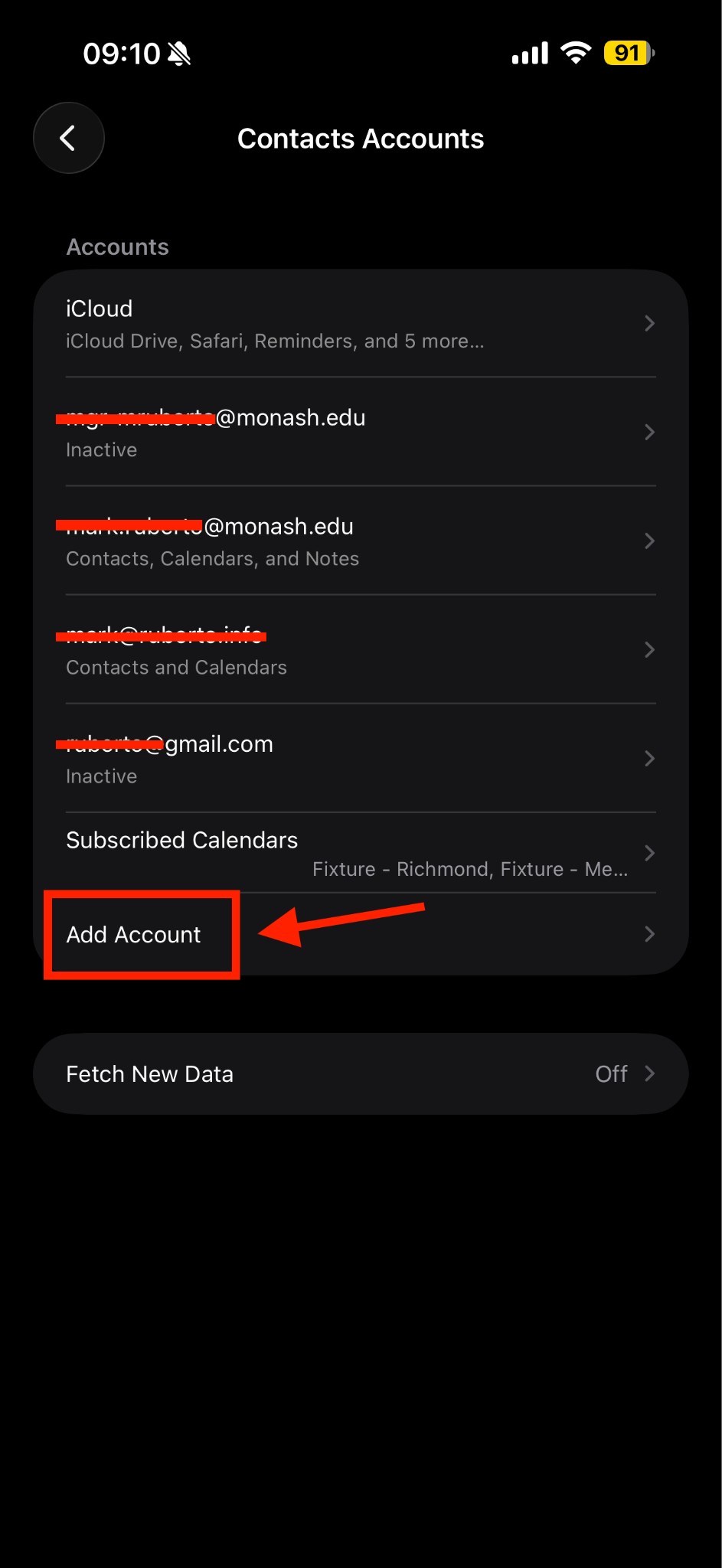
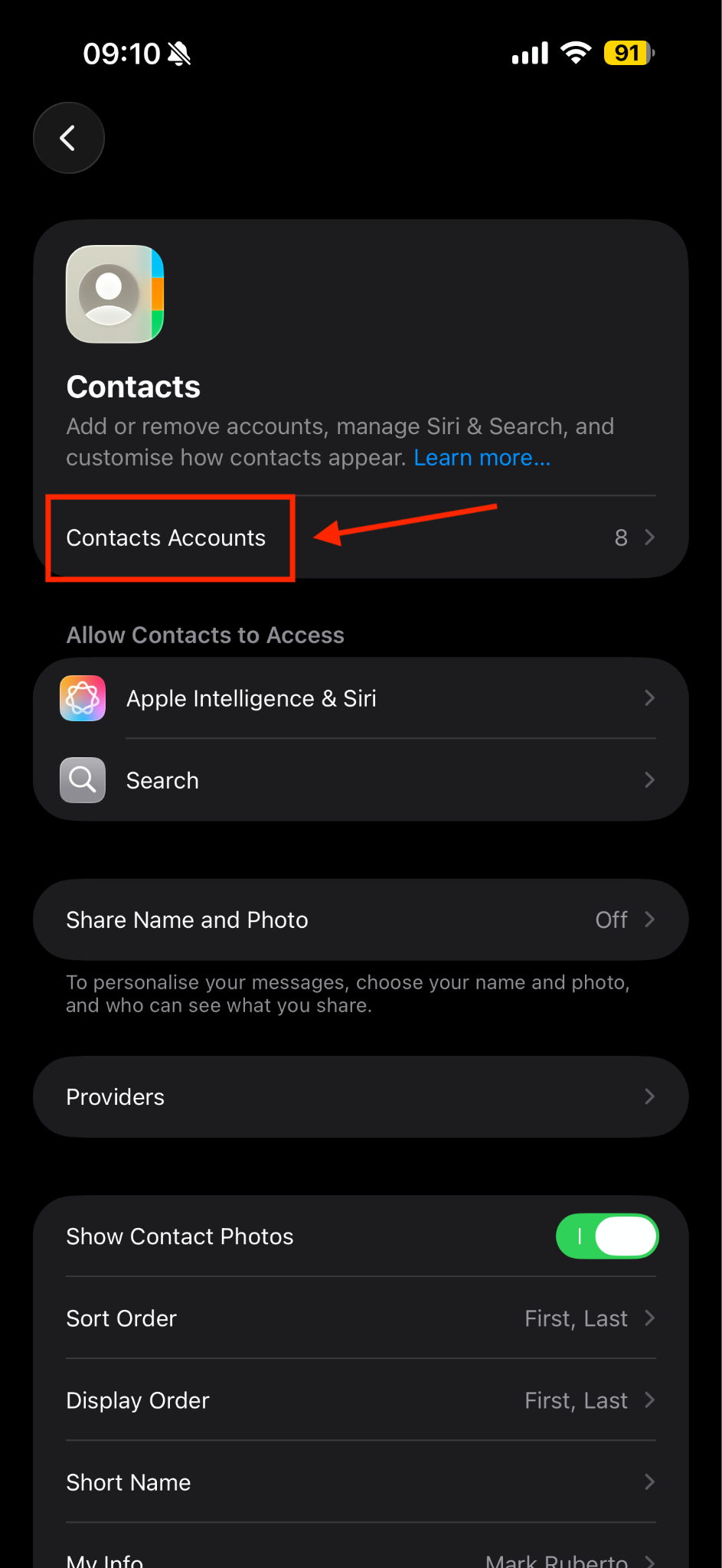
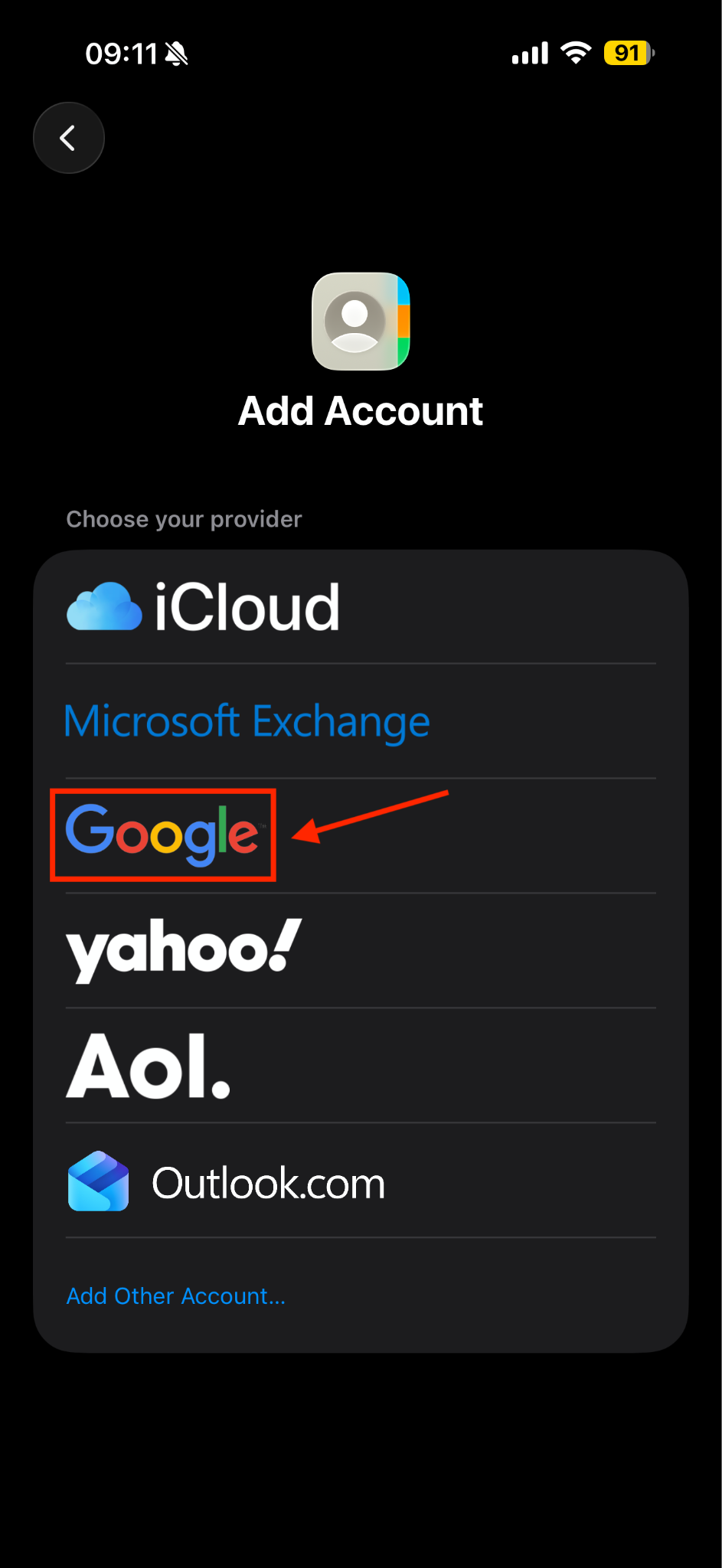
- Enter your Monash email address and tap Next, then enter your password and tap Next.
Your email address needs to be in one of the following formats:
- Staff: firstname.lastname@monash.edu
- Student: abcd00123@student.monash.edu
- Affiliate: firstname.lastname@hudson.org.au
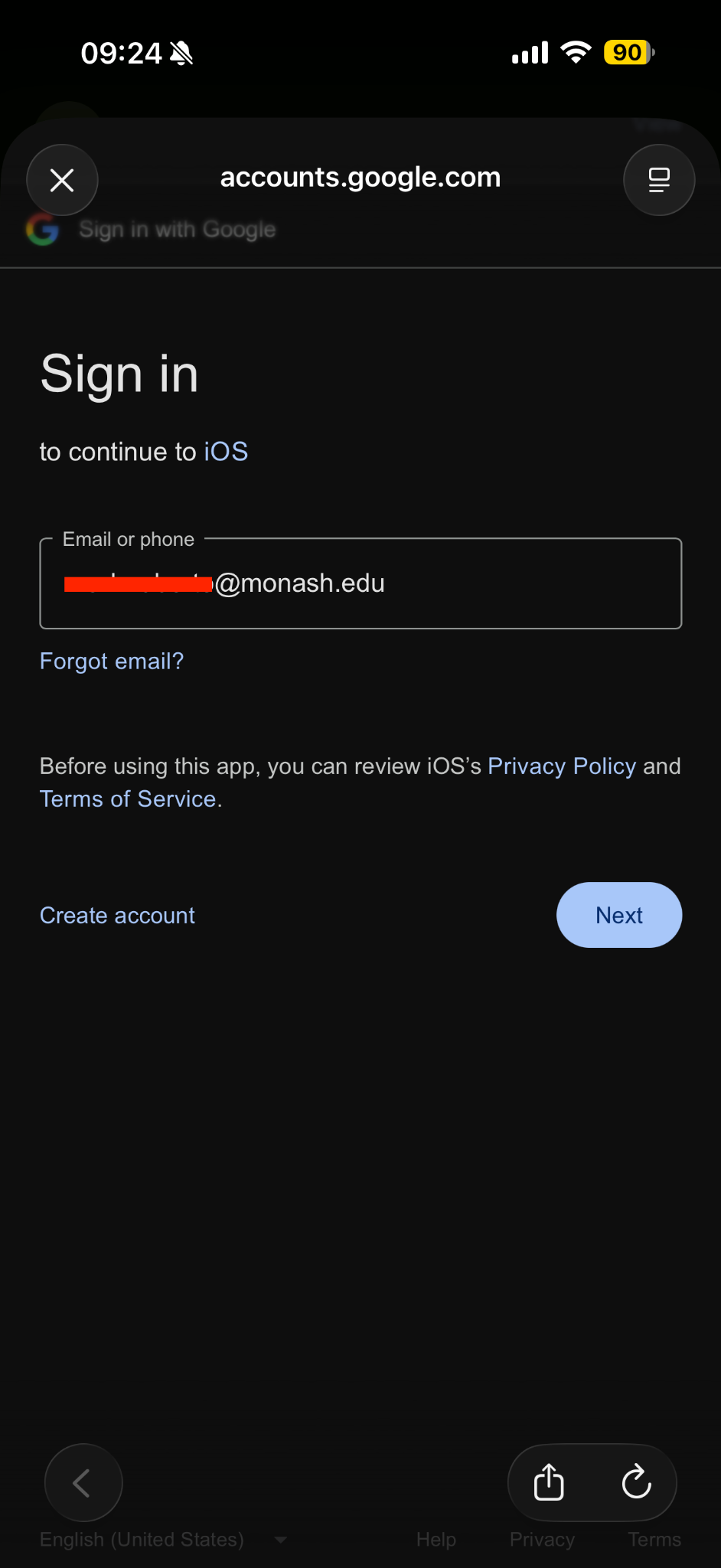
- You’ll be redirected to Okta to sign in with your Monash email and password.
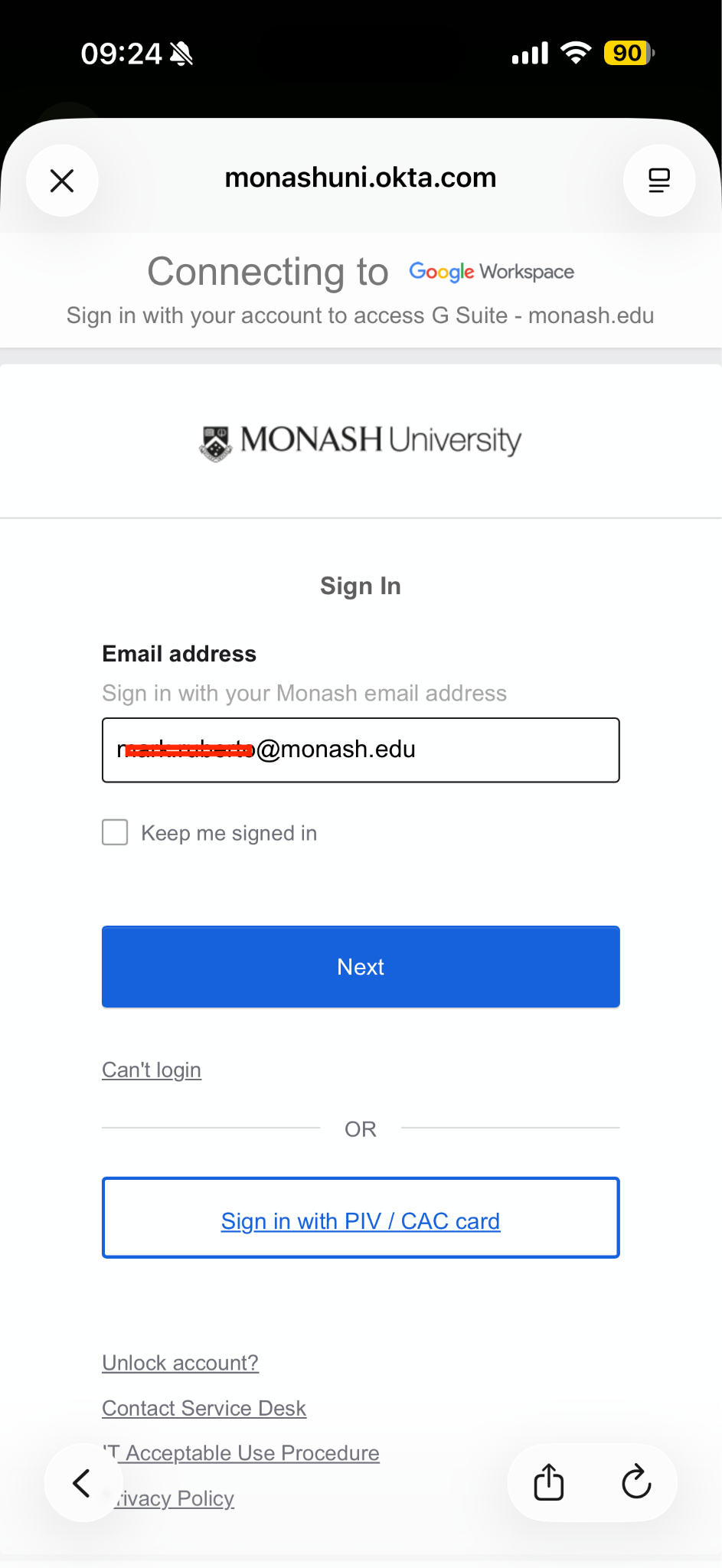
- Select your preferred Okta verification method and follow the process for verification.
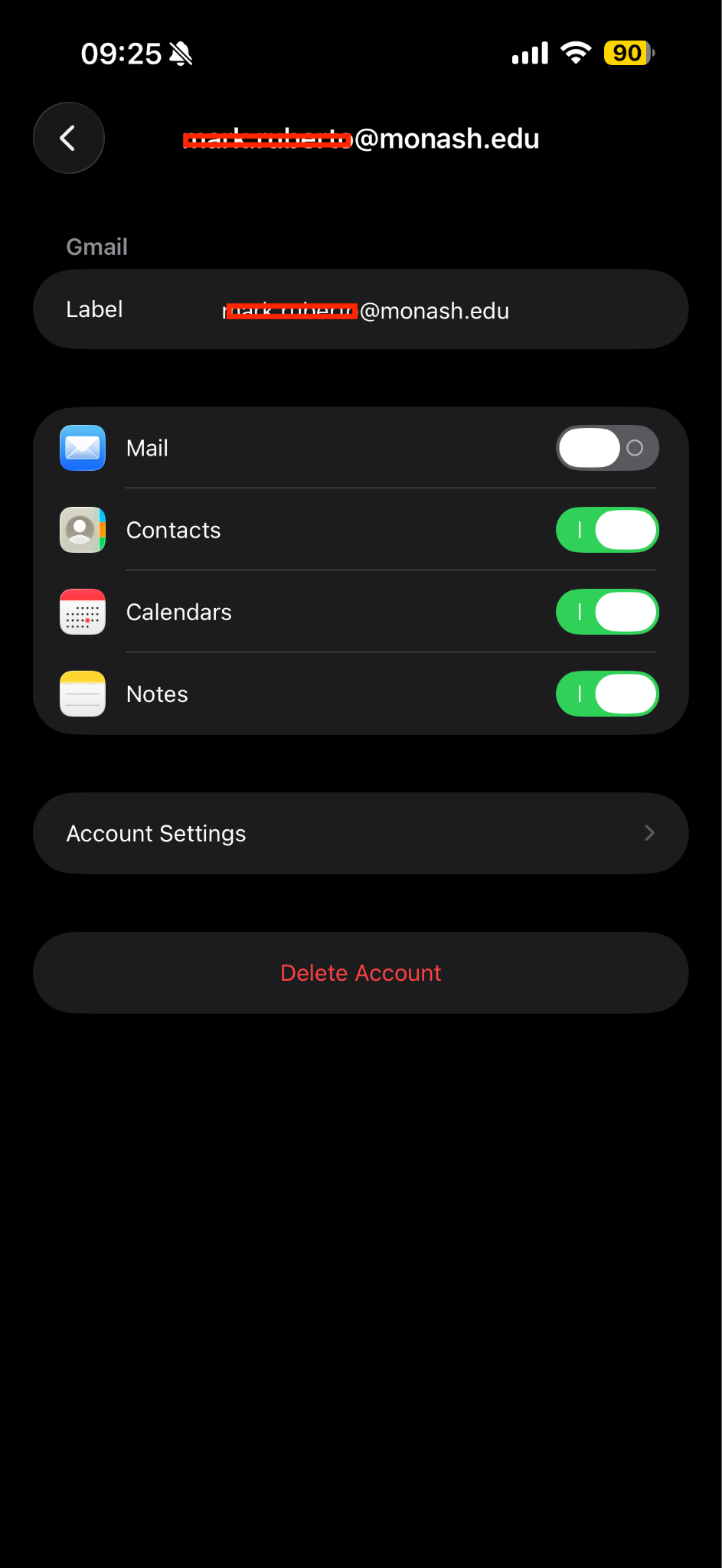
- Select whether you’d like to synchronise your email, primary calendar, contacts and notes. Then, tap Save.
Sync your device with multiple Google calendars
If you use multiple Google calendars, follow the instructions below to sync the additional calendars to your device.
- Visit the following page in the browser on your mobile device:
- Log in with your Monash email address and password
- Click Send Push, then switch to the Okta Verify app and click Yes, It's Me
- Select the calendars you want to sync, then click Save. The selected calendars will be displayed on your device the next time you sync.