Printing for guests
Printing for guests
If you’re a guest or visitor to the University, you can print from your personal computer to multi-function printers in our libraries. These printers can also be used to copy and scan to email.
To pay for printing or copying, you’ll need a card:
- University library members can use their new library membership card.
- Guests can get a Library Member Card which provides access to library services and printing.
Get a Library Member Card
If you’re a visitor at the University (you’re not a current student, staff member or library member), you can get a Library Membership Card. All you need to do is complete the Library Registration Membership form (select Visitor) and collect a Library Member Card at any library front desk.
A Library Member Card is free of charge, with a minimum top-up amount of $5 for printing and copying.To add funds to your Library Member Card, follow the instructions to add credit to your M-Pass. Add only what you need as we can’t refund any unused funds on your card.
You can re-use this card, so don't throw it away. Your credit will expire after 12 months of inactivity.
Register for printing
Before you can use the library’s multifunction printers, you’ll need to register your details on our web print system. You’ll only need to do this once. Here’s how:
- Go to Guest MyPrint.
- Click on Alumni and Guests – Register Here.
- Complete the form and click Register.
Link your Library Member Card to your account
You’ll need to link (associate) your Library Member Card to your PaperCut account (you only need to do this once).
- Find your nearest printer and tap your Library Member Card on the card reader. The touch screen will display: Unknown card. Do you wish to associate your card with your user account? PressYes.
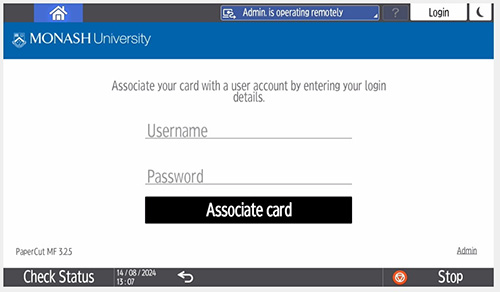
- Log in as a guest by entering the username and password you created, then press OK to confirm.
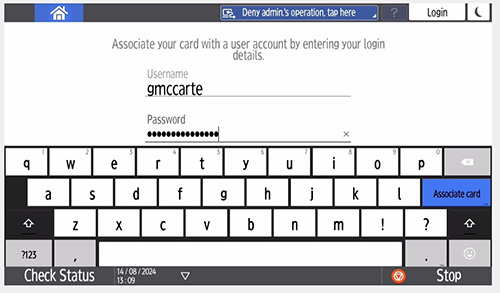
- Press OK to complete the process.
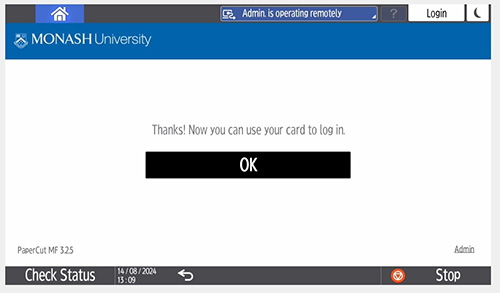
If you need help with any of these steps, please visit a library front desk and our staff will be happy to assist you.
Print, scan or copy
Once registered, here’s how to print from your personal computer or laptop:
- Install and use Mobility Print on any personal computer.
- After sending your print job, print it by tapping your card on the reader and following the prompts to print your documents.
Printing costs
Multi-functional printers are available on campus in libraries, and in or near student computer labs.
If you're printing slides from PowerPoint, choose Handouts for the layout – not Slides. You can fit up to nine slides on one page, saving paper and money.
Standard printing charges
| Print item | Cost ($) |
|---|---|
| A4 B&W single-sided | 0.130 |
| A4 colour single-sided | 0.340 |
| A3 B&W single-sided | 0.285 |
| A3 colour single-sided | 0.675 |