
Setting up multi-factor authentication (MFA)
Setting up multi-factor authentication (MFA)
You need to set up multi-factor authentication (MFA) to log into your Monash account. Once you’ve set up MFA, you’ll use a password (first factor) and Okta Verify, Google Authenticator or a YubiKey (second factor) to log in.

Why MFA is important
Verifying your identity with more than one factor gives you extra security. If someone else gets your password, MFA’s second factor makes it harder for them to gain access to your personal data and steal your University identity.
Even if you think you have no private information in your account, you probably do because some University systems maintain personal details. These could include your:
- home address and phone number
- bank details
- medical record
- emergency contact information
- academic results.
How to secure account with MFA
We strongly recommend that you install Okta Verify for MFA on your smartphone. You can also install Google Authenticator as an alternative, preferably on another smartphone. If you can’t install either app – or you don’t have a smartphone, you can request a YubiKey (USB device) when you activate your Monash account. For step-by-step instructions for each of these three methods, go to how to set up MFA.
Once you’re registered for MFA, you’ll use it to verify your identity whenever you log into your Monash account from a new device, web browser or country. For details, go to using MFA.
If you’re in China, you’ll need to follow the steps on how to set up MFA to log in from China.
If you’re a staff member with a custom account, go to how to set up MFA and log into a custom account.
| Okta Verify (Strongly recommended) | Google Authenticator | YubiKey | |
|---|---|---|---|
| What’s required |
|
|
|
| How it works |
Accept a push notification in the app or Type in a six-digit code generated by the app when offline | Type in a six-digit code generated by the app | Plug in the YubiKey to a USB port and press the button on it |
| Supports push notifications | Yes | No | No |
| Mobile device compatible | Yes | Yes | No |
| Available offline | Yes | Yes | Yes |
| Works with VPN | Yes | Yes | Yes |
| Can be installed on more than one device | No (but Google Authenticator can be used as a backup factor) | Yes | N/A |
How to set up MFA
You'll be prompted to set up MFA when you activate your Monash account.
You can set up Okta Verify for MFA by following the prompts when you activate your Monash account for the first time. If you later lose access to your account and need to set up MFA again without backup codes, follow the steps below.


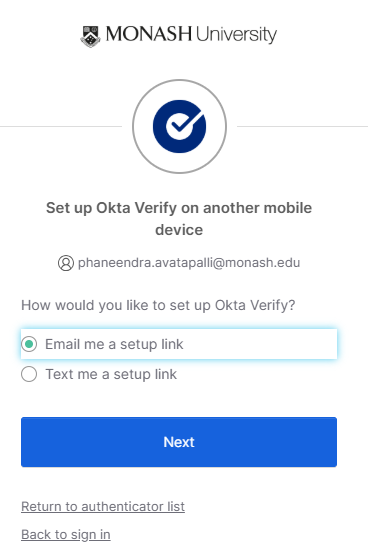
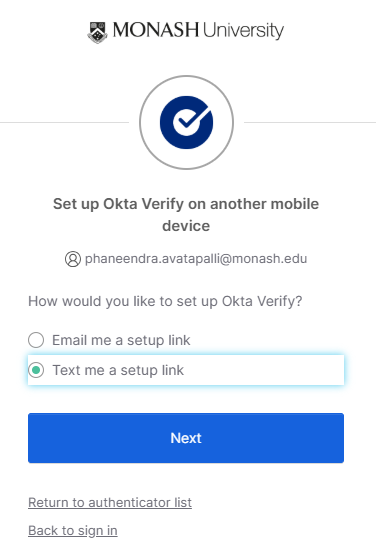
You can’t set up Google Authenticator – only Okta Verify – for MFA when you activate your Monash account for the first time. But, if you need to set up MFA again later or can’t install Okta Verify, you can follow the steps for Google Authenticator below.
If you haven’t already, you need to install the Google Authenticator app on your smartphone:
To continue with your MFA registration:
- Go to the Identity portal and click I can’t install Okta Verify.

- Select Apple or Google/Android then click I already have Google Authenticator.

If you requested a YubiKey while activating your Monash account, we’ll either mail it to you or arrange for you to pick it up on campus. Make sure to always keep your YubiKey with you and in a safe place. If you lose it, you can get a replacement for $55.
Once you register for MFA with a YubiKey, you can no longer use Okta Verify or Google Authenticator for MFA. If you later want to switch from a YubiKey to one of these apps, you’ll need to get help from your local Service Desk.
We’ll email you instructions for setting up your YubiKey. Or you can follow the steps below.
- Go to the Student Portal or Staff Portal and enter your Monash email address and click Next.
- Enter your password and click Sign In.
- Insert your YubiKey into the USB port of the laptop or computer. If your YubiKey is a USB-A device, press and hold its gold disc (‘Y’ button) to generate the verification code (which will display as black dots in the rectangular box). If your YubiKey is a USB-C device, press and hold both of its buttons.

- Your MFA registration with YubiKey is now complete. For details, go to how to log in with MFA.
Get your MFA backup codes
If you’re locked out of your account because your smartphone is lost, damaged or replaced, or if you’ve accidentally deleted the Okta Verify app or Google Authenticator app, you can use a backup code to reset your MFA and get back into your account once you’ve installed the app.
For step-by-step instructions, see how to get your backup codes.
Got a new smartphone?
Find out how to set up MFA on a new smartphone.
No need to do anything if you change your SIM card, mobile number or mobile provider.
Uninstalled Okta Verify or Google Authenticator
If you’ve uninstalled the Okta Verify or Google Authenticator app from your smartphone, you won’t be able to log into your Monash account.
If you’ve got backup codes, you can use one to reset your MFA to get back into your account. If not, get help by phoning your local Service Desk – don’t email from a non-Monash address.