
Using Zoom AI Companion as a Monash student
Zoom AI Companion is an opt-in tool that captures chat and audio in meetings to produce summaries, transcripts and action items. It can help you capture key concepts in a study group, summarise a project meeting or track agreed actions before an assessment is due.
Using the AI Companion in meetings with other students requires thoughtful consideration. What it captures affects everyone in the meeting, not just the person who turns it on. When it is on, you should treat the meeting as a recorded learning space and participate in line with the Student Code of Conduct.
The meeting host controls whether AI Companion is enabled, how it is used and who receives the outputs. With other students, you or a peer may host. Even if you're not hosting, you can ask for it to be turned on or off at any point, and you don’t have to give a reason.
This guidance adds to the Using Zoom AI Companion eSolutions page and applies to any meeting with other students. We’re working on guidelines for students to use Zoom AI with educators – we’ll have updates on this soon.
Work out whether it's the right tool for the meeting
AI Companion is generally suitable for study groups, group assessment meetings, project planning and peer-led revision.
Do not use Zoom AI Companion for:
- any meeting where someone hasn’t agreed
- conversations involving personal information, including health, family, finances, mental health, or wellbeing
- discussions about a student who isn’t present
- conversations about concerns, complaints, conflict or disputes
- meetings with staff unless the staff member has agreed
- meetings involving external international participants.
You also can’t use it to collect information about other students for research or evaluation.
If you are not sure whether it’s appropriate, don’t use it. You can always take notes another way.
University rules apply here, just as they do to any AI use, including the Acceptable Use Procedure and the AI Operations Policy and Procedure. The Student Code of Conduct and Monash’s expectations around respectful conduct also apply to how you use AI in meetings with your peers and what gets shared afterwards. See the Privacy information section in the eSolutions Zoom page.
Get everyone's agreement first
If you decide that Zoom AI Companion is the right tool for a meeting, you then need to ensure that other people in the meeting agree to its use. Do not switch AI Companion on without telling the other meeting participants. The in-meeting disclaimer is not enough on its own. Everyone needs to understand what will happen and have a genuine chance to give their consent or say no.
Before or at the start of the meeting, let the group know:
- that you would like to use Zoom AI Companion
- what it captures (audio and chat, not video or uploaded files)
- what it produces (a recording, transcript and summary), who can access these and how these are distributed
- how long records are kept in Zoom (default 30 days)
- that anyone can ask for it to be turned off at any time, without giving a reason.
If anyone is uncomfortable, don’t use it. Group dynamics can make it hard for people to speak up, especially for people who are new to the group, less confident in English or are worried about being seen as difficult – so by making it easy to say no, you ensure it’s not being used when someone doesn’t feel comfortable with it.
Keep it fair for everyone
AI Companion doesn’t work equally well for everyone and it doesn’t affect everyone the same way.
- Transcription accuracy varies. Recognition may be less accurate for some accents and for speakers of English as an additional language. Don’t treat the transcript as a word-for-word record of what someone said.
- Some people may participate less when AI is on. This is especially important if the discussion involves personal experience, uncertainty, developing ideas, or sensitive topics.
- Group dynamics matter. If you are the group leader, the person who organised the meeting, or someone other students tend to follow, your suggestion to use it may carry more weight than you realise.
- Equivalent participation matters. Anyone who doesn’t want it used shouldn’t be excluded or disadvantaged. Use another way to capture notes or actions if needed.
Set it up so summaries come to you first
If you are hosting, set up your Zoom settings so outputs come to you only – not to all participants automatically. This gives you the chance to review and edit before anything is shared.
- Sign into the Zoom web portal and click Settings.
- Open the AI Companion tab.
- Under Meeting, turn on Meeting summary with AI Companion.
- Under Automatically share summary with, select Only me (meeting host).
- Click Save.
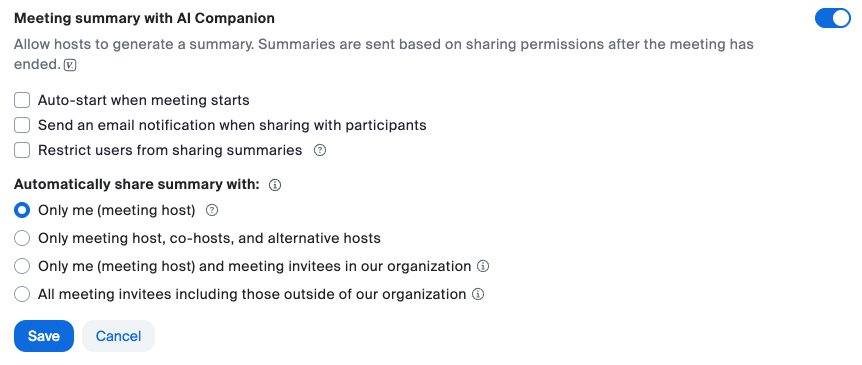
Once you have reviewed and edited the summary, share it through the channel your group already uses, such as a shared document, group chat or email. Do not just forward the Zoom link: Zoom-hosted summaries are deleted after 30 days by default, so the link may stop working.
Decide how your group will use it
You can use AI Companion just to capture records, without making it interactive during the meeting. This suits meetings that need to stay focused, or where you mainly want a record of decisions and actions and want to avoid distracting or inappropriate use.
Allow interaction only where the group agrees it will support learning, for example clarifying concepts or catching up on discussion. Otherwise, use AI Companion as a background tool to capture and summarise the session.
See additional Zoom AI Companion settings on the eSolutions Zoom page for setup instructions.
During the meeting
- Say clearly when AI Companion is switched on, and again when it's switched off. Don't rely on the on-screen icon alone.
- If anyone asks for it to be turned off, turn it off — no reason needed. Do the same if the conversation becomes personal, sensitive, off-topic, or about someone who isn't there. You can always turn it back on later if the group agrees.
Don't add third-party AI bots such as Otter.ai or Read.ai. Use only the AI Companion built into Monash Zoom.
NoteRemember: AI can make mistakes, and Monash does not control or check what AI Companion produces. You are responsible for what you share. |
Managing concerns and issues
Take any concern seriously and respond promptly. Offer to delete the records, correct an inaccurate summary or remove someone's contribution.
- If sensitive content was captured unintentionally, delete the affected recording, transcript and summary from Zoom. Account holders can immediately delete records with no recovery period – see the Privacy information section in the eSolutions Zoom page.
- If someone shared a summary outside the group without permission, ask them to remove it. If it involves personal information, or you’re not sure how to handle it, contact Monash Connect for further guidance.
If in doubt, delete the records and ask for advice before sharing anything further.