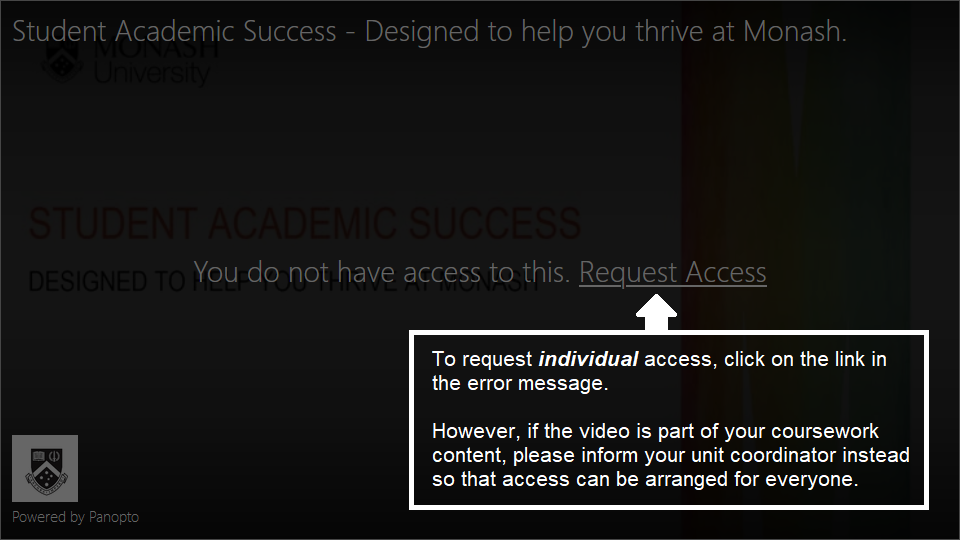
Searching all Panopto videos
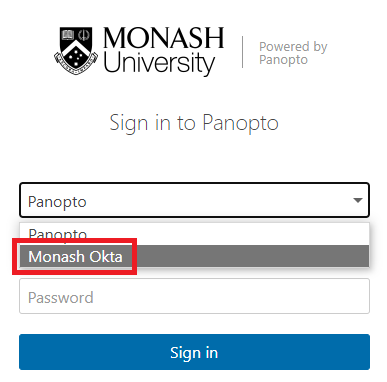
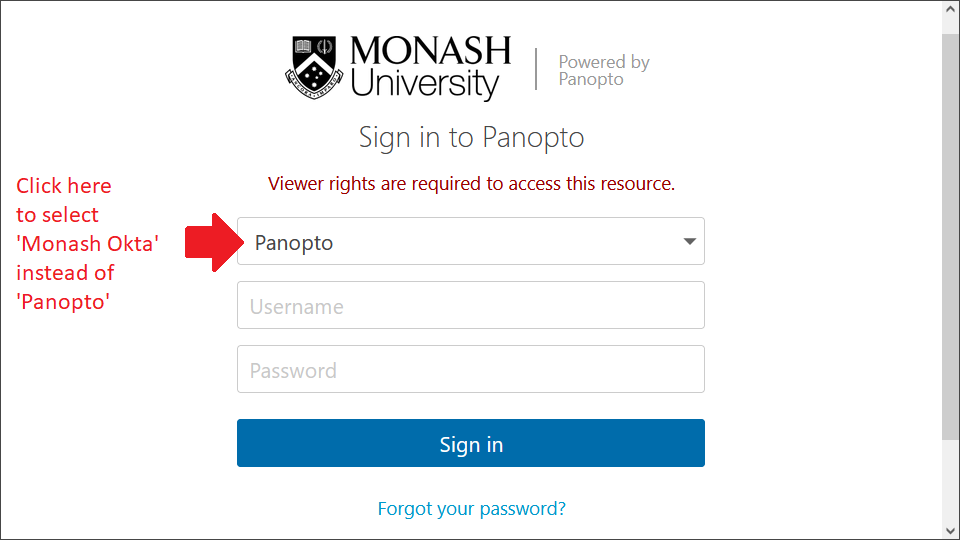
If you log into the Monash Panopto website using your Okta account, you will see a search bar at the top of the home page which allows you to search all of the videos you have access to in Panopto. This will search for keywords that appear in the video title, description, and content.
Searching within a Panopto video
You can also search for specific content within a specific video.
Accessing search
- To search in the full screen player, use the search bar on the left hand side of the screen where you see the words ‘Search this recording’

- To search videos in the embedded player, click on the small arrow at the bottom of the video to open the advanced features, then click the search icon. A search bar with the words ‘Search this video’ will appear.

Search results
Panopto will search for keywords that appear in the closed captions, notes, bookmarks and where the keyword appears on screen. Search results will show instances of the keyword, timestamped to that point in the video.
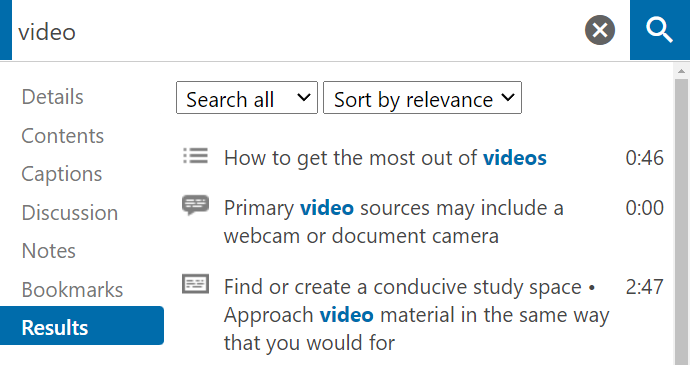
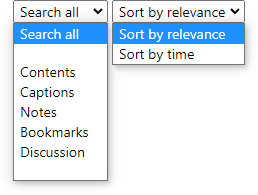
In the full screen player you can restrict the search results by choosing a source from the first drop-down box on the results panel. Using the second drop-down box you can Sort by time if you would prefer a chronological list of the results.
Note: The option to filter results is not available in the Embedded Player, so if you are viewing an embedded video click on the Watch in Panopto icon to open up the full Panopto player.