What to do before submitting your assessment in Moodle
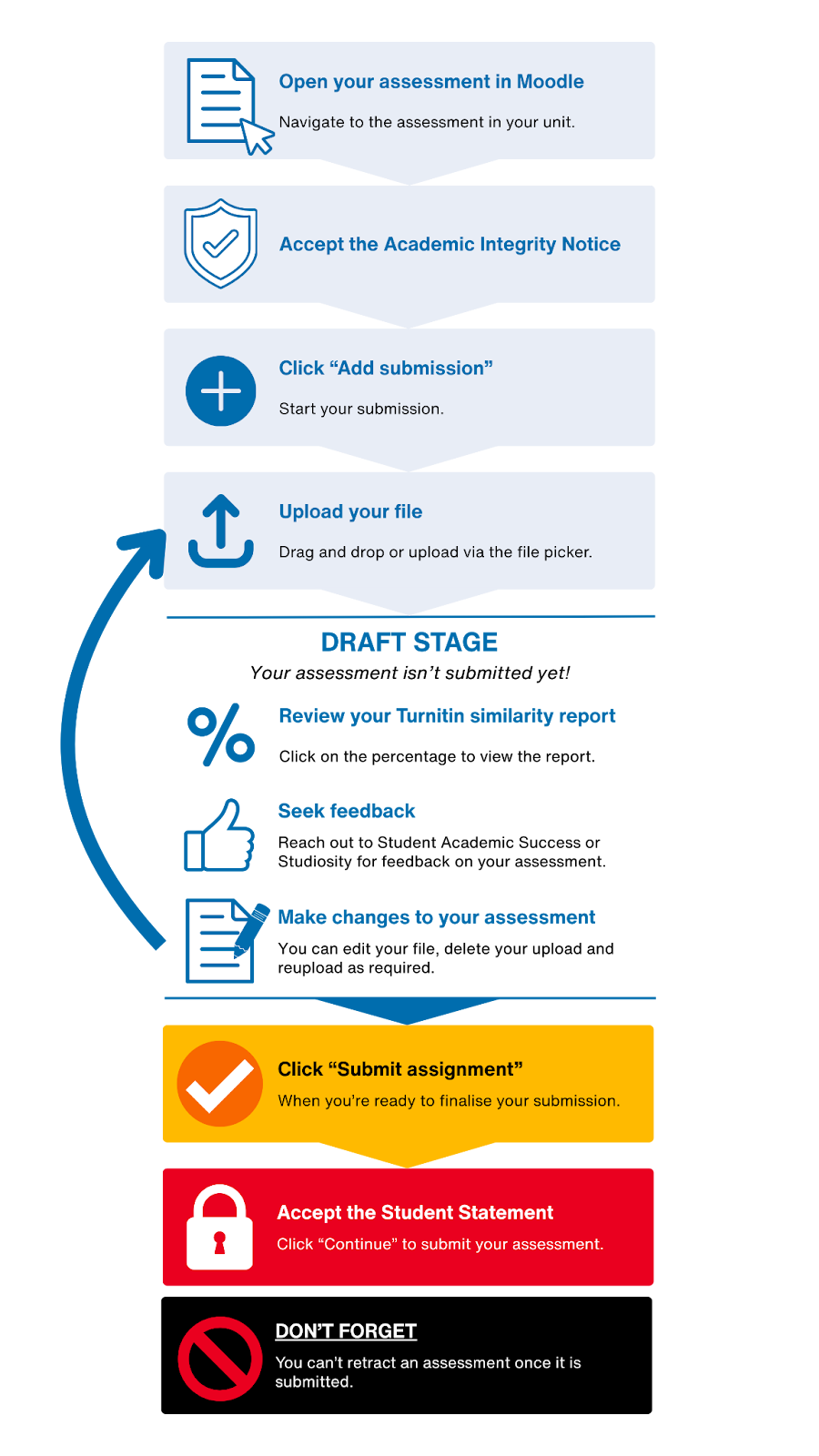
Check out the diagram for a quick overview or find step-by-step answers in the sections below.
Close

Check out the diagram for a quick overview or find step-by-step answers in the sections below.

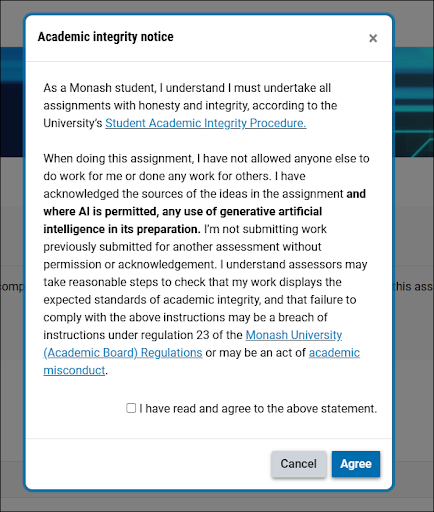
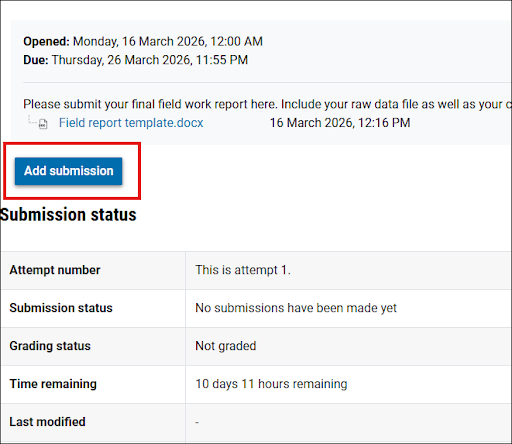
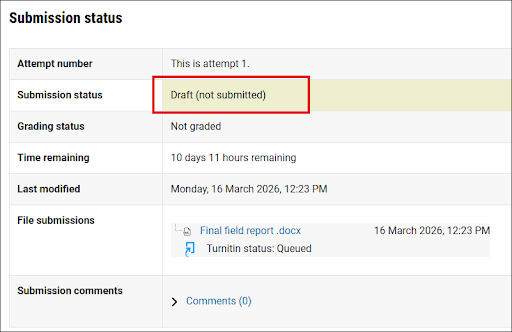
Uploading your file does not submit your assessment for grading.
Yes. This is possible while your assessment is still in draft.
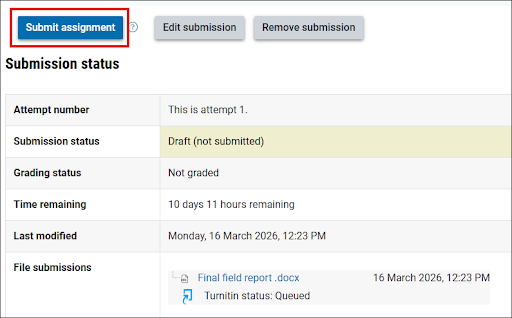
Your assessment is in draft when:
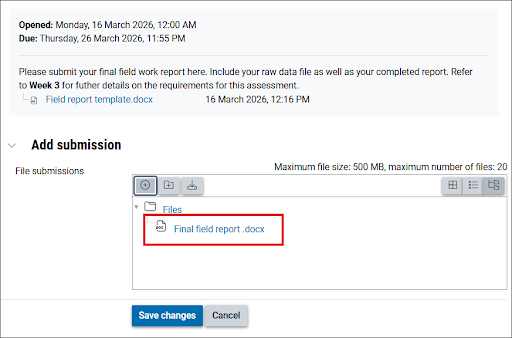
After you upload your file, your assessment page will look like this:
While your assessment is in draft, you can:
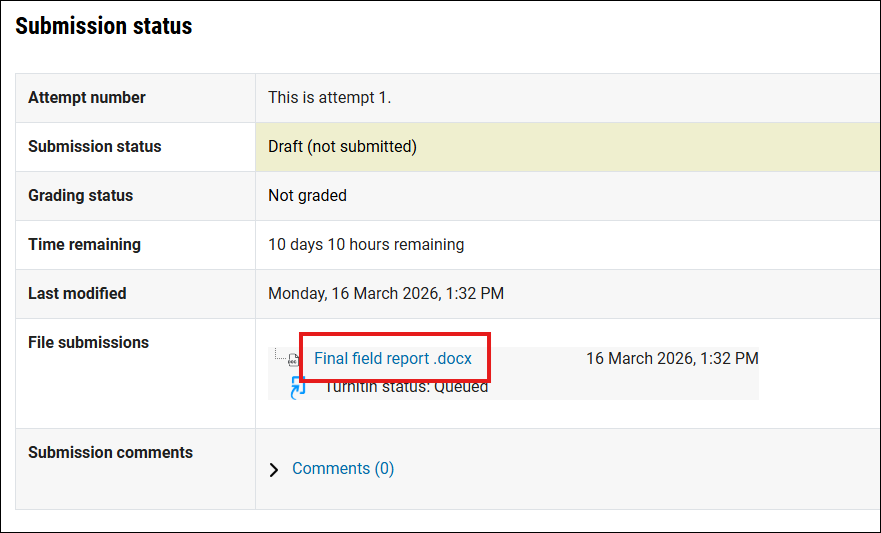
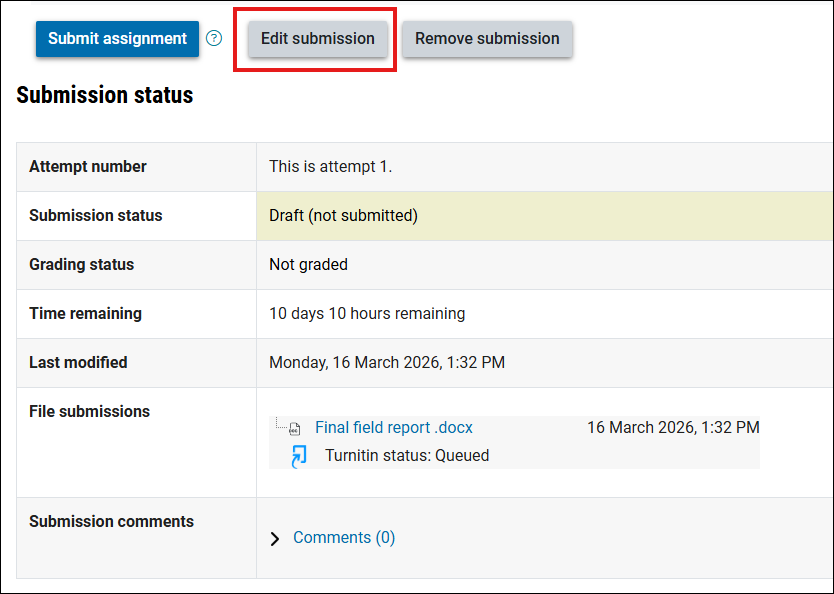
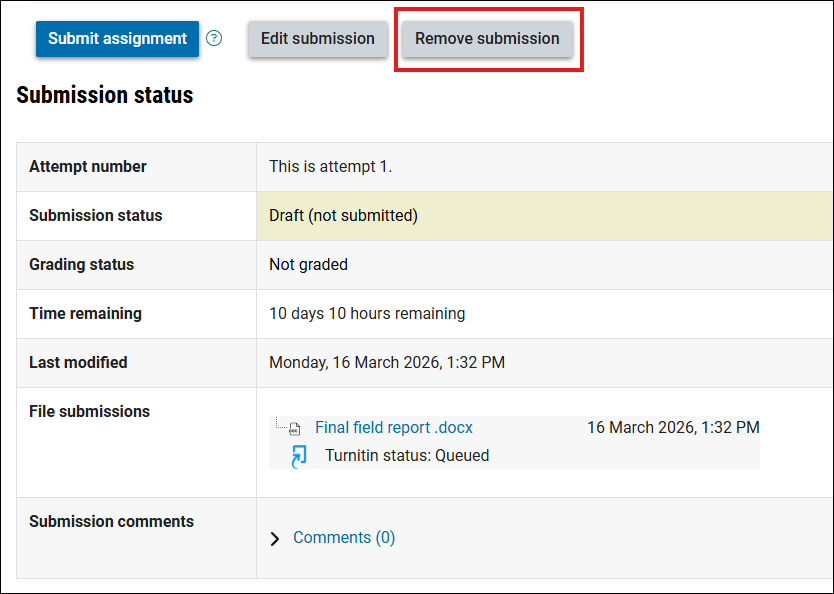

Your assessment will stay in draft unitl you select Submit assignment.
Tip: Upload early so you have time to review your report.
After you upload your assessment, Turnitin will create a report.
To open the report, select the similarity percentage below your Turnitin ID.
Before you select Submit assignment, check for the following:
Once you submit your assessment, you cannot make changes.
1. Select Submit assignment.
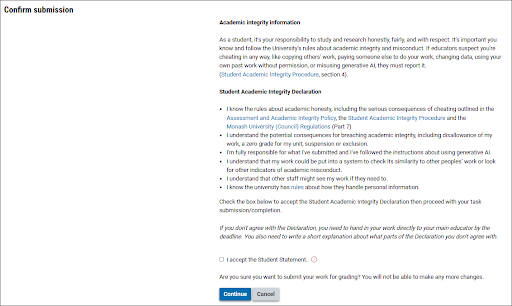
2. Read the Student Statement.
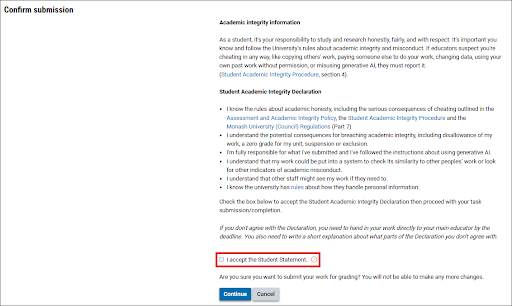
3. Select I accept the Student Statement.
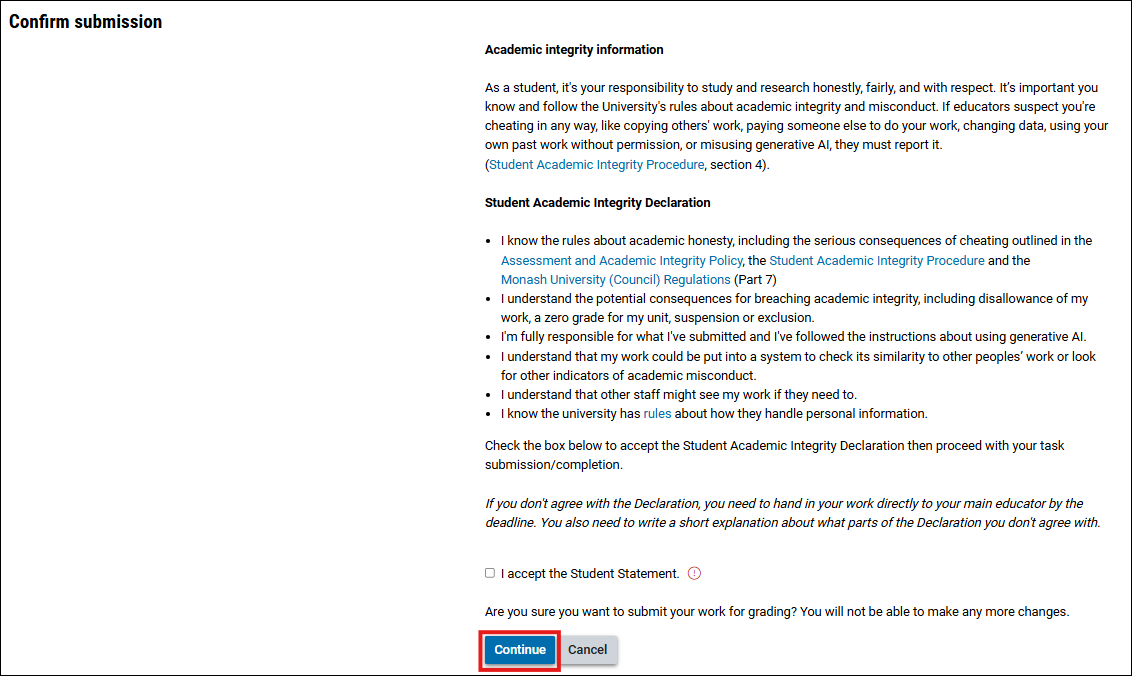
4. Select Continue.
Your submission status will change to Submitted for grading.
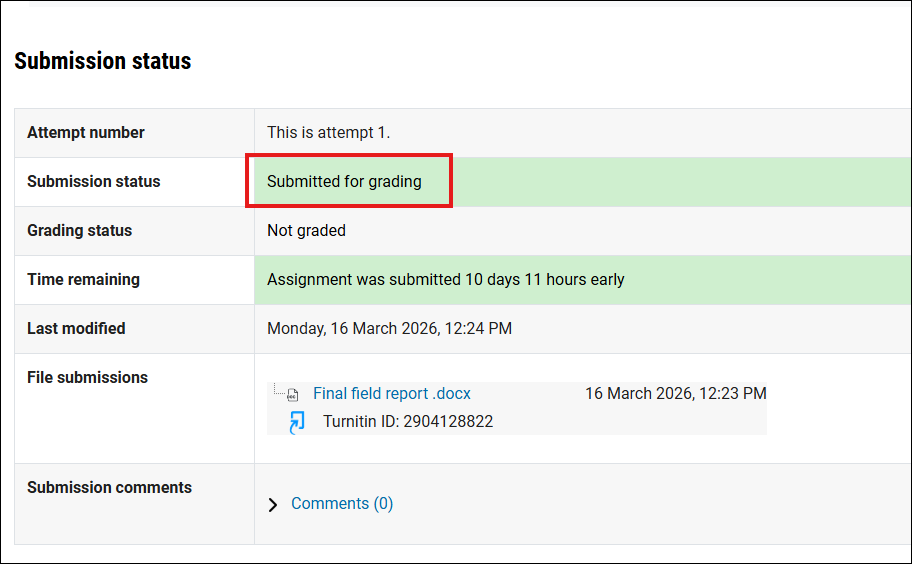
You will also receive an email confirming your submission.
Once you submit, you cannot make changes.
Once you have selected Submit, your assessment is final. This means that your assessment cannot be changed or withdrawn.
If you make a mistake during the upload, you should contact your educator via email and request the opportunity to have it reopened.
Submissions can be reopened in exceptional circumstances, but this is always at your educator's discretion.
This is why it is important to:
Yes.
After submitting: