
Moodle
What is Moodle?
Moodle is the online portal that you will use at Monash University to access online materials for all of your units. It is where you will find your weekly materials and information, links to your online classes, and also be able to read and post in your class forums, and submit your assignments.
 Tips for mastering Moodle
View
Tips for mastering Moodle
View

 | Explore and scroll It is important to explore each Moodle site in detail for each of your units, and always scroll down to the bottom of each page to ensure you have not missed anything important |
 | Access Moodle frequently Log into Moodle and start engaging with your units as soon as you get access to them at the start of semester. Then return to each unit frequently to complete tasks, prepare for upcoming classes, review past content, and check for updates and new materials where relevant. |
 | Make note of key dates All of your key dates and assessment deadlines for each unit are listed on Moodle. In addition to deadlines, there may be release dates where you will gain access to further information or be able to commence online quizzes and other tasks. Making note of these dates will help you keep on top of everything. |
 | Engage actively and submit early Moodle is an interactive learning platform, so the more proactive you are, the more you will get out of your experience at university. Make sure you complete all online activities, access additional resources, and take part in forum discussions. A good way of staying on top of everything is to get started as soon as possible and aim to complete and submit each task earlier than the deadline, that way you have extra time for any issues that may arise. |
 | Ask if you cannot find something There is a lot of information for each unit, so it can be easy to get lost in Moodle trying to find something specific. The easiest and quickest way to get help, is to ask by posting your question in the forums. The forums are also a good place to ask questions about your coursework material or assessed tasks. |
You can access Moodle by using the direct link below, or by using the navigation in your student portal.
In your portal, select Learning and Teaching and then select the Moodle tile.

NoteMoodle 3.9 (lms.monash.edu) is closing down on the 31st of August 2026. If it is a requirement of your course to have ongoing access to older units, your Faculty will arrange for it to be moved to the current Moodle site (learning.monash.edu). |
Downloading content from Moodle 3.9
View
If your unit is not actively required for your current course, but you wish to maintain copies of the unit content for your own records, please follow these steps.
Please note that as a past student, you will not have access to all unit content. Any shared assessment content such as quizzes will only be available at your teachers' discretion. Many interactives will not be available for download, so please check case-by-case.
Accessing resources
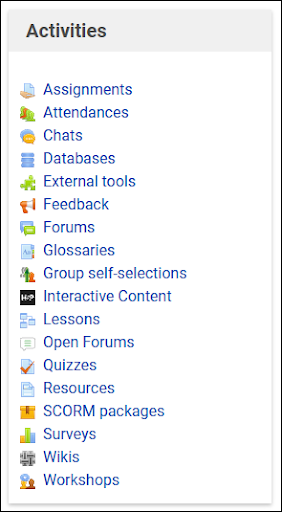 | To help you find your resources quickly, you will notice a block to the right of your units. The Activities block links you to all the resources of that type in the unit on the one page. You can see all activities such as assignments, all files/folders, and any others in the unit. |
Files and Folders
  | These can be downloaded as usual by clicking on the documents. |
Books
 |
Moodle Books can be downloaded as an ebook (.epub format) or printed, which will produce a version you can save to your computer.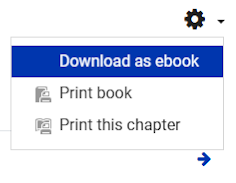 |
Pages
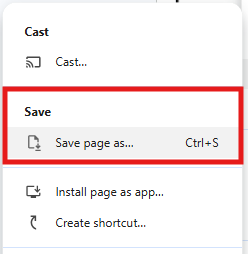 | For other Moodle pages you wish to save, please use the Save page option in your web browser. This will save an html version of the page to your local computer, which you can then open with your browser. You may have the option of saving pages as a PDF, depending on your browser. |
Wiki and FAQ
 |
Wikis and FAQs have a printer-friendly version, that you can download page by page. |
Videos and Interactives
   | This includes H5Ps, embedded videos, SCORM packages, and textbook-linked interactives, such as Pearson or Wiley. Download controls for these are decided by the teaching staff of the unit, or in some cases the publisher. In some cases they are not downloadable, but check case-by-case. |
Assessment materials
Assignments
You can download your assignment submissions from the assignment activity. The comments can then be saved from your browser. Rubrics can also be downloaded, saved, or printed.
Quiz
Quizzes can be printed via your web browser’s print function, if you have access to view them. This will include all the feedback you have received.
 Frequently Asked Questions
View
Frequently Asked Questions
View
Click on the tabs and topics below to view answers to the most Frequently Asked Questions about Moodle.
All of these questions have been submitted by Monash University students.
-
You can use the following links to access your Moodle account:
- Monash University Moodle
- the Moodle tile in my.monash.
See also:
-
Current students
Before the start of semester- You'll be able to log into most unit modules in the week before the start of semester.
- To view all available units, try selecting All My Units. Next semester's units may not show in the default view.
- If you're still having trouble, contact your unit coordinator, as they set the date for student access.
After the start of semester
- If you change your enrolment, allow up to 24 hours for the new unit to appear in Moodle.
After the end of semester
- Access Moodle from my.monash using the Moodle tile, or log in directly.
Access to unit modules
- All unit modules should be available no later than 5pm on the first day of the teaching period.
- If your unit isn't visible at this time, please contact the eSolutions Service Desk to check your unit has a site and to get access.
-
- Units will not show up in Moodle until orientation week of the teaching period you are enrolled in.
- If you don't see your units by orientation week, please contact Monash Connect for assistance. They can check your record to see if there is a reason the unit may not be showing up in Moodle.
- If you are experiencing technical issues accessing the Moodle platform, you can submit a request through the MyIT catalogue, or contact the eSolutions ServiceDesk.
-
Moodle is where you will access your coursework content and assessment tasks, so you will need to log in frequently so that you can access content and complete tasks.
Some people log in every day that they are studying for university, but it can vary depending on how your units are structured and the tasks that you need to complete, or the content that you need to access.
-
Moodle
This is where you will access all of your coursework content like assignment details, weekly topics and required reading. You will need to access this platform most frequently out of all of the platforms so that you can complete your coursework.Student Hub
This platform is for Monash Online students to manage administrative matters (such as enrolment and personal details) and to access study resources.student.monash
This is a collection of links to other platforms and services. It is a helpful portal to access all of Monash's systems so that you don't have to bookmark them yourself.WES
The Web Enrolment System (WES) is the administrative platform for enrolling in units. You will need to use WES periodically throughout your degree for a variety of administration tasks including enrolling, re-enrolling, viewing fee statements, accessing your official results, and other tasks relevant to your enrolment and final graduation.Allocate+
Allocate+ is the timetabling platform that Monash uses, where you will view and manage your personal class timetable. Allocate+ is used for classes for your units, and may also include scheduled final assessments (such as exams). You can view the timetables site for more information about how the system works and troubleshooting tips, as well as instructions and information about when to use Allocate+.The Monash Study App
This app is designed to make your life easier by bringing information from different Monash systems into one place. You can use it to view your timetable, get reminders for classes and assessment tasks, and sync your schedule with your Google calendar. You can access the app and view more information about it on the app website.
-
You can use Moodle on your smartphone or mobile device using a web browser. The Moodle app on the Apple and Google Play stores is not compatible with Moodle at Monash.
However, please note that it is better to use a desktop or laptop computer because content on Moodle does not always display well on small screens. If it’s all you have access to on the day, mobile devices and tablets can be helpful for checking Moodle forums and other information, but please make sure you regularly log in to your units on Moodle using a laptop or desktop so that you can make sure you haven't missed anything.
If you do not own a laptop or desktop, you can use a computer for free at any branch of Monash University Library. You can check the availability of the computers at the library. Your local public library may also have computers you can use. If you would like help buying a laptop for your studies, you may also be eligible to access discounts, financial support, or student grants to help you buy a laptop .
Note
If you are using an iOS device to view Moodle in a browser there is a setting you will need to adjust in order to see Panopto videos, otherwise they will appear to be missing from the site. Watch this video demonstration for instructions on how to adjust the setting.
-
Yes, the list of required textbooks and other readings can be accessed on Moodle for most units in the 'unit information' section of your unit.
Sometimes a copy of your textbooks may be available to borrow from the Monash University Library. A book or reading may also be available through the library as an e-book or online journal article, etc., but in many circumstances you will need to purchase your textbooks. You can check your reading list to see what is required.
Please refer to the books and reading lists page for information.
-
Access issues
If you're having trouble accessing your recorded lectures in Moodle, it could be for one of the following reasons:- there's no link to Learning Capture recordings on your unit's Moodle page because your lecturer doesn't intend to give access to recorded material. Please speak to your lecturer
- a Moodle link might point to the wrong section especially if there are jointly taught classes. Again, please contact the lecturer
- the lecture recording may not have finished processing yet. This is indicated by a grey video play button. A recording takes at least one to two hours to process. For long recordings, it can take up to four hours
- lecture recordings are usually available throughout the semester and final assessment period (exam period), including deferred assessments. You should check with the lecturer if recordings are no longer available.
Browser issues
If you're having issues playing lectures in a particular browser, e.g. Internet Explorer, please try using another browser to see if this fixes the issue, e.g. Google Chrome or Safari.Order of the lectures
The lecturer determines the order of the lectures. However, on the lecture recordings page, near the top right corner, is a Sort By button that allows you to temporarily select Newest from a drop-down menu. This puts the most recently recorded lectures at the top of the list.Quality and speed
When watching a recording, on the bottom right-hand corner of the screen, there's a gear icon. Clicking this allows you to adjust the quality and play speed of the lecture. If you're still having issues, you could try another wi-fi location or try downloading the lecture. See How do I download a recorded lecture?Screen display options
Hover your mouse over the bottom right-hand corner of the recording reveals a number of viewing options. For example, you may only need to view a video recording or you might need to view both video and slides at the same time. For details, see Viewing classes and presentations.If you're unable to select the play or pause button due to the timeline bar sitting on top of it, try another browser to see if this fixes the issue.
The lecture fails to play or has no content
Try another wi-fi location or try to download the lecture recording.Still having problems?
Record the unit code and lecture date/time and any error message. Then report the error to Service Desk Online or telephone 9903 2777 (or x32777 from a University landline on campus).It may be that no content was recorded. If you think this might be the case, contact your lecturer. Alternatively, you may be trying to play the lecture from a location that doesn't allow video streaming.
-
Most units have their exams on the eAssessment platform, which is a separate system to Moodle. However you may have other kinds of final assessments and quizzes that you need to complete on Moodle. Check the 'Assessments' section of each of your units to see a list of all of the assessments you need to complete in Moodle.
Access the eExams website for more information about the eAssessment platform (including access to a practice eExam).
-
Yes. You can access past units that you have previously completed from the Moodle dashboard. This is helpful for revision purposes.
Note however that access to past units is a little different to current units.
You can access content in past units on a “read-only” basis, meaning you can read and revise the content but you will not be able to submit, post or take part in activities within past units.
Some content, such as lecture recordings and reading lists, may no longer be available. The content which is available may differ between units.
-
Timetabled activities will be recorded automatically in all rooms that have recording facilities. These Learning Capture recordings are now made available through Moodle by the lecturer.
If your lecturer wants your unit to have access to recorded lectures, they'll link from your unit's Moodle page to the appropriate Learning Capture recordings.
Please note the following:
- Recordings may not be available until one to two hours after the lecture.
- Lecture recordings are usually available throughout the semester and final assessment period (exam period), including deferred assessments. You should check with your lecturer if your recordings are no longer available.
If you can get into the Learning Capture system but are encountering difficulties, please consult Learning Capture help.
-
You can use the Moodle Unit Preview option to search and preview units that you aren't currently enrolled in.
You can view the following in Moodle Unit Preview:
- Topic schedule or key content areas
- Content warnings
- Assessment task details.
Access Unit Preview
- In Moodle, click the search icon (top-right of the page) or visit the Unit preview search page directly.
- Enter unit code or unit title to look up a unit.
- Narrow your search by teaching period using the filters on the left. Remember to click Apply Filters after selecting filtering options.
For full details on using Moodle, see the Moodle Learn HQ website.
-
Students and teaching staff can use Turnitin.
Students can also use it to check their own assignments if lecturers have set it up for them.
For more information, see Turnitin Learning Topics
See also:
-
-
The timeline is a list of your upcoming tasks that you need to complete for all of your units.
There are some drop-down boxes at the top of the timeline you can use to filter it by time or choose options for how the list is sorted.
You can also click on the tasks in the timeline to go directly to that task.
Note: The assessment summary table may display a different submission status for group assignments and tasks that have a due date but not a submission, for example a live presentation. Please refer to the assessment summary table for the most accurate information about your submission.
-
- Log in frequently to access your learning content and complete your tasks.
- Read and explore each learning section in advance so you know what to expect.
- Read all of your assessment information at the start of your unit so you know what you need to do for the entire unit and can plan your time effectively.
- Keep up with the forums so you are aware of any updates or changes.
- If you're not sure about something, ask in the forums!
-
Moodle is where you access all of your learning content and online materials for all of your units.
For example, you can access your weekly materials and information, and links to your online classes in Moodle.
Moodle is also where you will submit all of your assignments, and it's where you will do other online assessments during the semester such as quizzes.
Moodle also has forums where your lecturers will post important information about your unit, and most units have a forum where you can ask questions.
-
- All units have an announcements forum, and it's important to check that forum for important news.
- Some units may also have a Q&A forum or assessment forums, where you can ask questions. These are a great place to ask questions because you get a response quickly.
- Some units may also have additional forums for specific purposes, such as making a weekly post, or making a one-time post as a form of assessment. If you are required to post as part of an assessment, it will be explained to you in your assessed task instructions. If you are ever unsure about what you are meant to do, or how your educator expects you to engage in the forum just ask and your academic staff will let you know.
-
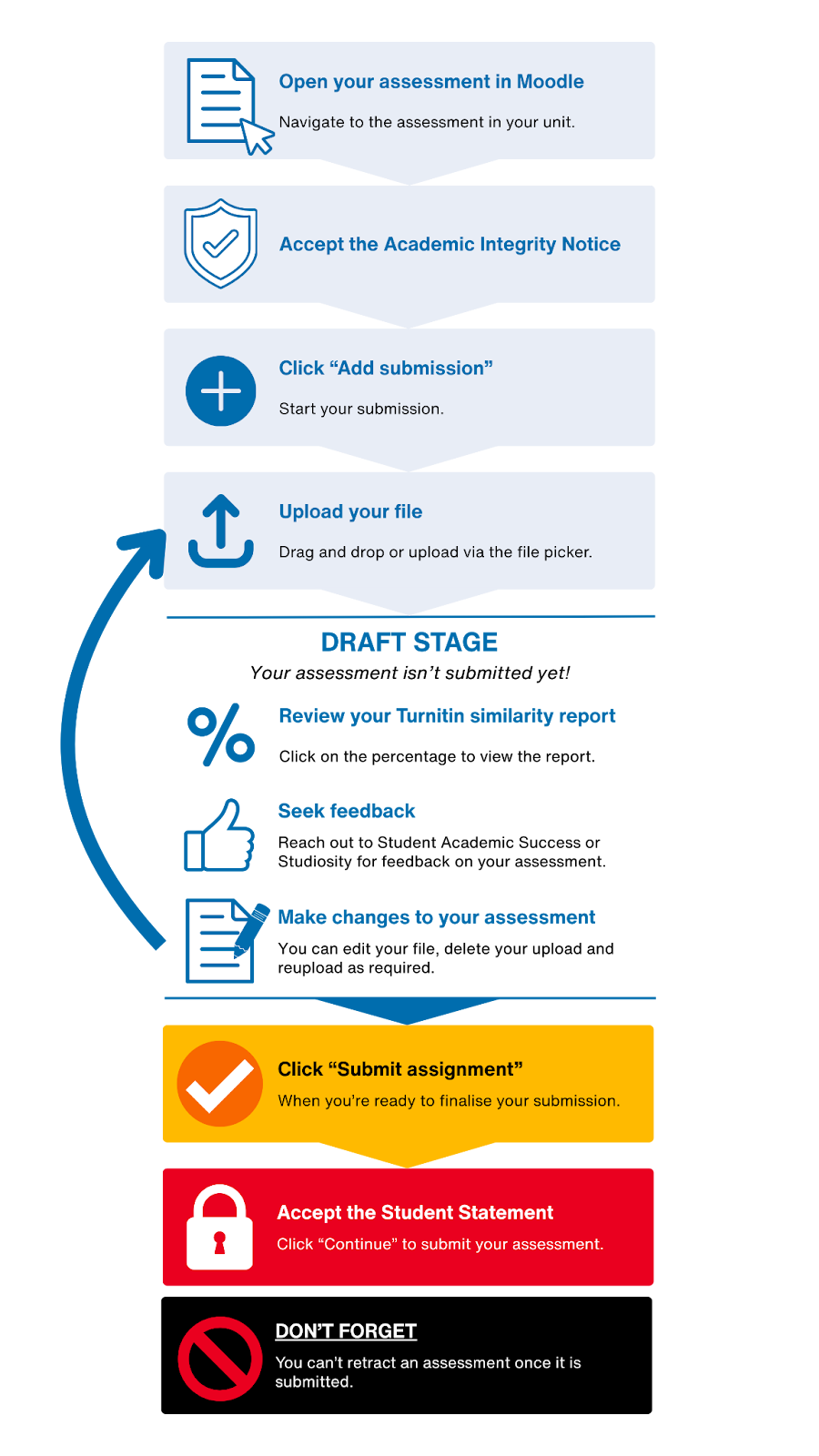
Follow the step-by-step instructions on the Assessments page of this Moodle guide to see how to upload your assessment to Moodle. A summary of the instructions can be seen in the flow chart below:
-
When you submit a written assessment on Moodle, it is usually connected to Turnitin.
Turnitin is a text-matching software which checks your written work against a database of online and traditionally published texts, as well as other students’ work. When assignments are submitted to Turnitin a Similarity Report will be created, which you can view to help you evaluate and improve your writing.
Please see the Turnitin Learn HQ resource for more information, a demonstration video, a sample report, and Frequently Asked Questions about Turnitin.
-
Yes. Once the assessment has been graded, you can click on the task again in Moodle to view your grade and feedback. You will receive an email notification when the assessment has been graded.
-
To check if your assignment was successfully submitted in Moodle, navigate back to the assignment dropbox.
- If successful, you’ll see a note that reads Submitted for grading, and you won't be able to update your submission.
- If unsuccessful, you’ll see the message Error "Nothing was submitted" and an option, which allows you to upload files.
- If you’ve already uploaded your file but have not submitted it yet, the assignment dropbox will have three buttons - Edit submission, Remove submission and Submit assignment.
For more help, including screenshots, see the Learn HQ Moodle guide.
See also:
-
Once you’ve submitted your assignment to Turnitin, it will go through a checking process.
It will check your work for improper citation and matching text. It’ll then provide you with feedback on your assignment called an originality report.
Timeframes:
- First submission: The report can take anywhere from 10 minutes to 24 hours to generate, depending on the volume of submissions received by Turnitin’s database.
- Resubmission/overwriting a previous submission: In these cases, the Originality Report will take up to 24 hours to generate.
Tip: Aim to achieve a low similarity score.
If you don't receive your originality report after 24 hours, please contact eSolutions Service Desk.
Find out more about Turnitin on Learn HQ.
See also
-
This status has been introduced for most assessments that don't have a submission point within Moodle, e.g. in-class presentations, labs, project presentations, etc. It also applies to Turnitin draft submissions.
Previously, it was confusing to have an OVERDUE status displayed for these, when your educator (or the Turnitin platform) would have marked outside of Moodle whether they were complete or not.
Now these activities will now show DATE PASSED in the Assessment Summary Table until your educator has a chance to grade it - at which time the status will change to GRADED.
Please note that the DATE PASSED status will not yet appear in the Moodle Task Tracker; please consider visiting the summary table on the Assessment Tab as the source of truth here.

-
The conditions for your Moodle Forums to be considered SUBMITTED are set ahead of time by your teachers. These may include viewing the forum, making one or more posts, starting a discussion thread, or replying to someone else’s posts. These conditions will be viewable when you are on the Forum page:
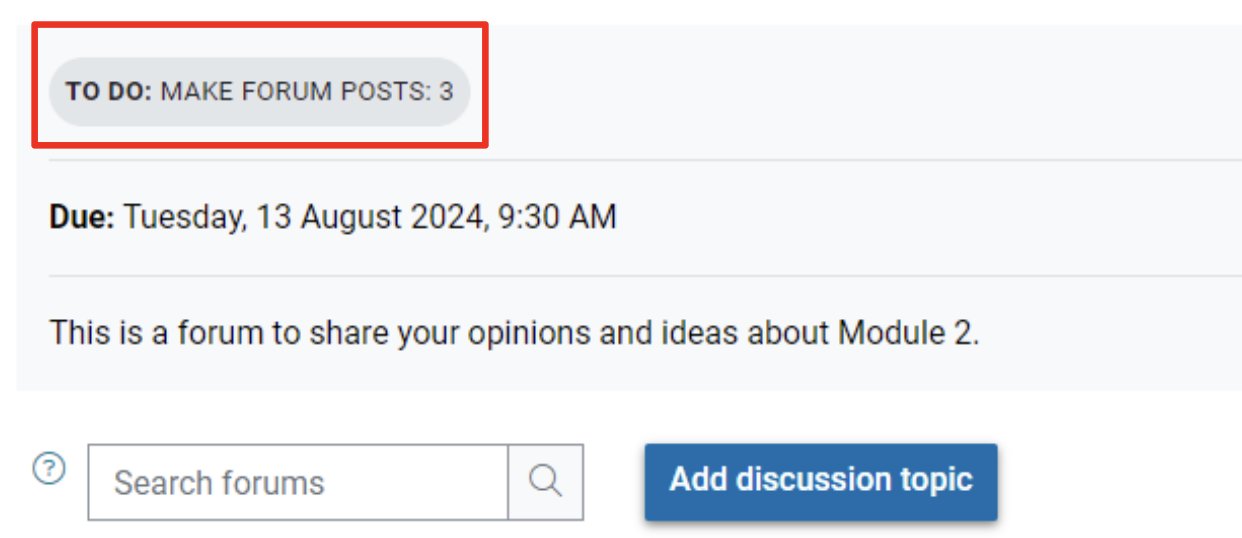
-
The task tracker is similar to the the timeline on the unit dashboard.
It displays a list of your upcoming tasks that you need to complete for all of your units.
There are some drop-down boxes at the top of the timeline you can use to filter it by time or choose options for how the list is sorted.
You can also click on the task in the task tracker to go directly to that task.
Note: The assessment summary table may display a different submission status for group assignments and tasks that have a due date but not a submission, for example a live presentation. Please refer to the assessment summary table for the most accurate information about your submission.
-
The assessment summary table may display a different submission status for group assignments and tasks that have a due date but not a submission (eg. live presentation). Please refer to the assessment summary table for the most accurate information about your submission.
-
- If you don't see all of your units in Moodle, please keep in mind that units will not show up in Moodle until orientation week of the teaching period you are enrolled in.
- If you still don't see your units by orientation week, please contact Monash Connect for assistance. They can check your record to see if there is a reason the unit may not be showing up in Moodle.
- If you are experiencing technical issues accessing the Moodle platform, you can submit a request through the MyIT catalogue, or contact the eSolutions ServiceDesk.
-
If you are using an iOS device to view Moodle there is a setting you will need to adjust in order to see Panopto videos, otherwise they will appear to be missing from the site. Watch the video demonstration below for instructions on how to adjust the setting.
-
If you are having difficulty or have noticed issues with the content in a specific unit, contact your teaching staff to let them know and ask for assistance. The quickest way to receive a reply is to post in the forums for that unit. You can also get in touch with the staff listed under ‘contacts’ on the unit dashboard by email, or by attending their consultation times (if available).
If you are experiencing technical difficulties with the Moodle platform or are unable to access Moodle, please contact eSolutions for technical support.
-
Please register for one of our Moodle workshops, or book a one-on-one consultation with a learning adviser for personalised support.
-
Please register for one of our Moodle workshops to join one of our Q&A and demonstration sessions, book a one-on-one consultation with a learning adviser for personalised support, or email studentacademicsuccess@monash.edu with your question to suggest an addition to this FAQ.
-
- This is an issue currently being worked on by eSolutions
- Please log this issue with ServiceDesk, and in the meantime please use the first tab, and ignore the duplicate tab. Do not submit any assessments or forum posts, or complete any tasks in the duplicate tabs.