Click on the topics below for answers to the most frequently asked questions about viewing class recordings.
Classes at Monash, whether online or face to face, may be recorded at times. All seminars and lectures are recorded and some other select activities as determined by individual faculties. It is important to understand that there are certain policies in place regarding recording classes at Monash that students should be aware of.
Rules for recording classes:
Class recordings are made available for you for the purpose of revision. They are not recorded as a replacement teaching activity that is scheduled.
Your tutor will let you know when recording is taking place in your unit.
Your consent to record teaching activities is not required. Where there is sensitive information being communicated, you'll be asked to consent to recording
When online or hybrid classes are being recorded, camera use is optional.
If your internet speed is too slow, or you have intermittent internet access, you can:
adjust the playback quality in the player settings, or
download the video to watch offline.
To adjust the playback quality in Panopto:
Click on the Quality icon in the Panopto player
Select medium
Note: The option to adjust the playback quality is not available in the Embedded Player, so if you are viewing an embedded video click on the Watch in Panopto icon to open up the full Panopto player.
To adjust the playback quality in Echo360:
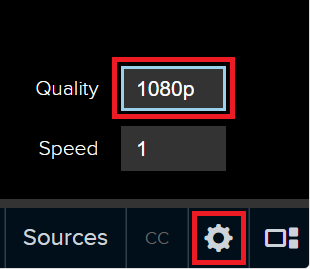
Click on the settings icon at the bottom-right of the Echo360 Player
Click the current quality (e.g., 1080p) to select a lower resolution.
If your video loading time does not improve after adjusting the quality, or the quality is not high enough for your needs, consider downloading the video. See the downloads FAQ item below for instructions.
The ability to download depends on the video sharing settings.
If the person who uploaded the video has made it available for download, you can do so by following the instructions below.
In Panopto:
In the player, click on the Download icon in the top-right of the Panopto player, or the bottom-right of the Embedded player.
The video will be saved to your default downloads folder based on your browser settings.
In Echo360:
From the class list, click on the video icon to open the options menu, and click Download Original. (Note: The options menu is only accessible from the Section Home class list, not from the overlay class list. If you are currently viewing a video that you wish to download, click on the unit name in the top-right corner of the player to go to Section Home.)
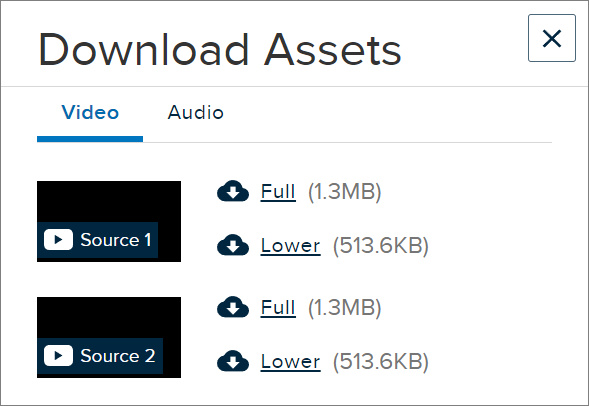
The Download Assets pop-up will appear. Click on Full or Lower quality to select the version that you wish to download based on the video size.
The video will be saved to your default downloads folder based on your browser settings.
If the video has multiple sources you will need to download each one separately. The same audio will be attached to each video.
If desired, you can also download the audio on its own, by clicking on the Audio tab of the Download Assets pop-up.
Note
If you do not see the download option, it may be turned off in the settings. In that case, contact your unit coordinator to request download access.
Downloaded videos will not have captions. Captions (where available) can only be viewed through the online video player.
Recordings may not be available until one to two hours after the lecture, depending on processing time.
During particularly busy times or due to technical difficulties, it can sometimes take up to a day for recordings to be available. If you still cannot access a recording after one day, contact your unit coordinator to report the issue.
Lecture recordings are usually available throughout the semester and exam period, including deferred exams. You should check with your unit coordinator if your recordings are no longer available.
If you are having trouble accessing your recorded lectures in Moodle, it could be for one of the following reasons:
If there is no link to recordings on your unit's Moodle page, your unit may not be set up with access to recorded material. Please contact your unit coordinator to enquire about class recordings.
If there is a link but it does not have any content, or has different content than you expect, it might be pointing to the wrong section. This can happen if there are jointly taught classes. Please contact your unit coordinator to report the issue.
If there is a link, but you are having trouble accessing the platform, it may be a browser issue, the link may be broken, or there may be another technical issue. Try using another browser to see if it fixes the issue, and if the problem persists contact your unit coordinator or eSolutions.
If you can access the platform, but there are no recordings available, or a particular class recording is not available, it may still be processing. A recording typically takes at least one to two hours to process, but in the case of technical issues it can take up to 24 hours. If a recording is still not available over a day after the scheduled time, contact your unit coordinator to enquire about the status of the recording.
The unit coordinator determines the order of the recordings in the settings. However, you can temporarily change the list order.
In Panopto:
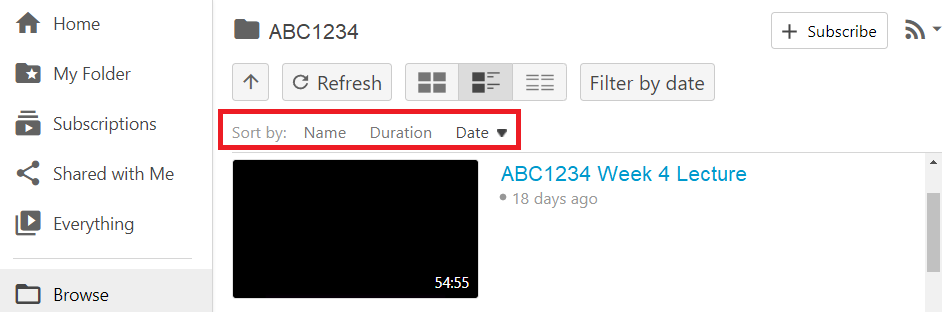
In the Panopto folder, click on any of the Sort by options to order recordings by name, duration, or date. The default is to sort by date in descending order (most recent recordings at the top of the list).
To change the order between descending and ascending, click a second time on the same option.
In Echo360:
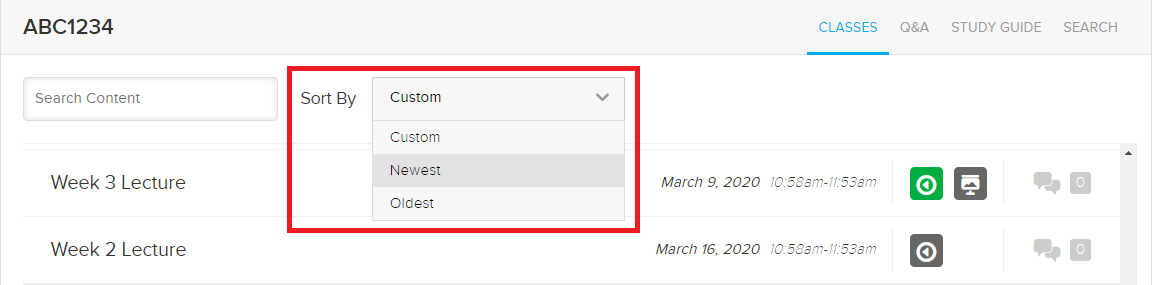
In the Echo360 class list, click on the Sort by drop-down menu to select either newest or oldest, depending on your preference.
Sometimes when you hit play on a class recording, all you will see is a blank screen or an empty Monash desktop screen. There are two possibilities in this case.
The class recording may have started earlier than the class actually started. Click on a point further along in the timeline to check for content.
The class may not have been recorded. If you think this might be the case, contact your unit coordinator to ask.
Captions may not be available for all videos. Where they are available, you can access them on each platform by following the instructions below.
In Panopto:
If captions are already available for a particular video you can enable them by clicking on the CC button.
If the CC button is not visible, captions are not available for the video.
If professional captions are not already available, you can request that automatic captions be turned on in Panopto. However, please note that automatically generated captions do NOT have reliable accuracy for accessibility purposes.
Automatic captions can be turned on by the owner of the video. If the video is part of your coursework material, the best way to make this request is by emailing your unit coordinator so that they can ensure the setting is applied to all videos.
In Echo360:
If captions are available for a particular video you can enable them by clicking on the CC button.
If the CC button is greyed-out and not clickable, this means that captions are not available for the video.
Note
If you need captions for accessibility reasons, please register with Disability Services so that a professional transcription/captioning service can be organised for your classes and coursework material.
Both Panopto and Echo360 have options you can adjust to change the look and layout of captions on videos which have captions enabled.
In Panopto:
If captions are enabled, you can click on the three dots icon in bottom-right of the Panopto player to access the caption settings menu.
You can adjust the position, colour, and size of the captions.
In Echo360:
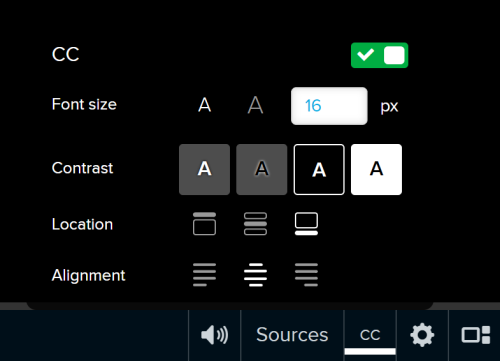
If captions are enabled, you can click on the CC button to bring up a menu of Closed Caption options.
Options include:
turning captions on and off
adjusting the font size
adjusting the background and font contrast
selecting top, middle, or bottom of the screen for the captions to display
selecting left, centre, or right alignment for the captions to display.
Still having problems?
Record the unit code and class date/time and any error message. Then report the error to eSolutions.