
Activities and assessments
On this page
- Log in frequently to access your learning content and complete your tasks.
- Read and explore each learning section in advance so you know what to expect.
- Read all of your assessment information at the start of your unit so you know what you need to do for the entire unit and can plan your time effectively.
- Keep up with the forums so you are aware of any updates or changes.
- If you're not sure about something, ask in the forums!
- All units have an announcements forum, and it's important to check that forum for important news.
- Some units may also have a Q&A forum or assessment forums, where you can ask questions. These are a great place to ask questions because you get a response quickly.
- Some units may also have additional forums for specific purposes, such as making a weekly post, or making a one-time post as a form of assessment. If you are required to post as part of an assessment, it will be explained to you in your assessed task instructions. If you are ever unsure about what you are meant to do, or how your educator expects you to engage in the forum just ask and your academic staff will let you know.
- If successful, you’ll see a note that reads Submitted for grading, and you won't be able to update your submission.
- If unsuccessful, you’ll see the message Error "Nothing was submitted" and an option, which allows you to upload files.
- If you’ve already uploaded your file but have not submitted it yet, the assignment dropbox will have three buttons - Edit submission, Remove submission and Submit assignment.
- First submission: The report can take anywhere from 10 minutes to 24 hours to generate, depending on the volume of submissions received by Turnitin’s database.
- Resubmission/overwriting a previous submission: In these cases, the Originality Report will take up to 24 hours to generate.
How do I upload my assessment in Moodle?
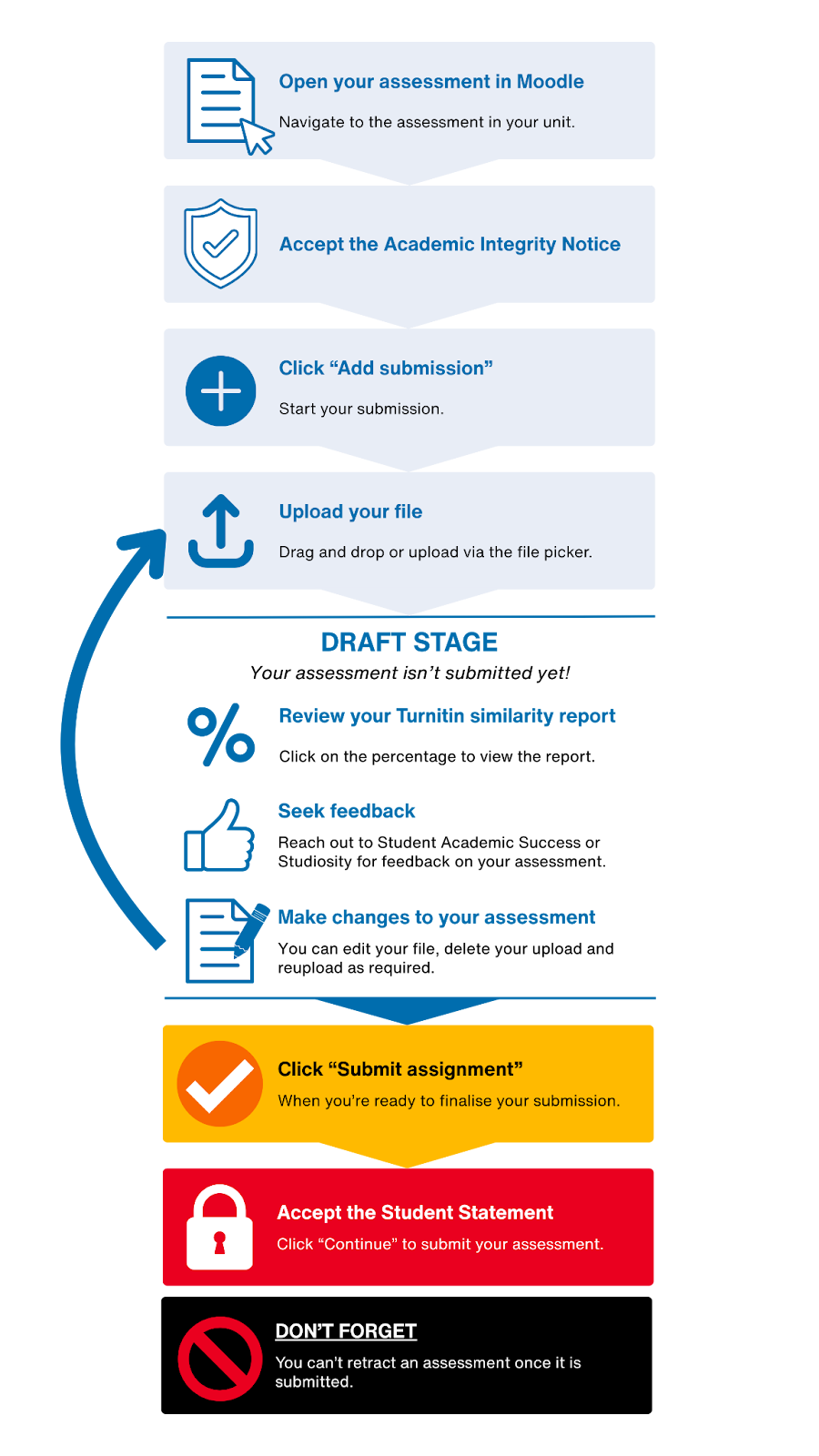
Follow the step-by-step instructions on the Assessments page of this Moodle guide to see how to upload your assessment to Moodle. A summary of the instructions can be seen in the flow chart below:
What do I need to do to get the most out of Moodle?
What am I supposed to do in the forums?
I've heard our assessments on Moodle get checked for plagiarism. How does that work?
When you submit a written assessment on Moodle, it is usually connected to Turnitin.
Turnitin is a text-matching software which checks your written work against a database of online and traditionally published texts, as well as other students’ work. When assignments are submitted to Turnitin a Similarity Report will be created, which you can view to help you evaluate and improve your writing.
Please see the Turnitin Learn HQ resource for more information, a demonstration video, a sample report, and Frequently Asked Questions about Turnitin.
How can Moodle support me in my studies?
Moodle is where you access all of your learning content and online materials for all of your units.
For example, you can access your weekly materials and information, and links to your online classes in Moodle.
Moodle is also where you will submit all of your assignments, and it's where you will do other online assessments during the semester such as quizzes.
Moodle also has forums where your lecturers will post important information about your unit, and most units have a forum where you can ask questions.
What is the timeline on the dashboard, and how do I use it?
The timeline is a list of your upcoming tasks that you need to complete for all of your units.
There are some drop-down boxes at the top of the timeline you can use to filter it by time or choose options for how the list is sorted.
You can also click on the tasks in the timeline to go directly to that task.
Note: The assessment summary table may display a different submission status for group assignments and tasks that have a due date but not a submission, for example a live presentation. Please refer to the assessment summary table for the most accurate information about your submission.
When I submit an assignment on Moodle, will I also receive feedback on Moodle?
Yes. Once the assessment has been graded, you can click on the task again in Moodle to view your grade and feedback. You will receive an email notification when the assessment has been graded.
Was my assignment successfully submitted in Moodle?
To check if your assignment was successfully submitted in Moodle, navigate back to the assignment dropbox.
For more help, including screenshots, see the Learn HQ Moodle guide.
See also:
I've submitted my assignment to Turnitin. What happens now?
Once you’ve submitted your assignment to Turnitin, it will go through a checking process.
It will check your work for improper citation and matching text. It’ll then provide you with feedback on your assignment called an originality report.
Timeframes:
Tip: Aim to achieve a low similarity score.
If you don't receive your originality report after 24 hours, please contact eSolutions Service Desk.
Find out more about Turnitin on Learn HQ.
See also
What does the DATE PASSED status in the Moodle Assessment tab mean?
This status has been introduced for most assessments that don't have a submission point within Moodle, e.g. in-class presentations, labs, project presentations, etc. It also applies to Turnitin draft submissions.
Previously, it was confusing to have an OVERDUE status displayed for these, when your educator (or the Turnitin platform) would have marked outside of Moodle whether they were complete or not.
Now these activities will now show DATE PASSED in the Assessment Summary Table until your educator has a chance to grade it - at which time the status will change to GRADED.
Please note that the DATE PASSED status will not yet appear in the Moodle Task Tracker; please consider visiting the summary table on the Assessment Tab as the source of truth here.

How are Moodle Forums submitted?
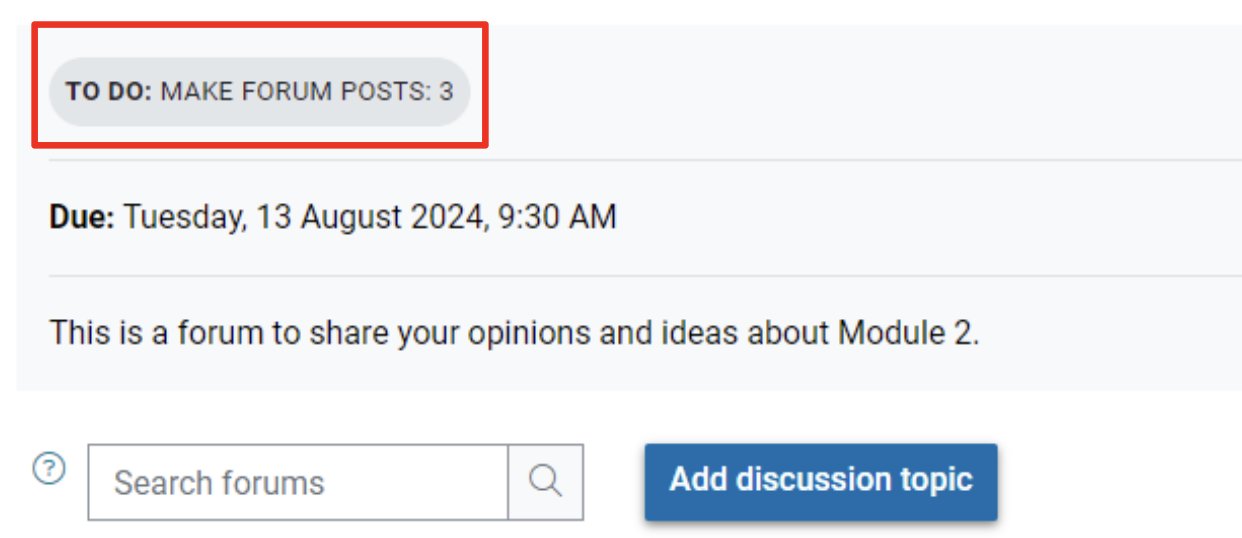
The conditions for your Moodle Forums to be considered SUBMITTED are set ahead of time by your teachers. These may include viewing the forum, making one or more posts, starting a discussion thread, or replying to someone else’s posts. These conditions will be viewable when you are on the Forum page:
What is the task tracker on the unit dashboard, and how do I use it?
The task tracker is similar to the the timeline on the unit dashboard.
It displays a list of your upcoming tasks that you need to complete for all of your units.
There are some drop-down boxes at the top of the timeline you can use to filter it by time or choose options for how the list is sorted.
You can also click on the task in the task tracker to go directly to that task.
Note: The assessment summary table may display a different submission status for group assignments and tasks that have a due date but not a submission, for example a live presentation. Please refer to the assessment summary table for the most accurate information about your submission.
Why does the assessment summary table display a different submission status to the timeline/task tracker?
The assessment summary table may display a different submission status for group assignments and tasks that have a due date but not a submission (eg. live presentation). Please refer to the assessment summary table for the most accurate information about your submission.