Quick start
At a glance
Get started with Monash Board of Examiners (BOE) Reports in Power BI, including how to request access, navigate the reporting interface and use key features. Explore the report key features, then move into the three main BOE reports covering faculty grade distribution, student performance and incomplete grades.
| Access to Board of Examiner reports is restricted to BOE Chair, Faculty Associate Dean Education, Head of Department/School and Faculty Professional Staff. |
|---|
Report access
Reports can be accessed via web browser URL. To request access to one or more of the Monash BOE Reports, complete the following form: Request access to Power BI Results Management Reports.
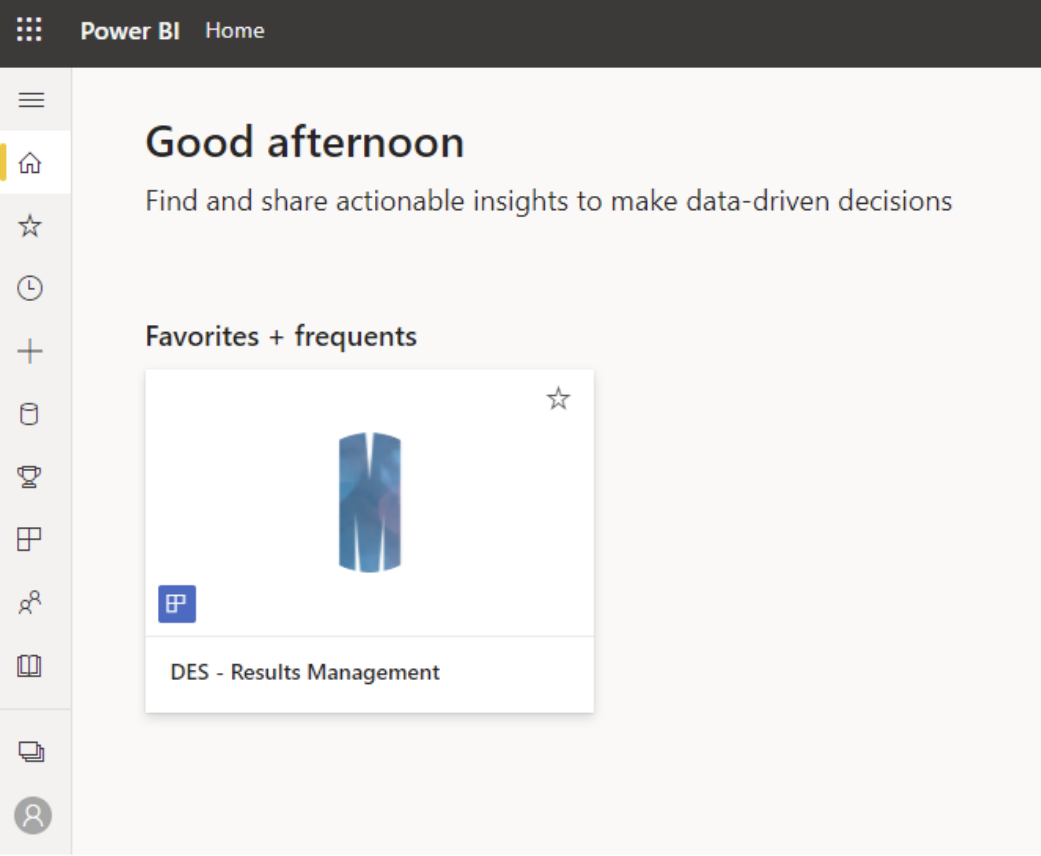
- Click on the link https://app.powerbi.com/groups/me/apps to navigate to your Power BI apps page.
- Click on DES - Results Management to open the reports.
Tip: Once access has been granted, it is recommended that you bookmark the Monash BOE report link in your browser for easy access.
Report key features
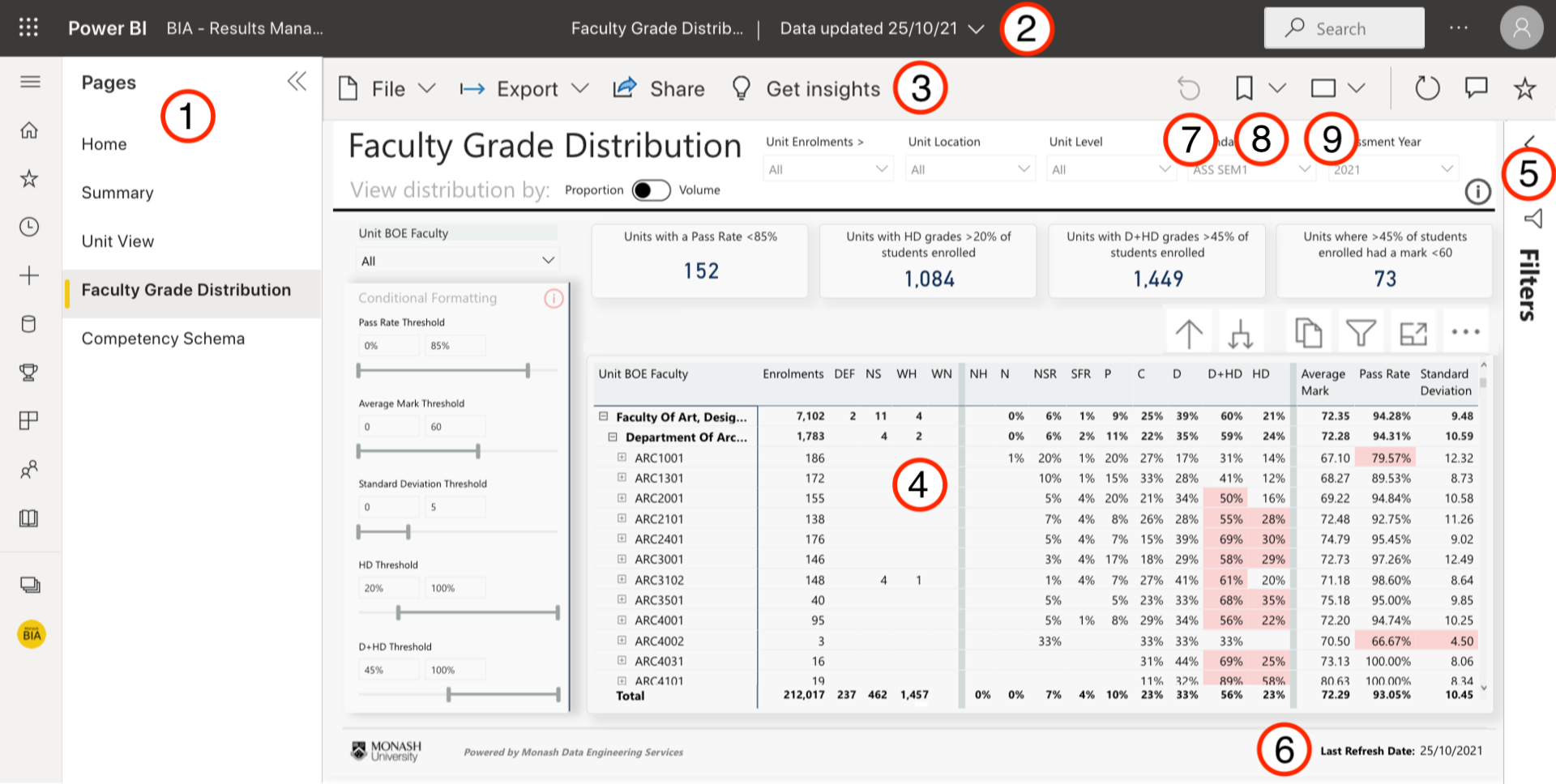
There are a number of key features in the Power BI report interface. Click on each plus icon to read more about the different elements and functionality or a read a text-based version below. Click on the icon in the top right corner to view in full screen (recommended).
Take a moment to review this if you are not familiar with the Power BI reporting interface.
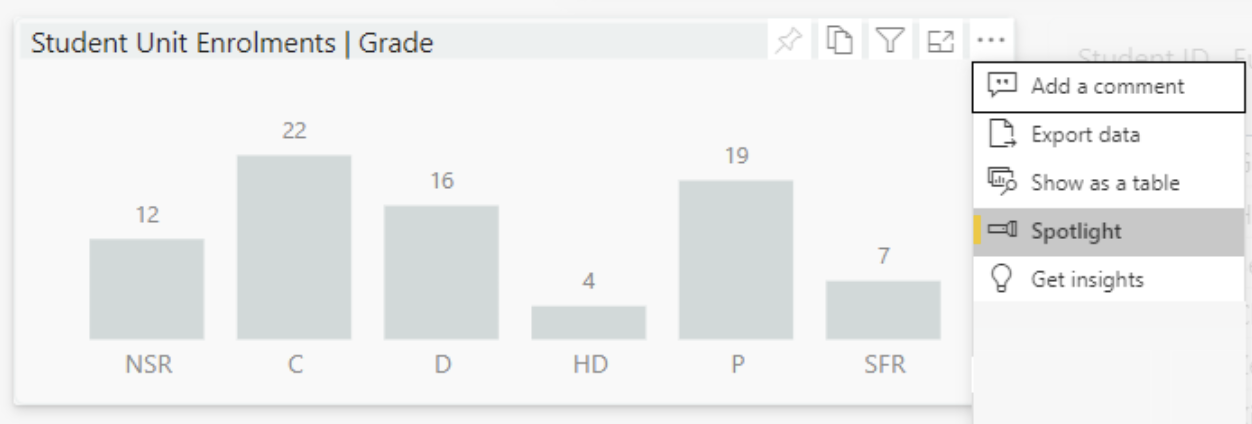
Actions menu for a visual
Hovering over a report visual (for example a table or bar chart) in the main reporting area reveals actions you can take on that visual.




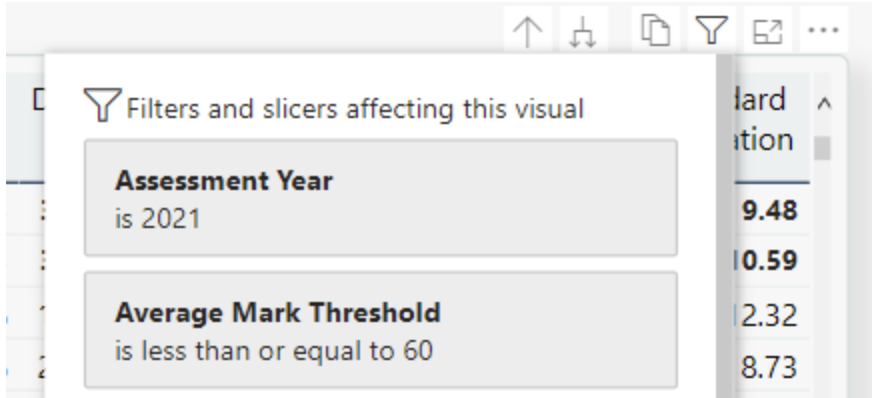

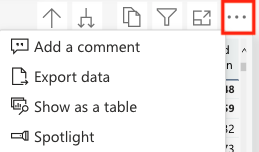
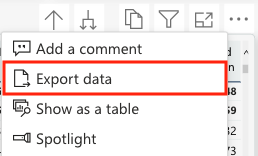
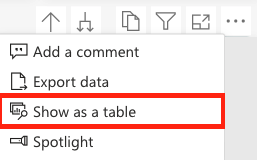
 from the top-right corner of the visual. To return to the report, select Back to report from the upper left corner.