Use assignments for offline assessment
At a glance
Set up a Moodle assignment activity to grade and provide feedback on tasks students complete offline, such as oral assessments, in-class presentations or performances. Understand the benefits of using assignments this way and how to configure submission, feedback and grading settings so the task is captured correctly for special consideration.
Jump to these sections:
The Assignment activity in Moodle can be used for grading and feedback on tasks that students complete offline, such as oral assessments, in-class presentations, or performances.
Benefits of using Assignment for offline assessmentsThere are several benefits to using the Assignment activity for offline assessments.
|
Assignment settings for offline assessments
- To navigate to your Moodle assignment settings, turn editing on in your Moodle unit.
- For the Assignment that you want to use for offline assessments, click Edit and then select Edit settings.
- For chief examiners: Under the Availability section, you may select offline assessment as a valid reason for using an alternative submission time.
- Under the Submission types section, untick all boxes (Online text, File submissions, and if available, Mahara).

- Under Feedback types, untick Annotate PDF.

- Under the Grade section, you can use the advanced grading options (Rubric, Ranged rubric, and Marking guide) as usual.
- Complete other settings as required, such as due dates, grade category, feedback type and grading method. For more information, see Create a Moodle assignment activity.
- Click Save and display to save your changes.
Marking offline assignments
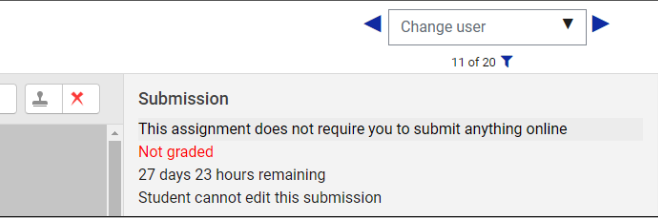
When students click on this assignment activity, they will not see a Submit assignment button. When you mark the offline assessment, you will use the standard assignment marking interface. You will be reminded at the top of the page that no submission was expected for this assignment. You can use a rubric or marking guide to mark this assessment, and can add a grade and feedback as usual. For more information, see Grade via the assignment grader interface.