FeedbackFruits - Frequently asked questions
View frequently asked questions about FeedbackFruits. You can select Expand all and then use CTRL + F (PC) or CMD + F (MAC) to search for keywords.

View frequently asked questions about FeedbackFruits. You can select Expand all and then use CTRL + F (PC) or CMD + F (MAC) to search for keywords.
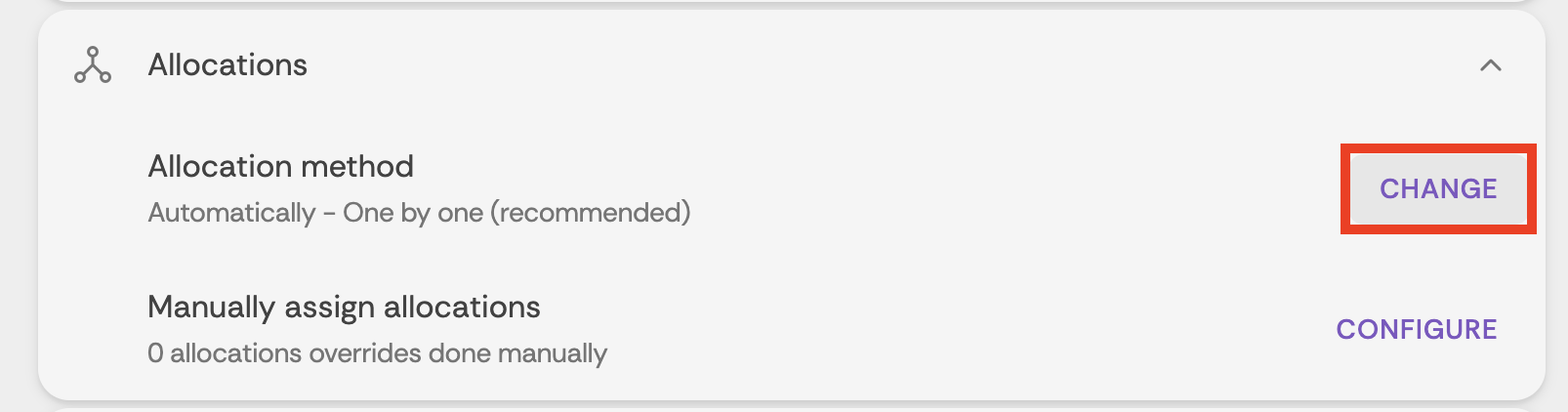
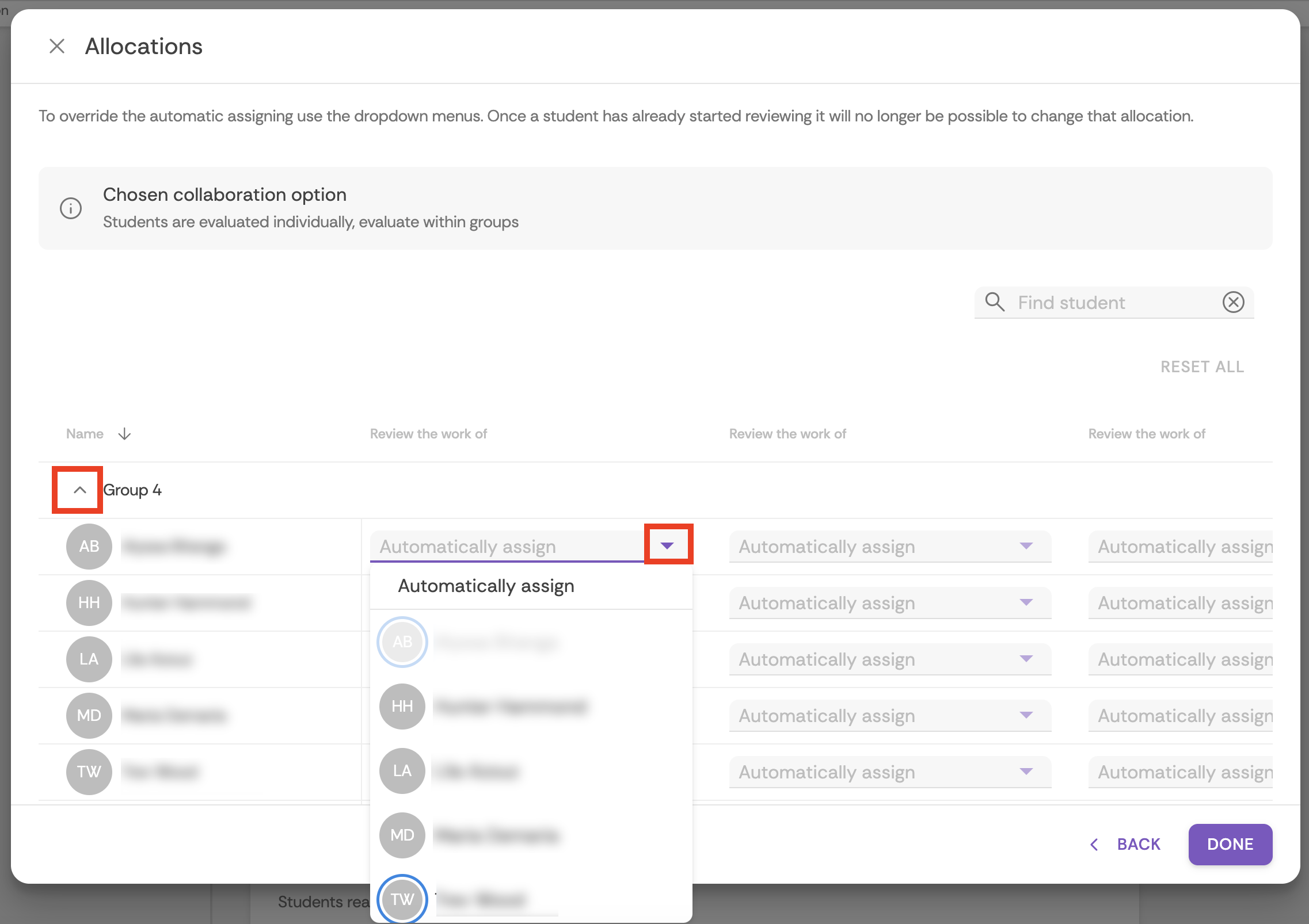
Before students have started review, you can check who students may be allocated from the second screen of the allocation options by clicking “Change” for Allocation method, then clicking Next.
From this screen, you can expand groups and then use the drop down lists to view who students may be allocated to review. This can be a good way of checking your activity set up is working as you intended.
After students have started the activity, the easiest way to see who students have reviewed is by downloading the assignment analytics in a .xlsx file. This file provides a concise overview of all student activity in the assignment such as submissions, review comments and ratings.
Note: Where students have a submission as a part of the FeedbackFruits activity, when using a deadline, students are allocated reviews after the hand-in deadline is passed. When the 'allow late hand-in' option is enabled, students that hand-in after the deadline has passed will be allocated a review on a 'first-come, first-serve' basis. This way of allocating reviews is also the case when you have not set a deadline.
For more information on how peers are assigned work, see this article here.
Once the students have made progress in the activity the analytics window will become visible. Once the 'statistics per active students' are available, you can follow your students' progress in the statistics overview at the top of the assignment, or at the statistics overview at each respective assignment step.
There is an option to download the statistics in a .xlsx file. You can download these analytics by clicking on the 'download' button in the introduction window of the assignment. This is especially useful for assignments that contain larger amounts of students.
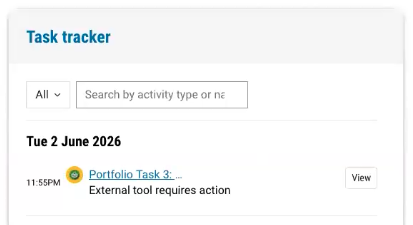
You should naturally see an increase in student activity completion as the deadline approaches for the activity. Setting deadlines for each step can help students stay on track. You can also set up an activity reminder so that students will see the activity appear in the task tracker and activity timeline.
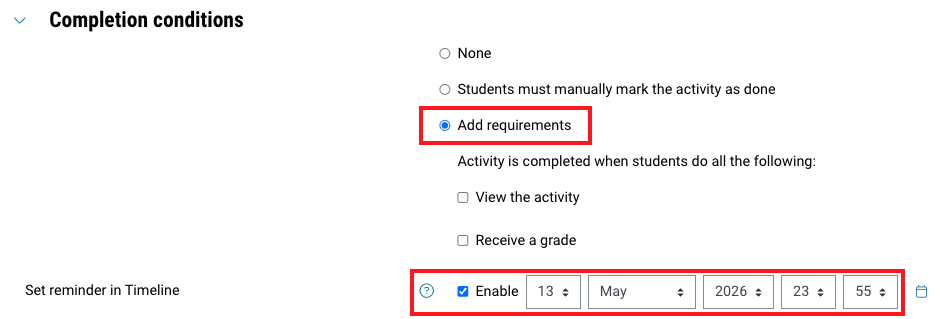
In the FeedbackFruits activity Completion conditions section, click Add requirements and ensure that the checkbox is selected for Set reminder in Timeline. Set a date and time for your FeedbackFruits activity.
Note: If your FeedbackFruits activity has multiple deadlines, ensure that you adjust the completion reminder for each step.
This can happen when group sizes for the Peer review or Group member evaluation activity vary, and you have set an amount of required reviews that is greater than the number of reviews that was eventually made by students.
When setting up an activity, you can set a fixed required amount of reviews as such to make sure all peers in one group review each other.
FeedbackFruits is currently working on an optimisation for the tool that will prevent this from happening.
Yes, both students and teachers are able to download feedback in PDF format. For more information, see this guide here.
No, submissions can only be deleted by students when the hand-in deadline has not yet passed. This can be done by clicking on the 'trash' icon on the far-right of the hand-in. After the deadline has passed it is no longer possible for students to delete the submissions as that could interfere with the reviewing process.
If you need the student submission to be removed after the deadline, contact the FeedbackFruits in-app help chat as soon as possible.
Yes, you can delete a student's comment, but this should be taken as a last resort. If a feedback comment has been marked as "not helpful", you can choose to delete student written comments by clicking the three dots next to the comment, and clicking "Delete comment". However, this can affect the students grades if they have been configured based on completion i.e. provide a certain number of comments. If the deadline has not passed, it is instead recommended that you reach out the student directly and ask them to adjust their feedback comment.
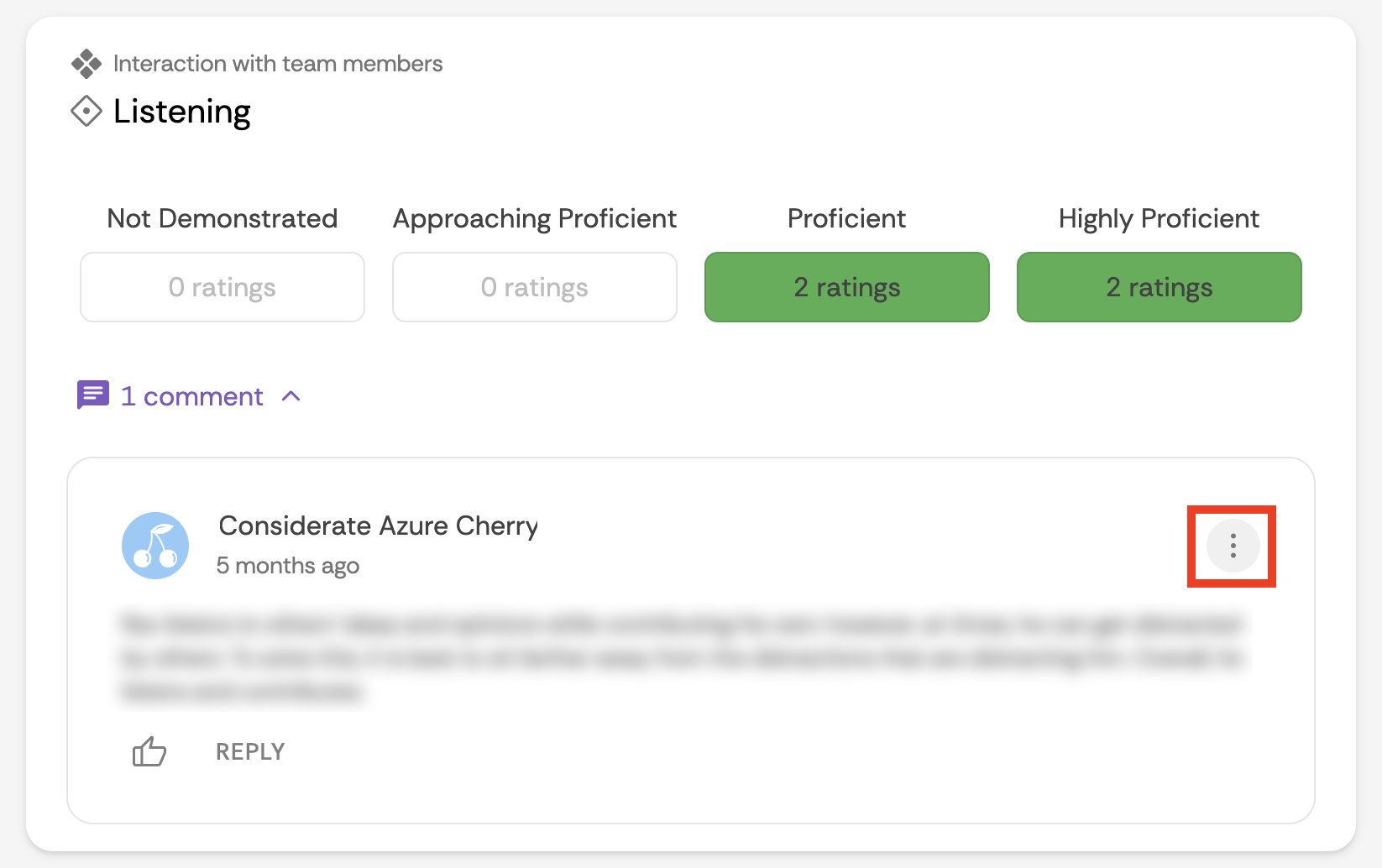
Note: You can not delete any ratings provided.
Yes, FeedbackFruits sends out notification emails about things happening in learning activities. More information about when, how, or for what you receive notifications can be found here.
Unfortunately, in Moodle the “switch role to Student ” feature does not allow you to preview/experience the FeedbackFruits activity as a student as FeedbackFruits is strongly integrated with student groups. If you have a separate student account for testing, you can preview the FeedbackFruits activity if logged into your separate student account.
For a general idea of the student view, the FeedbackFruits website and TeachHQ FeedbackFruits Supporting your students page also has articles which show you how the student perspective looks for a FeedbackFruits tool.
You can also check out the FeedbackFruits template site (self-enrol as student) to preview FeedbackFruits activities as a student. To test FeedbackFruits in the template site with your own staff, reach out to educationtechnologies@monash.edu for access as lecturer.
It is recommended to use Chrome or Firefox. Using Microsoft Edge and Internet Explorer is not recommended.
Yes, you can release grades but not the feedback for a FeedbackFruits activity by clicking the publish grades button and NOT clicking the publish feedback button.
The publish feedback button will publish comments and ratings students have received. While the publish grades button will apply any activity weightings and publish the overall grade for the student to the Moodle Gradebook.
There are some features accessible via the Select content button which are only accessible for faculty administrators.
You do not need to click the Select content button to set up a FeedbackFruits activity. Simply click Save and display (after giving your activity a name). Then continue to set up your activity.
This can occur when students have been assigned to multiple selected groups, creating a conflict.
Expand any groupings you have selected, look for any groups highlighted with a red border, these contain duplicated students. You can either deselect these groups and click Done to continue, or modify the groups in Moodle, manually resync the FeedbackFruits activity and then proceed. Updated groups may take up to 10 minutes to display depending on the size of your unit.
If you are unable to sync after more than an hour, contact helpme@feedbackfruits.com.
This can occur if the missing group of students have not been added to the correct groupings in Moodle. Ensure that:
If you make any changes, ensure you manually re-sync the FeedbackFruits activity, it may take up to 10 minutes to display the updated groups. Once they appear you can select the group so students can participate in the activity.
If it takes a long time, or you are unable to manually re-sync, contact helpme@feedbackfruits.com.
This issue can occur when Group membership visibility is set to Only visible to members (shown in the group settings). This causes the FeedbackFruits integration to be unable to see the students inside groups. As there's no way to change the setting once students have been added to groups, you will need to set up groups again with the Group membership visibility set to Visible. The easiest way to do this is by importing groups.
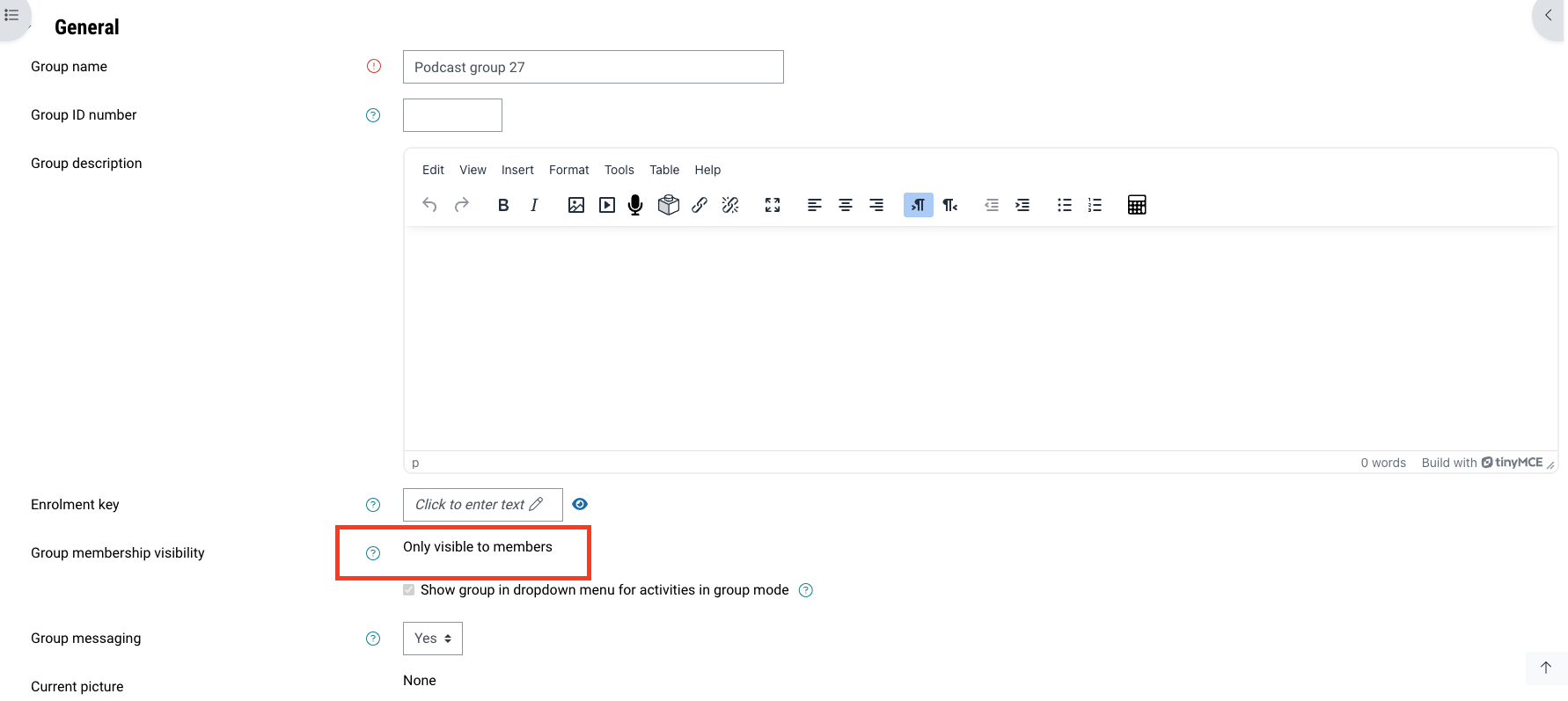
If the group membership visibility is correctly set to “Visible” but students do not appear in their groups, contact helpme@feedbackfruits.com.