
Edit a resource or activity
At a glance
Edit, rename, move, show or hide, duplicate and delete resources and activities on your Moodle unit page using the Edit drop down menu. You can also perform mass actions on multiple items at once, such as bulk hide, move or delete.
To edit any resource or activity, such as content, layout and other settings, click the three dots and use the Edit drop down menu to the right of each activity or resource.
Note: The settings at resource or activity level work with the settings at unit level. Some may overwrite the settings at unit level, or others will not be available at resource or activity settings level unless pre-set at unit settings level.
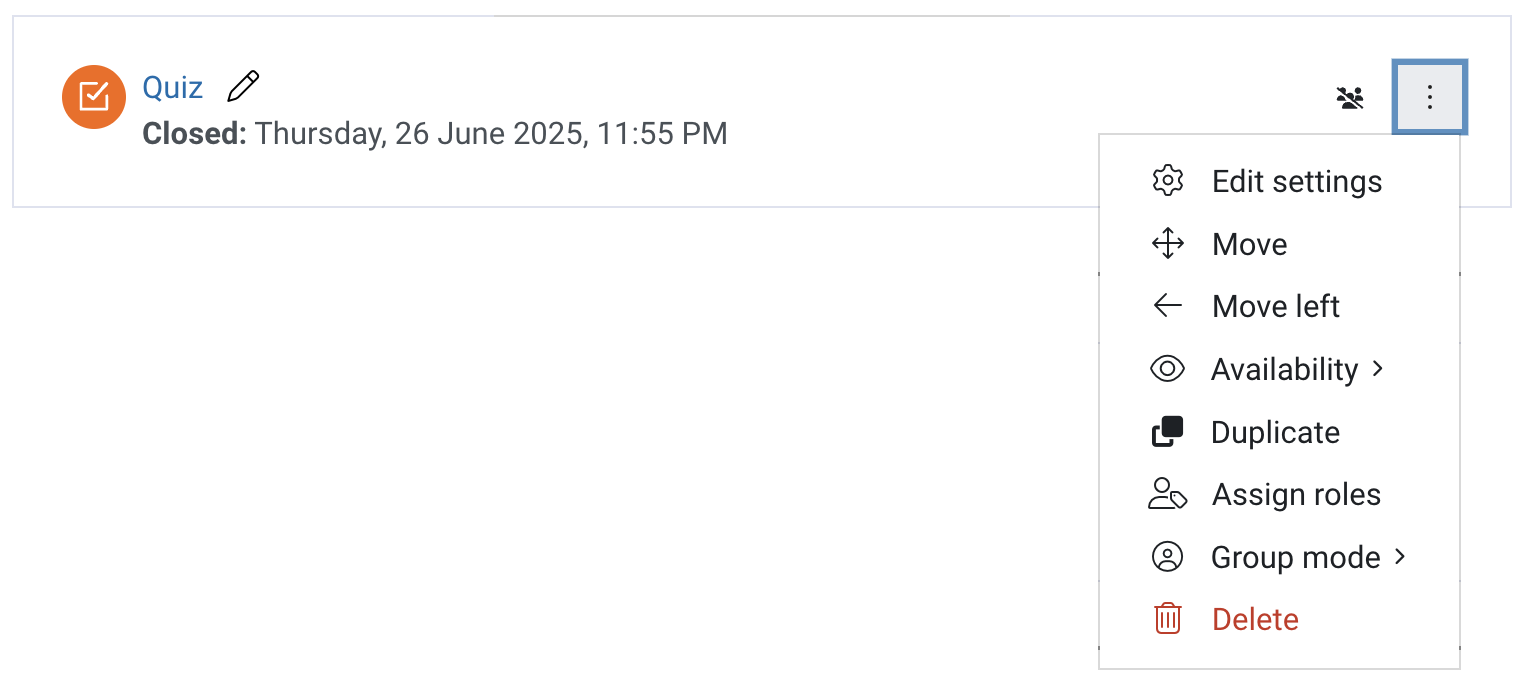
From the Edit drop down menu, you can:

 ) beside that resource or activity you would like to move and drag-and-drop it where you would like it to be relocated.
 ) or right (
 ) in the structure of your unit.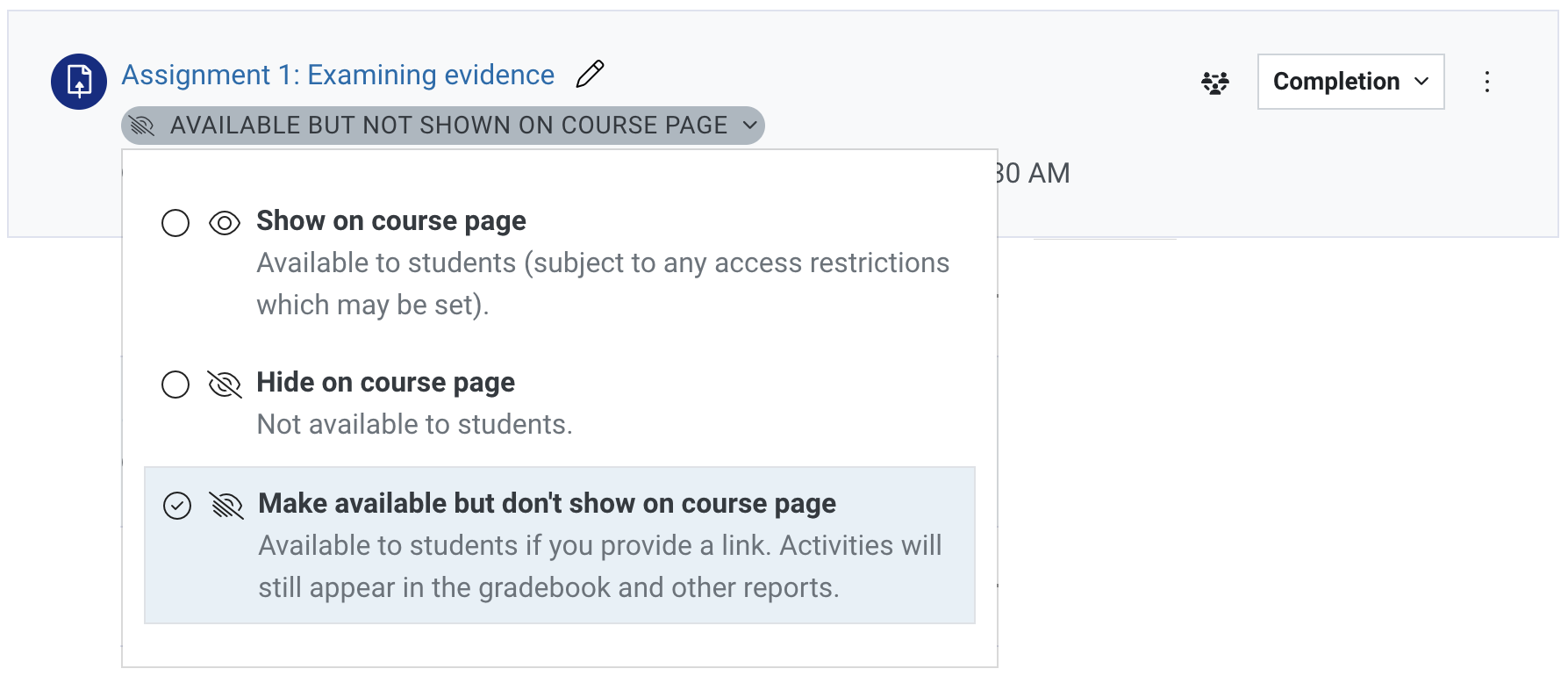
 ) beside that resource or activity to make a copy.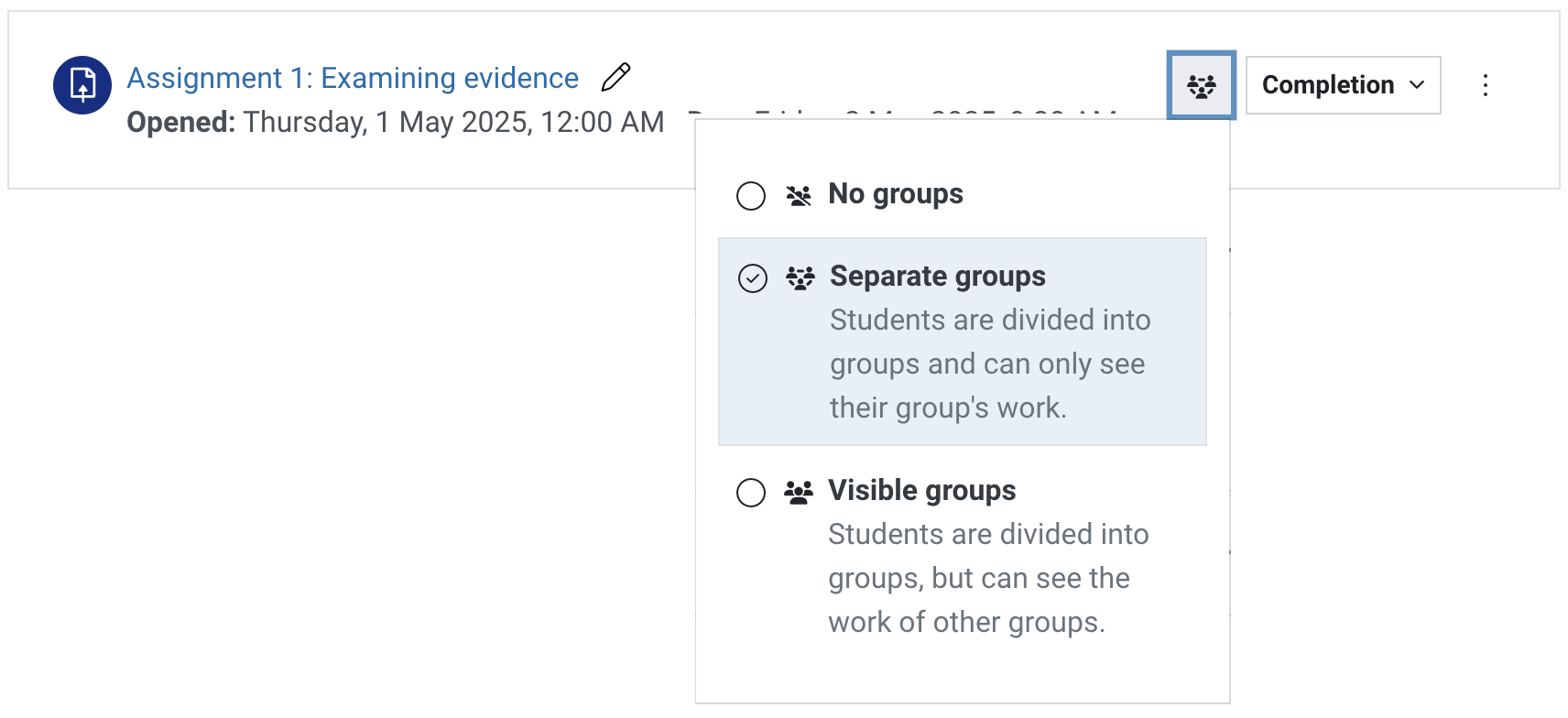
Mass actions for activities and resources
You can perform mass actions such as hide/show, delete, move, duplicate and send content changed notification on multiple resources or activities at once with the Mass actions block. For more information, see Addings blocks in Moodle.
- To add the Mass Actions block, in the top right hand corner switch Edit mode to ON(Blue).
- Expand the right hand side panel with the tab and click +Add a block.
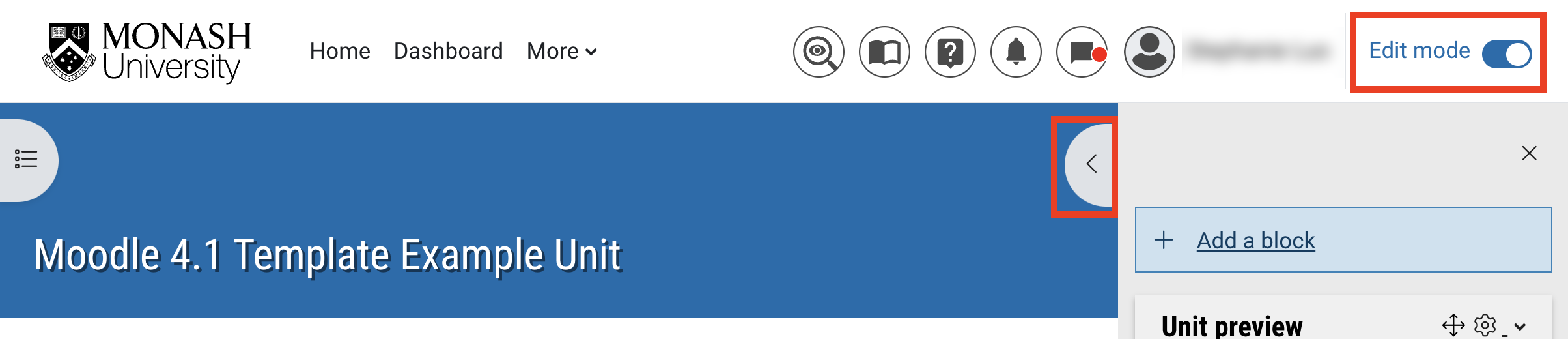
- Select Mass Actions.
- The Mass Actions block will now appear in the right hand side panel.
- To use the Mass Actions block, click on Enable bulk editing in the Mass Actions block.
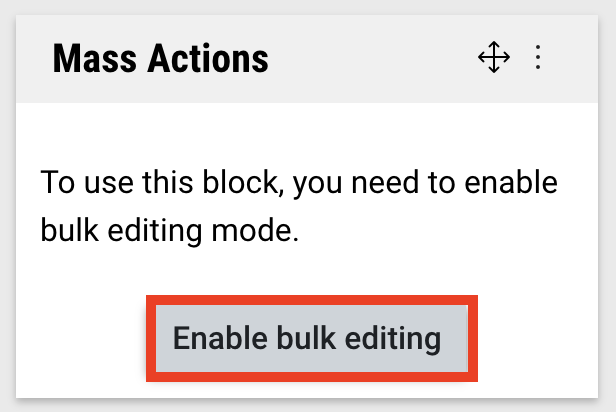
Note: You can also enable editing by clicking Bulk actions in the top right of the Moodle unit banner.
- Once enabled, check boxes will appear beside each activity or resource in your unit and a menu will appear at the bottom of the screen. From the footer menu you can:
- Adjust the Availability
- Duplicate
- Move
- Delete
- From the Mass Actions block you can perform additional actions, including:
- Duplicate to another course
- Indent/Outdent (move left/right)
- Show/hide activity or resource description
- You can select multiple items by using the checkboxes beside each resource or activity in the unit, or select all items with the Select all checkbox in the footer menu. You can select all items in a section from the drop down list in the Mass Actions block and then click Select all. Use Deselect all if you have selected the incorrect section.
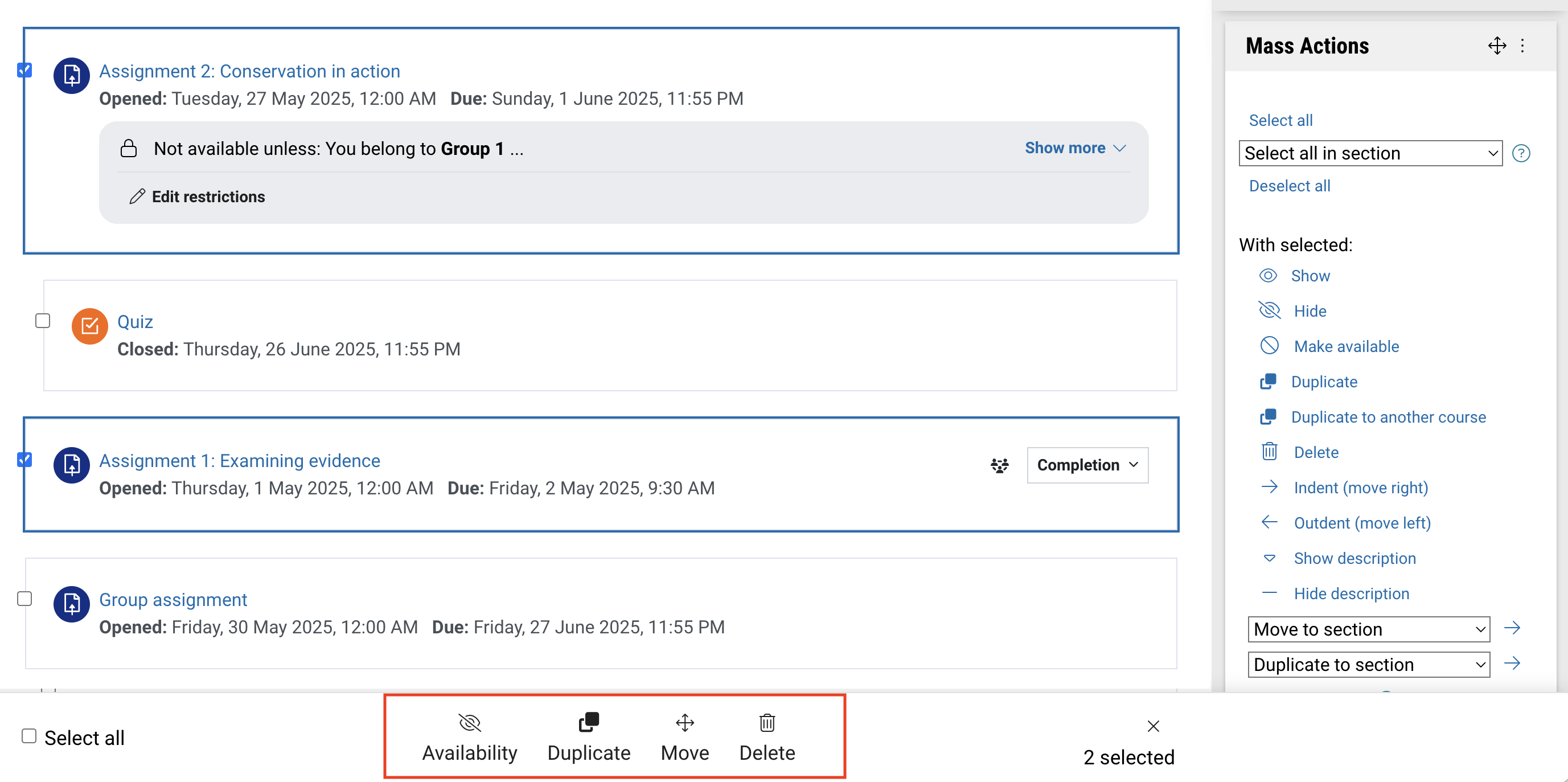
- Once the required items are selected, perform the mass action by selecting the appropriate option in the Mass Actions block or the footer menu.