
Edit unit
At a glance
Switch on editing mode to add, arrange and adjust content, activities and resources in your Moodle unit, and learn how to preview your unit from a student's perspective by switching roles. Understand what changes are visible to students immediately once editing is enabled.
Jump to these sections:
Turn editing on
- Before you can make changes to the content, layout and other settings, you need to switch Edit mode on(Blue)in the top right corner of the page.

- Once you have switched Edit mode on, you can add content to your unit with the +Add an activity or a resource link at the bottom of each section.

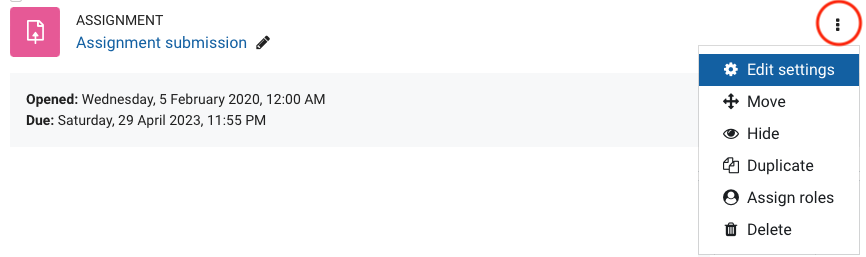
- You can make changes to the content, layout and other settings by clicking the three dots to view the drop down menu to the right of each activity or resource. For more information on these edit functions, see Resources and activities in Moodle.
Note: Any changes you make with editing on will be live to students immediately. In other words, it is not necessary to switch Edit mode off to save your changes.
Customise Learning sections
By default, sections in the Learning tab are labelled as Weeks. You are able to select one of four options for the name of sections - Week, Topic, Module of Day, depending on the needs of the educator.
- In the top banner, click Settings.

- Scroll down to Unit format. From the Learning Section dropdown menu, select the preferred option.
- Click Save and display to return to the unit.
