
Enable extensions (overrides) and allow quiz reattempts
At a glance
Grant students extensions or additional quiz attempts using user overrides, and understand how these interact with automated extensions and special consideration processes. Explore how to reopen or unlock an incomplete attempt, apply overrides to an individual student or a group, and manage the risks of overriding attempts for groups.
Jump to these sections:
You can extend the completion date or reopen a quiz to individual students or groups by using User overrides.
You can also use user overrides to grant extensions for Moodle assignments, however, there are more efficient workflows depending on whether you would like to grant extensions for multiple students, groups of students or all students. For more information, see Set up extensions and resubmissions for Moodle assignments.
Automations are in place for Moodle Assignment and Quiz activity types for extensions and Special consideration. For approved extensions, a student may be entitled to one or more additional quiz attempts.
If allowing students to attempt the quiz after the original deadline is an academic integrity concern, it is recommended to use the Moodle activity settings for special consideration to mark the activity as complex and detail an alternative assessment. These settings provide guidance for the Special Consideration team to process approved Special consideration applications on behalf of the Chief Examiner, if appropriate. Tips for using Moodle Quiz includes guidance to minimise opportunities for collusion, such as selecting random questions drawn from a comprehensive question bank.
Reopen quiz attempt
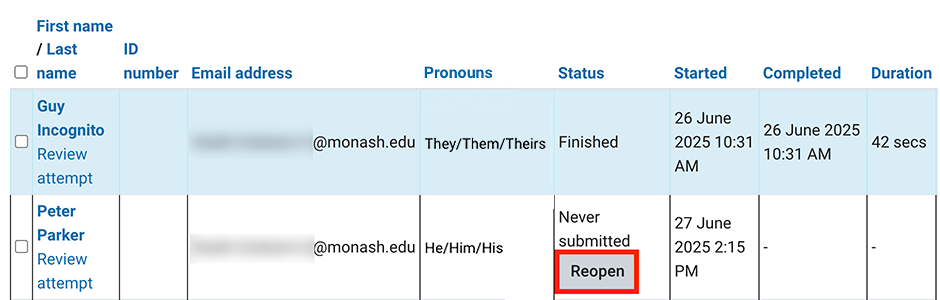
- Click on the Results at the top of the Quiz page.

- For the incomplete attempt you would like to reopen, click Reopen.
Unlock quiz attempt
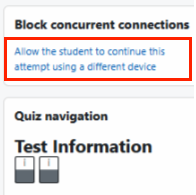
If you have enabled the block concurrent connection setting and a student needs to resume their quiz due to a legitimate issue (e.g. their battery died or the browser crashed), you can unlock their quiz attempt:
- Navigate to Results.
- For the student quiz you would like to unlock, click Review attempt.
- In the right-hand pane, click Allow the student to continue this attempt using a different device.
Override individual
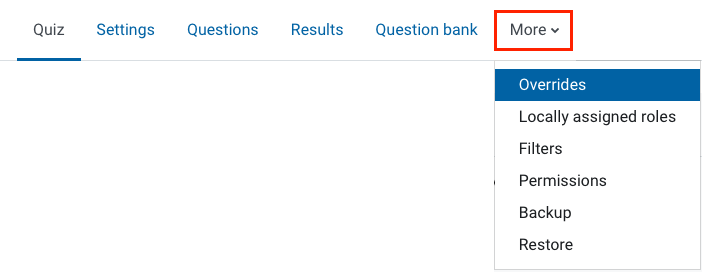
- Click on the More at the top of the Quiz page.
- Click on Overrides.
- Select User override from the dropdown and click Add override.
- Select a student from the Override user drop down list and set other details as required.
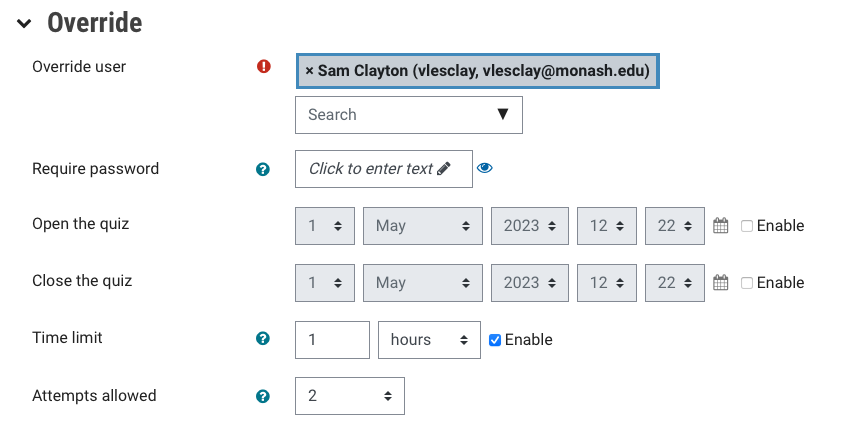
- Once finished, click Save or Save and enter another override if desired.
Override a group of students
- Click on More at the top of the Quiz page.
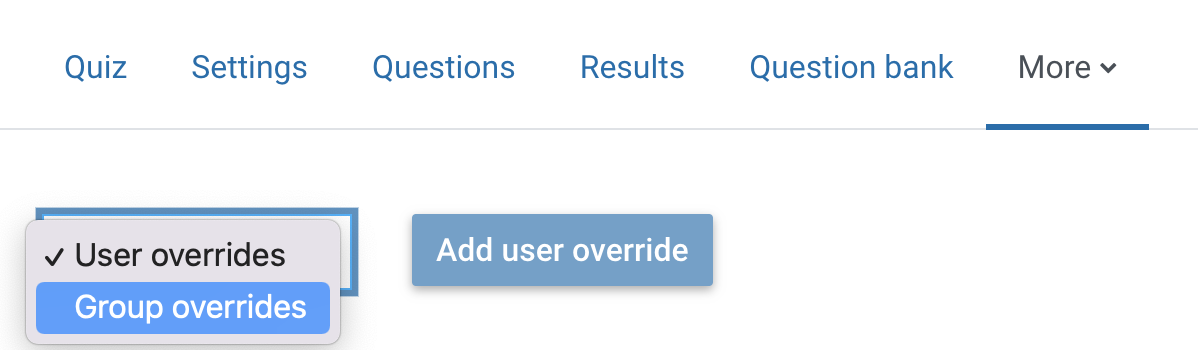
- Select Group override from the dropdown and click Add override.
- Click on Add group override.
- Select a group from the Override group drop down list and set other details as required.
- Once finished, click Save or Save and enter another override
NoteWhen configuring a group override, be aware that the Special Consideration system does not automatically track whether the number of attempts set in the override differs from the default quiz settings. This can impact students who receive extended deadlines, as Moodle may not correctly adjust their available attempts. In this instance, the Chief Examiner should check the individual user overrides to ensure the correct number of attempts are available for the student. |