
Add a Forum
At a glance
Follow step-by-step instructions to add a forum activity in Moodle, choose the right forum type and configure key settings such as attachments, subscription mode, read tracking, discussion locking and grading.
Jump to these sections:
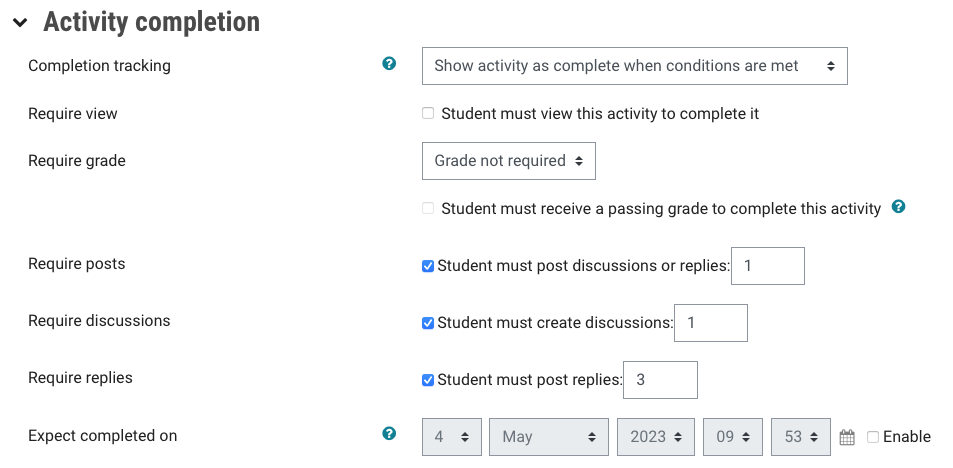
Forums can now show as complete in the Assessment summary tableYou can use completion tracking settings to determine if work is submitted and this will be reflected in the Assessment summary table. Where someone enables activity completion as Show activity as complete when conditions are met - and ticks one or more boxes to indicate condition applicable and due date - this criteria will now cause the trigger of the status as ‘Submitted’ within the Assessment summary table. Conditions include:
Note: If there is no activity completion trigger enabled, after the due date submission has passed, the forum will display with DATE PASSED in the Assessment summary table. |
Follow these instructions to add a forum activity and set the required parameters. Forums created in learning topic sections will automatically be displayed in the Forums tab
Note: Forums cannot be directly created under the Forums tab in the Monash Moodle standard template.
- In the top right hand corner of the page, switch Edit mode to ON(Blue).

- In the section where you would like to add a resource or activity, click +Add an activity or resource.

Note: You can add new resources or activities above or below any existing activities or resources.
- Select your required forum (Open or Forum).
- In the General settings, give your forum a name and description(optional).
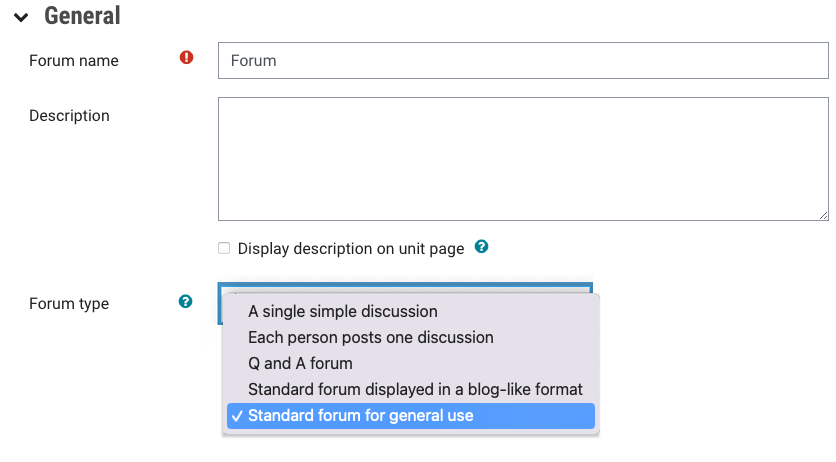
- Select the type of forum you would like to use from the Forum types drop down list.
A single simple discussion Set up a single discussion topic which all your students can reply to. Each person posts one discussion Allow each student to post only one new discussion topic, which everyone can then reply to. Q and A forum Students must first post their response to a question or series of questions before viewing other students' posts. Standard forum displayed in a blog-like format Allow anyone to start a new discussion at any time, in which discussion topics are displayed on one page with Discuss this topic links. Standard forum for general use A forum with minimal restrictions, anyone can start a new discussion at any time and can comment on the discussions.
- Select options as required:
- Attachments and word count: Select whether users can add a file as an attachment to their posts. Select the maximum size of the attachment, the maximum number of attachments and whether you want to have a word count displayed.
- Subscription mode: Select how you want students to receive forum posts and notifications, whether optional, forced, auto or disabled.
- Read tracking: Choose to turn this feature into optional, forced or off. By selecting Forced you ensure that participants will identify unread posts.
- Discussion locking: Either keep the posts open or lock discussions after a certain period of time.
- Post threshold for blocking: Set the number of posts students can make within a given timeframe. You would use this if you want to limit the number of posts per day, otherwise you would leave the default at Don’t block.
- Grade: You can enable grading by selecting a grade type other than None. This automatically creates a grade item in the Gradebook that allows you to assign marks based on a student’s posts in the forum. Students will also be able to see their grade in the forum. For more information, see Set up forum grading.
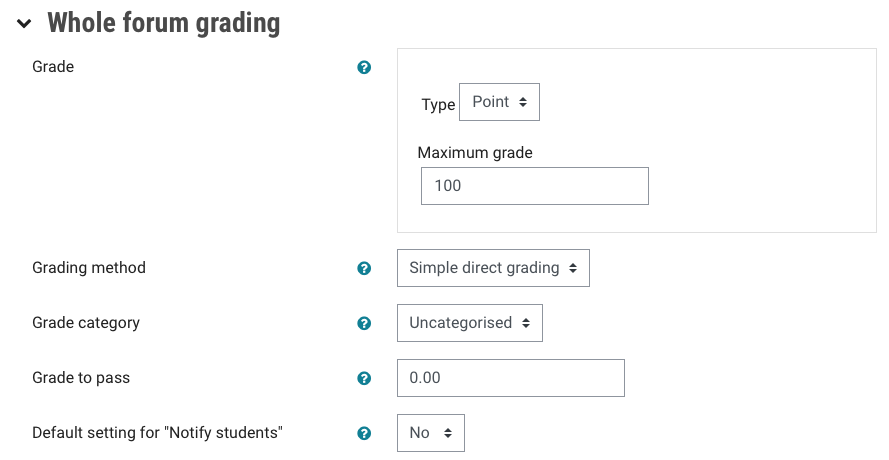
Note: Forum grading will differ slightly based on if it is a standard forum or open forum.
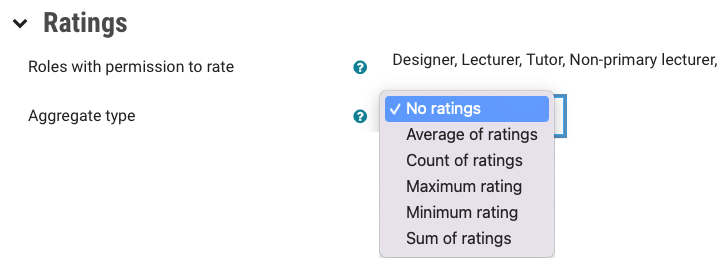
- Ratings: Allows participants to evaluate posts in the forum. You would need to set the scale and aggregate response setting. You would need to enable student ratings if you want to allow students to assess others posts. For more information, see Set up forum grading.
- Common module settings: In this section, decide if you want to show or hide the activity, or have it available but not shown on the page. If you select the latter, you can copy the link and paste it into another section or activity within Moodle, such as a Moodle Lesson.
- Group mode: There are three options; separate groups, visible groups or no groups.
- Restrict access: If required, add restrictions to activity completion, date, grade or restriction set.
- Activity completion: If Completion tracking is set to Show activity as complete when conditions are met you can set the minimum number of discussion posts or replies that students are required to make.
- Once complete, click Save and return to unit or Save and display.