
Create Graded H5P activity
At a glance
Set up an H5P activity in Moodle that assigns a grade and tracks attempts automatically through the Gradebook. Explore the two activity types available for grading, learn how to view student attempts and understand the limitations of H5P for group work or complex customisation.
You may wish to create a graded H5P activity. You can assign a grade and enable attempt tracking(blue icon only). Any attempts will be marked automatically and count towards a student's mark in the Gradebook. However, H5P is not recommended for group work and other collaborative tasks, as there is no collective database and has limited analytics.
- Click Turn editing on in the top right corner of the unit banner.
- In the topic you would like to add a HP5 activity and click Add an activity or resource.
- There are two types of H5P activities that allow grading:
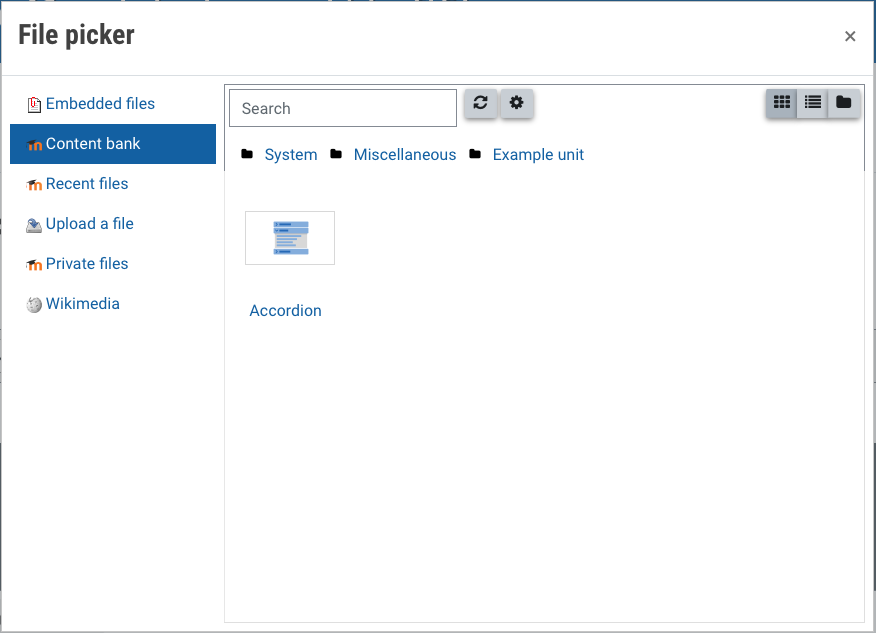
H5P: Create a standalone H5P activity from the content bank, this type allows grading and attempt tracking.
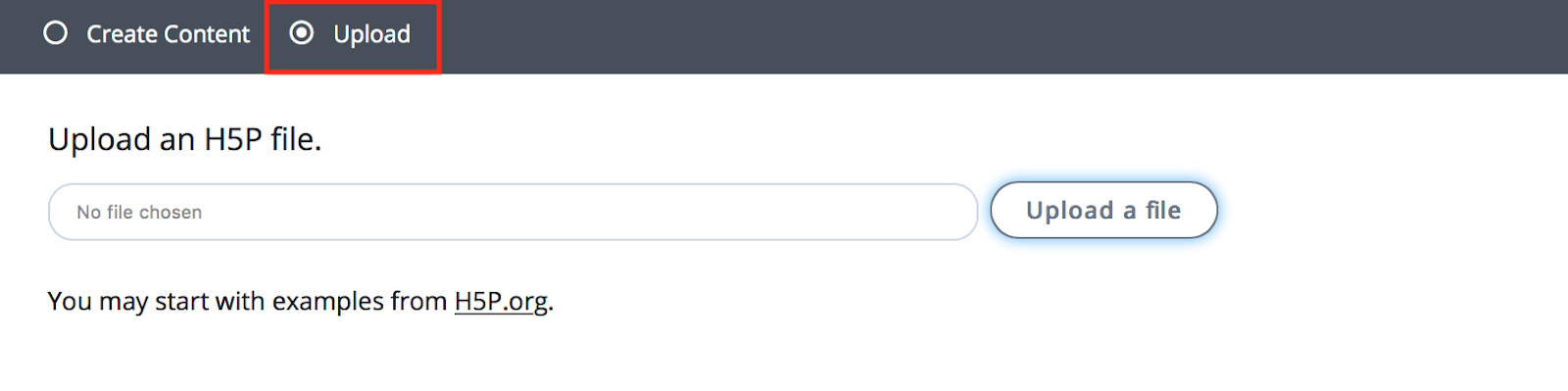
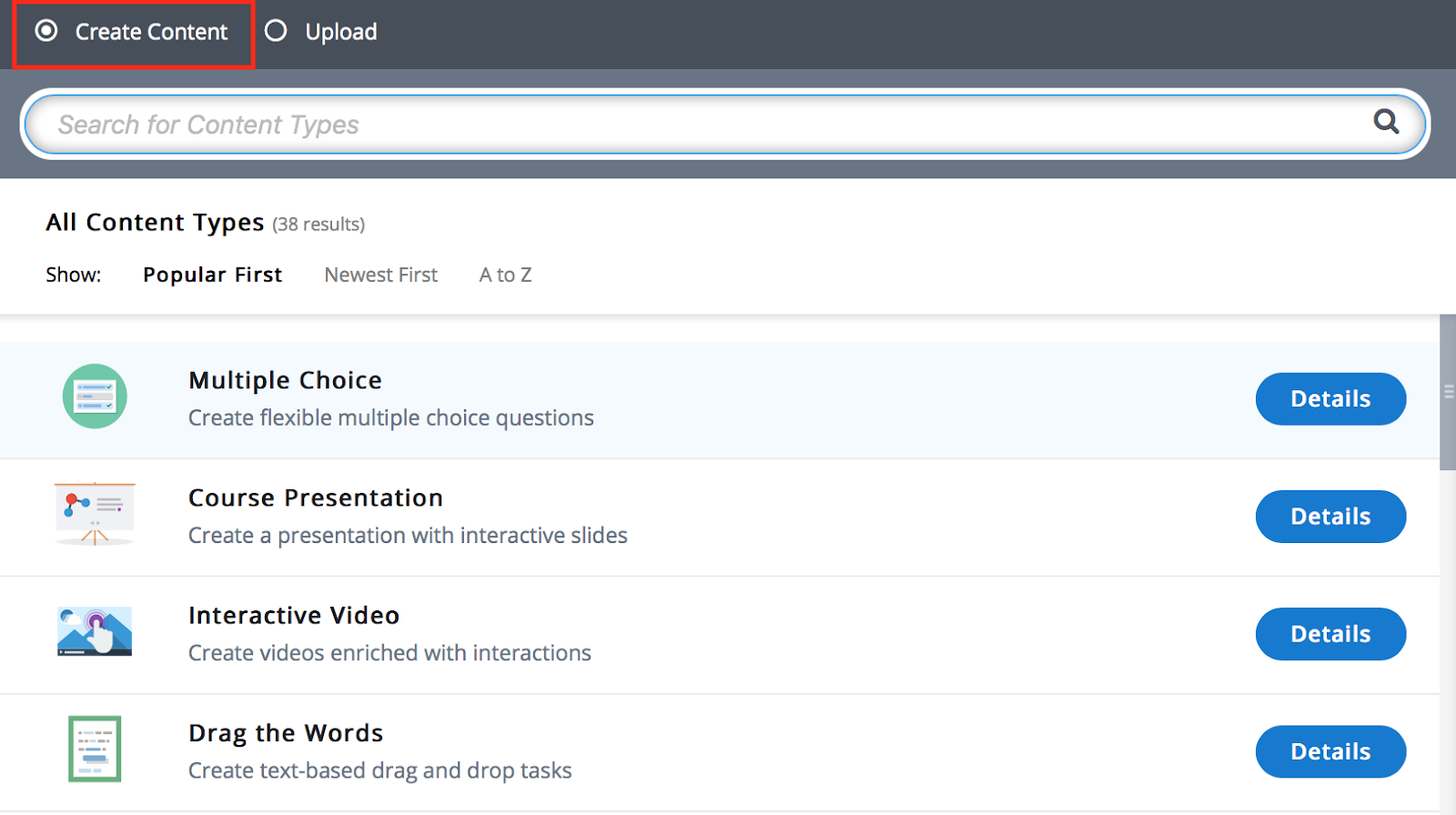
Interactive content: Create a new H5P activity from scratch. Allows grading only. - Click on the icon of the activity you would like to add.
Note
Though you can use H5P for graded activities, grading is limited. You can view details of the completed activities and view a very general completion overview report. As H5P does not have a collective database, it is also not recommended for group work or collaborative tasks. As H5P uses pre-built layouts and designs, complex visual or behavioural customisation may not be possible. You may need to consider other technologies for more control and customization.
As H5P activities rely primarily on visual information, some H5P activities will not be accessible for students with visual impairments or that require the use of screen readers. For more information, you can view an overview of the accessibility of the various H5P content types.
View student attempts
You can view a summary of student attempts.
- Navigate to your graded H5P activity
- Click View all attempts in the top right corner.
- In the Attempts column, click View user attempts. You will only be able to view attempts for students who have made at least one attempt.
- You will be able to see the time the attempt was made, the student’s score, duration of the attempt.
- In the Report column, click View report to view the breakdown of correct and incorrect answers in the student's attempt.