
Moodle Assignments
Moodle Assignments
Assessment is a key part of education. The Assignment Activity is the most common way to collect assessable work from your students, and provide them with feedback on that work

What can be assessed with Moodle assignments?
Students can submit written work such as essays or reports, audio and video files, and a wide range of other file types including computer programs, LaTeX and HTML. You can also set up Moodle assignment activities to capture grades for assessments that students complete outside of Moodle, such as oral assessments, in-class presentations or performances.
With thoughtful setup, it can be both an instructional and a communication tool for providing feedback.
-
Get started with Moodle assignments
Learn about key factors to consider when setting up a Moodle assignment and best practices for setting up common assessment scenarios.
-
Create a Moodle assignment activity
Learn how to create and set up a Moodle assignment activity and how to apply settings for submission dates, grades and individual or group submission and more.
-
Set up marker allocation and marking workflow
Learn how to enable marker allocation and marking workflow. This can be useful to track stages of marking when multiple tutors and lecturers are marking submissions.
-
View the assignment grading overview
From the grading overview, you can view all student submissions attached to an assignment. You can download files, regrade submissions or allow students another attempt.
-
Grade via the assignment grader interface
From the assignment grader interface, you can provide grades and in-depth feedback for individual student submissions, this can include dictated audio, video and attached feedback files.
-
Provide feedback using PDF marking and annotation
Learn how to annotate and provide inline feedback directly on a student's PDF file submission. Some formats are automatically converted to PDF format.
-
Grade using Moodle rubrics
Learn how to create and use rubrics for grading in the grader interface. Rubrics can make the task clearer for students and ensure greater consistency between markers.
-
Grade using ranged rubrics
Learn how to use ranged rubrics to assign a range of marks to each criterion level, allowing graders to better distinguish between individual students’ performances within each level.
-
Grade using Moodle marking guides
Learn how to create marking guides for grading in the grader interface. Marking guides allow you to build a set of frequently used comments when marking.
-
Enable anonymous submissions
Learn how to enable anonymous submissions (displayed with participant number). You can reveal student identities if needed.
-
Hide or reveal grades
Learn how to hide or reveal grades and feedback for assessments via the grader report or the Gradebook set up page.
-
Set up extensions and resubmissions
Learn how to extend the due date or allow resubmissions for individual students, multiple students or all students with user overrides.
-
Bulk upload feedback files
Learn how to bulk upload feedback files, which can save time when delivering feedback to students for their assessments.
-
Use Panopto for video assignments
Learn how to set up an assignments folder in Panopto to allow students to submit video assignments via the Moodle assignment activity.
-
Use assignments for offline assessment
Learn how to set up an Assignment activity in Moodle for grading and feedback on tasks that students complete outside of Moodle, such as oral assessments, in-class presentations or performances.
Frequently asked questions
View

View frequently asked questions about Moodle assignments. You can select Expand all and then use CTRL + F (PC) or CMD + F (MAC) to search for keywords.
-
The due time of an assessment always pulls from the time of the person setting up the assessment, and will display differently for students according to their timezone settings in Moodle. Be aware that the system will only allow you to select 11.55pm as the assessment submission time, unless given express permission from the faculty to choose a non-standard submission time. If needed, you will need to set up overrides for student cohorts in different time zones to adjust the assessment submission time so it appears as 11.55pm in the students local timezone.
-
If the assignment has Turnitin enabled, it will not accept file types that Turnitin cannot read, including .zip files. You will need to disable the Turnitin settings in the assignment. For more information, see Turnitin: Customise assignment settings.
-
You can do this by setting an open date for an activity in the activity settings, rather than hiding activities which makes them invisible on the Assessment tab.
-
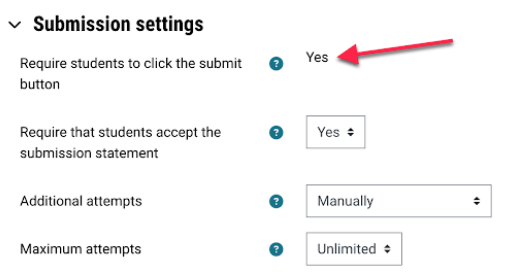
In the Assignment Submission settings, check that the "Require students to click the submit button" is enabled. If this setting is already enabled, check that the grade item hasn’t been locked in the Gradebook, as this will also prevent students from submitting to the assignment activity.
-
Even if one student has submitted the work, all other students should also submit so that they have completed the appropriate acknowledgements of authenticity of their work that are a part of the submission process.
Supporting your students
View
There are several steps you can take to ensure students are well supported when completing a Moodle assignment. There are also resources at the university to help them with their assignments.
How to support your students
- Collate assessment information together in a central place and ensure all students know where it is. If individual conversations with students are required to clarify details, make sure this information is shared with the rest of the cohort too.
- Allow students to ask questions and discuss the assessment task(s) in a productive and positive manner through guided conversations about rubrics, via online forums or assessment drop ins.
- Provide clear instructions, guidelines and grading requirements. This can be done by writing instructions in the assignment, stating the weighting, and letting students know the deadlines and time requirements.
- Explain the use of Turnitin within Moodle Assignment. Explain how to use the similarity report as a positive and productive tool to improve their writing.
- Provide feedback to students. Feedback is a crucial part of the assignment process. One of the best ways to support your students using a Moodle Assignment is to give them feedback. This can be done through annotations, comments sections, the use of rubrics or marking guides.
- Keep notes on student questions about assessment tasks, the instructions and the marking process. Use these notes to guide future improvements.
What resources and services are available to students
Here are a number of resources that you can share with your students to help them better prepare for their assessments.
This Learn HQ resource provides students steps for submitting an assignment in Moodle. If you are teaching a first year unit, provide a link to the resource within your assessment page on Moodle.
This Learn HQ resource provides students information about Turnitin and tips for understanding and using Turnitin. If you are teaching a first year unit, provide a link to the resource within your assessment page on Moodle.
Student Academic Success: Individual consultants with learning advisers
Share this link with students so that they can book in with a learning adviser to gain personal support on how to prepare for timed assessments.
Student Academic Success: Academic English
Share this link so that students can obtain support around academic English usage. This will improve their academic writing to help reduce any unintentional breaches of academic integrity.
Assessment and results: Special consideration processes
Share this link to let students know how to apply for special consideration that may allow them to obtain an extension, create another assessment, or sit a deferred exam.
Related resources
View
-
Designing Assessment regimes
Design effective assessment regimes in line with best-practice principles
-
Feedback
Learn more about how to provide effective feedback within formative and summative assessment to improve student outcomes and learning.
-
Group and peer assessment
Use collaborative activities to effectively develop and assess skills, knowledge and attributes
-
Grading interface
This guide allows you to view individual student assignments and provide a grade and in-depth feedback including rich media, such as audio, video and inline files, with the ATTO text editor.
-
Marking and grading
Mark consistently through the appropriate application of criteria and moderation practices
-
Moodle Gradebook
Moodle Gradebook is used to record and collate all student marks for the unit. Some grades are automatically populated, e.g. from online quizzes, while others are entered manually as marking is completed. Visit the Moodle Gradebook page to learn more about how to record student grades and apply weighting within Moodle.
-
Turnitin
Turnitin is a text-matching software that can assist students in improving their academic writing skills, and enhance academic integrity. It is integrated with Moodle and works by comparing the text components of submissions, such as essays or reports, against an extensive database of past student submissions, websites, and publications including journal articles and government reports.
Relevant policies & procedures
Monash has specific policies and procedures related to assessments and academic integrity. Take the time to review these to inform your teaching practice.
-
Academic Integrity and Academic Misconduct
This site provides you with a list of policies and procedures related to integrity and misconduct. Here you can view how to report a breac
-
Marking Responsibilities according to Policy and Procedures
The new Assessment and Academic Integrity Policy came into full effect on 1 January 2021. To support you during this period of change, we've outlined key information and changes that are associated with the seven procedures and what they may mean for your work. This website highlights the key information and includes a downloadable workbook explaining the key responsibilities.
-
Marking and feedback procedure
Outlines processes and principles for marking, blind marking, second marking, double marking, provision of feedback, quality assurance, finalising results, responsibilities, and re-marking requests.
-
Assessment regime procedure
Explains requirements of developing and implementing an assessment regime for a unit, rules around scheduling, extensions, hurdles, alternative and supplementary assessments, and communicating assessment requirements.
-
Grading schema procedure
Explains the final grades that are used at Monash in a range of assessment contexts, calculations of WAM, GPA and CGPA, and rules around the use of the withdrawn incomplete (WI) grade.
Education Performance Standards framework
View
The Education Performance Standards identify the expectations of education practice at Monash – See the Education Performance Standards for more details.
Impact on student learning | Impact on educational knowledge | Impact on educational environment | |||||
Effective teaching and learning | Responsive program design | Student- centred orientation | Professional learning engagement | Pedagogical content knowledge | Education research performance | Education innovation | Education leadership |
✓ | ✓ | ✓ | |||||
You could address these Practice Elements by providing evidence of how you:
- Demonstrate ability to use engaging, authentic and active approaches to teaching and learning. For example, this can be done by creating forums that engage students in discussions and actively create and respond to posts.
- Demonstrate contributions to support positive student learning experiences in practice. One way of showing this is by using forums as a way to support student learning and create a space where students can ask questions and receive feedback.
- Demonstrate ability to create or adapt teaching and learning approaches in line with new thinking and understanding. This can be done by finding new ways to use forums to increase student engagement.