
Using multimedia
Using multimedia
Communicate concepts and content in engaging ways, bringing complex learning concepts to life and demonstrating action and procedures in a richer way than just text.
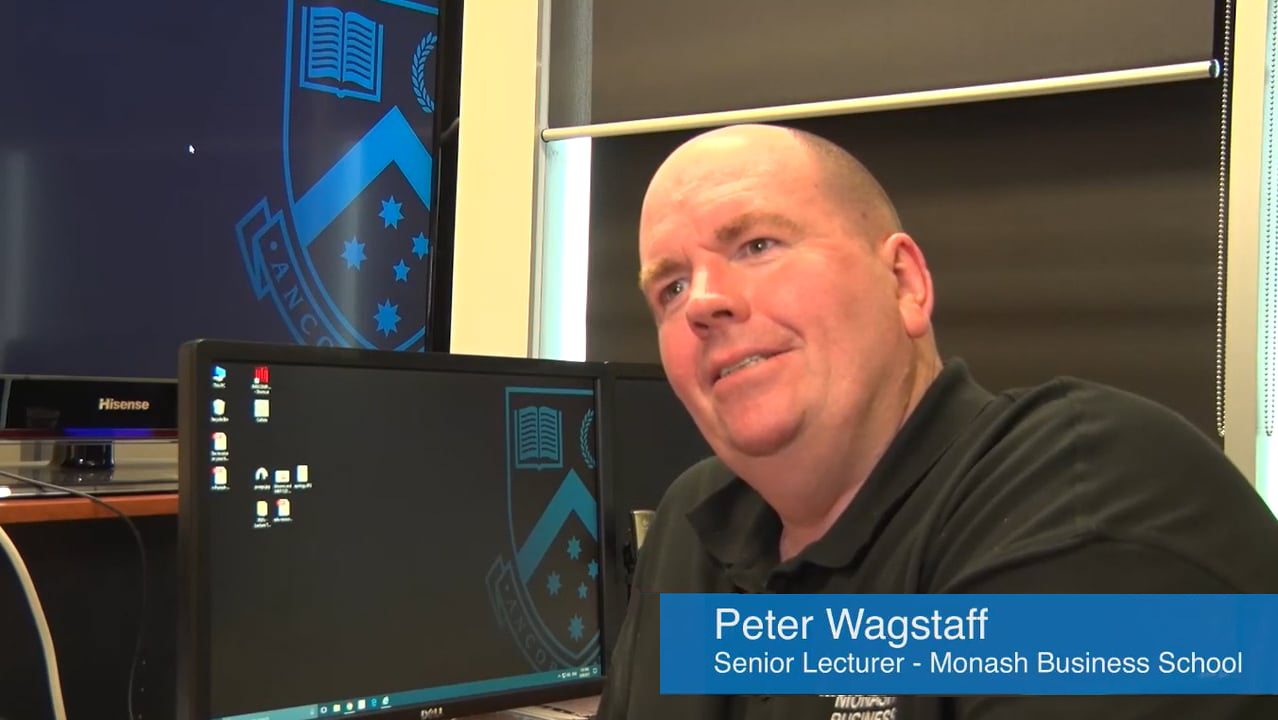
Why use multimedia in learning and teaching?
Video and other forms of multimedia are valuable tools for learning and teaching. Multimedia describes any combination of one of more forms of media, such as images, sound and text. Multimedia can be used to communicate concepts and content in engaging ways, bringing complex learning concepts to life and demonstrating action and procedures in a richer way than just text.
Video can also be a great way to connect with students where there are fewer opportunities to establish a social rapport between educators and peers in blended or online settings.
-
Use multimedia for creating content
Learn how multimedia can be used to create content in a teaching context including class recordings, topic introduction videos, on-screen annotation, interviews, demonstrations and virtual tours.
-
Create learning activities using multimedia
Learn how multimedia can be used to create learning activities, such as interactive H5P activities, interactive videos and augmented or virtual reality simulations.
-
Use multimedia for communication and collaboration
Learn how multimedia can be used for communication and collaboration, such as unit introduction videos, group podcasts, online group work and online consultations.
-
Use multimedia for assessment and feedback
Learn how multimedia can be to support assessment and feedback in teaching, such as assessment introduction videos, student video assignments, post-class content review and video and audio feedback.
-
Embed audio and video in Moodle
Learn how to embed audio and video, such as Youtube or Panopto videos, anywhere in your Moodle unit.
-
Create presentation slides for teaching
Learn how to design and organise your presentations in a way that is clear, intuitive and that emphasises the most important elements you wish to communicate.
Tips for using multimedia
View

Here are some recommendations to consider when creating multimedia to ensure you create high-quality teaching resources. You can contact your faculty educational designer to see what existing AV equipment and resources may be available to you.
-
Consider how you will use multimedia in the context/structure of your teaching.
- Clearly signpost how you would like students to engage with the content, for example writing instructions for what you want students to do and why.
- Add activities around your content, such as questions before and/or after, for students to engage with in conjunction with multimedia content. This can increase learner engagement with the content.
-
Planning is important to ensure you convey all the important information in your content.
- Prepare a list of key items to be covered, this can be a list of dot points or checklist or a storyboard depending on the content and complexity of your content.
- Consider how you will match the visuals on screen with your audio. Try to show on screen what you are describing in the audio at the same time, for example sharing text or images on slides, sharing your screen and making annotations.
-
Breaking up your content will make it easier and more digestible to process for your students.
- Focus on one single key concept or theme at a time. Consider breaking your content into multiple chunks, each covering a single key concept or theme.
- If using presentation slides, keep each slide focused on a single key concept or theme and avoid simply reading text from your slides. Instead expand upon your dot points. If you leave sufficient blank space, you can even illustrate points with on-screen annotations
-
There are existing resources available that you can use to create multimedia.
- You can produce good quality audio using only your smartphone or laptop/tablet device. However investing in better recording equipment makes a big difference in the presentation, professionalism and longevity of your content. Contact your faculty educational designer to see what existing resources may be available to you.
- You can film in dedicated Microstudios at various Monash campuses if you require a quiet and professional studio environment.
- You can use existing multimedia from Youtube or the internet in your teaching within copyright and usage guidelines. It is recommended that you use existing resources created under the Creative Commons licence. For more information, see copyright and teaching.
-
Creating multimedia requires an investment of time and resources. It is recommended that you create resources that will have longevity and that can be used over a number of teaching periods.
- You can produce good quality audio using only your smartphone or laptop/tablet device. However investing in better recording equipment makes a big difference in the presentation, professionalism and longevity of your content.
- Where relevant, avoid being too specific about content. For example, in a video introduction to the unit avoid referencing specific learning activities in specific weeks, instead give a broad general overview of what learning content that will be covered. This will allow you some flexibility and allow you to reuse your content even if there are some changes.
-
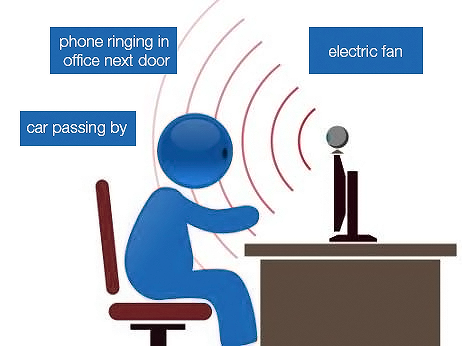
- Find the quietest part of your home to record from, limit ambient background noise by closing any windows and doors and turn off electrical equipment, such as fans and heaters. Ask those around you to be quiet, or ideally move to a place where you won't be disturbed.
- A clear uncluttered background is recommended. Remove anything in the background that is too distracting or reflective or find a blank wall to record in front of.
- Film yourself facing a source of natural light, such as a window. If this is not possible, try to introduce sources of indirect light to improve your lighting. Lighting that is too bright or dim will reduce the video quality. Avoid strong direct sources of light which will cast heavy shadows and avoid filming with a source of light behind you which will make you appear as a dark silhouette.
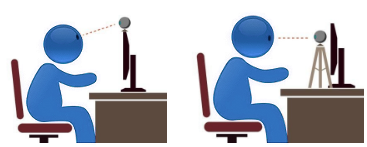
- Place the camera at eye level to create the sense of a direct engagement with the viewer. If you’re using a USB webcam, you could put your camera on top of the monitor or invest in an inexpensive tripod. If your camera is a part of your laptop, but is not located at a flattering angle, consider propping up your laptop on a stable surface to improve the camera angle.
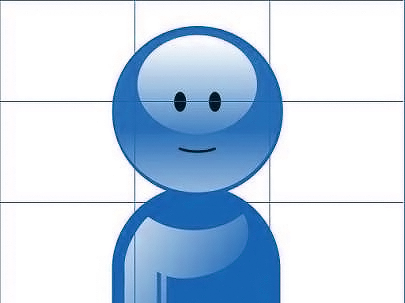
- Place yourself in the centre of the frame, you should leave some space above your head and try to try to include your shoulders in the frame.
- If you are using your phone to record video, use the front facing camera and record horizontally. Investing in an inexpensive tripod may also make the filming process easier.
- Small mistakes can be easily fixed with editing. If you make a small stumble, take a breath, and continue from your last sentence. A single perfect take is an unrealistic goal.
Note: If you have notes you will refer to during the video, try to position them near to the camera so you can maintain eye contact with the camera when you look at your notes.
-
Clear audio is vital in order for students to hear and understand your content. It is recommended that you use an external microphone or a headset with a microphone. Your faculty can order a headset through eSolutions.
- Before recording, conduct a sound test to make sure your speaker/headphone volume is at a reasonable level. Be very mindful of room noise, like air conditioning when you listen back to your test recording.
- High quality audio makes a big difference in the quality and accessibility of your content. You can produce good quality audio using only your smartphone or laptop/tablet device. However investing into better recording equipment makes a big difference in the presentation, professionalism and longevity of your content.
- Avoid placing your microphone too close or directly in front of your mouth. Place the microphone to the side and down from your mouth or keep it under your chin. Words containing strong “Tt” and “Pp” and “Ss” sounds said directly into the microphone can make your audio sound sharp and unpleasant.
-
Video is a powerful student engagement tool that can provide connection to their educators and peers and opportunities to establish a social rapport, especially in blended or online units where students may have less opportunities to meet their teachers and peers.
- Videos filmed in an informal setting are more engaging to students than professional looking studio locations.
- Share your real experiences and incorporate something from your own teaching background to make you seem more real, present, and familiar to your students.
- Where appropriate, use student’s names to personalise online engagement.
-
While multimedia benefits by presenting content in both visual and auditory ways, following accessibility principles in your work not only benefits users with identified disabilities, but makes for a better user experience for everyone. For more information, see Accessibility in Moodle.
- Ensure videos have closed captions. With Panopto, you can quickly generate automatic captions in English and other languages.
- Provide links to download files, transcripts or slides that appear in the video.
- Consider breaking long videos into shorter segments by topic or theme to make content more digestible.
- Make it easier for users to see and hear content. For example, make sure your audio is clear without any background music. If you are presenting slides they shouldn’t contain too much text per slide and text should be large and high contrast with the background to be easily readable.
-
Many forms of media online are protected by copyright, for example popular licensed music. As an educational institution, it is permissible to use some copyrighted material in teaching at Monash University under certain circumstances. For more information, refer to the library guides.
Another option is to use media covered under Creative Commons licence, which allows the reuse of content provided that licence terms are followed, such as attribution to the original creator. You can also use Copyright free images, which have no conditions. If you want to use resources that are not covered under creative commons, you would need permissions. For more information, see Short Courses Permissions and Obtaining Permissions.
Note: If you have shown YouTube clips in your Zoom class, ensure your Zoom recordings are shared with your students only (your unit Panopto sharing settings should limit access to only your student by default). Recorded Zoom meetings containing copyrighted material should NOT be made widely available to the public, such as YouTube or other platforms.
To search for images covered by the Creative Commons licence:
- Search for an image using Google image search.
- Below the Google image search toolbar, select Tools.
- From the "Usage Rights" dropdown list, select Creative Commons licences.

Supporting your students
View
Using multimedia in your teaching can provide a lot of benefits for your students as it can provide them with flexibility in their learning, supplemental materials, opportunities to check their understanding, and add a more personalised experience. There are a number of ways that you can support your students.
Provide closed captions for your videos
In order to accommodate for language barriers, learning, visual or auditory disabilities, it is essential that you provide closed captioning to videos or share a transcript of the video. Panopto has the ability to easily add closed captioning to your videos. Having this option will provide a more accessible learning experience for your students.
Prepare an video introduction to your unit
Video is a great way for students to get to know you better and provide a more personal association to their educator. Having a video that introduces who you are, your research or educational experience and a little something personal can help foster connection and create trust between you and your students.
Share video or audio feedback
In addition to written feedback, your students would greatly benefit from receiving video or audio feedback on their assessments. This shows students that you value their contributions and provides them with more personalised and targeted feedback. This can be done as a short video with overall feedback on their assessment or as a screen capture where you walk them through the assessment and highlight areas of improvement. The key to feedback is that students can take the feedback and have an opportunity to improve on their assessment.
Create opportunities to check understanding
Using multimedia in your teaching can open up opportunities to create engaging and interactive learning activities. You can add a layer of interactivity within a video by embedding quiz questions to check their understanding or reinforce important concepts. Both H5P and Panopto allow you to embed quizzing directly onto the videos.
Get student to generate multimedia content
Another way to support or engage students is by getting them to create multimedia content. This can provide opportunities for students to take ownership of their own learning and contribute to the learning experience of all students in the unit. This could be done as part of their assessment task in the unit or as an assessment for learning activity. You can get students to create a video, a website, a podcast, a poster or another type of digital artifact. Whatever you decide on, make sure that it aligns to the unit learning outcomes, that there is a rationale for it being created in such a format and that students have access to the appropriate tools to create the multimedia content.
Related resources
View
Below is a list of enterprise supported technologies available at Monash that you can use to create multimedia. Click on the name of the technology for more information and related guides and resources. Monash enterprise technologies are supported by eSolutions and central and faculty support teams.
| Primary function | Technology | Content creation | Communication & collaboration | Assessment & feedback | Learning activities |
|---|---|---|---|---|---|
| Video creation and hosting | ✔ | ✔ | ✔ | ||
| Panopto | ✔ | ✔ | ✔ | ✔ | |
| Polling tolls | ✔ | ||||
✔ | |||||
| Video production/Recording studio | ✔ | ✔ | |||
✔ | ✔ | ||||
| Synchronous online communication and collaboration | ✔ | ✔ | ✔ | ✔ | |
| Microsoft Teams | ✔ | ✔ | ✔ | ||
| Google Suite | ✔ | ✔ | |||
| Asynchronous interactive activities | H5P | ✔ | ✔ | ✔ | |
| Moodle Lesson | ✔ | ✔ | ✔ |
Note: There are many technologies available that you can use to create multimedia, some offer free, freemium or paid services. However, non-enterprise supported technologies are not supported by eSolutions or funded by Monash.
Other related resources
-
Using Panopto in your teaching
This module familiarises you with how Panopto works within a learning and teaching context.
-
Using H5P in your teaching
This module will explain how H5P can be used within Moodle to enhance the learning experiences for students.
-
Technology mediated assessment feedback
Associate Professor Michael Henderson and Dr Michael Phillips explain how to use technology for feedback, what to include and why this approach has been proven to be effective.
-
Use captions and transcripts in teaching
Captions and transcripts support understanding, note-taking and revision of the content for all students and enhance learning for students with first language backgrounds other than English and neurodiverse students.
-
Filming in the Microstudio
Produce high-quality professional looking videos in one of Monash’s many Microstudios.
-
Filming in the Lightboard Studio
Create visually engaging videos working through problems, make annotations over diagrams and point, gesture and interact with your content with the Lightboard studio.
Relevant policies & procedures
Monash has specific policies and procedures related to using copyrighted materials in your teaching, which may include images, videos and audio. Take the time to review these to inform your teaching practice. If you have any queries, you can always contact the University Copyright Office(University.Copyright@monash.edu).
- Library guide on using external Text, images, music and video
- Library resources for Copyright Free and Creative Commons Images
- Multimedia resources: Copyright and teaching
- Short Courses Permissions
- Obtaining Permissions
Education Performance Standards Framework
View
The Education Performance Standards identify the expectations of education practice at Monash – See the Education Performance Standards for more details.
Impact on student learning | Impact on educational knowledge | Impact on educational environment | |||||
Effective teaching and learning | Responsive program design | Student- centred orientation | Professional learning engagement | Pedagogical content knowledge | Education research performance | Education innovation | Education leadership |
✓ | ✓ | ||||||
You could address these Practice Elements by providing evidence of how you:
- Improve teaching practices through the use of empirical evidence on the outcomes of pedagogical innovations
- Adopt evidence-led rationale for unit/ course design
- Provide targeted or personalised support to students through the use of data Empower students to reflect upon their learning through the use of learning analytics