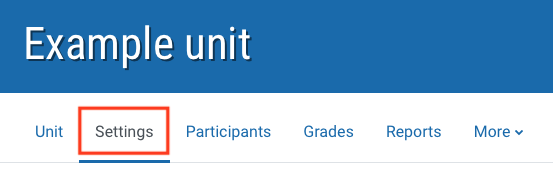
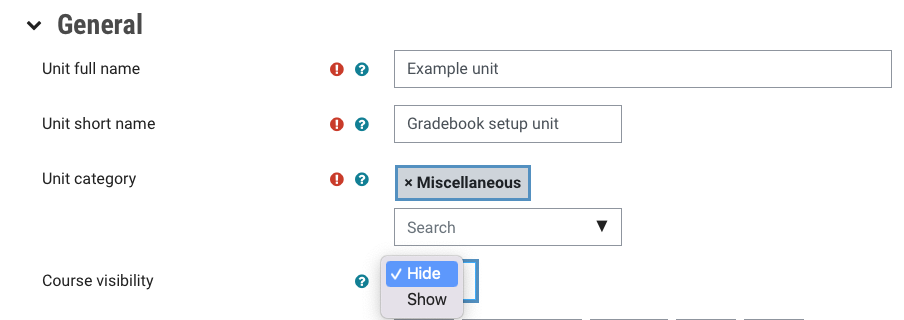
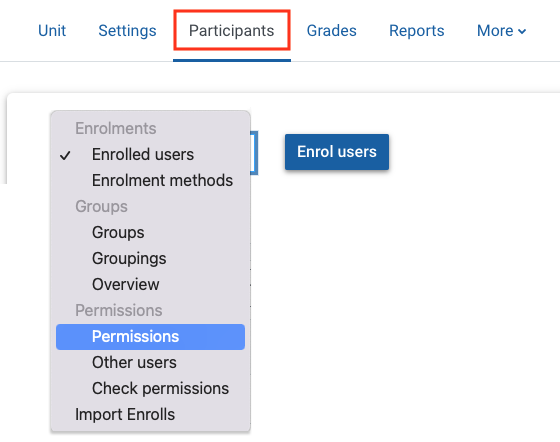
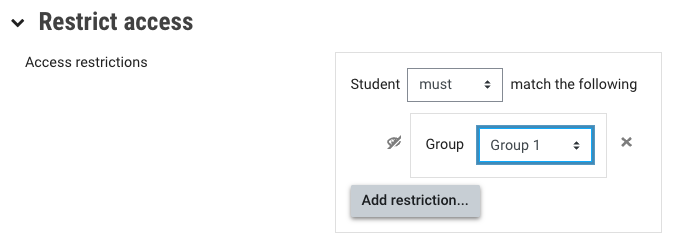
You can restrict access to resources and activities to all groups or specific groups with the group mode under common module settings in the activity settings, so that only students within can view and interact with specific content. For example, you may want to restrict a forum so that students are only interacting with the peers in their tutorial, or their peers in an assessment project, instead of being overwhelmed by huge numbers of forum posts.
Note: For Moodle group assignments, ensure you enable Group submission settings in the Moodle assignment settings. This enables students to submit to the assignment as groups, which is separate from group access/visibility of the activity.
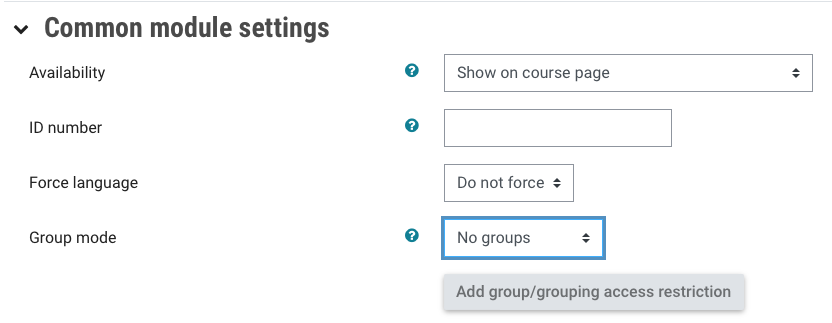
You can also select the group mode when in Edit mode by clicking the three dots and selecting Group mode. Once selected, you will see the group mode icon displayed in the top right corner of the activity or resource tile. You can click on the group mode icon to quickly change the group mode for the resource or activity.
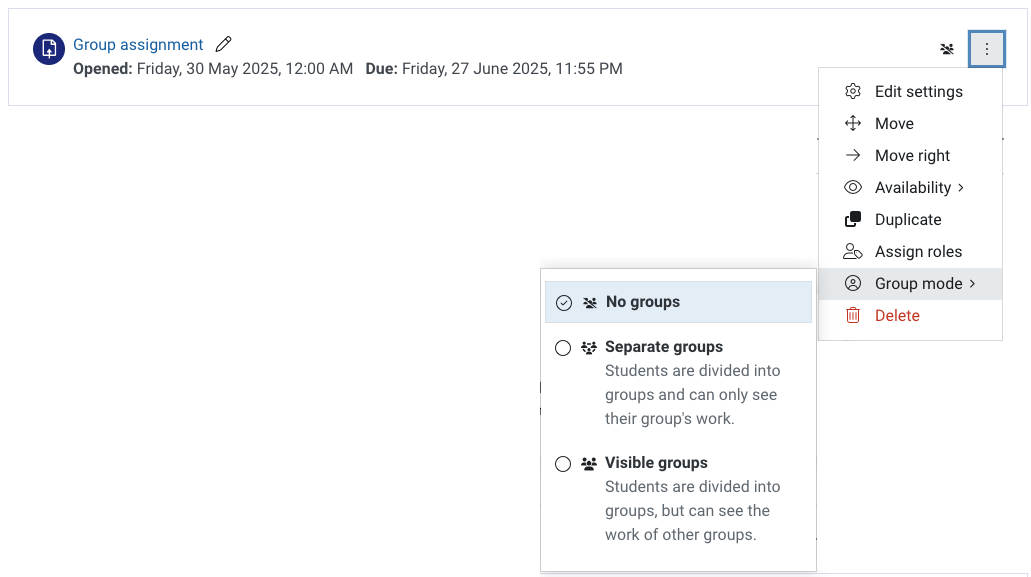
The table below to describes the differences between group modes
NOTE: These settings will affect ALL members in groups, including tutors.
| Group mode | Description |
|---|
| No groups |
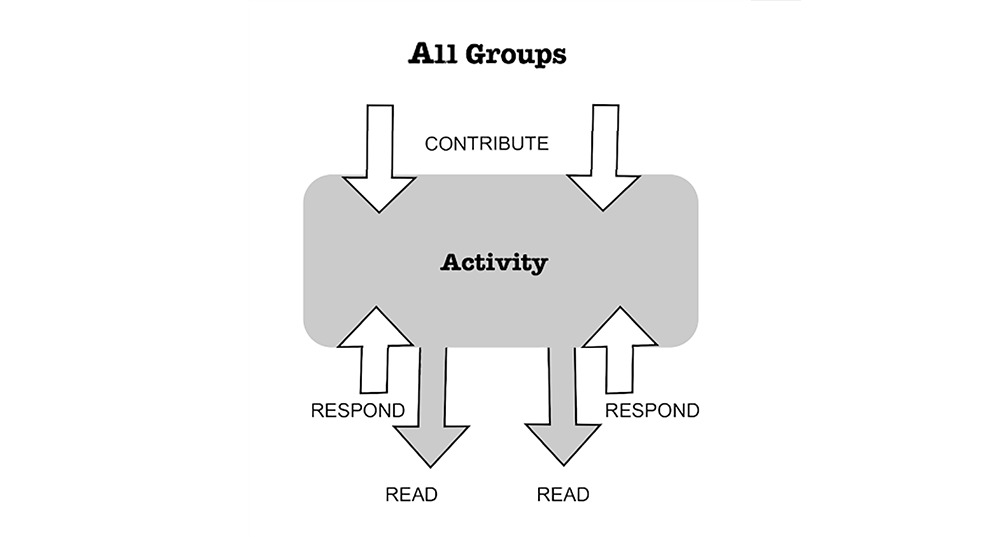
There are no group restrictions, so students from all groups can view and interact with the activity or resources. This is the default setting. Everyone can read and respond to the whole cohort.
 |
| Visible groups |
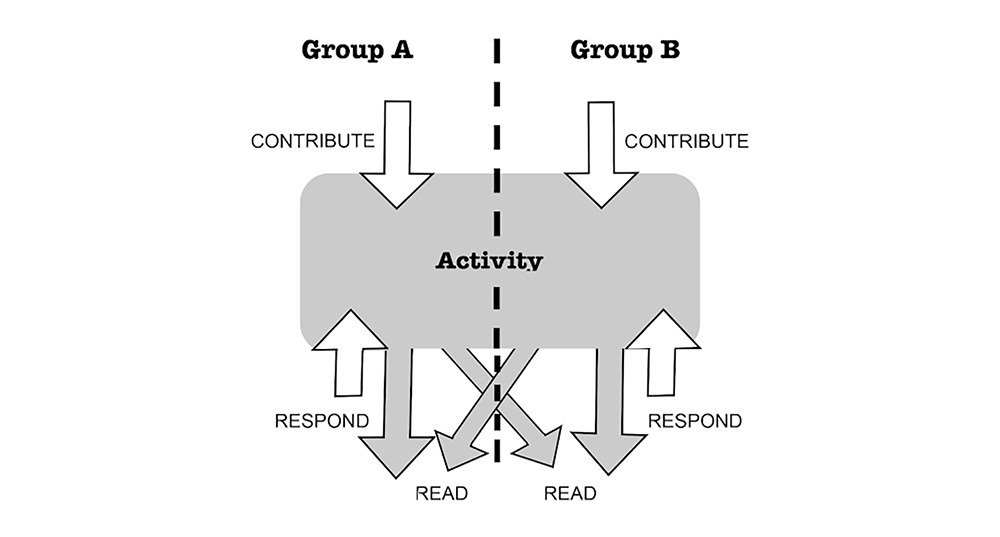
Students can only contribute to the activity within their own group, but students in all groups can view the activity or resource. This is useful if you want groups to discuss something, you want everyone to see other discussions, but you don't want members outside the group to participate. The
visible groups option is useful of you want to set up a Group self-selection activity.
 |
| Separate groups |
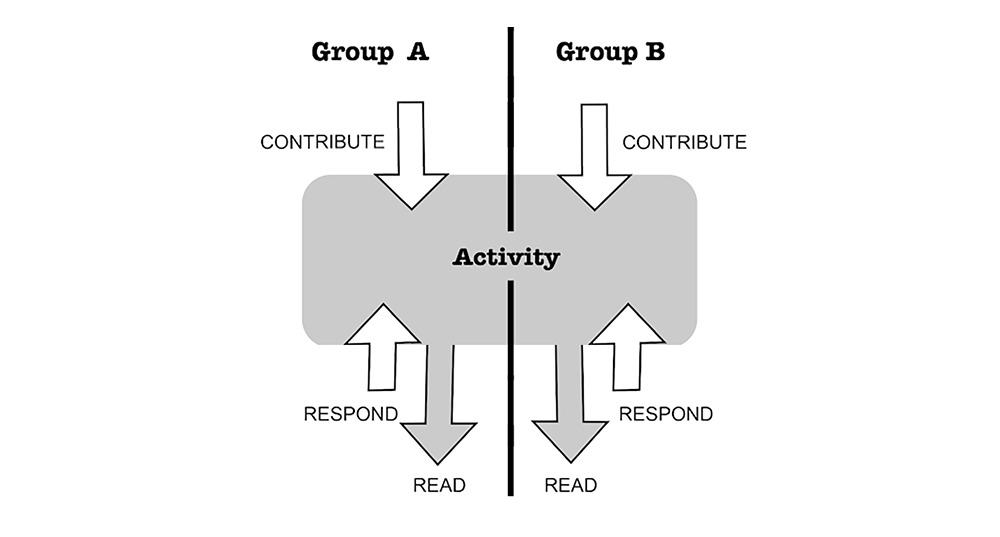
Students can only interact or contribute to the resource or activity within their own group. Other groups are completely invisible, and students can only read or respond within their own group. This is useful if you want groups to discuss in small cohorts where you can monitor and guide them, but it's
not important for other students outside the class to see or participate in the resource or activity.
 |




 (
(