
Select default Text editor
At a glance
Choose and set your preferred Moodle text editor, and explore the tools available in ATTO and TinyMCE, including image insertion, equation editing, H5P embedding and accessibility features, to help you create and format unit content effectively.
Jump to these sections:
HTML or Text editors are used wherever text input may be required, you can also insert images or videos to provide interesting content or visual support for text or create more engaging web pages using the HTML code view or other layout options. There are three editors available in Moodle; the default is TinyMCE. You may set your own preference in your Preferences.
 View visual style guidelines
View
View visual style guidelines
View

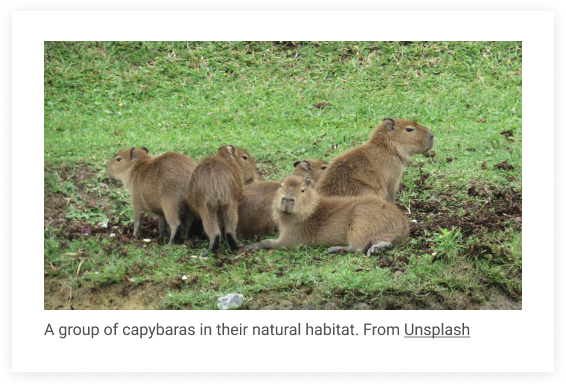
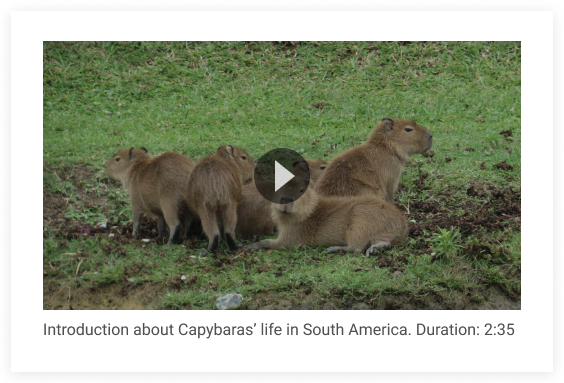
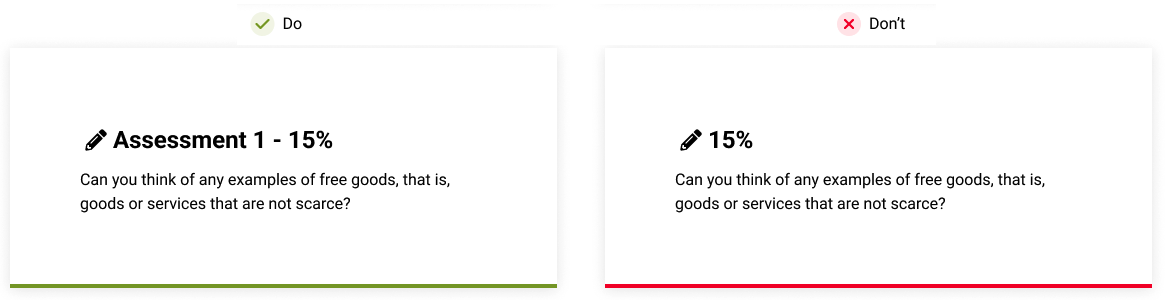
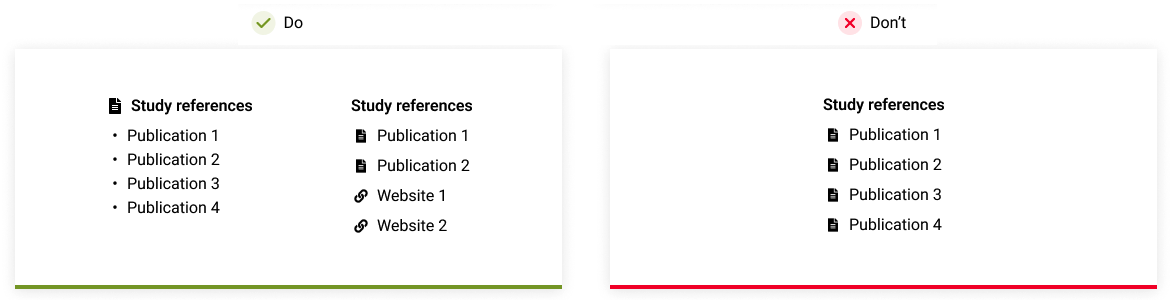
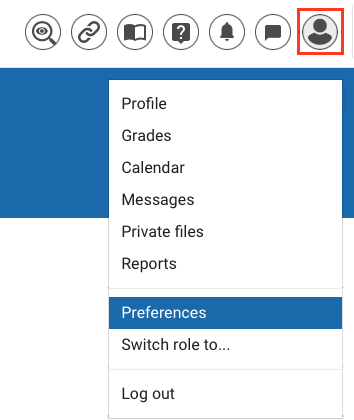
Accessing Text editor preferences
- In the top right hand corner, click on the User profile icon and select Preferences.
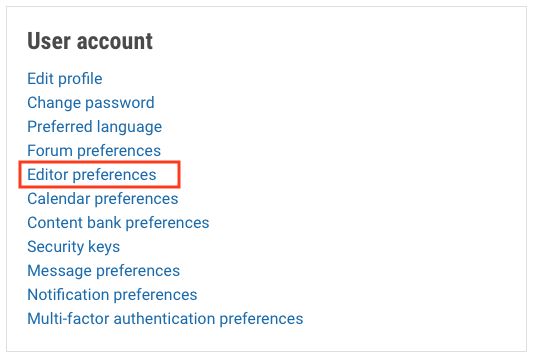
- Select Editor preferences under User Account
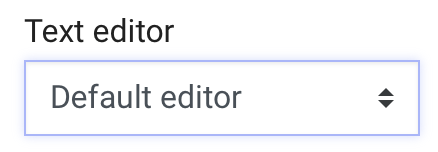
- Select your preferred editor using the Text editor dropdown box. Be sure to save your changes before exiting.
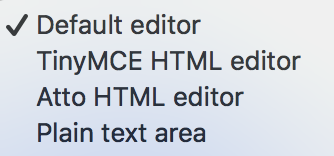
See more details of the tools available for each text editor below.
ATTO
The ATTO text editor provides better usability and accessibility, equation editing (TeX equation editor), emojis and allows you to the embed interactive H5P content and quiz questions. Click on each plus icon to learn more about the function of each tool or read a text-based version below.
Note: The insert video icon does not support automatic captions. It is recommended that you embed videos using the Panopto icon for academic content.
TinyMCE
TinyMCE provides more inbuilt text editing and table tools. The TinyMCE text editor does NOT autosave your work so always Save your work at the bottom of the screen before exiting. Click on each plus icon to learn more about the function of each tool or read a text-based version below.
Note: The insert video icon does not support automatic captions. It is recommended that you embed videos using the Panopto icon for academic content.