Set up ePortfolio assignment submissions
At a glance
Set up a Moodle assignment activity to receive ePortfolio submissions, so you can use marking guides and rubrics to grade student work. Configure submission types, locking and archiving settings, group submission options and understand how portfolios behave before and after grading.
Jump to these sections:
ePortfolios can be submitted via the Assignment activity in Moodle. This allows you to use marking guides and rubrics to grade ePortfolio submissions.
- In the top right hand corner of the page, set Edit mode to ON(Blue).

- In the section where you would like to add the ePortfolio assignment, click +Add an activity or resource.
- From the add an activity or resource window, select Assignment.
- In Activity name, give your activity a title. Set up your Moodle assignment activity as needed. For more information on all Moodle assignment activity settings, see Create a Moodle assignment activity.
- In the Submission types, select Monash ePortfolio. When submitting to the assignment, students will be required to select a standalone page or collection to submit. Individual pages that are part of collections cannot be submitted, the entire collection must be submitted instead.

- For Archive when graded, you can choose whether a copy of the ePortfolio is made and stored in Mahara. An administrator can access, download and restore the ePortfolio at a later date, it will not be affected if a student later makes changes to their ePortfolio after grading. This is recommended for accreditation purposes.
- In Feedback types, uncheck Annotate PDF and keep Comment inline set to No.

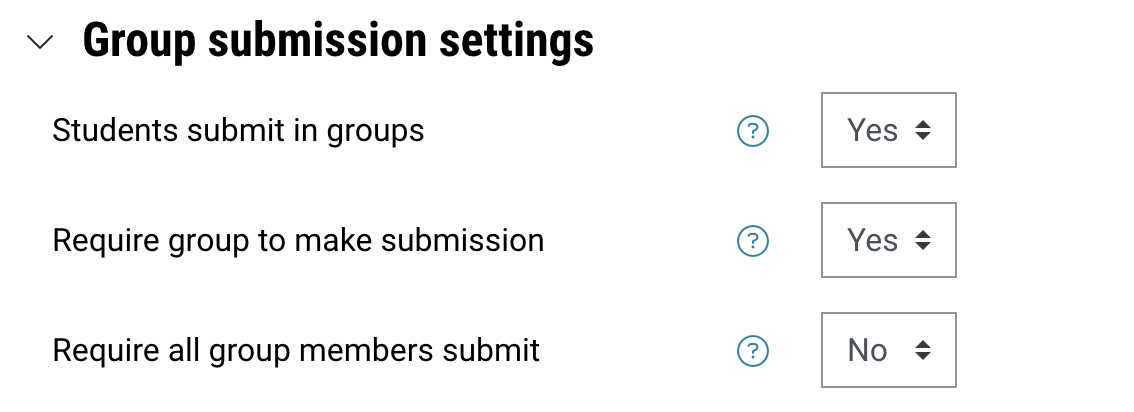
- In Group submission settings, if you want to set up your portfolio assessment as a group assignment, ensure you set Require all group members submit to No. Once a portfolio has been submitted it will become locked, and become unavailable for submission for other students in the group.
Note: If you would like each student in the group to submit individually, in Submission types you can select Online text as the submission type. Student within the group can paste the portfolios secret URL into the Online text box for submission. This prevents the portfolio from being locked and unavailable for submission for other group members.
- In Turnitin similarity report settings, set Enable Turnitin to No. Monash ePortfolio currently does not integrate with Turnitin and has a separate similarity checker.
- Once you have finished setting up your Moodle assignment, click Save and display.
- Once students have submitted their portfolio, you will see a link that will allow you to view the submitted ePortfolio pages or collections in the Assignment grade overview.
NoteWhen a student submits a Monash ePortfolio via the Moodle Assignment module, a copy of that portfolio is submitted and immediately locked and cannot be edited until grading is completed. However students can continue to make changes to their original version. By default at Monash:
However, if the student has made progress on their original version, it is recommended that they continue to work on that version. More information about locked submissions
|