
Group assessment
At a glance
Explore how to design, plan and manage effective group assessments, including the benefits for students and educators, group formation methods, supporting students through collaborative tasks, and options for allocating group and individual marks fairly.
Jump to these sections:
Group assessments have many benefits for students and educators. However, for these assessments to be effective they need to be designed with care.
Benefits of group assessments
The benefits of group assessment for students include:
- developing project planning and teamwork skills
- building cohort connections with peers
- strengthening confidence to work in diverse teams
- working on ‘real world’ projects or solutions-based problems
- learning how to collaborate productively in a team
The benefits of group assessment for educators include:
- implementing more authentic assessment that transfer to professional applications
- reducing common academic integrity issues
- fostering interdisciplinary and multidisciplinary skills in students
- integrating reflective practice skills into student learning
Designing group assessments
Effective assessment begins with clearly identifying the learning outcomes you intend to evaluate. Once these outcomes are defined, consider how the group assessment task will be designed to gather the necessary evidence of student learning.
Group group assessment design should incorporate opportunities for meaningful student participation and feedback with structures that support and motivate fair and consistent contributions throughout the group process.
- Articulate the purpose and value of the group work to students. When students understand the purpose, they are more likely to engage meaningfully
- Manage group membership so that students have opportunities to contribute meaningfully. If students are self-selecting groups, articulate the benefits of diversity for collaboration and problem solving tasks.
- Break the task into stages to provide scaffolding and multiple opportunities for feedback. Providing opportunities to check-in helps maintain motivation and allow early intervention if issues arise.
- Be transparent about the assessment criteria, including how group and individual performance will be marked, to reduce ambiguity and promote fairness.
- Use peer and self-evaluation tools to promote accountability, reduce free-riding, and enhance student motivation and learning.
As well as designing the task, it is important to plan how groups will be formed and how students will be supported throughout the process.
Expand the accordions for details
Setting up groups in Moodle
At a glance
Set up groups and groupings in Moodle to organise students for communication, activities and access restrictions. Explore how to create, import and export groups, build groupings, view group overviews and set group access on activities and resources.
In Moodle, groups and groupings are a way of putting students into specific teams. Groups can be used for targeted communication, to manage student activity and interaction and restrict access to activities and resources. For example:
- You can set up Moodle assignment group submissions to require all members of a group to sign privacy, integrity, and collaboration documents.
- Assignment feedback and results will automatically be available to all group members
- Put all students who failed a test into a single group. You can now send messages to just the members of that group, advising on a make-up test.
- Put students into a group based on their tutorial including their tutor. In a forum, students are restricted to only seeing and discussing topics with their class peers. Tutors can use group filters to view their tutorial group's assignment submissions.
- Put students who are in the evening classes into a group. Provide a PDF outlining evening security that only this group can see.
Groups
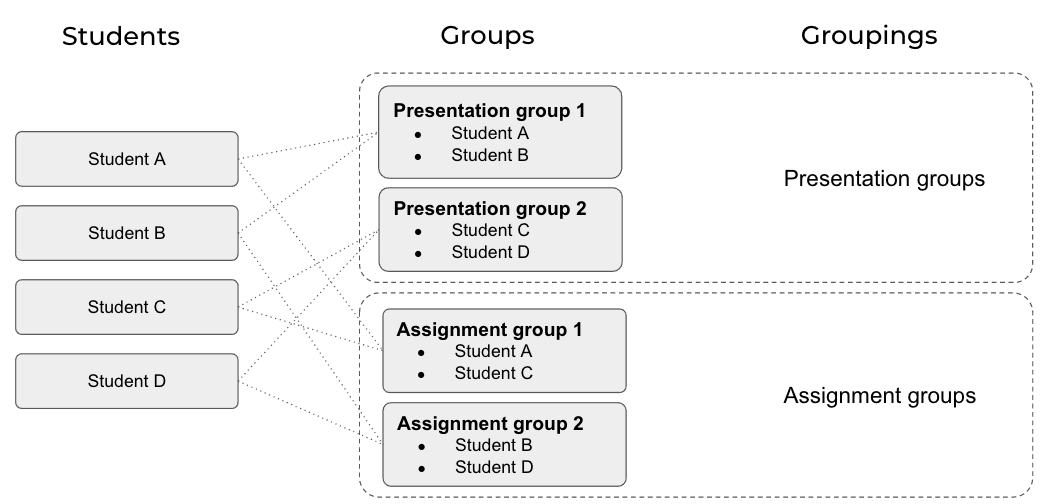
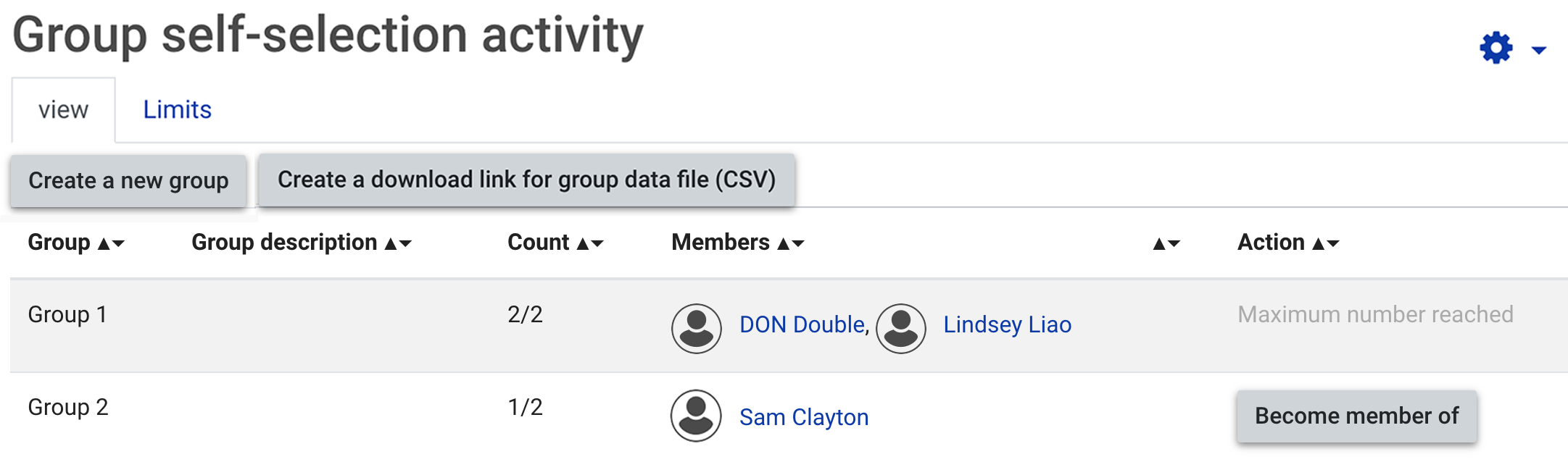
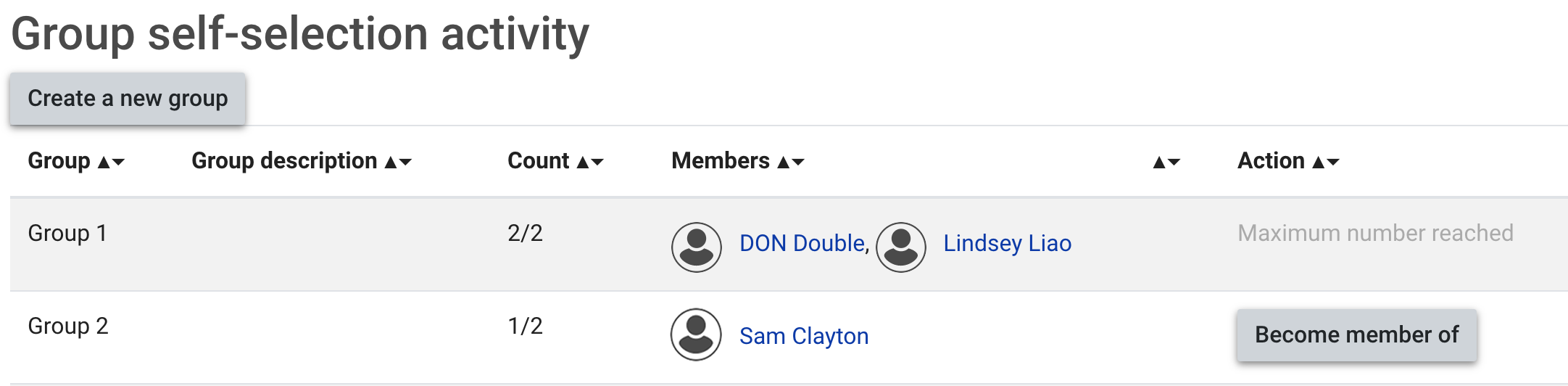
Groups can be created in Moodle, either manually or automatically. Students can also choose their own groups with the Group self-selection activity. Students can be part of many different groups at the same time and may already be in groups, for example their Callista Cohort group (Campus) or Allocate+ group(Class, tutorial, tutor). You may wish to create additional groups, for example a student project team group. Some Moodle activities, including Assignments, require you to create a Grouping for your groups for the group assignment functionality to work.
Groupings
Groupings are collections of groups. They are needed if you wish to use groups with specific activities. For example, you might have a grouping called Assignment 1 which includes all the student groups for this assignment. This enables you to not use other groups, such as tutorial groups, in this assignment. By using Groupings, you can choose to show a resource or activity only to the groups within the selected grouping. Settings for groups and groupings are set at both the unit and resource/activity level. Some Moodle activities, including Assignments, require you to create a Grouping for your groups for the group assignment functionality to work.
Note about unit rolloversAny groups and groupings in a unit will be rolled over with the unit. Please make sure you group and grouping names are appropriate and attached to the correct activities in any freshly rolled over units. |
Where to find Group and Grouping settings
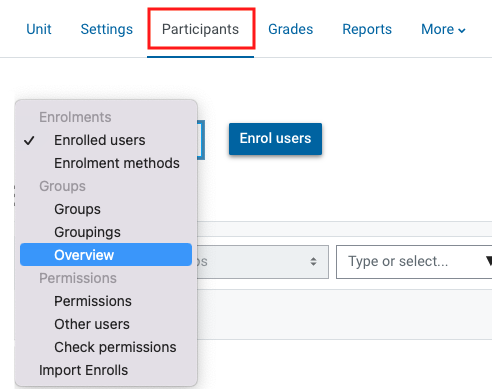
- Click on Participants in the top menu of your Moodle unit.
- Click on Enrolled users to view the drop down list.
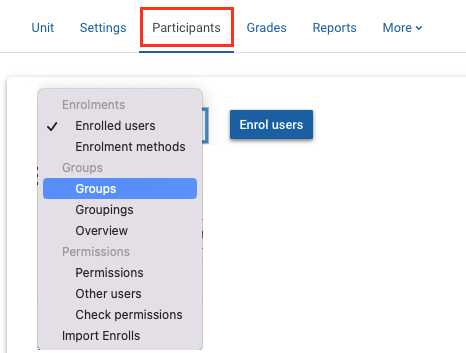
- Select the required option from the drop down list. Expand the accordions below for more information.
 Create groups
View
Create groups
View

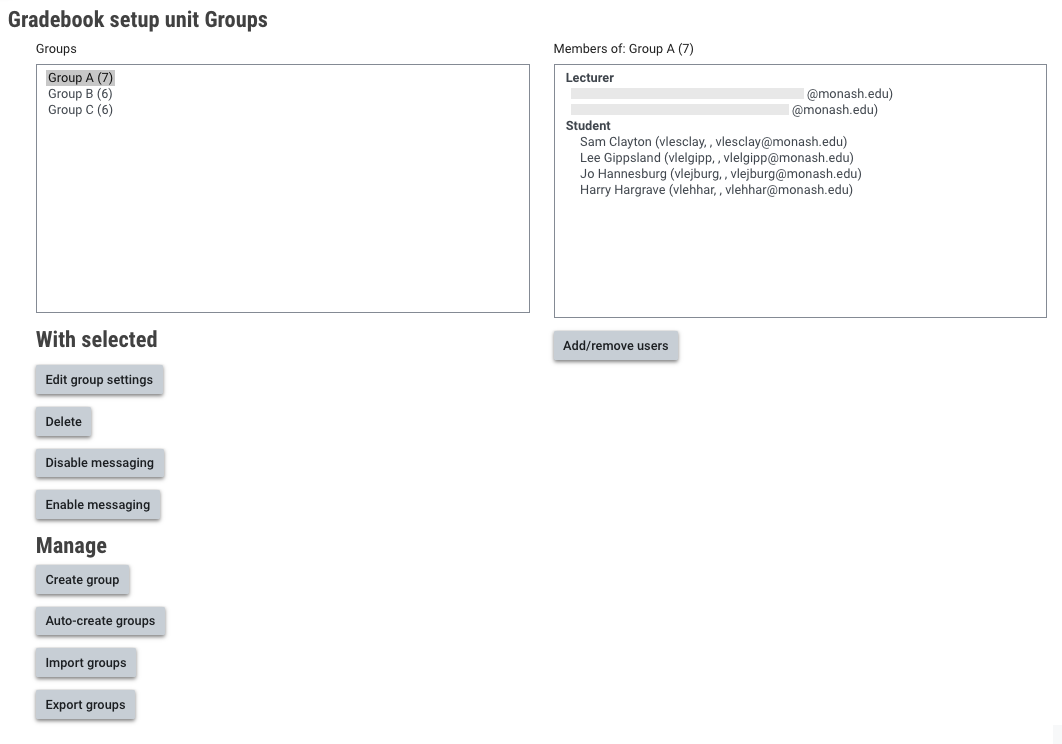
 Create groupings
View
Create groupings
View
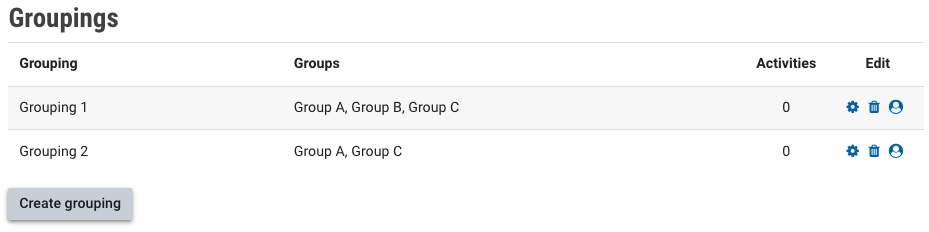
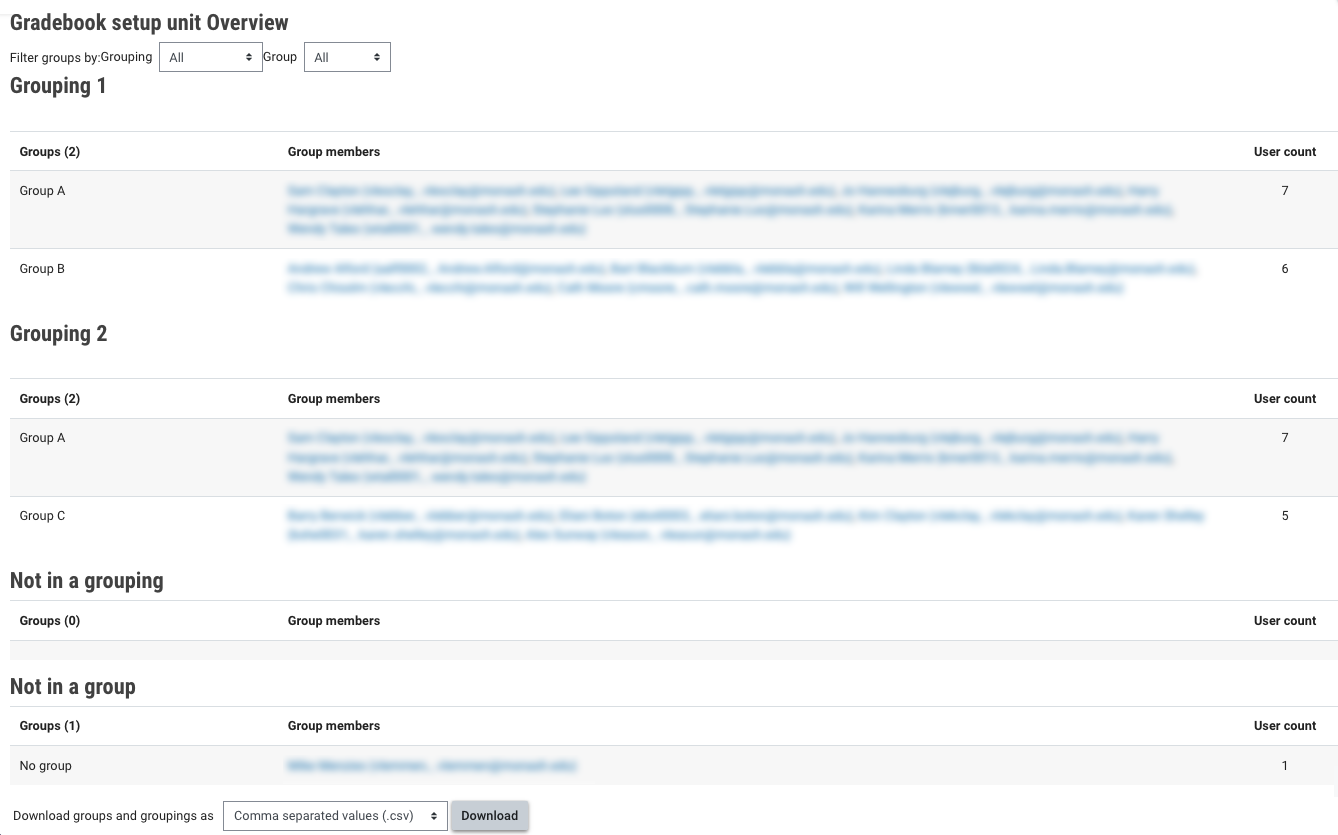
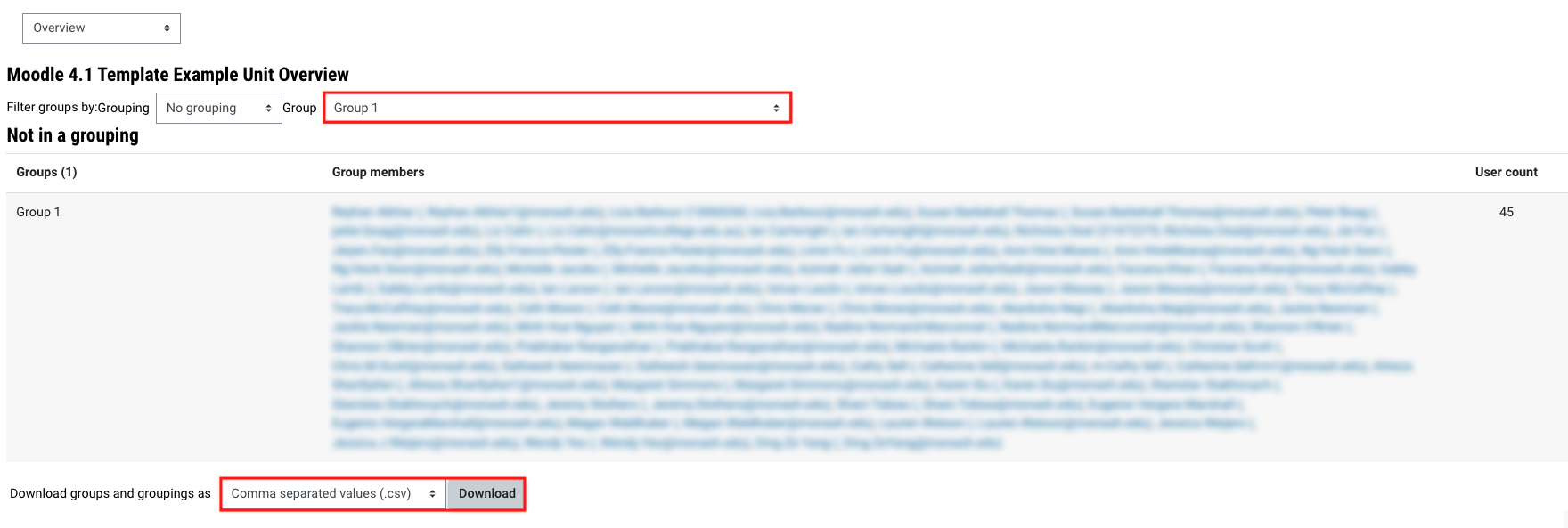
 Groups and grouping overview
View
Groups and grouping overview
View
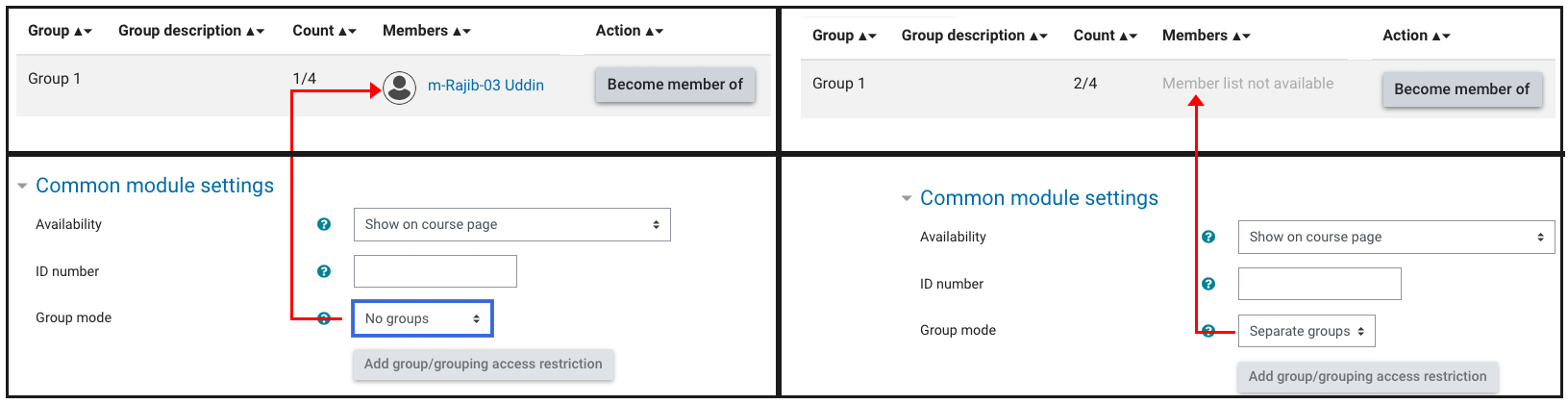
 Activity and resource group settings
View
Activity and resource group settings
View

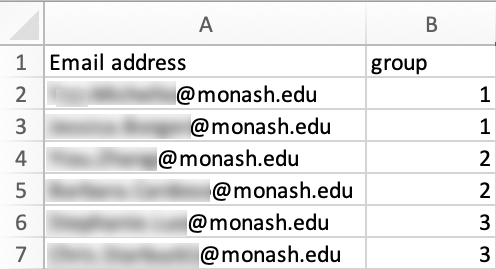
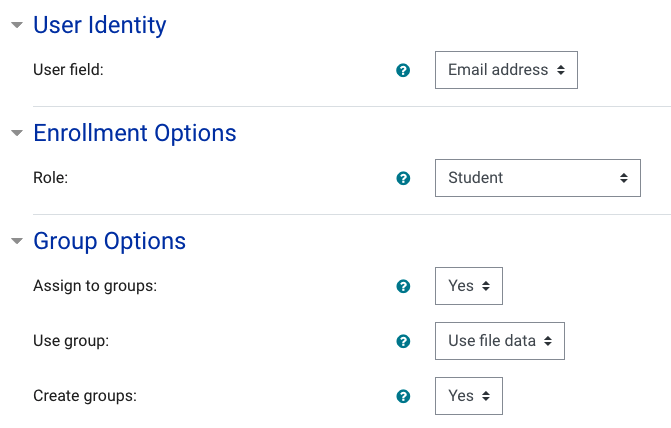
 Import groups
View
Import groups
View
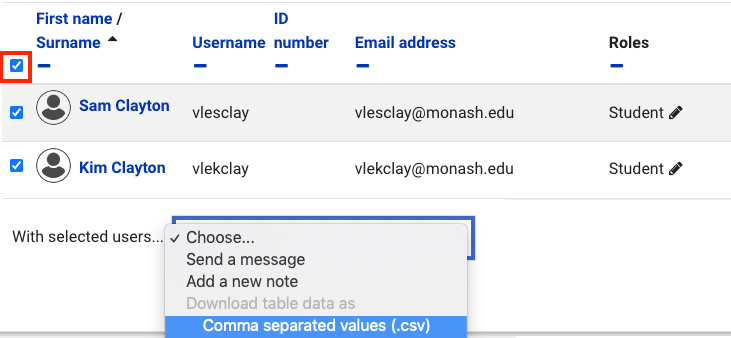
 Export groups
View
Export groups
View
 Group self-selection
View
Group self-selection
View


NoteFor Moodle group assignments, ensure you enable Group submission settings in the Moodle assignment settings. |