Grader report
At a glance
Explore the Grader report to get a high level overview of all students and graded activities in your Moodle unit, including how grades automatically populate from activities, how to filter and sort student results, and how to enter, edit or override grades. Understand the status icons used to indicate hidden, locked, feedback given, excluded or overridden grades.
The Grader Report provides a high level overview of all students and graded activities in your Moodle unit. When student assessments are graded directly in the Moodle activity itself, grades which are recorded automatically populate the Grader report. From the Grader report, you can view all student grades in the unit, navigate quickly to activities and student records, and add or edit grades. For an overview of student results for individual activities, see the individual Assignment’s Grading summary page.
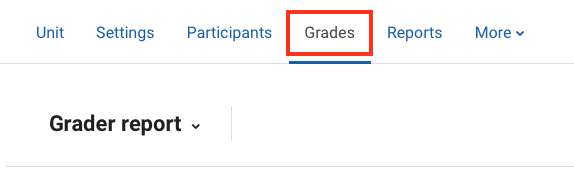
- Click on the Grades in the top banner menu. By default, you will see the Grader report.
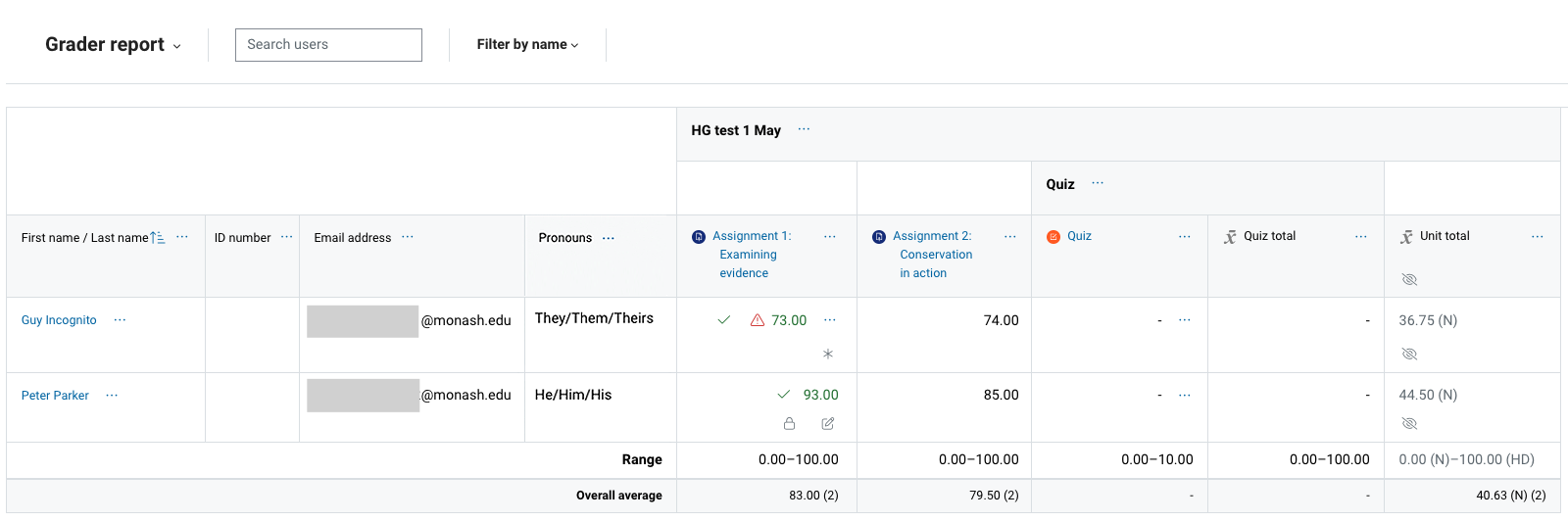
Click on the plus icons to learn more about the Grader report
Enter grades in the Grader report
To edit and enter grades in the Grader report, you must be assigned the Lecturer, non-primary lecturer or Chief Examiner role in Moodle. If you require access, contact your Faculty Moodle administrator. You can also view and enter grades for individual student activities from the Grader interface. For more information, see Grading overview and Grader interface.
- In the top right hand corner of the page set the Edit mode option to on using the slider to show blue.

- Additional icons and functions will become available, allowing you to enter grades, view feedback comments, hide and lock grades.
- You can click on the three dots to navigate to the edit grade screen, which provides an expanded rich text box for optional feedback comments and the option to specify the time and date when the grade is hidden or locked. From the three dots you can also lock grades, hide grades, or view feedback in a popup window.
- You can search for users using the search box, or filter users by the first letter of their first or last name under the filter dropdown.
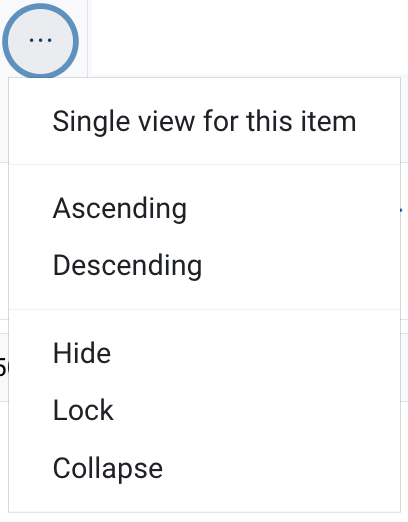
- Columns can be collapsed for visibility by selecting Collapse in the column menu. Column grades can be sorted by selecting either Ascending or Descending from the column menu.
- Once you have finished entering grades, scroll down and click Save changes. Note: Grades that have been manually entered or overridden from the Grader report will be indicated by the pencil icon.

Status icons
 | Hidden: This grade is not visible to students. |
 | Locked: This grade cannot be changed unless it is unlocked. |

| Feedback given: This grade has feedback attached. |

| Excluded: This grade has been excluded from contributing to the final mark of the assessment item. |
|
| Overridden: This grade has been manually overridden. |

| Automated Late penalty applied: A grade penalty has been applied to a grade, it will be marked for both teachers and students. Mousing over this icon will reveal the applied penalty. |
- Click on the three dots to view the drop down list to hide and lock activity grades. The location of the icon in the Grader report corresponds with where that effect will be applied in the Gradebook. For example:
- Locking the Weekly Quiz category will lock all activities in the category folder.
- Hiding the control row for Assignment 2 will hide ALL student results for Assignment 2 activity.
- Hiding an activity grade in the student row will hide the individual students' grades.
- When you are finished, click Save changes.
Note: Special grade items, such as the final exam item, cannot be unhidden by any user.
Hurdles in the Grader Report
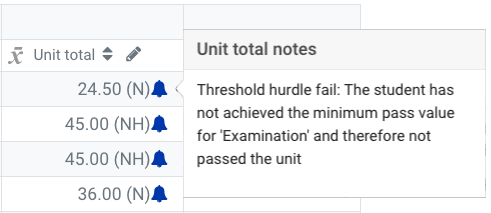
If a student has failed one or more hurdles a Blue bell will appear in the Unit total column. Hover over the Blue bell for a summary of which hurdles a student has failed. If the student:
- Would have received a unit total of 45 or above but failed to meet a hurdle, they will receive a mark of 45 and an NH grade.
- Would have received a unit total of 44 or below and failed to meet a hurdle, they will receive an N grade, and you will see their real mark.