
Format a Quiz
At a glance
Apply layout and formatting options to structure your Moodle quiz, including adding section headings, inserting page breaks, repaginating and renumbering questions. Explore additional settings such as question checking, restricting attempts by network address, and adding drag and drop or select missing words question types.
Jump to these sections:
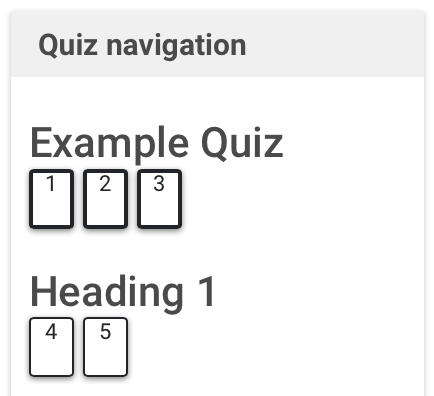
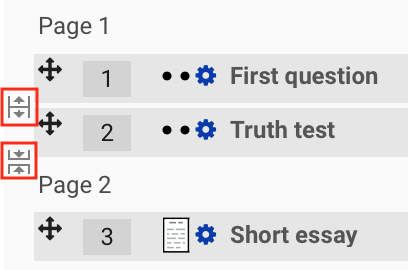
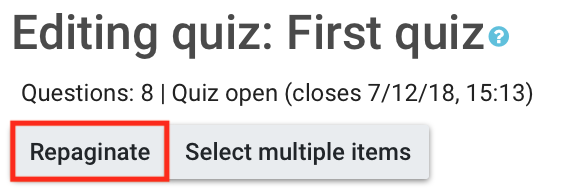
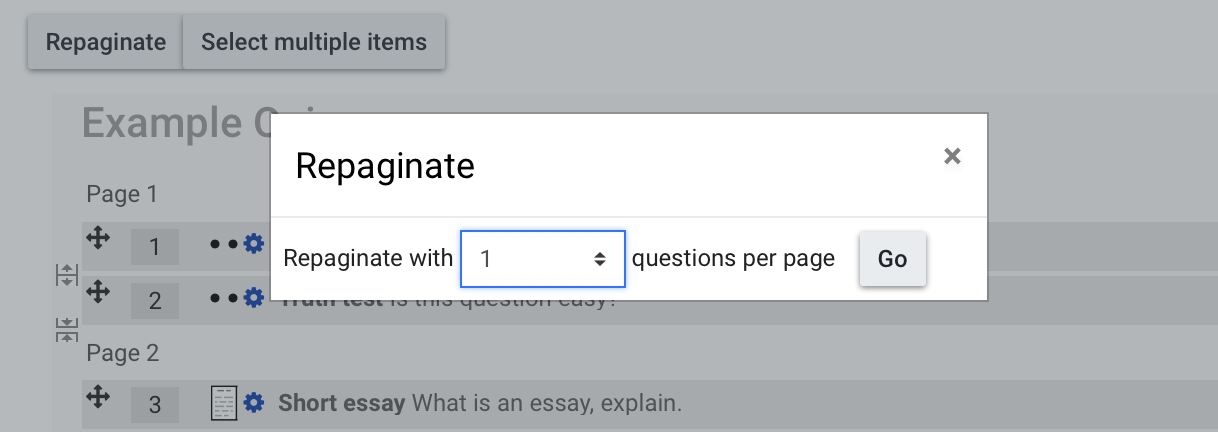
Quizzes can now have section headings and questions can be shuffled on different pages. Formatting layout can give your quiz a clear structure.



Preview your quiz
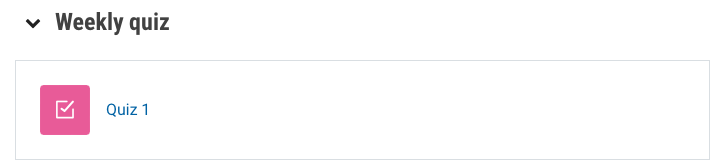
- From your unit page, click on your quiz.
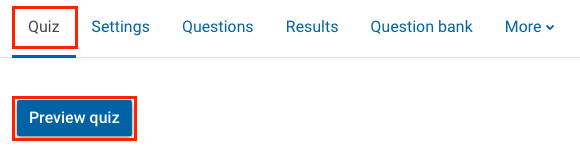
- To preview your quiz, select Preview quiz.
Add question check
Use this setting if you want to allow your students to verify their answers and receive immediate feedback. This is helpful for assessment of learning.
- Click on the settings icon in the top right on your quiz, select Edit settings.
- Ensure How questions behave has been set to Immediate feedback, Immediate feedback with CBM and Interactive with multiple tries.
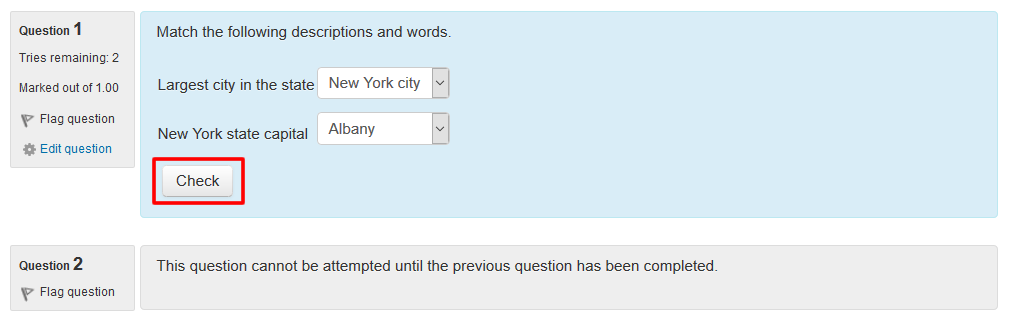
- When a student attempts the quiz, they can use the Check button below a question to receive immediate feedback to their selected answer.
Extra restrictions on attempts
If you require to restrict access or attempts based on a particular subnets on the LAN or Internet or full IP address numbers in the Require network address setting, then it would be suggested that you create a scheduled exam in the eAssessment platform.