
Use the Accessibility toolkit
At a glance
Review the accessibility of your Moodle unit using the Brickfield Accessibility Toolkit, submit your unit for analysis and interpret the resulting reports to find and fix issues. Explore the error list, activity breakdown, content types and summary reports to prioritise improvements aligned with WCAG standards.
The Brickfield Accessibility Toolkit helps to review the accessibility of your Moodle site and identify areas for improvement through reports.
Advice for how to use the accessibility reportsMonash university supports accessibility of online content for all students. This toolkit will give you basic pointers on accessibility in your unit, including suggestions for improvements. These recommendations are based on the internationally recognised WCAG Guidelines, of which Monash endeavours to meet the AA standard. Following the Toolkit suggestions will assist you in improving the experience of all students in your Moodle unit. |
- From the main menu, click More.
- Select Accessibility report.
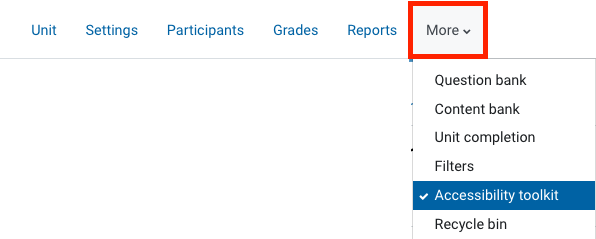
- The first time you access the report, you will be prompted to Submit your unit for analysis.
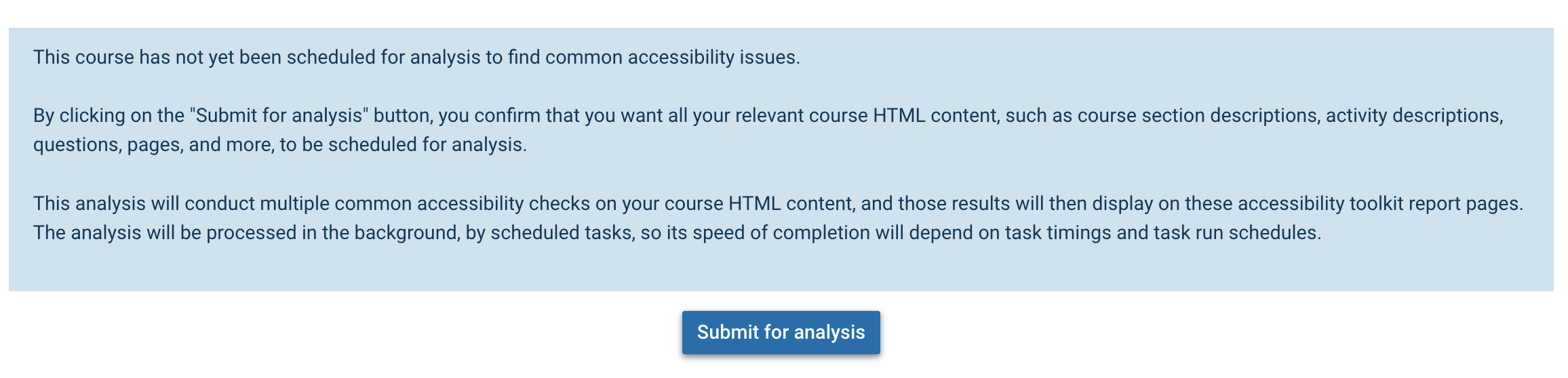
- Click Submit for analysis.
Note: Once submitted for initial analysis, a regular update is submitted to include any changes made to your site automatically without the need for re-running the analysis.
- You will be redirected to your Moodle unit dashboard. Depending on the amount of content in your unit, this may take some time.

- Once the initial analysis is complete, when you click Accessibility report, you will be able to see the following reports.
Select a tab to learn more about each report
The Error list wizard provides you with all errors for the course to help find and fix them quickly. Each error has its own Edit link, which brings you directly to edit the original content in which the error occurs.
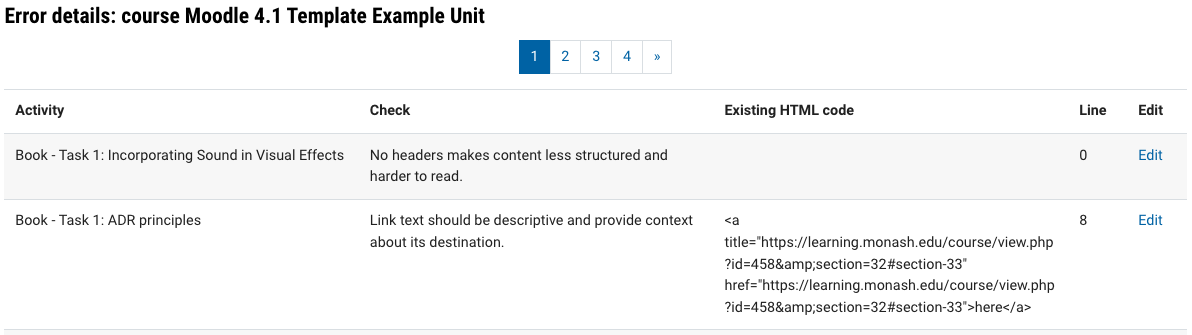
The Error list wizard displays the following details for each error:
- Activity: The activity type and activity name.
- Check: HTML check that failed.
- Line: the line of code the error exists on.
- Existing HTML code: the full HTML code.
- Edit: Click Edit to navigate directly to the activity.
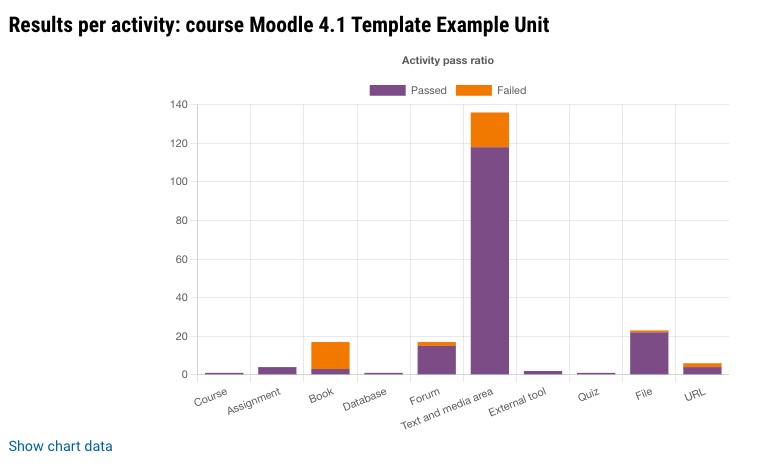
The Results per activity graph displays a breakdown of passed/failed activities per activity type for your unit. You can hover over the different sections of the bar graph for the number of passed/failed activities. In order to summarise and analyse the check results per activity, the reports group these check results into the different activities detected.
Activities are included as either activities, resources, or other content areas relating to the courses themselves. Each activity with no detected errors is counted as passed, each activity with one or more detected errors is counted as failed. The ratio of passed to failed activities is then displayed.
You can click Show chart data in the bottom of the report to view the information in a table.
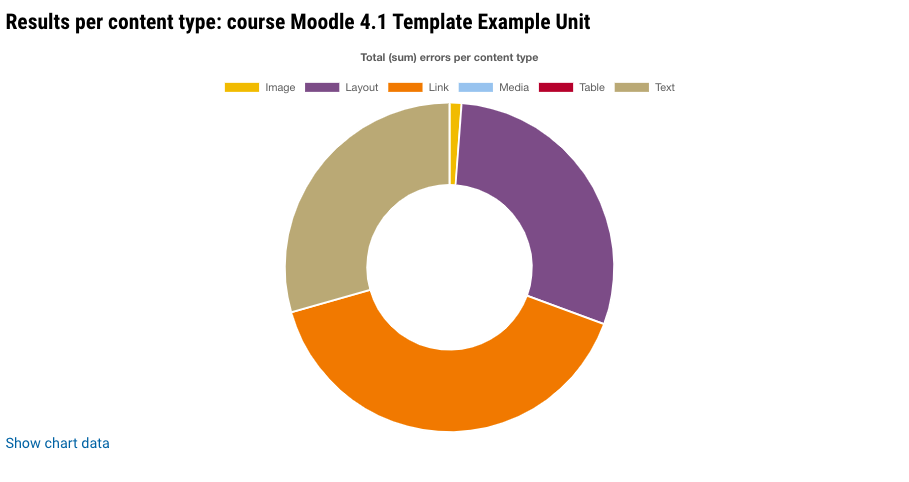
The Content types report provides a breakdown of the pass rate and error totals per HTML Content type for the course. In order to summarise and analyse the results of the various checks conducted, we group these checks into different content types. Hence, all image-related accessibility check results are in the "Image" content type group, all layout-related accessibility check results are in the "Layout" content type group, and so on.
Each activity with one or more detected errors in a given content type is counted as failed, and will be included in this chart. You can hover over the different sections of the chart for the number of failed activities.
You can click Show chart data in the bottom of the report to view the information in a table.
The Summary report provides a breakdown of the accessibility errors found within an individual course and is a combination of different reports found within the Accessibility toolkit. You can click Download PDF located in the top right of the report to download a PDF transcript of the course.
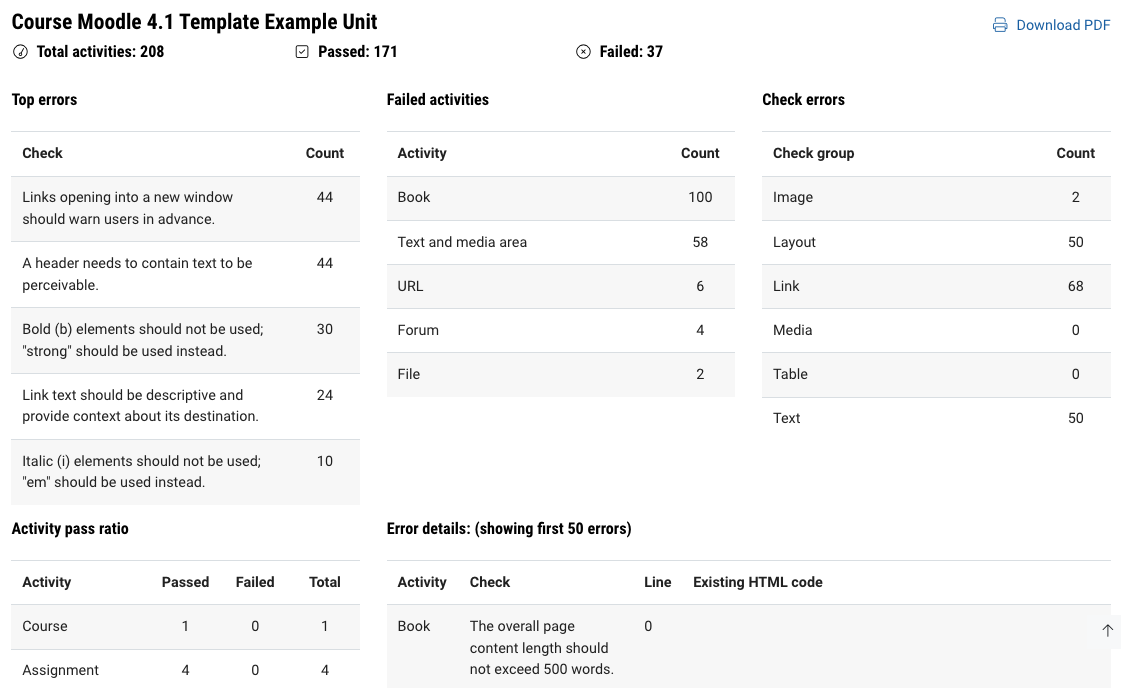
The Summary report shows the following details:
- Top errors: the most failed HTML checks and their total error count.
- Failed activities: the top failed activity types and their total error count.
- Check errors: the total error count for each HTML content type.
- Activity pass ratio: course activities and the total number that have passed or failed.
- Error Details (Showing first 50 errors):
- Activity: the activity type.
- Check: HTML check that failed.
- Line: the line of code the error exists on
- Existing HTML code: the full HTML code.