Equella
At a glance
Add resources from the openEQUELLAMU repository to your Moodle unit or contribute new items to the repository. Find out how to search for and select existing resources, and how to complete metadata and sharing details when contributing your own.
OpenEQUELLAMU enables you to add resources stored in an openEQUELLAMU repository to your Moodle unit. Users are automatically authenticated to the openEQUELLAMU repository when they choose a resource.
Using a resource
- In the top right hand corner of the page, switch Edit mode to ON(Blue).

- In the section where you would like to add a resource or activity, click +Add an activity or resource.

Note: You can add new resources or activities above or below any existing activities or resources.
- From the activity picker, select openEQUELLA MU resource.
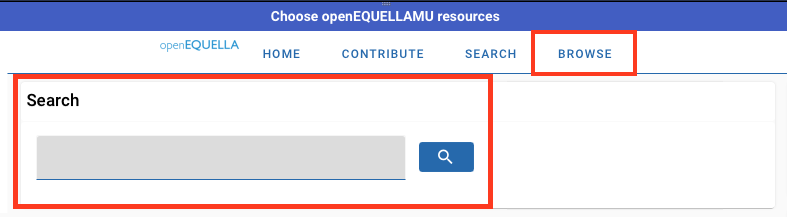
- Use the search or the browse tab to find the resource you would like to add to your Moodle unit.
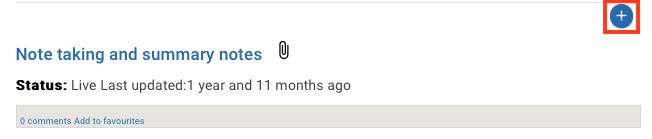
- Once you have found the resource you would like to add, click the blue plus icon or click select item on the right hand side to select that resource.
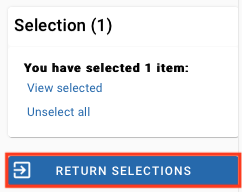
- The selected resources will be added to the Selection section.
- Once you have finished selecting resources, click Return selections. You will see a summary of resources you have selected. Click Return selections again to add them to your Moodle unit.
- You should now be able to view the Equella resource on your Moodle page.
Contributing a resource
- In the top right hand corner of the page, switch Edit mode to ON(Blue).
- In the section where you would like to add a resource or activity, click +Add an activity or resource.
Note: You can add new resources or activities above or below any existing activities or resources.
- From the activity picker, select openEQUELLA MU resource.
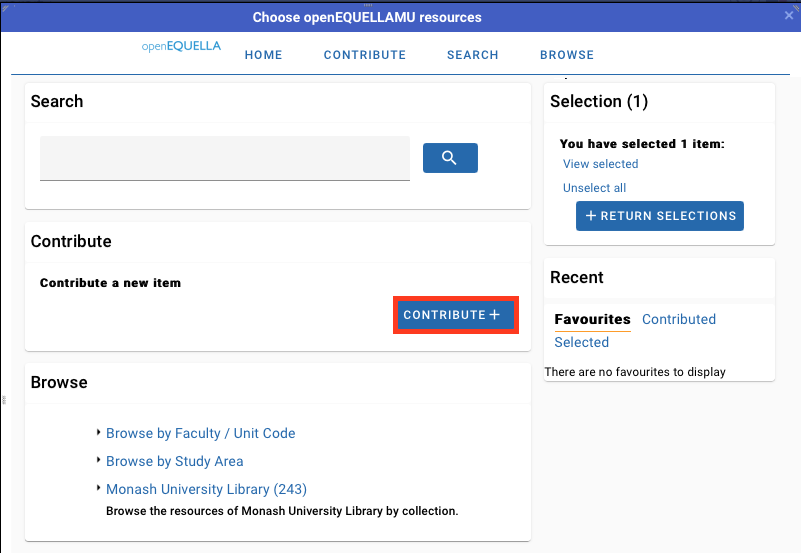
- Select contribute.
- Complete the item metadata fields to ensure the item is correctly attributed and searchable, and sharing criteria are correct. Refer to your faculty or school for any additional guidance on appropriate values and settings.
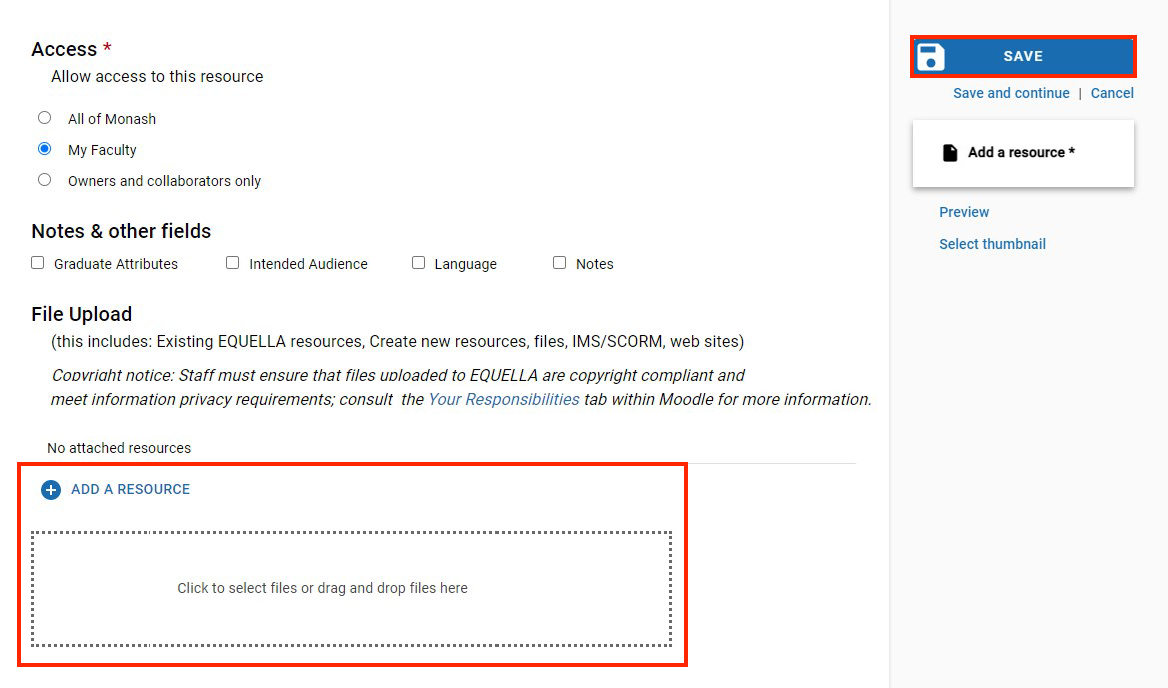
- Drag and drop the resource to the page.
- Click Save.