
Print ePortfolio pages
At a glance
Print an ePortfolio page so that the Print Preview and downloaded PDF match what is displayed on screen. This page explains how to access the print option and set the correct margin settings to avoid formatting issues.
To ensure that the Print Preview and downloaded PDF match the content displayed on screen, follow the steps below.
- Navigate to the ePortfolio page you want to print.
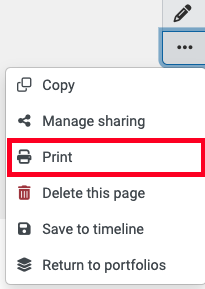
- Click the three dots on the left-hand side and then select Print.
- When the Print Preview opens, expand More settings and ensure the Margins option is set to Default.
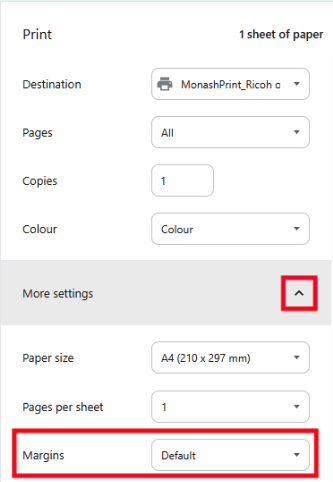
Note: If any other margin option is selected, it may alter the page formatting, resulting in incorrect formatting in both the Print Preview and the downloaded file.
- Click Print.