Frequently asked questions
View frequently asked questions about Moodle Gradebook. You can select Expand all and then use CTRL + F (PC) or CMD + F (MAC) to search for keywords.

View frequently asked questions about Moodle Gradebook. You can select Expand all and then use CTRL + F (PC) or CMD + F (MAC) to search for keywords.
No, you can only see an encumbrance in Callista+, in Moodle the student will look the same as regular students (active status), but they may not have been active in the Moodle unit for a significant amount of time. If you suspect a student has been encumbered, contact student services to check on their Callista+ status on your behalf.
Students with an encumbrance can access their Monash email, but will not be able to access other systems like Moodle. For more information, see Encumbrances.
This can occur when using Marking Workflow. The final step of the workflow is Released, which is when the student can view their marks. This can be updated from the submission, or Quick Grading page.
For more information, see the Marker allocation and marking workflow.
Check if you have set Marker Allocation to Yes (note that this requires Marking Workflow to be set to Yes first).

If you are using Marker Allocation, you also need to make sure markers are allocated. On the Submissions page, select the students to assign to a marker, then select Allocate marker from the options under More and add the marker.
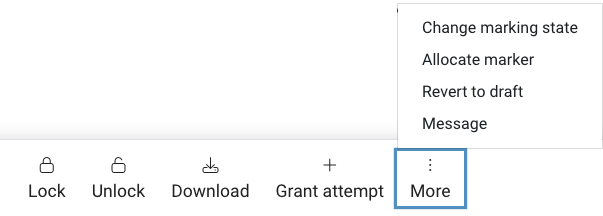
They should now see the students they have been assigned.
For more information, see the Marker allocation and marking workflow.
You can try forcing the Moodle gradebook to recalculate to fix the issue.
You may also want to check if any quizzes are locked for the student. If any items have been locked will not take it into account when the Gradebook recalculates.
This is a known issue reported by users of the Firefox browser. eSolutions are currently investigating this issue. It is recommended that you use the Google Chrome browser for the best experience of Moodle.
If you apply a hurdle at the category level, you will need to explicitly enter a zero for any items that the student did not attempt. While the score will be calculated correctly, the hurdle will not register for an item with a null score.