Frequently asked questions
View frequently asked questions about Moodle assignments. You can select Expand all and then use CTRL + F (PC) or CMD + F (MAC) to search for keywords.

View frequently asked questions about Moodle assignments. You can select Expand all and then use CTRL + F (PC) or CMD + F (MAC) to search for keywords.
The due time of an assessment always pulls from the time of the person setting up the assessment, and will display differently for students according to their timezone settings in Moodle. Be aware that the system will only allow you to select 11.55pm as the assessment submission time, unless given express permission from the faculty to choose a non-standard submission time. If needed, you will need to set up overrides for student cohorts in different time zones to adjust the assessment submission time so it appears as 11.55pm in the students local timezone.
If the assignment has Turnitin enabled, it will not accept file types that Turnitin cannot read, including .zip files. You will need to disable the Turnitin settings in the assignment. For more information, see Turnitin: Customise assignment settings.
You can do this by setting an open date for an activity in the activity settings, rather than hiding activities which makes them invisible on the Assessment tab.
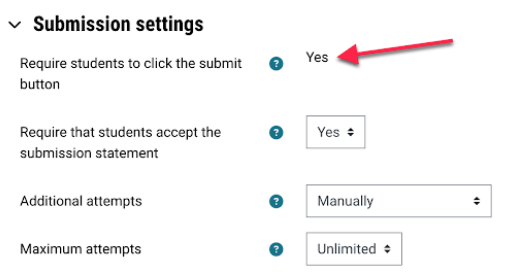
In the Assignment Submission settings, check that the "Require students to click the submit button" is enabled. If this setting is already enabled, check that the grade item hasn’t been locked in the Gradebook, as this will also prevent students from submitting to the assignment activity.
Even if one student has submitted the work, all other students should also submit so that they have completed the appropriate acknowledgements of authenticity of their work that are a part of the submission process.