
Display a resource or activity in the task tracker
At a glance
Enable a resource or activity to appear in a student's task tracker and calendar by setting a reminder in the timeline or a deadline. Learn how to edit completion conditions, choose between manual and condition-based completion, and understand how completed items appear in the progress completion bar.
You can enable Set reminder in timeline for activities or resources which will allow them to be displayed in students task tracker and calendar. The activity or resource will also be added as a segment in the progress completion bar for the own-time/real-time/wrap-up section overview in the learning sections.
NoteThe following activities (Assignment, Choice, Database, Feedback, Group self-selection, Lesson, Questionnaire, Quiz, SCORM, Workshop) will appear in the task tracker so long that a deadline is set. It is not recommended to set a deadline AND a reminder in the timeline, as the activity will appear twice in the task tracker and this may cause confusion. |
Edit Activity or resource completion conditions
- In the top right corner, switch Edit mode on(Blue).

- Navigate to the activity or resource.
- Click on options (three dots) and select Edit settings.
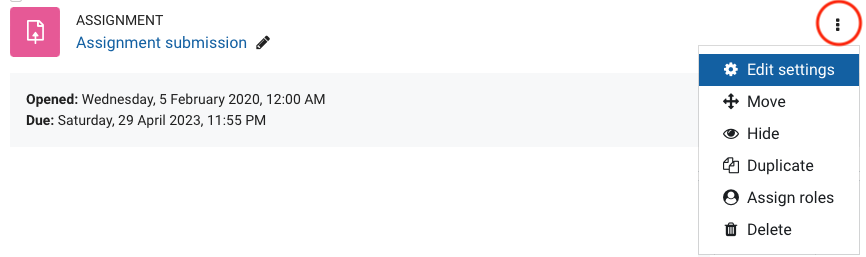
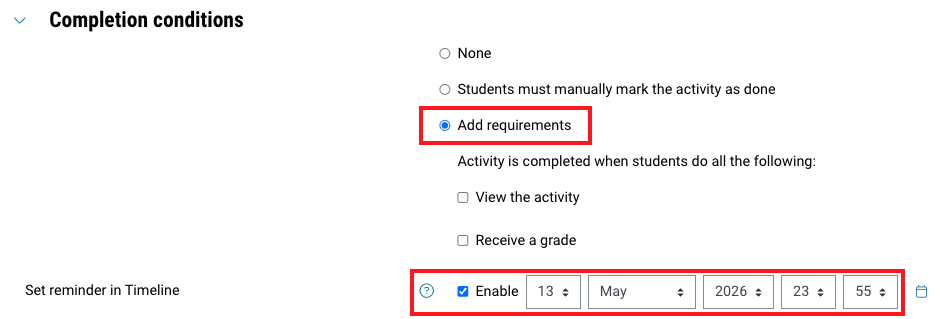
- In Completion conditions, to enable Set reminder in timeline, select one of the following options:
- Students can manually mark the activity as completed: Students can manually mark activity completion with the Mark as done button for each activity or resource on the unit homepage.

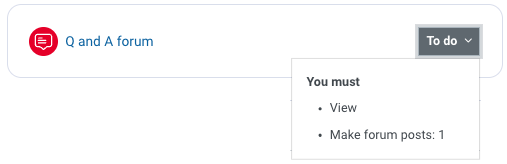
- Show activity as complete when conditions are met: The activity is only marked as complete when defined conditions are met. The resource or activity will be displayed with a “To-do” button in the top right corner. When clicked, students will see the conditions required for completion. Additional options will appear and may vary depending on the resource or activity. For more information about these options, see Track activity completion.
- Students can manually mark the activity as completed: Students can manually mark activity completion with the Mark as done button for each activity or resource on the unit homepage.
- Once selected, you can select the checkbox to enable Set reminder in Timeline and specify a date and time.
- Once selected, click Save changes.
- Once conditions have been met, the activity or resource will be marked as done in the learning journey own-time/real-time/wrap-up progress completion bar.

Note: You can edit the activity completion settings of multiple activities or resources at once using Bulk edit activity completion. For more information, see Set up unit complete (Bulk edit activity completion).