Set up extensions (overrides) and resubmissions
At a glance
Extend assignment due dates and allow resubmissions when students need extra time or another attempt. Understand key assignment dates, apply individual or group overrides, manage late penalty exemptions, and reopen submissions for students who need to resubmit their work.
Jump to these sections:
NoteAutomated approvals for short extensions are in place for Moodle Assignment and Quiz activities. Additionally, the Moodle Special consideration activity settings provide guidance for the Special Consideration team to process approved Special consideration applications on behalf of the Chief Examiner, if appropriate. For more information, see Extensions and Special Consideration. |
There are many valid reasons why students may not be able to complete their assignments by the set deadline. In these circumstances, you can extend the due date for assignments or allow students to resubmit an assignment.
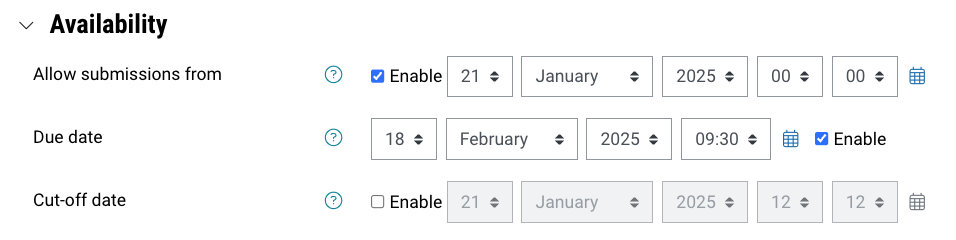
Assignments have three key dates. These settings are available in the activity settings when the assignment is first set up:
- Allow submissions from: The time and date the assignment will be available for students to make submissions.
- Due date: The time and date assignment submissions need to be submitted by without incurring a late penalty. Students can continue to make submissions after the due date, but they will be counted as overdue and incur a late penalty.
- Cut-off date: If enabled, once the cut-off date has elapsed, it is no longer possible for students to make submissions. Cut-off dates for assessments should not be used unless it’s necessary to maintain assessment security (for example when assignments are used for in class tests), in accordance with Monash University's assessment procedures.
Due date extension
You can grant extensions for assignments using the override functionality. This allows you to set a new due date for individual students or groups of students.
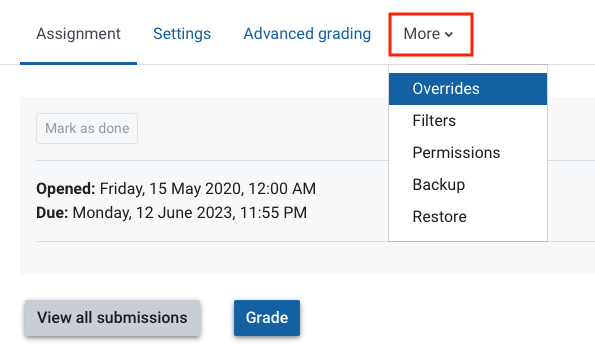

NoteIf you have set up individual/group overrides and change the assignment submission due date at a later time, ensure that you review and manually edit any existing user/group overrides as needed, as the overriden due date will be unaffected by the change in the Moodle Assignment settings. |
Allow resubmissions
By default, once an assignment has been marked, students will no longer be able to resubmit. You can manually allow another attempt for individual, multiple or all students from the Grader report.
- Navigate to the assignment that requires student attempts to be reopened.
- Click on the Submissions tab to navigate to the Grader report.
- Select individual or multiple submissions with the checkboxes in the Select column
OR
Select ALL with the checkbox in the Select column headers.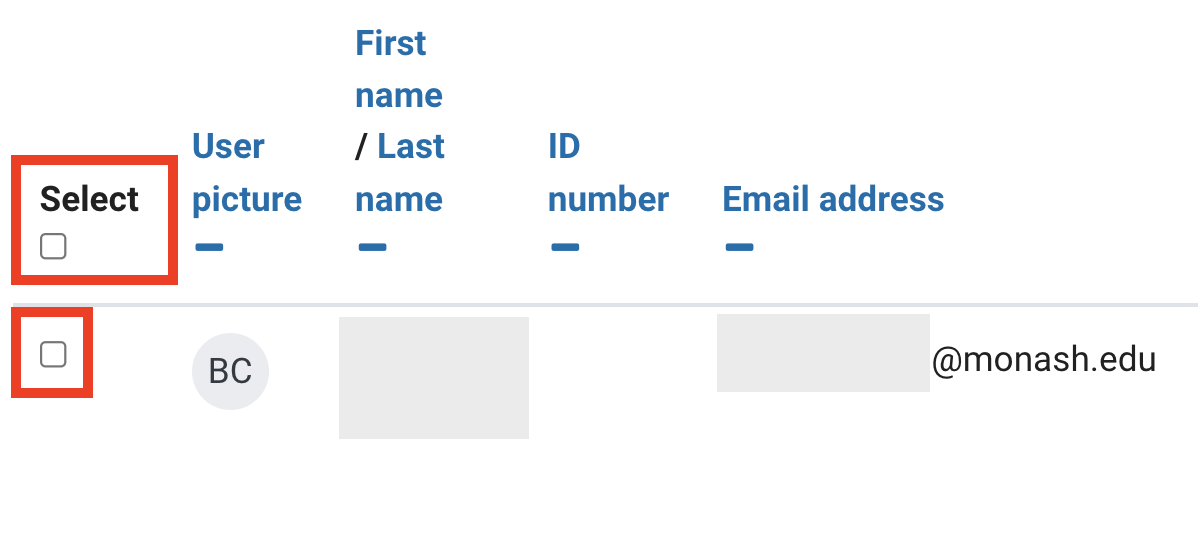
Note: You can also choose to filter groups of students using the Select visible groups drop down list or submissions status using the Status dropdown list.
- From the icons at the bottom of the page and then select Grant attempt.

- Confirm that you would like to allow another attempt to all selected students. The page will refresh.
- For selected student(s), the status column will now show attempts have been reopened.
Manage late penalties
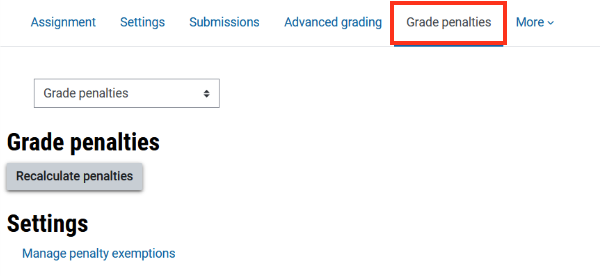
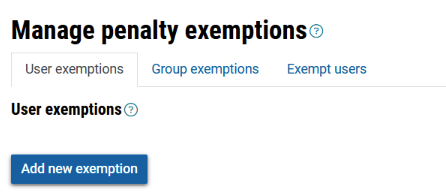
If you have late penalties enabled on your assignment, you will have additional options to recalculate and manage penalty exemptions.
Expand the accordions below to learn more