
Use the Moodle dates report
At a glance
Use the Moodle Dates report to view and update all key dates in a unit from a single page, saving time when rolling over units. Learn how to filter by activity type, edit dates for assignments, quizzes and resources, and add access restrictions directly from the report.
The Dates report in Moodle is a special report that allows you to view, and then update, all key dates in a unit directly on the dates report page. This has the potential to save time on rollover of units.
Note: Depending on the number of sections and activities and resources in your unit, the dates report may take some time to load.
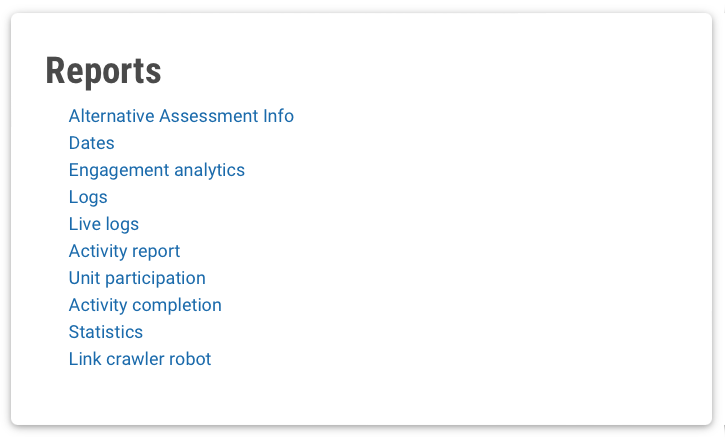
- Click Reports at the top menu of your unit.

- From the Reports, select Dates.
- In the Dates report, from the Activity type drop down list, you can select which activity type to view or select All activities.
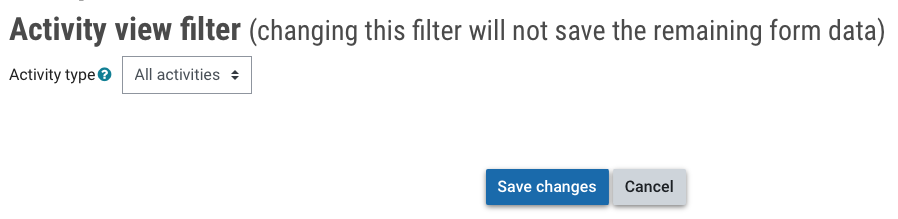
- Click Save changes.
- Click Expand all to see all your selections, or open each section individually.
- For each item, you will see all of the current dates associated with it. The dates available will vary depending on the activity type, for example the following activities will have:
- Assignment: Open date, due date, cutoff date, grading reminder date, and an expected completion date
- Quiz: Open, close and expected completion date
- Resources (Pages, Labels. etc): Expected completion date only
- You can change the date using the Calendar selection popup or the Time selection dropdown. If the date is currently active in the unit, the Enable box will be ticked. For dates not currently in use, the box is unticked and the date is greyed out. To change times that are greyed out, check the Enable date checkbox.
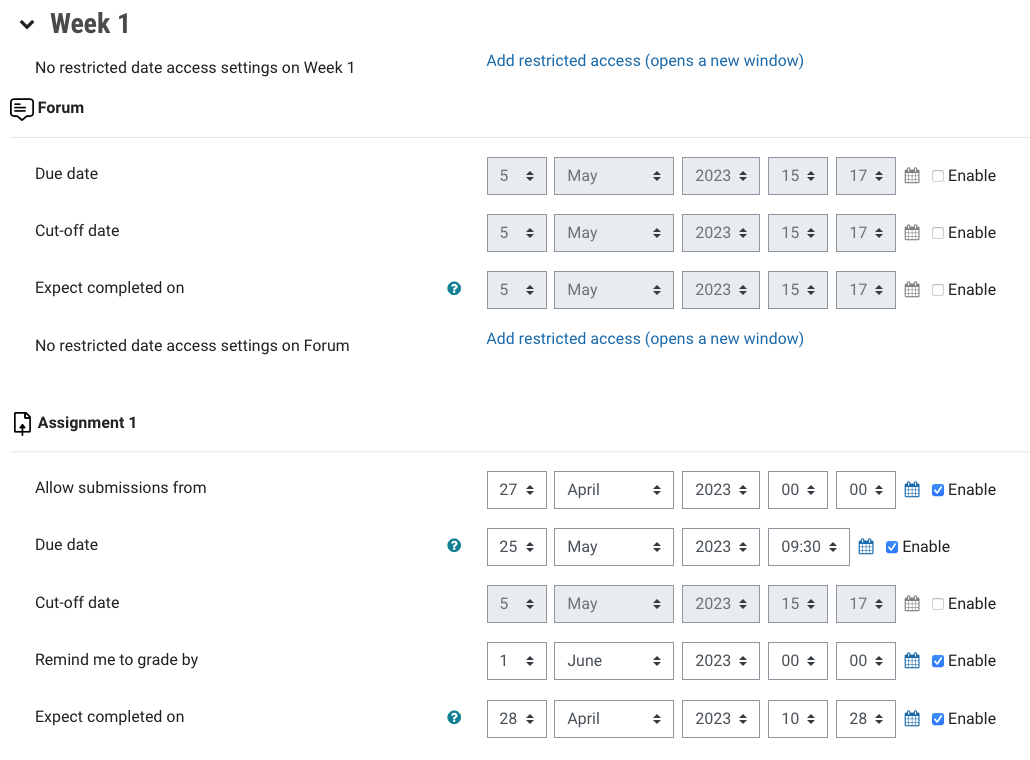
- You can also add access restrictions to activities from the dates report page by clicking the Add restricted access link. This will open the access restriction settings for the activity in a new window. For more information, see Restrict access to a resource or activity.
- Once you have made all of the changes required, click Save changes at the top of the page to save your changes.