
Use captions and transcripts in teaching
At a glance
Explore how captions and transcripts support inclusive teaching, including their benefits for diverse learners and how default settings work across Echo360, Panopto and Zoom. Use this guide to understand caption and transcript functions for each technology and apply the accuracy disclaimer when sharing video content with students.
Jump to these sections:
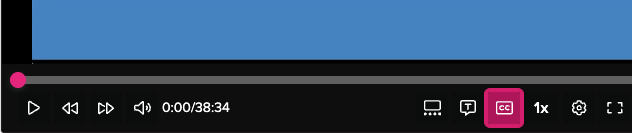
Captions are subtitles that appear at the bottom of the video which can be optionally turned on and off by the viewer. Captions provides a text-based version of the audio information that accompanies the video.
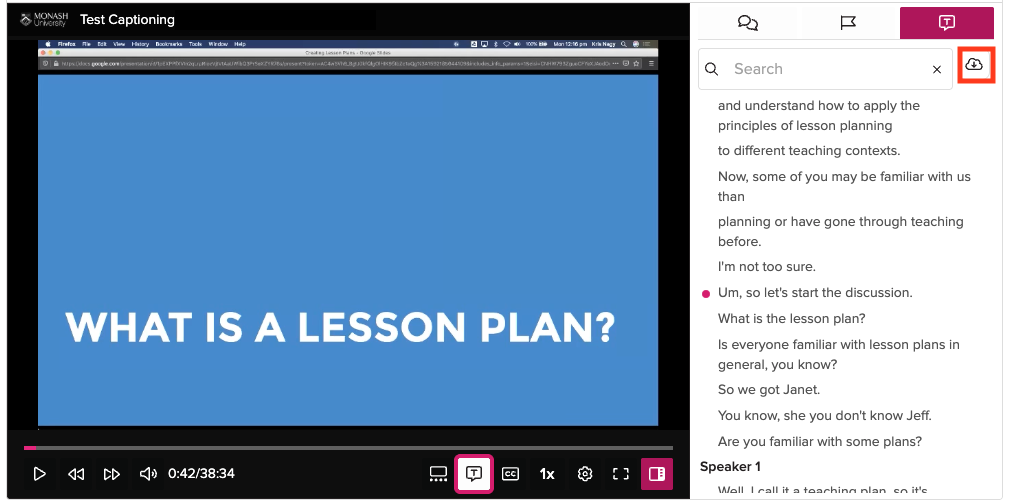
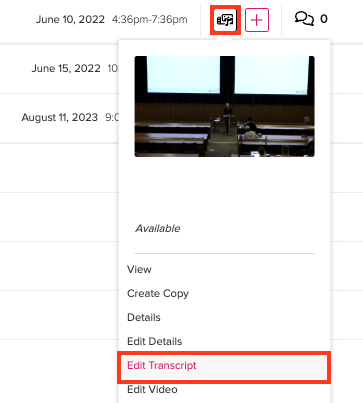
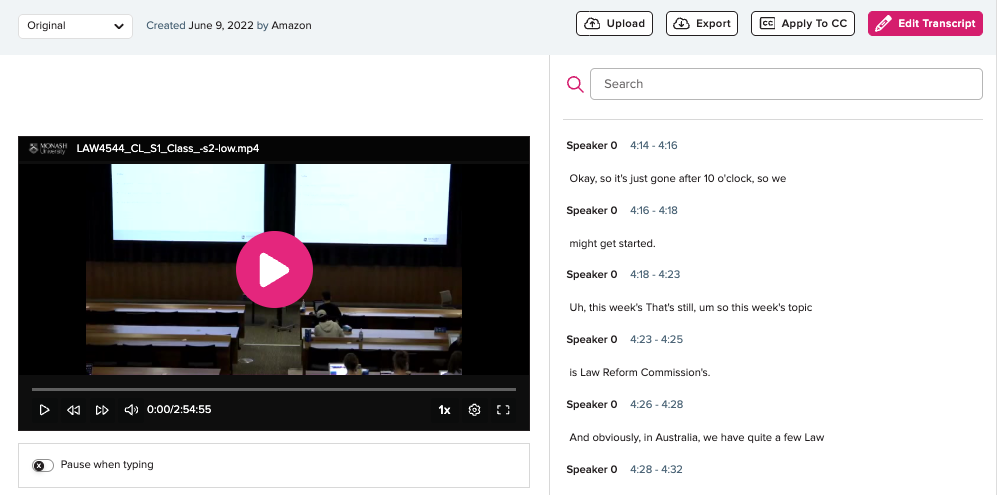
Transcripts are a separate text-based version of the audio information. Online transcripts appear at the side of the screen next to the video and are clickable, taking you to a timestamped point of the video. Depending on the learning technology, transcripts may also be downloaded separately.
Benefits of captions and transcripts
Research shows that there are great benefits for all learners when using captions and transcripts.
- They provide alternate ways of understanding content and allow dual processing of visual and audio content which can support greater comprehension of the content (Dommett et al., 2022).
- The text-based nature of captions and transcripts supports students who are deaf or hard of hearing, neurodiverse students as well as students from non-English speaking backgrounds (Kent et al., 2017).
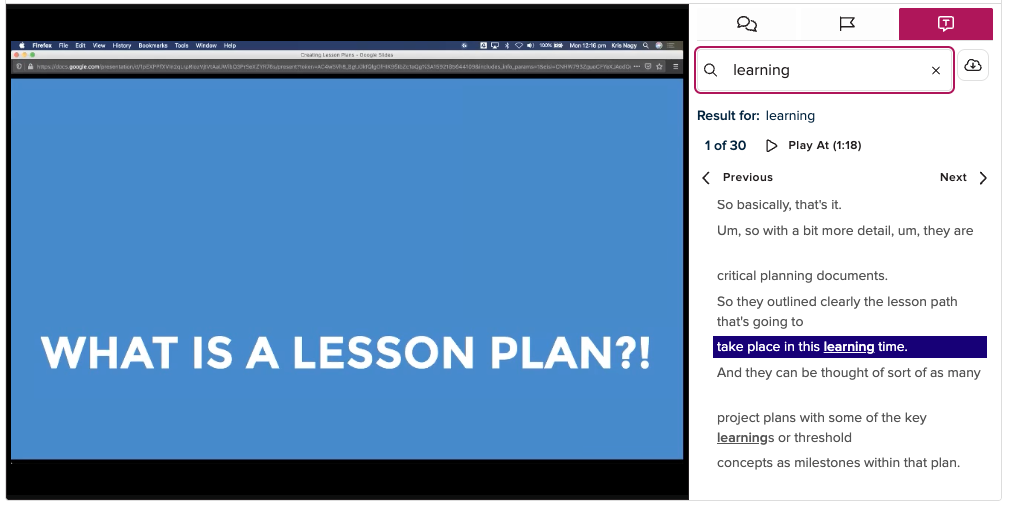
- Students are able to review and revise course content by using the search function to search for keywords in the captions or the transcript(Kent et al., 2017; Dommett, et al., 2022).
NoteFrom Semester 2, 2022, captions and transcripts have been enabled by default for the audio video technologies used widely at Monash University to encourage the use of captions and transcripts for all learning and teaching videos where possible. |
The table below provides an overview for the default settings for audio video technologies
| Technology | |||
|---|---|---|---|
| Function | Echo360 | Panopto | Zoom |
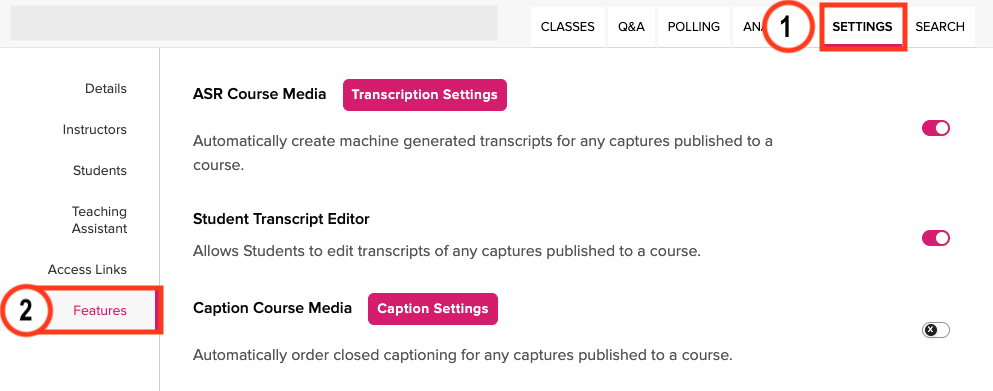
| Captions | Enabled by default; Can be disabled at a unit/video level | Enabled by default; Can be disabled at a unit/video level; Closed captions are embedded in MP4 downloads. | Requires academics to enable first. |
| Transcripts | Enabled be default; Can be disabled at a unit/video level; Downloadable | Enabled by default; Currently no download available for students in Panopto | Automatically generated for Zoom cloud recordings |
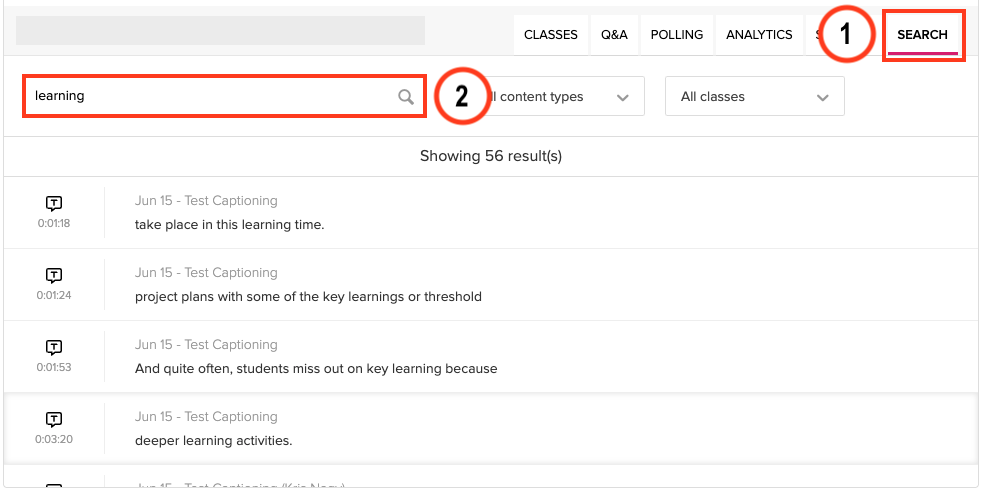
| Search | Searchable text in captions, transcripts, attached slides and notes | Searchable text across the platform, folder or video; Searchable notes and text displayed on screen recordings (OCR) | Searchable text in audio transcripts is from Zoom Cloud recordings page |
| Previously created content | Requires reupload of content. | Can be enabled manually (see below). | N/A |
Expand the accordions below to learn more about how to use captions and transcripts for each of the following technologies



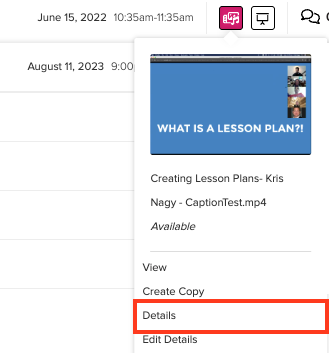
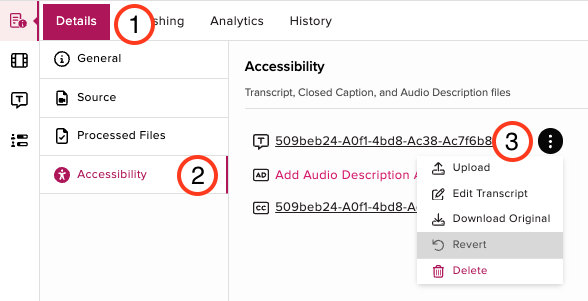


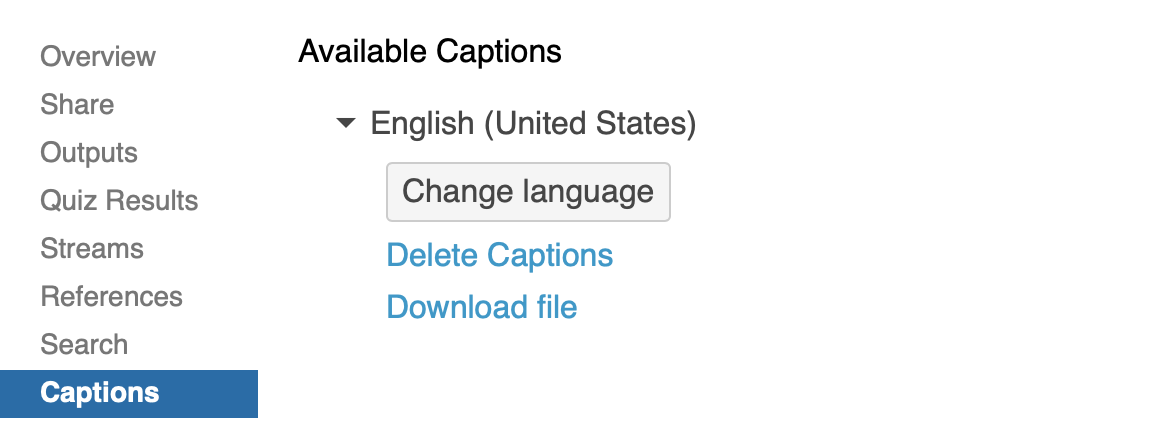

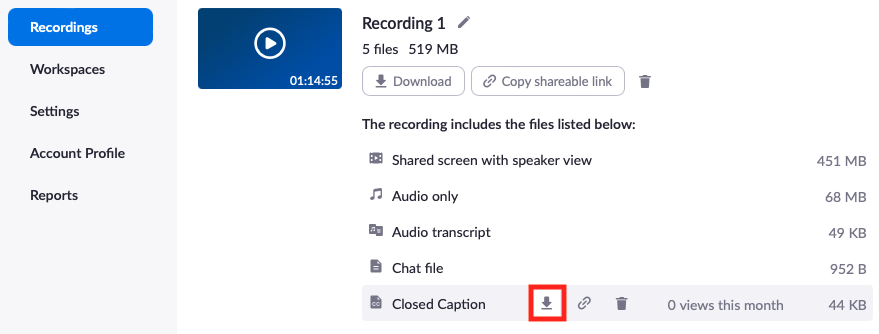


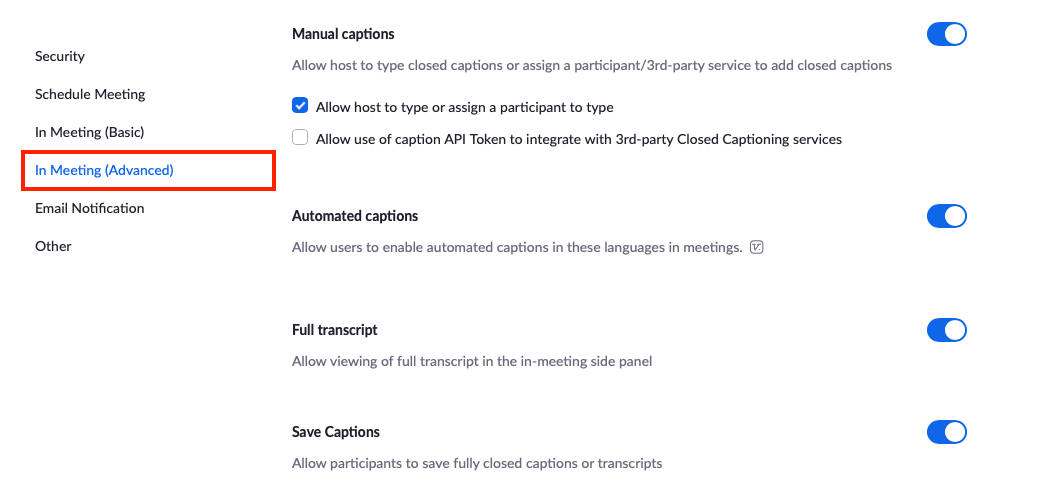
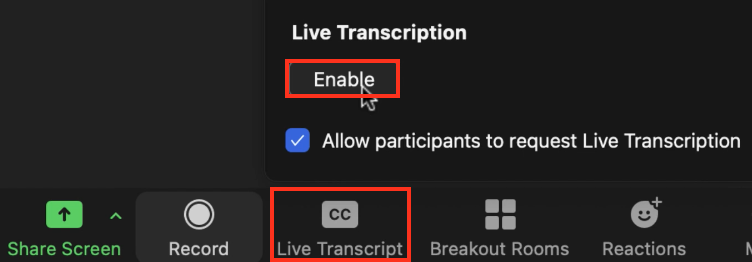
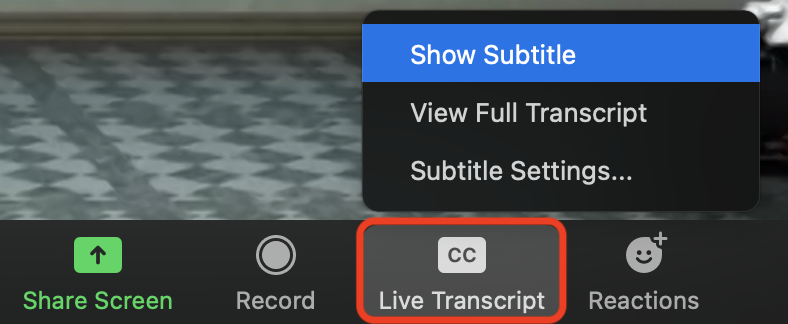
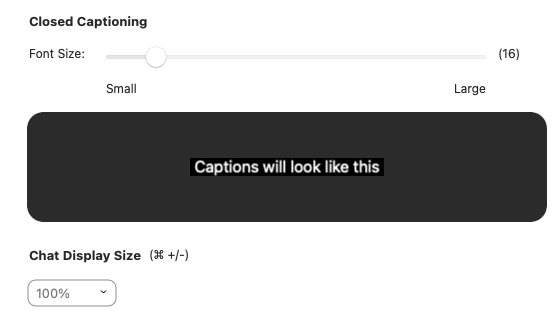
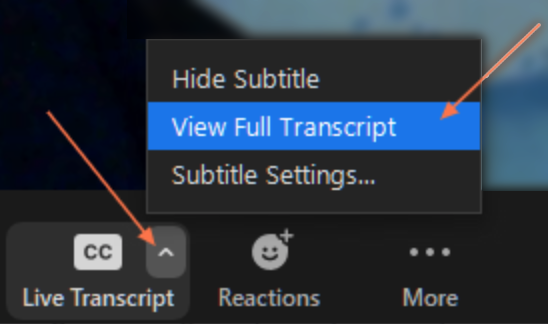
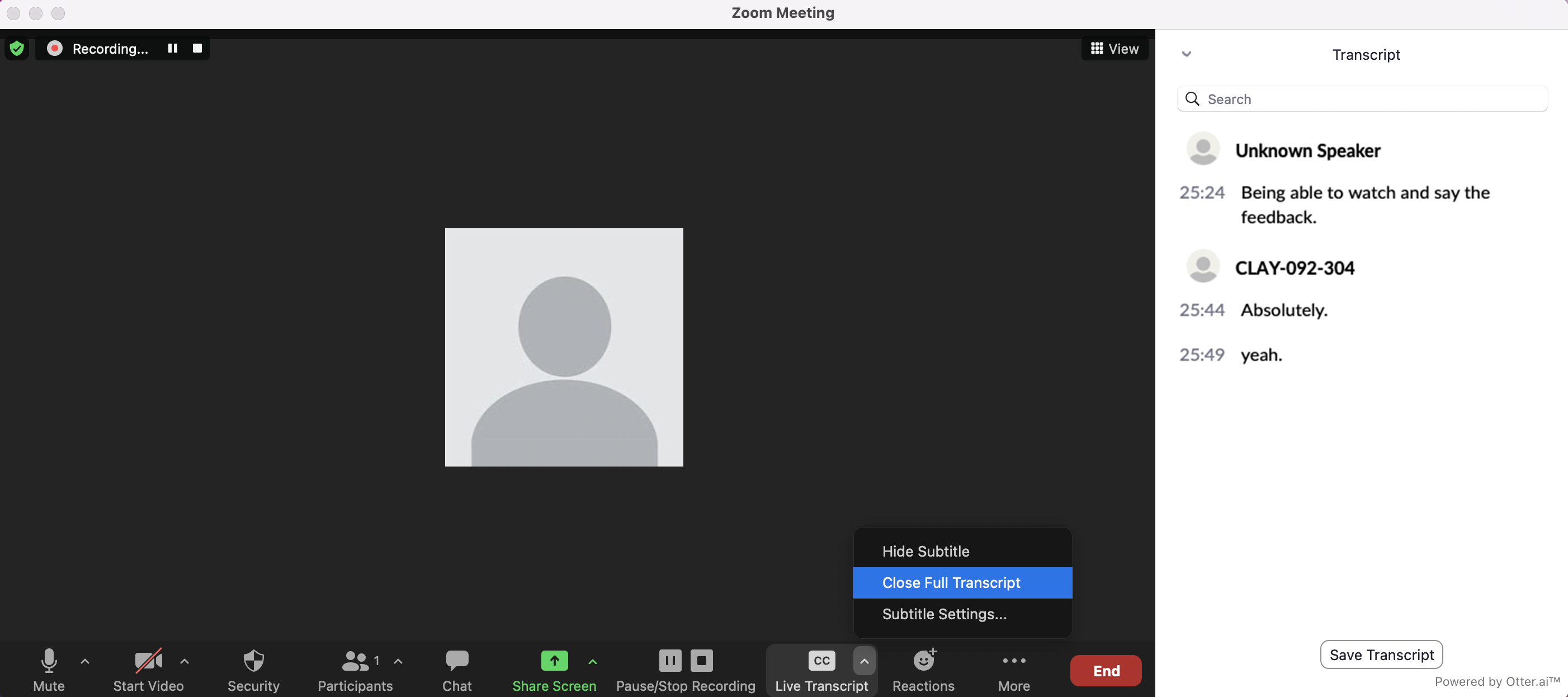


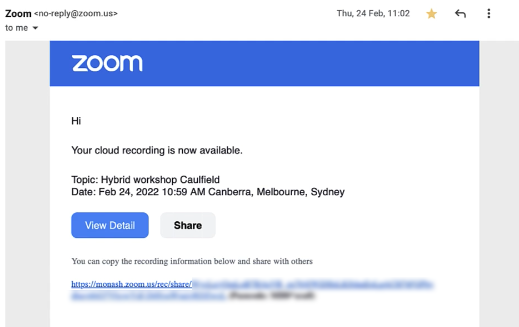
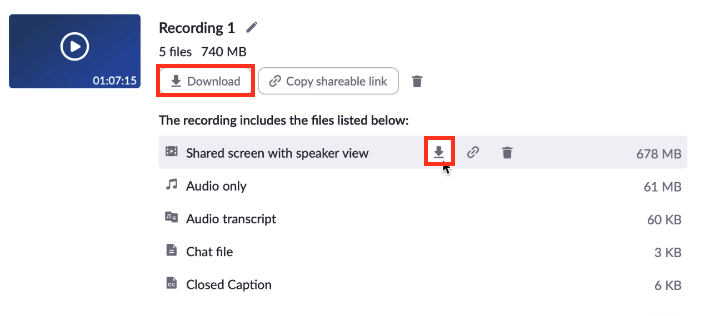

NoteThe accuracy of automatically generated captions depends on audio quality, topic and speaker and therefore are unlikely to be 100% accurate. Monash does not expect or require staff to edit or correct automatically-generated captions. Students should not rely solely on captions when viewing video content and use them alongside other learning resources to ensure they understand the topic and terminology used. Deaf or hard of hearing students should contact Disability Support Services if they are concerned about the accuracy of the captions/transcript. If you would like to improve the accuracy of captions for unit specific terminology, please contact your faculty administrator. |