
Submit Results
The Submit Results page enables the submission of results to Callista that have been validated in the Manage Results page. For more information, see Manage Results.
Note: The above video was recorded in Moodle version 3.9. For updated instructions on how to navigate to the Manage results page, click here.
User access for Submit Results
To access the Submit Results page in order to submit student results to Callista you must be assigned the Chief Examiner role in Moodle. For assistance with roles in Moodle, please contact your Faculty Moodle administrator.
Navigate to Submit Results page
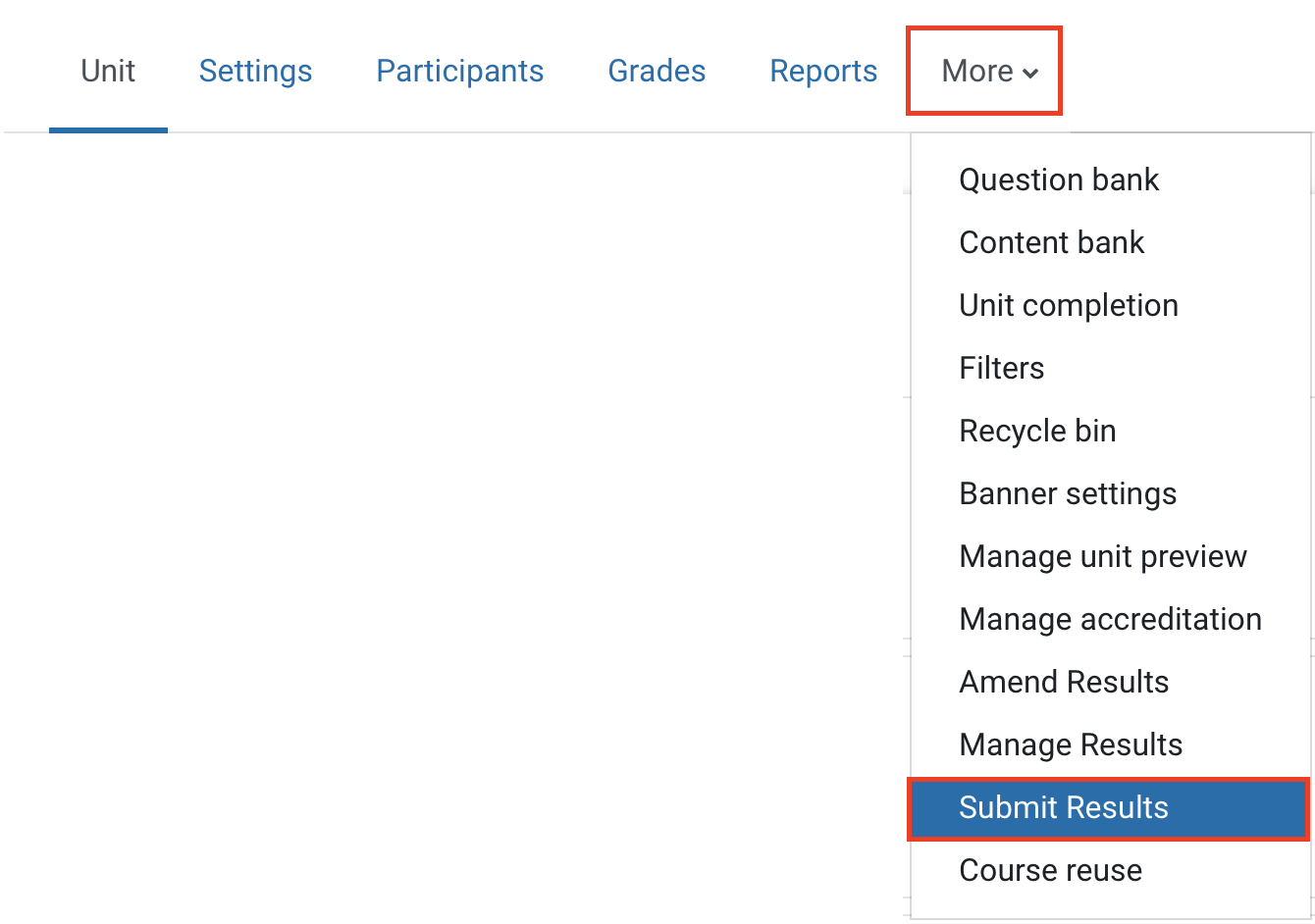
- To navigate to the Submit Results page, click on More in the top banner menu and select Submit Results from the dropdown list.
- The Submit Results interface will display the list of unit Offerings associated with your Moodle site and whether those offerings have been validated and submitted to Callista. Click on the plus icons to learn more about each component of the Submit Results interface or read a text version in the accordion below (from left to right).
Submit unit results to Callista
- When a unit offering has been validated(Validate status column displays Validated), the Submit results button will be displayed in the Action column.

- Click Submit Results to send unit results to Callista. Ensure your data is correct as any changes required after successful submission must be performed via the Amend Results page in Moodle.
- Read the result submission statement and confirm that the results are ready to be submitted to Callista. Click the I Agree button to confirm.
- Click the Cancel button if you do not yet wish to submit results to Callista.
- The Submit Results page will display in the Summary column a statement indicating the number of results successfully submitted to Callista and, if applicable, the number of results that were not successfully submitted.

- When results have been submitted:
- If all results have been submitted successfully, the Submit results button disappears.
- If one or more results were not submitted with success to Callista the Resubmit Results button appears, the Submission status for the offering is Partially Submitted and the number of results not successfully submitted to Callista will display.
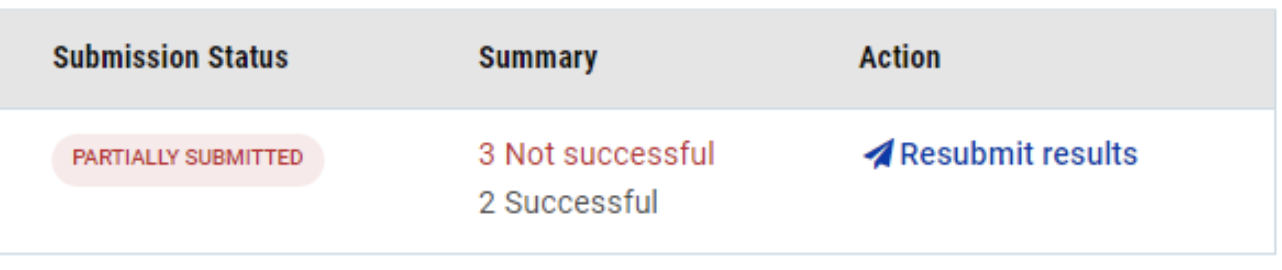
Click on the Not successful text to view which student result/s were unable to be sent to Callista and why as follows:
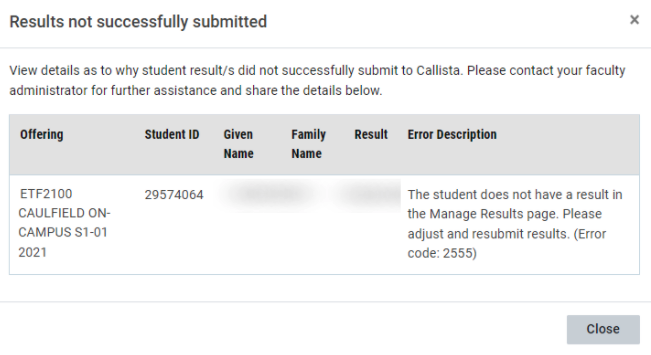
For results that did not submit with success to Callista, please copy details as presented in the Results not successfully submitted pop up page and contact the Service Desk. Results can be submitted again once the issue has been resolved. You have an unlimited number of attempts to resubmit your results to Callista.