Create a Moodle assignment activity
At a glance
Follow step-by-step instructions to set up a Moodle assignment activity, including general settings, availability and submission dates, submission types, feedback types, group submission settings, and grading options such as marking workflow, rubrics, marking guides and grade penalties.
Jump to these sections:
|
- In the top right hand corner of the page, set Edit mode to ON(Blue).

- In the section where you would like to add an assignment, click +Add an activity or resource.

- Select Assignment from the add an activity or resource window and click Add.
General settings
Fields marked with a red exclamation mark are required.

- Give your assignment a name that is meaningful to your students and yourself.
- Description. If needed, provide information about the assignment in the description text field for example you could include the words report or quiz as well as a unique description. Check with your Faculty if there are specific descriptors that are recommended. You can also optionally choose to display the description on the unit page with the Display description on unit page check box.
- If needed, attach additional files to provide information about the assignment These can include information sheets, templates, exemplars, and other resources to help students complete the assignment. Files attached at this point are available to all users who can view the assignment.
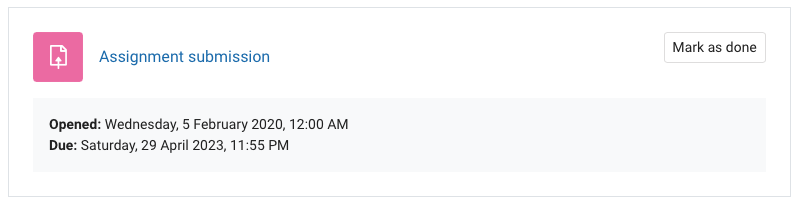
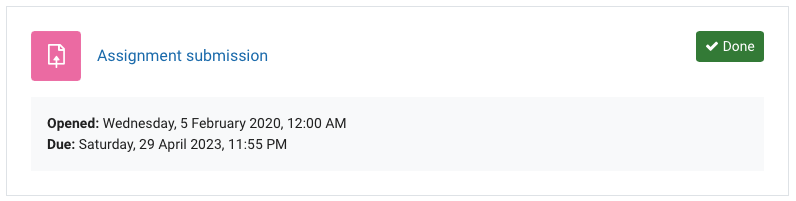
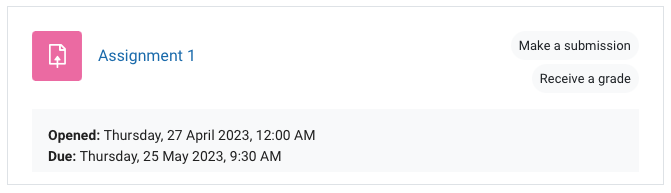
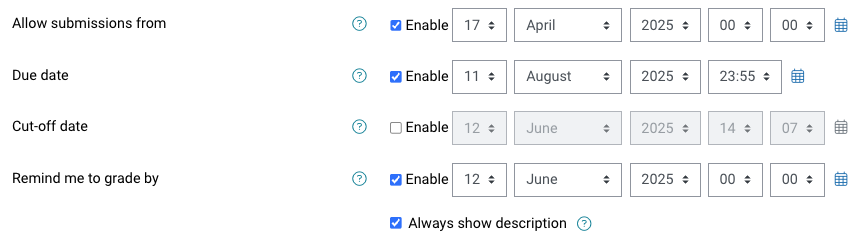
- In Availability, nominate the submission date and time for your assignment. You can choose which of these date settings you wish to enable by ticking the Enable checkbox. The submission date and time will appear in students' Moodle Calendars and Timelines.
- Allow submissions from - the opening date for submissions.
- Due date - the date when submissions are expected by. Unless there is a valid reason all Monash assessments should be set to 11:55PM local time. Students can continue to make submissions after the due date, but they will be counted as overdue and incur a late penalty.
- Cut-off date - If enabled, once the cut-off date has elapsed, it is no longer possible for students to make submissions. Cut-off dates for assessments should not be used unless it’s necessary to maintain assessment security (for example when assignments are used for in class tests), in accordance with Monash University's assessment procedures.
- Remind me to grade - this will add an event to your calendar and timeline as a reminder to complete grading.
Each assessment item that is submitted in Moodle needs to have a meaningful name. This name is a required field and has a limitation of 255 characters. The purposes for this name include giving students clear understanding of the task, providing unique names for Special Consideration systems and ease of marking when looking at the gradebook.
The suggested structure of the assignment name is in three parts.
[Unit code] [Assessment/quiz number] [description]
Examples
ABC1234 Assessment 1 Laboratory report
DEF5678 Quiz 2 Financial knowledge and calculations
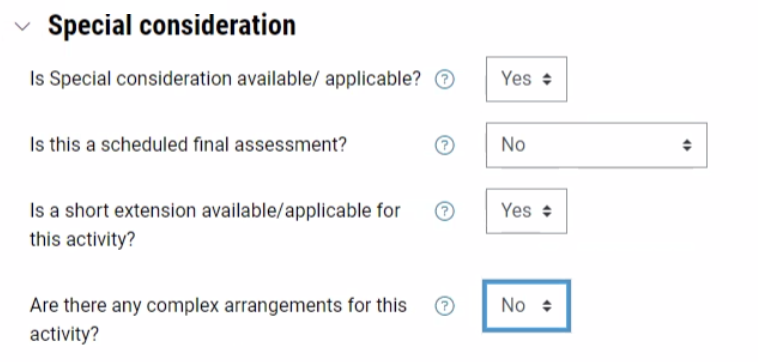
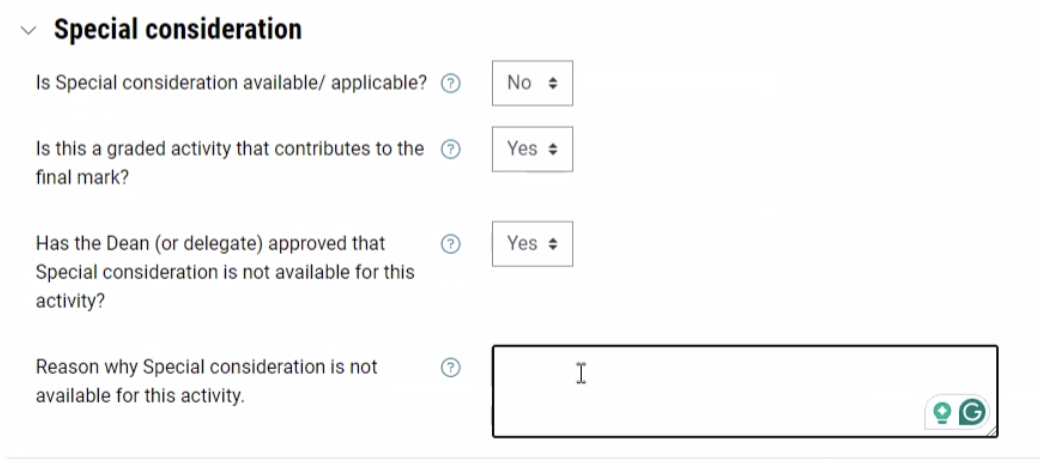
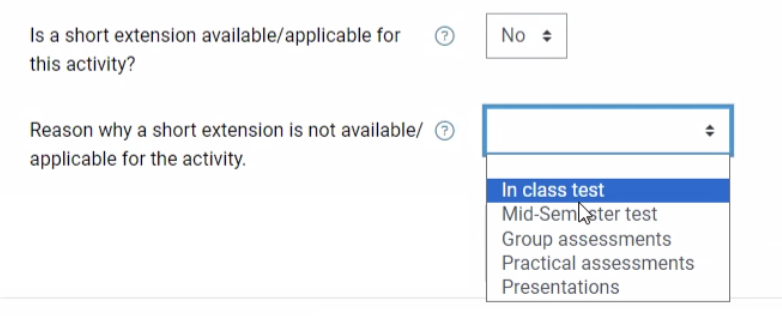
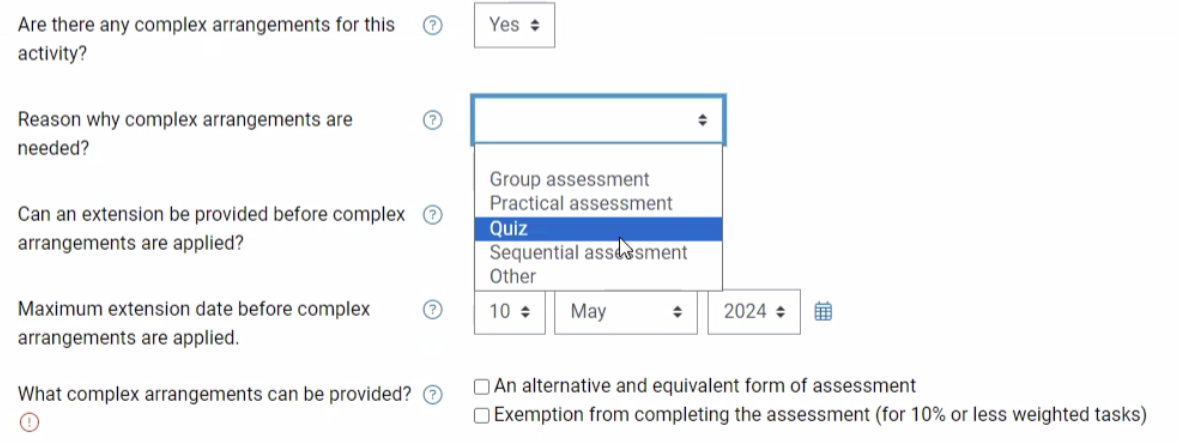
Short extensions and special consideration for assignmentsStudents can apply for short extensions or special consideration for assignments and quizzes via an online form. Ensure that the Assignment name in your Moodle activity settings is accurate and meaningful and ensure that the assignment Due date is correct, as the online form draws on this data from your Moodle unit. Also ensure that the assignment is NOT hidden or inside a hidden section, as the assessment due date in Moodle needs to be visible on the unit page to be updated. |
Availability
Reasons for varying submission times
Monash assessments should be set to 11:55PM local time unless there is a valid reason where it might be necessary to vary these standard times (see below).
Assessment submission times can only be varied by the Chief Examiner if the reason aligns with one of these categories. Depending on the variation reason, the reason for overriding will be displayed to students on the activity page in Moodle.
| Variation reason | Description | Reason for overriding displayed to students |
|---|---|---|
| Pre/in/post class activities | For submission of work allocated in a scheduled class that is due before, during, or after the class has taken place. | This assessment has a different submission time because it is a scheduled class activity. You’ll need to complete and submit this task before, during, or immediately after your class. |
| Non-Australian campus cohorts | When there is no Australia campus based cohort in the assessment activity, the submission times can be set to one of the times that are adjusted to reflect the time in the offshore campus location for equity purposes eg. Setting the submission time at 2:55am AEST to align with 11:55pm Malaysian time. | N/A - when this option is selected it is expected that educators should be setting local time 11:55pm for students. |
| Departmental exam activities | Departmental exam activities are timed assessment tasks where a student has an allocated amount of time to complete the task. Submission times may fall outside the default times. | This assessment has a different submission time because it is an exam or timed assessment. Make sure you complete and submit your work within the allocated assessment time window. |
| Non-assessed activities | These activities have no weight (do not contribute to unit marks) or are for a non coursework unit and the proposed time is used to support student time management. | This assessment has a different submission time because it is a non-graded activity. The submission time was set to support your learning and progression through the unit. |
|
Assignment settings
Select the accordion to view more information about each Moodle assignment setting.