
Customise assignment settings
At a glance
Configure the Turnitin Similarity Report settings for a Moodle assignment, including when reports are generated, file type acceptance, paper storage and exclusions for bibliographies, quoted material and small matches. Use the recommended settings for both assessed and non-assessed draft submissions.
- In the section or topic where you would like to create a Turnitin integrated assignment, create an Assignment activity. For more information, see Create a Moodle Assignment activity.
- From the options below Expand the Turnitin Similarity Report settings. By default, Turnitin will be enabled.
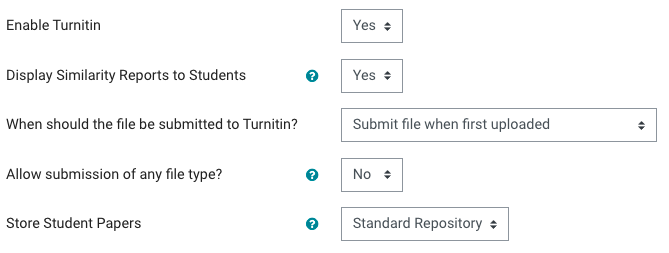
- Display Similarity Reports to Students: Select Yes to allow students to see the Turnitin text-matching report.
- When should the file be submitted to Turnitin determines when a similarity report is generated. Select Submit file when first uploaded to allow the student to review their report before the due date.
- Allow any file type:
- Yes - Submissions will be checked for similarity only where possible, images and other non reviewable content will still be accepted however.
- No - Only file types that allow similarity reports to be generated will be accepted.
- Store Student Paper allows submitted papers to be checked against in this future by other assessments. Select Standard Repository for final assessed assignments. Select No Repository for draft assignments or formative assessments.
- The Check against settings allow you to include or exclude comparison from Turnitin's repository sources. The Similarity Report cannot be generated if Yes has not been selected for at least one source.
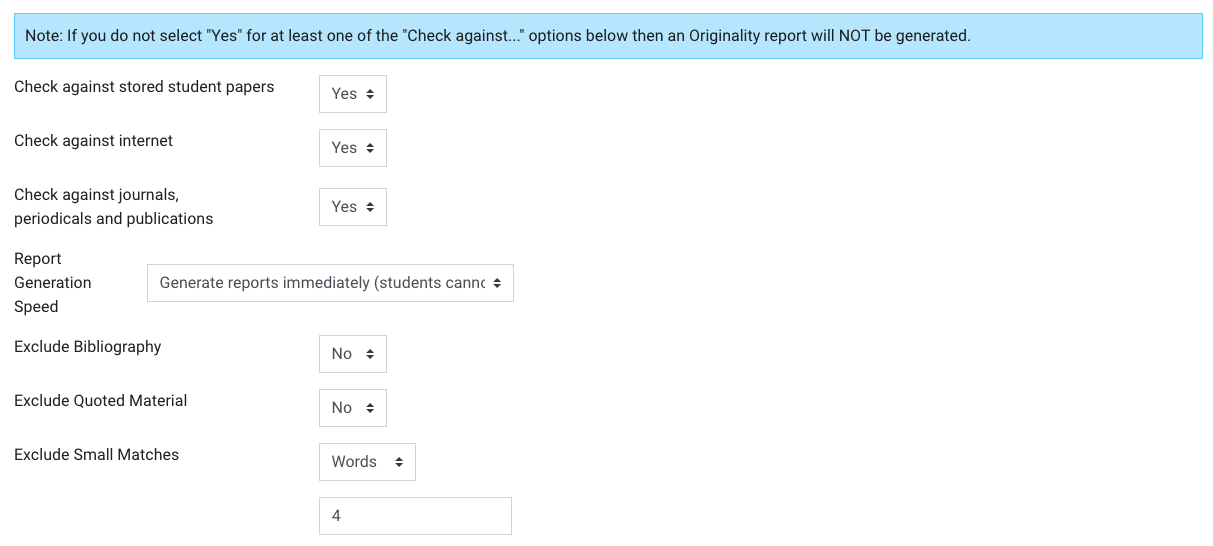
- Report Generation Speed:
- Generate reports immediately (students cannot resubmit)
- Similarity Reports for all submissions will be generated immediately (within half an hour of submission).
- Students cannot resubmit papers.
- Submissions must be deleted by the instructor to enable resubmission.
- Generate reports immediately (students can resubmit until due date) - Preferred option, typically used when students are self-reviewing and revising their submissions and able to view the Similarity Report.
- Similarity Reports for the first 3 submissions will be generated immediately (within half an hour of submission).
- Students may resubmit until the assignment due date.
- After 3 resubmissions, the Similarity Report will be generated after 24-hours.
- Only the latest submission is available to the instructor or student. Previous versions are not stored.
- Generate reports on due date (resubmissions are allowed until due date)
- Similarity reports will not be generated for any submission until the due date and time of the assignment.
- Students may resubmit as many times as needed until the due date and time without receiving reports.
- Resubmissions may not be made after the due date and time of the assignment.
- Generate reports immediately (students cannot resubmit)
- Exclude Bibliography, Quoted Material and Small Matches. Turnitin can exclude certain elements of a paper from a similarity report to provide a more accurate similarity score. This can be changed later for individual similarity reports.
- Bibliography. It is recommended you set to No. Students should submit their Bibliography as a separate file to avoid confusion.
- Quoted Material. It is recommended you set to No. Students will be able to see for themselves if they are over relying on quotes.
- Small Matches. You can choose to exclude a number of words, or a percentage of match similarity. This can reduce the similarity score where there may be many commonly reoccurring technical terms or in-text citations. For example, to exclude 'post traumatic stress disorder', you would enter '4'. Excluding small matches of 4-8 word length is recommended.
Non-assessed Moodle Assignments for Turnitin Draft Submission similarity checkingIf you would students to check their draft submissions against the Turnitin database without it being uploaded to be checked against further submissions, use the following settings: Turnitin Similarity Report settings
Moodle Assignment settings
|