
Embed audio and video in Moodle
At a glance
Embed audio and video content directly into Moodle using the insert media icon or the Panopto icon, and choose the method that suits your needs, whether recording new video, uploading existing files or adding YouTube content. Explore options for embedding videos in different Moodle text editors, adding closed captions and building interactive quizzes into your videos.
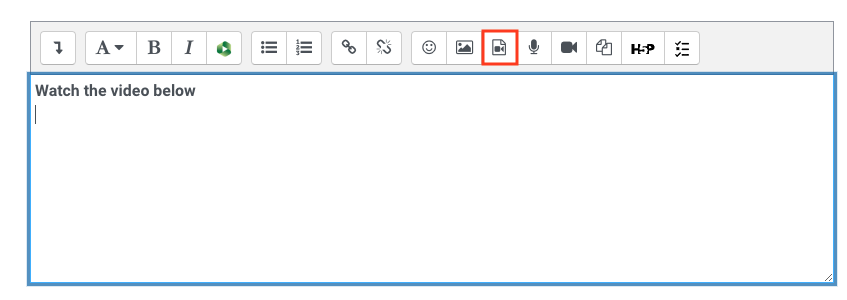
You can embed audio and video into Moodle with the insert media icon or Panopto icon in the text editor in various resources and activities. Some ways you could use video in your Moodle unit include:
- Embedding a welcome message for students
- Embedding a screencast to provide a visual demonstration / walkthrough
- Embedding audio files to create weekly podcasts.
You can also embed audio or video file in the section summary page of your unit home page
Embed video with Panopto
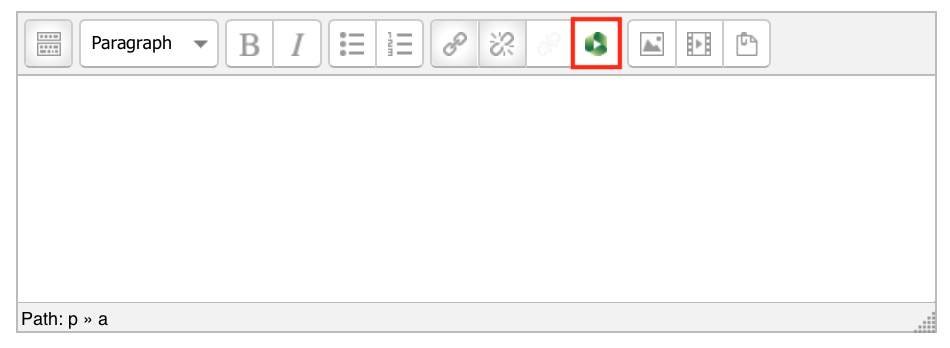
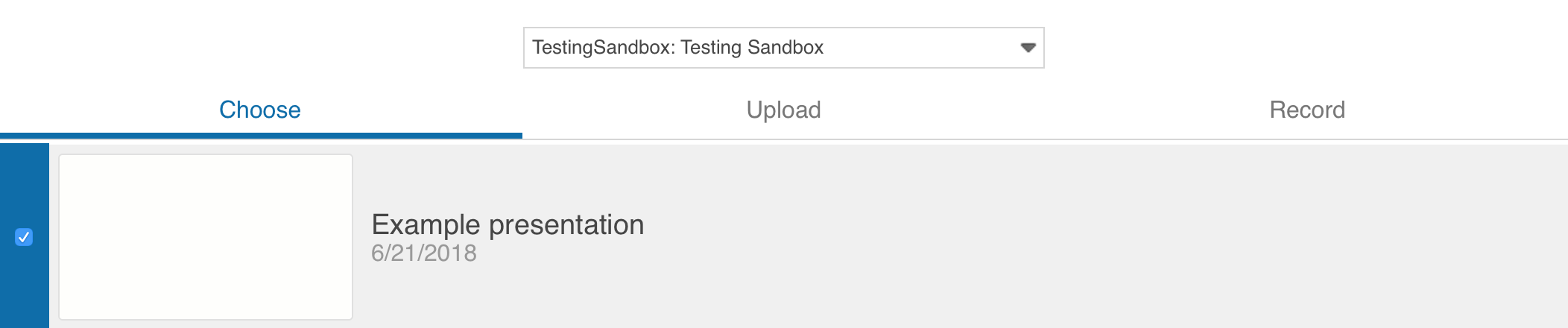
The Panopto icon allows you to record, insert or upload video content and directly embed it to Moodle. You can upload videos of any length and size and Panopto can also automatically generate captions from your audio. If your unit has not already been provisioned, you will first need to Add the Panopto block.

Embed Youtube videos
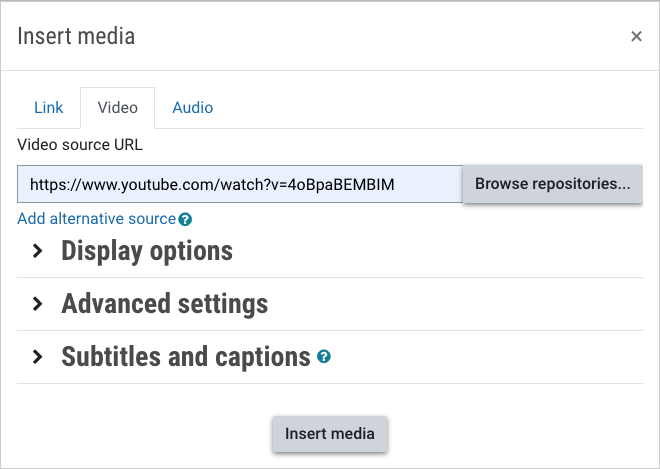
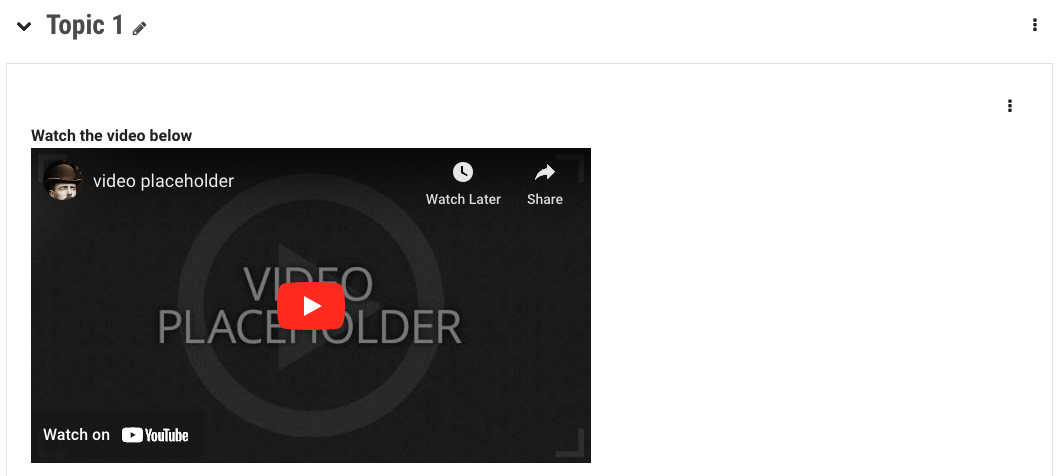
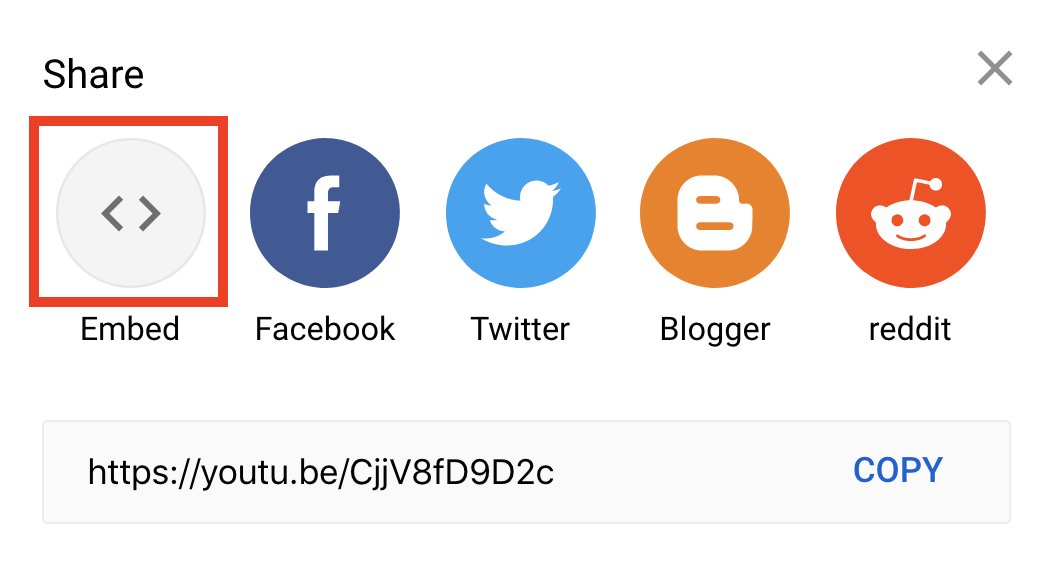
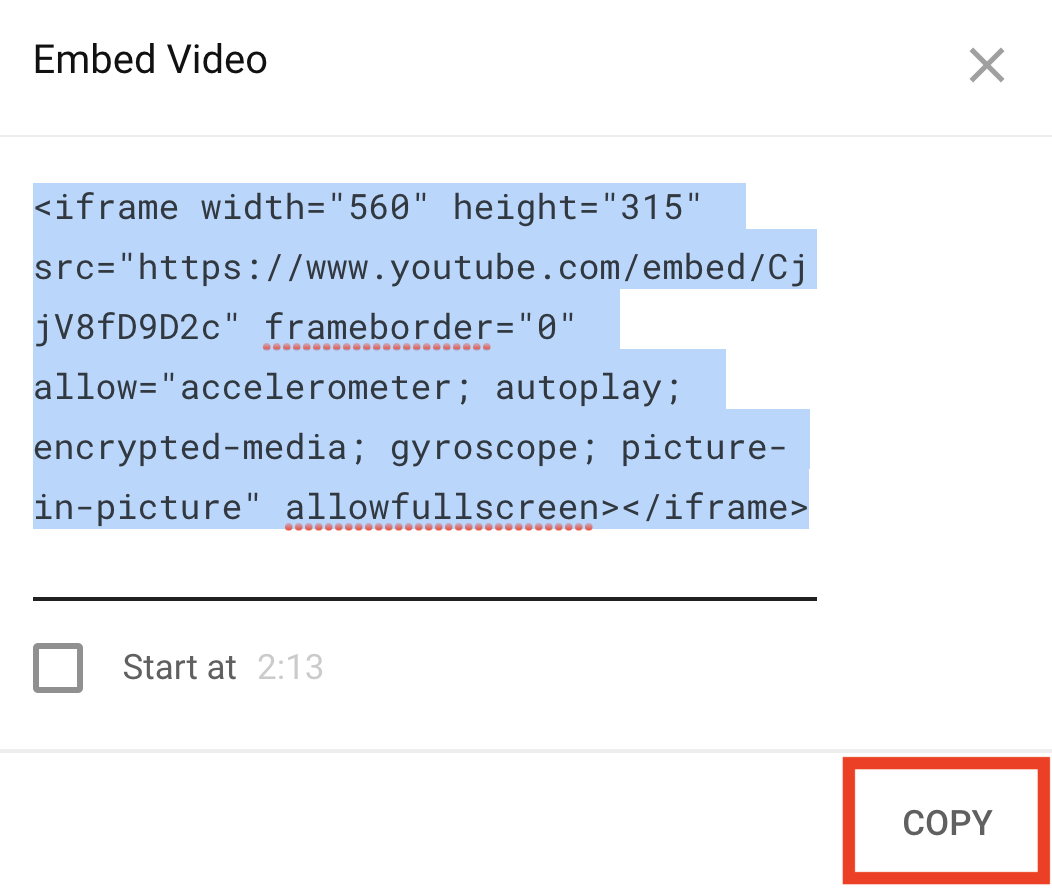
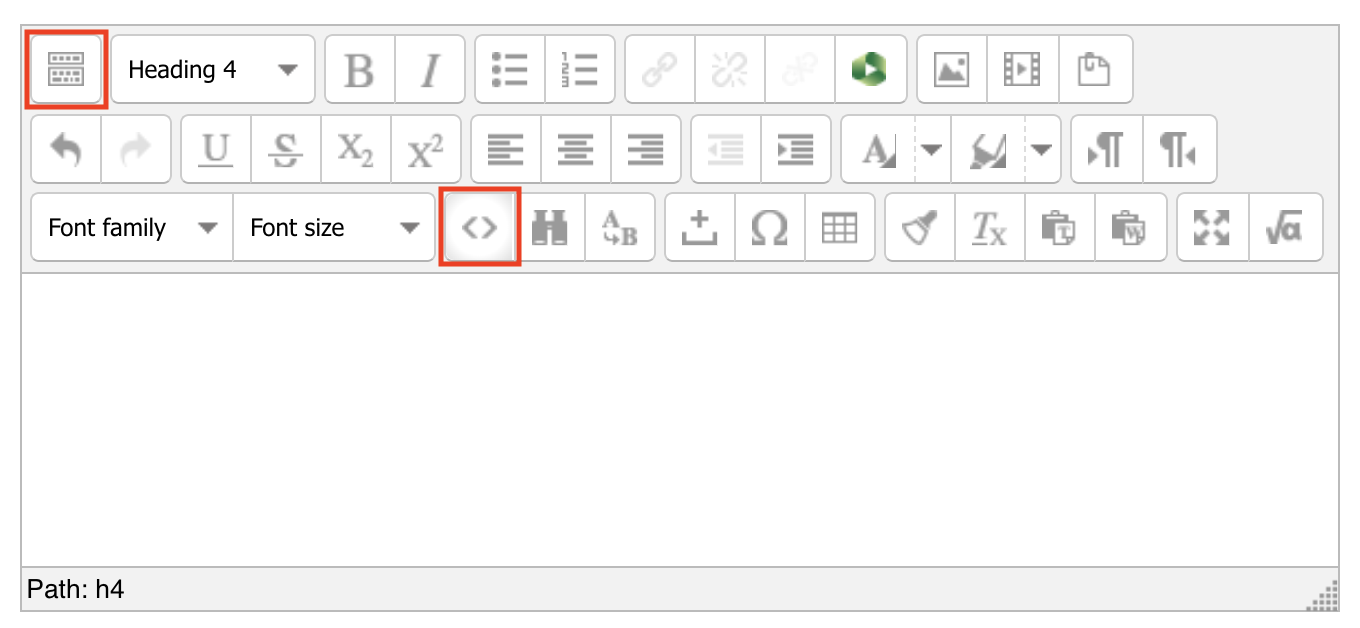
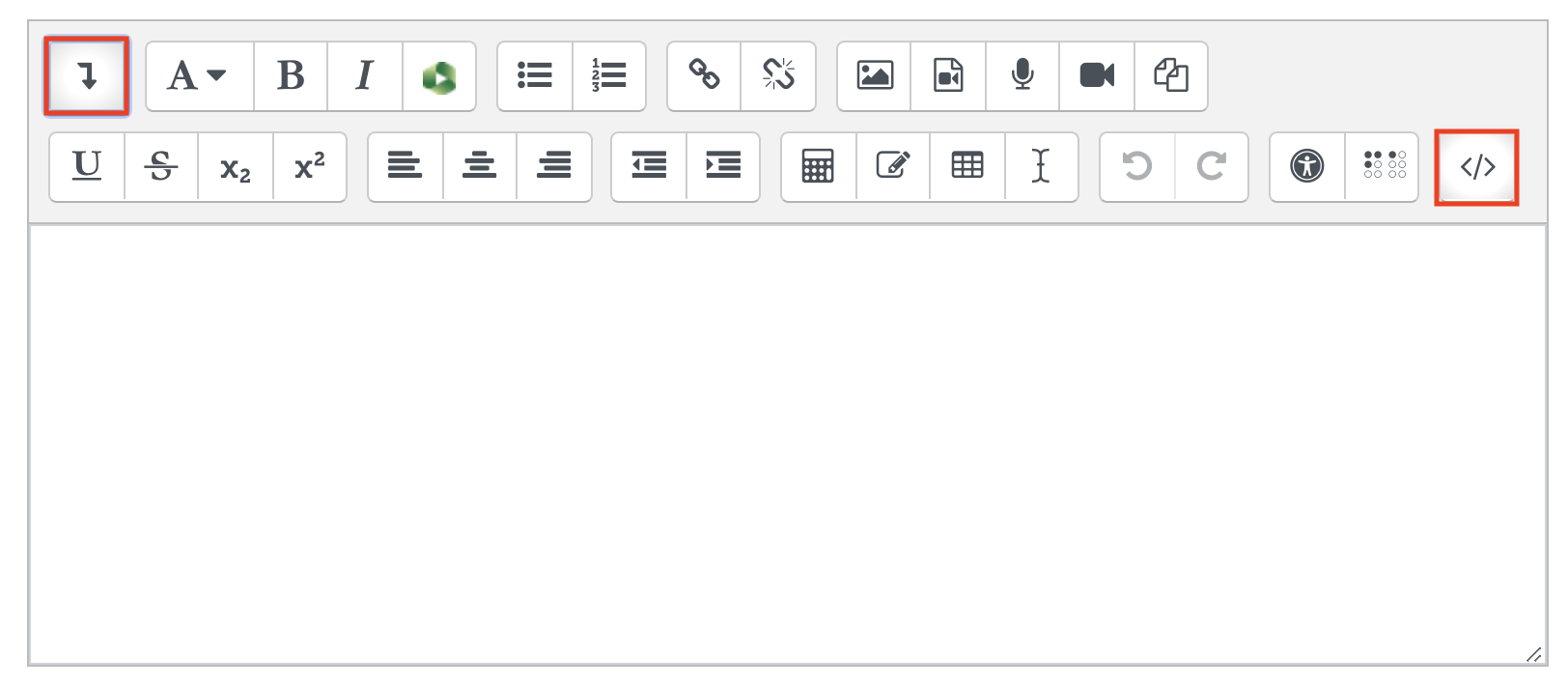
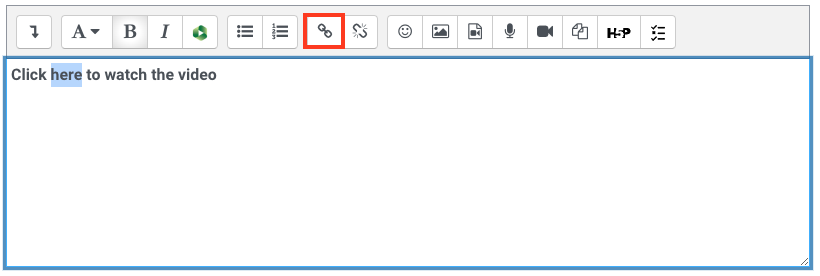
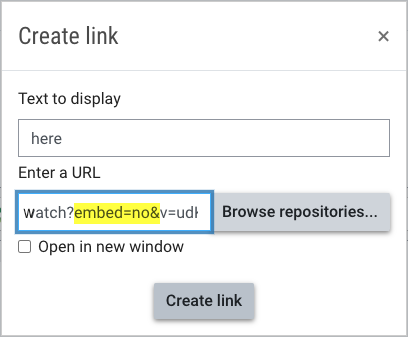
You may want to use an existing video on Youtube as a learning resource in your Moodle unit. You can embed a youtube video in any text editor in Moodle for example on a page, label or section in Moodle. There are a few ways you can do this depending on how you would like the Youtube video to be displayed.


Embed quiz questions into a video
You can easily embed a quiz within a video to greatly focus the learning, prompt students to test their knowledge on the topic, reinforce key concepts, improve knowledge retention to provide a more interactive and engaging learning experience. You can create interactive quizzes inside Panopto videos or Youtube videos using Panopto (guide), H5P (guide) or Echo360 (guide). For a brief overview and comparison, see Interactive videos.
Accessibility tips
It is strongly recommended that all video/audio be accompanied by text transcripts to provide the same information to users that cannot access the video/audio.