
Configure and publish grades to Moodle Gradebook
At a glance
Configure grading weightings for each step of a FeedbackFruits activity, adjust grading settings such as pass/fail thresholds and individualised group grading, and publish grades to the Moodle Gradebook. Learn how to set up weightings before students begin, and to manage and publish grades once the activity is complete.
You should configure grading before students begin the activity. In the Grading section, adjust the weighting to determine how much each step of the FeedbackFruits activity will contribute towards the final grade.
- Click Configure.
- You will see each step (Grading facet) of the FeedbackFruits activity.
- Use the buttons in the Include column to include (Purple) or exclude(greyed out) a step from contributing to the final grade. Excluding a step is the equivalent of setting the weighting to 0.
- In the weight column, enter your desired weighting.
- In Ratings received on work in total, you can further adjust the weighting of each criterion.
- Ensure that the total equals 100.
- Click Done.
Click the icons to learn more about grading facets
Note: Weightings you have allocated for Completed giving feedback, Has written the minimum number of review comments and Ratings received on work in total will appear as the sum total weighting for the Given reviews step. For example, Completed giving feedback(40%) and Ratings received on work in total(40%) will appear to students as the Given reviews being worth 80% of the mark.
Grading settings
Click on Settings to expand the Settings accordion. Click the toggle to switch the setting ON (Purple) or OFF (Grey). You can enable:


Publish Grades
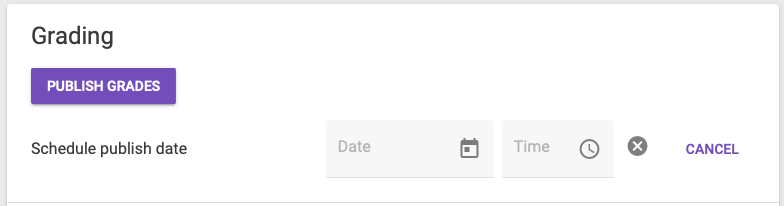
Once students have completed the FeedbackFruits activity, click Publish Grades to push grades to the Moodle Gradebook or schedule an optional publish date. If you have specified a scheduled publish date, grades to be published automatically to the Moodle Gradebook.
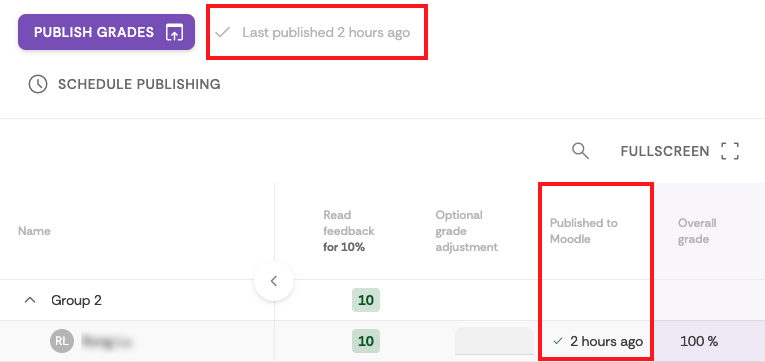
The grades displayed at the time you hit Publish grades will appear in your Grader report. You can click Publish Grades again to re-sync the grades if required. You can see when grade were last published next to the Publish Grades button, and also in the Published to Moodle column for individual students (you must expand the groups to view grades and last published date for individual students).
Note: If you have not set deadlines for your FeedbackFruits activity, students can continue to make changes which may result in differences between the grades shown in the FeedbackFruits and the Gradebook. To ensure grades are finalised, you may wish to set a deadline for your FeedbackFruits activity and click Publish grades once the deadline has passed.
NoteIt is also possible to release grades but not the feedback by clicking the publish grades button and NOT clicking the publish feedback button. The publish feedback button will publish comments and ratings students have received. While the publish grades button will apply any activity weightings and publish the overall grade for the student to the Moodle Gradebook. |