
Bulk upload feedback files
At a glance
Moodle allows you to bulk upload feedback files, which can save a significant amount of time when delivering feedback to students for their assessments. Only feedback (file attachments) can be uploaded in bulk. Marks (grades) and/or text based comments must be uploaded separately, either through an Offline Grading Sheet or editing each submission individually via the assignment grader interface.
Note: To bulk upload feedback files, feedback files MUST be enabled in the assignment settings. For more information, see Create an assignment activity (Feedback files).
Jump to these sections:
Download assessment submissions
- In your Moodle unit, navigate to the Moodle assignment that you would like to bulk download student submissions.
- Click on the Submissions tab.

- From the grader report page, click on the Actions drop down list which appears on the right hand side of the screen and select Download All.
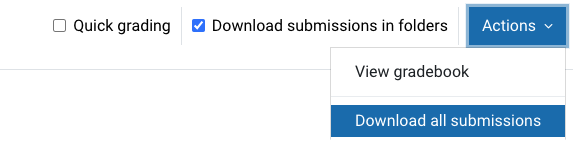
- All submissions will automatically be downloaded in a .zip file.
Note: You can filter assignment submissions by group for example, by tutorial groups by using the separate groups drop down list. Once a group has been selected, only submissions from the students in the selected group will be displayed in the assignment overview. If the Separate groups drop down menu is not displaying, group mode will need to be enabled for the activity. For more information, see Common module settings: Group mode (Separate groups).
Extract student submissions from the zip file
- Once you have downloaded student submissions as a zip file, extract the zip file to a specific folder instead of your Desktop or downloads folder. This will make it easier to locate and manage files.
- Once extracted, all student assessment submissions will appear in your designated folder where you can then assess student submissions for marking, for example you can add feedback to the document, such as track changes, rubrics or general comments.
- Once you have finished adding your feedback, click Save as… to rename and save a copy of the file.
- When renaming the feedback file, you MUST ensure that the original student identifier is included in the file name (shown in bold below, the unbolded text is the file name the student gave their submission). This is required so that Moodle can identify which feedback file should be assigned to which student. For example, you can add ‘marked’ or ‘feedback’ to the end of the document name.
Note: You can assign multiple feedback files to students by ensuring you include the student identifier in the document name of additional or alternative feedback files. For example:Original file name Sam Clayton_######_assignsubmission_file_Assignment.pdf
Marked feedback file name Sam Clayton_######_assignsubmission_file_Assignment _MARKED.pdf
- Sam Clayton_106181_assignsubmission_file_ RUBRIC.pdf
- Sam Clayton_106181_assignsubmission_file_ A1-AUDIO-FEEDBACK.mp3
Package feedback files into a zip file
- Once you have finished marking all students, select all your feedback files and then right click on your selection. From the list of options, select Send to > Compressed (zipped) folder (PC) or Compress (MAC).
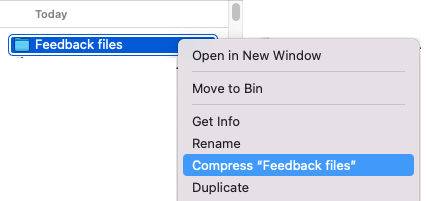
- A new zip file will be created containing a copy of the selected files. Your feedback files will now be ready to import into Moodle.
Upload feedback files to Moodle
- In your Moodle unit, navigate to the Moodle assignment that you wish to bulk upload feedback files for.
- Click on the Submissions tab to view the grading overview screen.
- From the Action drop down menu, select Upload feedback files in a zip.
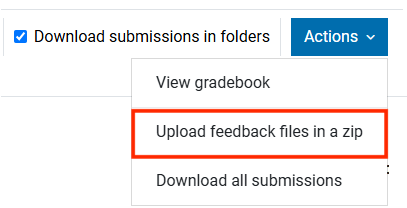
Note: This option will only appear if you have enabled Feedback files as a feedback type in the Assignment settings.
- Click Choose a file… and select the zip package from the location saved on your computer. You can also click and drag your file into the drop area.
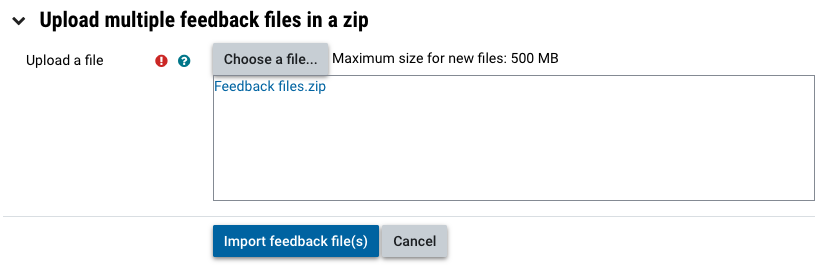
- Once uploaded, click Import feedback file(s).

- You will see a list of of the feedback files and the students they have been assigned to.
- Click Confirm.
- A confirmation screen will indicate the number of submissions which have been uploaded or updated, then click Continue.
- In the assignment grader overview, the Feedback files column will now be populated with the feedback files you bulk uploaded. If this column is not displaying, you may need to scroll across to view the column.
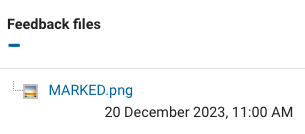
Note: If you have uploaded a wrong file, you can edit any submission using the Edit button. If you need to bulk upload replacement feedback files, you can use the same process as bulk uploading feedback files. Ensure your replacement files have the exact same file name as your original feedback files.