Books
At a glance
Explore how to create and manage a Moodle Book, a multi-page resource with a table of contents, to organise related pages, videos or resources around a single topic. Find guidance on creating a book, editing settings, managing chapters and importing or exporting content as Word or eBook files.
A book is a multi-page resource that provides a table of contents.
Suggestions on how to use this tool:
- Create a series of pages for one central topic that allows students to jump to a specific page of interest.
- Use the book pages to create a series of video clips centred around one theme.
- Create a set of resources (video, audio, text content) centred around a topic.
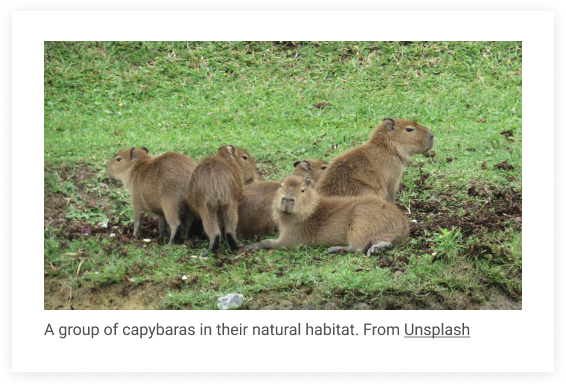
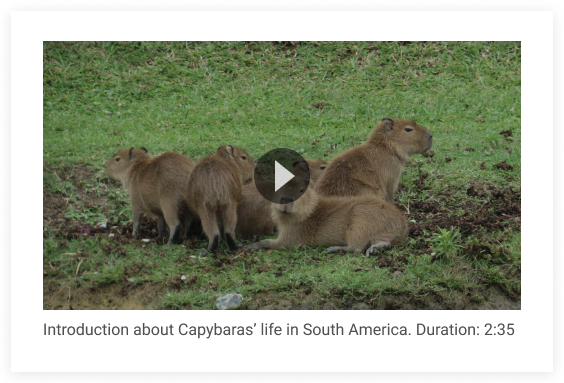
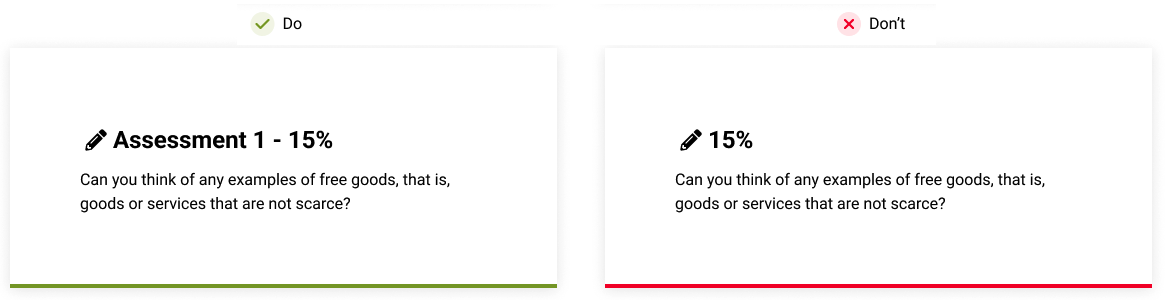
 View visual style guidelines
View
View visual style guidelines
View

Create a book
- In the top right hand corner of the page, switch Edit mode to ON(Blue).

- In the section where you would like to add a resource or activity, click +Add an activity or resource.

Note: You can add new resources or activities above or below any existing activities or resources.
- Select Book.
- In the General section:
- Give your book a name and a summary description.
- Control how your page titles will be displayed in the Appearance section.
- Chapter numbering options include:
- None - chapter and subchapter titles allows you to enter your own chapter titles
- Numbers - chapters and subchapters are numbered (1, 1.1, 1.2, 2, ...)
- Bullets - in the table of contents, subchapters are indented and displayed with bullets
- Indented - in the table of contents, subchapters are indented
- Hide the chapter title on the page and show it only on the table of contents by ticking Custom titles.
Note: Leave it unselected if you want to display chapter titles on the book pages.
- Select other book setting options as required.
- Once complete, click Save and display.
- You will be prompted to create a chapter.
- Give your chapter a title and enter contents in the text box.
- Click Save changes.
Edit book settings
- Switch Edit mode ON (Blue)
- Click on Settings in the top menu to view the Book settings.

- Once done, click Save changes.
Note: Beside each field, you can click on the help icon for a description of the option provided.
Chapters
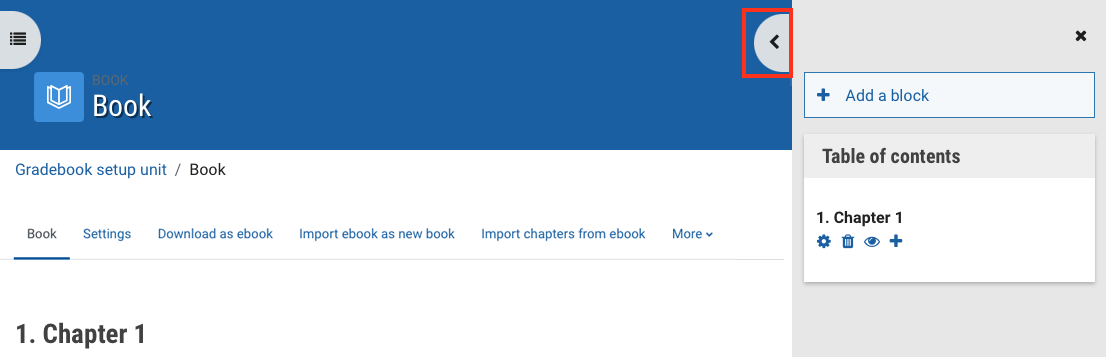
To view book chapters, expand the right hand side panel with the arrow tab. Switch Edit mode ON (Blue) to add, edit, delete and hide chapters.
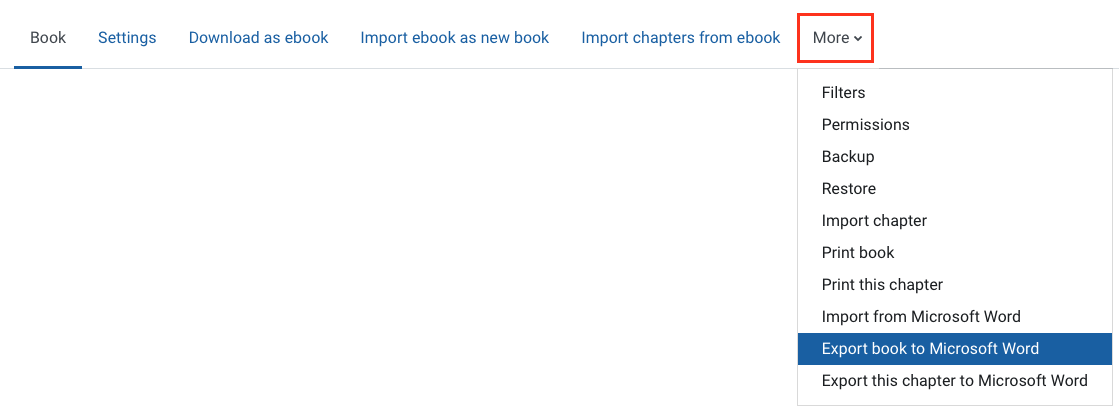
Import and export Moodle books
- Navigate to the Moodle book you would like to export/import.
- Ensure Edit mode is on(Blue) in the top right corner of the unit banner.