Frequently asked questions
View frequently asked questions about H5P interactive activities. You can click Expand all and then use CTRL + F (PC) or CMD + F (MAC) to search for keywords.

View frequently asked questions about H5P interactive activities. You can click Expand all and then use CTRL + F (PC) or CMD + F (MAC) to search for keywords.
This issue has been raised with ServiceDesk. eSolutions are currently investigating a solution.
There is a workaround that allows you to manually adjust the display size of the H5P by copy and pasting the H5P embed code into a Moodle URL resource.
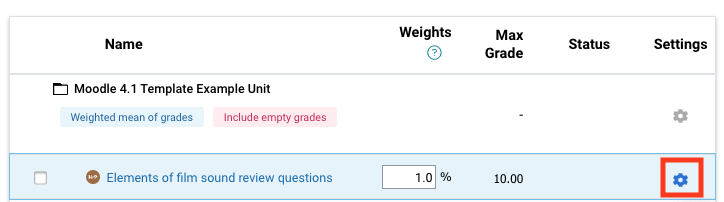
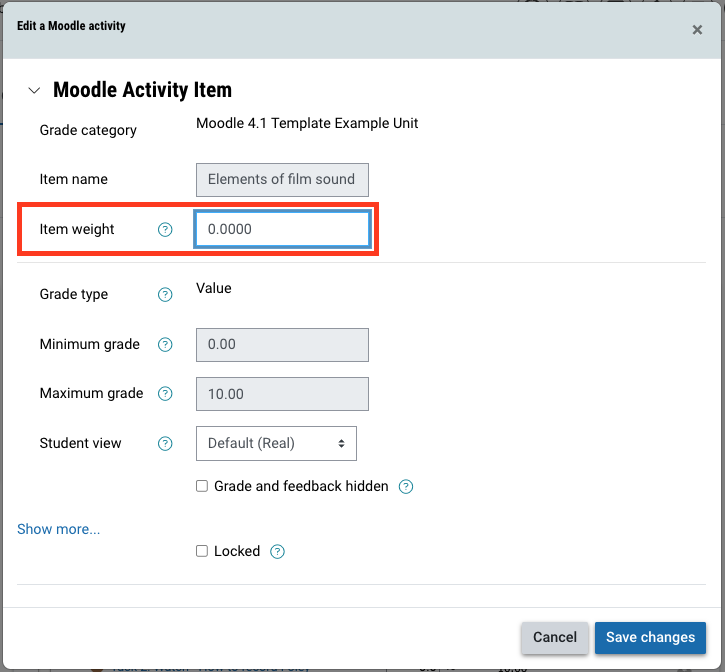
Check that you have completed setting up the activity and haven't left any required fields blank, as you can save it as an incomplete activity but it will not display correctly.
Students MUST open the last slide and wait for the sliding score animation to fully display (this takes a couple of seconds). That's when the H5P reports the activity completion to Moodle. If this slide is skipped, or students leave it too quickly, it reports the grade but not activity completion.
The recommended solution is to signpost very clearly to students that they are required to stay on the last slide, for example "to pass this quiz, you must achieve a score of ## out of ##. View the last slide for your score."
This can occur when a H5P activity has been created in between the Overview and learning journey of one of your learning topic sections. As this area is not intended to display content, it is restricted in height. This will also cause the same issue with all other H5Ps embedded in the unit. To fix this issue, ask your administrator to move that H5P embedded to a real-time/own-time/wrap-up section.
This logic is consistent with AI statement behaviour where if a ‘submission’ is made to the activity, the AI statement can no longer be changed by anyone other than an administrator. The H5P activity will register both students and academics previewing the activity as "attempt" having been made, which will lock the AI statement.
If your H5P is not assessed, it is recommended that you create them inside the content bank and then embed them in a text and media area as a workaround. That way, they will not be counted as assessed activities, and the AI statement will not appear.
The creator is the only one who can view an H5P activity by default. They need to individually click into the menu of each H5P item and change the visibility setting.
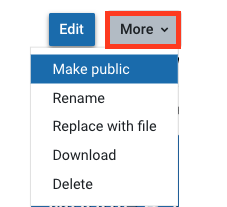
From the content bank of the older iteration of the unit, click on More and then Make Public to allow others to access and edit your H5P activities.