Unit and Assessment Report
At a glance
Explore the Unit and Assessment Report to review unit grade distribution, assessment level results and average marks by location and teaching mode, sourced from Enterprise Moodle. Find out how to access the report, navigate its interface and use the Assessment Grade Distribution, Student Assessment Performance and Assessment Details pages to analyse student and unit performance.
Jump to these sections:
| The Unit and Assessment Report is available to staff with the Chief Examiner role in ELMS or staff with existing access to faculty BOE reports in Power BI. |
|---|
The Unit and Assessment report features the following data:
- Unit grade distribution
- Grade distribution per assessment task
- Average mark by unit location and teaching mode.
The report sources data directly from Enterprise Moodle and is updated at 8:00pm (AEST) every day (7 days) and is visible within the reports from 9.00am (AEST). The following browsers are supported: Chrome desktop (latest version), Safari Mac (latest version), Firefox desktop (latest version), Microsoft Edge Chromium, Internet Explorer 11.
Report access
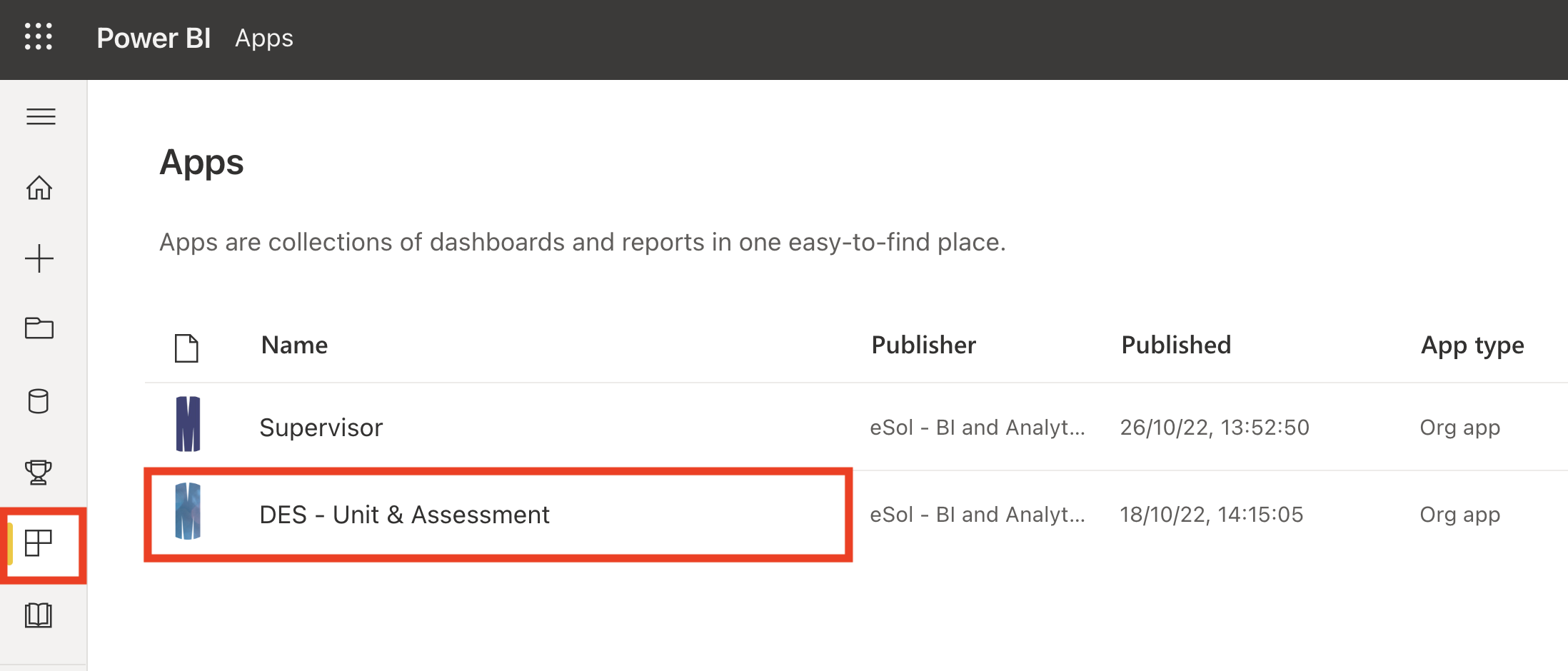
- Click on the link https://app.powerbi.com/groups/me/apps to navigate to your Power BI apps page.
- Click on DES - Unit & Assessment to open the reports.
Tip: Once access has been granted, it is recommended that you bookmark the Unit and Assessment report link in your browser for easy access.
 Key features of the Power BI report interface
View
Key features of the Power BI report interface
View





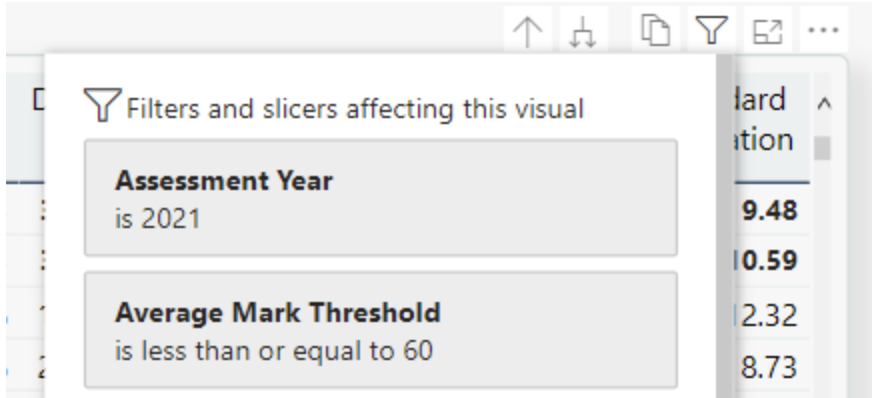

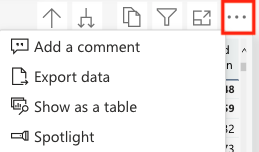
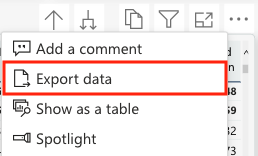
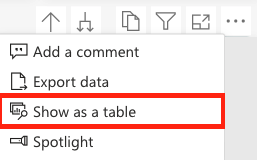
 from the top-right corner of the visual. To return to the report, select Back to report from the upper left corner.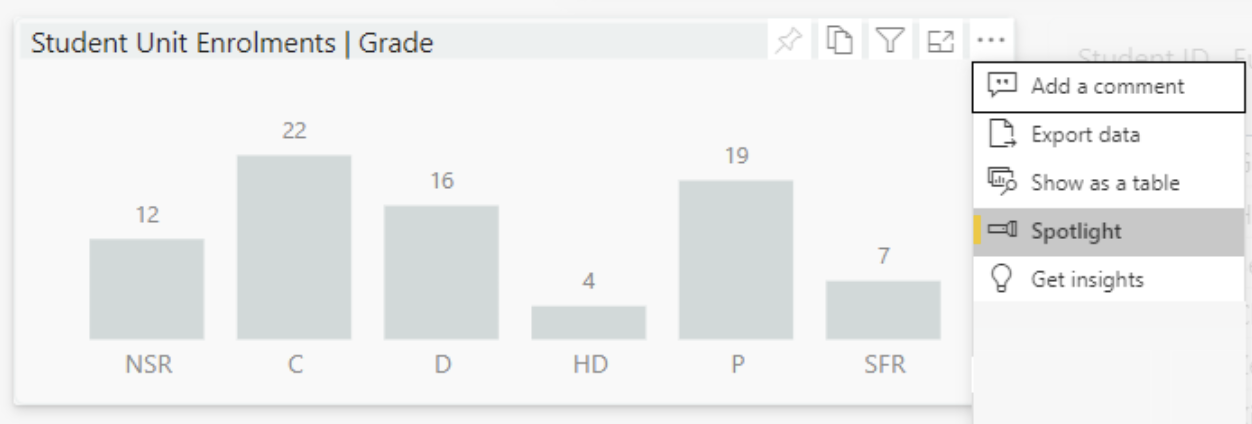
Home
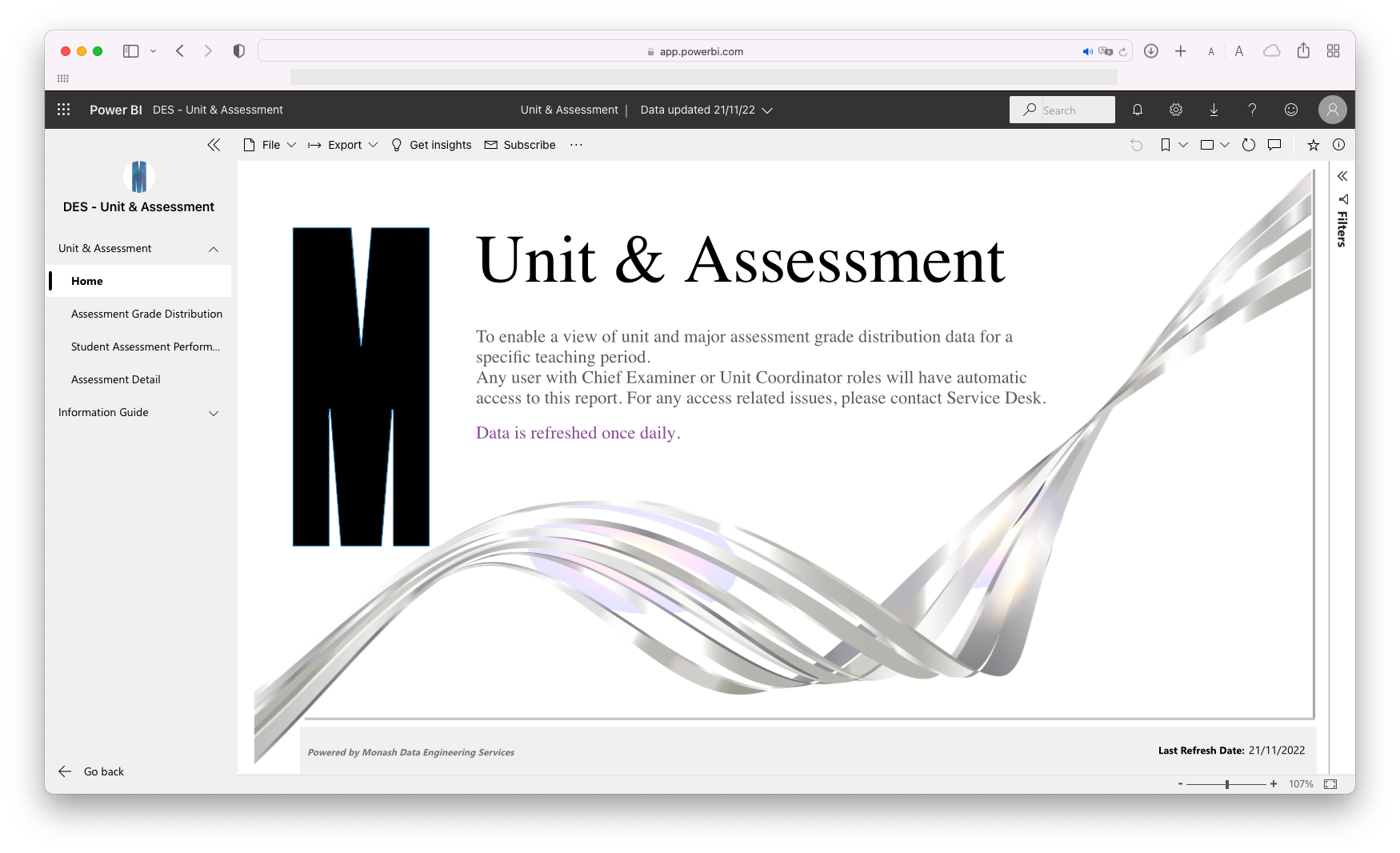
The home page features the report title, description and contact point for feedback and enquiries. It is the first page that displays by default for this report. Also referenced on this page is the last report refresh date timestamp. The report is refreshed once daily. To navigate to different pages of the report, use the Pages panel on the left hand side of the report. The current page you are viewing is highlighted in the list of pages.
Report global filters
The Unit & Assessment report features a set of filters that are visible at the top of the page and are applicable to all report pages. These filters persist as you navigate between report pages.
If you close the report browser window and navigate back to the report in a new browser window, these filters will be set back to defaults (i.e. your filter settings are not retained between browser sessions). Ensure that the filters for Calendar and Assessment year at the top of the page are set to the correct assessment period.
Reset icon
This button enables the ability to revert to the default view of the report. It resets any filters, slicers and other data view changes you have made.
Clear selection
You can also reset a specific filter by hovering over the filter and selecting the clear selection icon.

Assessment Grade Distribution
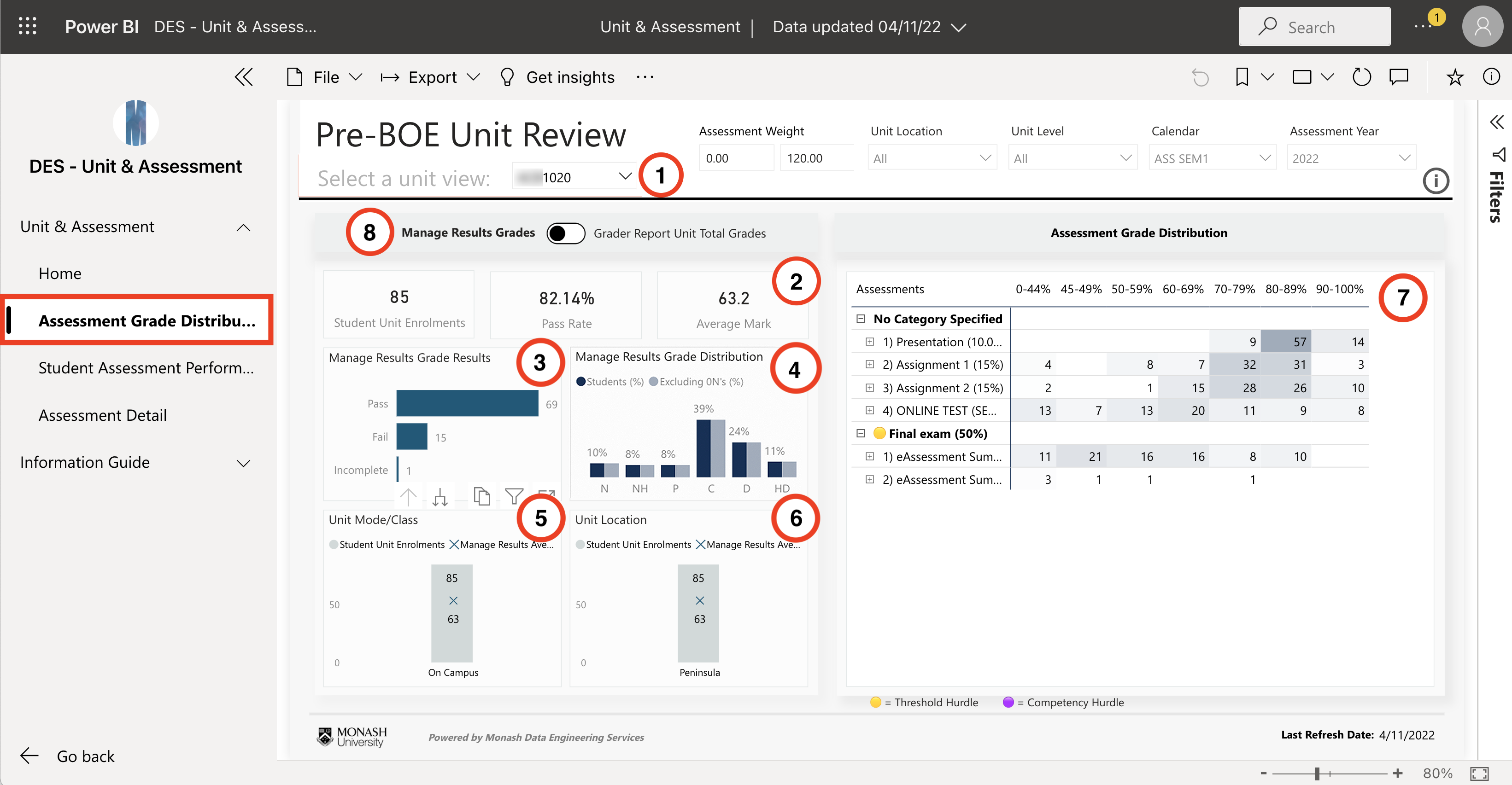
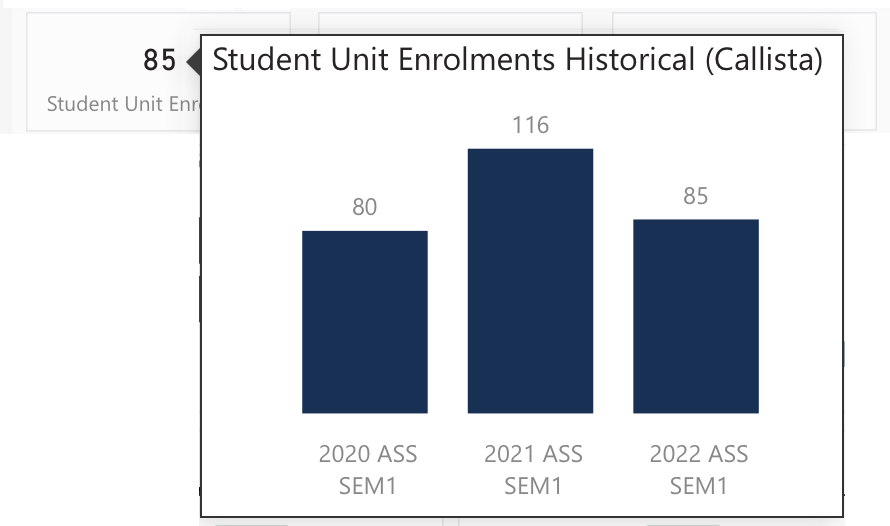
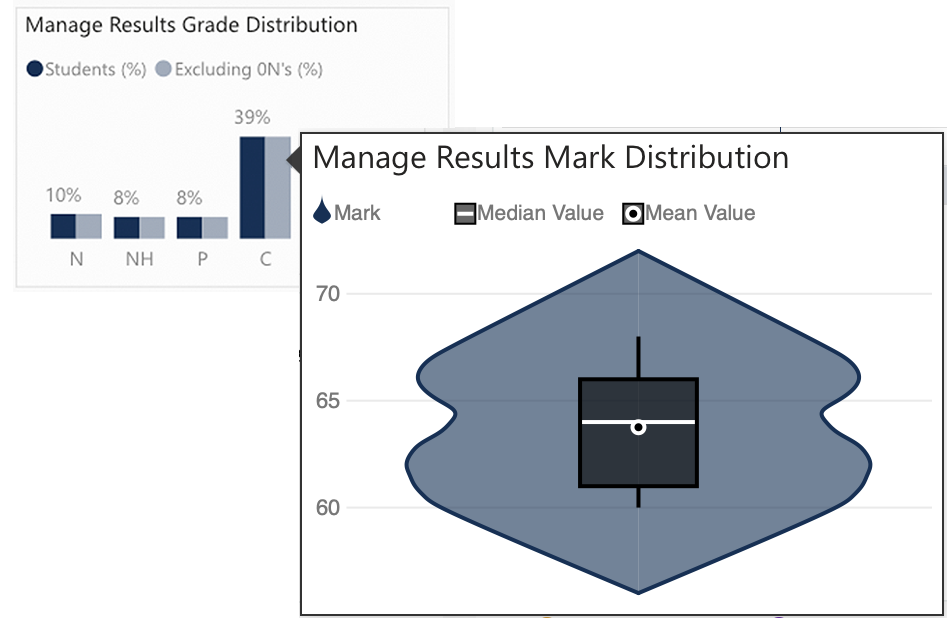
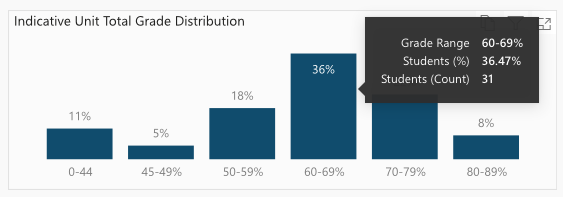
To view the Assessment Grade Distribution Report, select Assessment Grade Distribution from the Pages panel on the left hand side of the page. This report displays the grade distribution of all assessment items in a given unit offering.
Student Assessment Performance Report
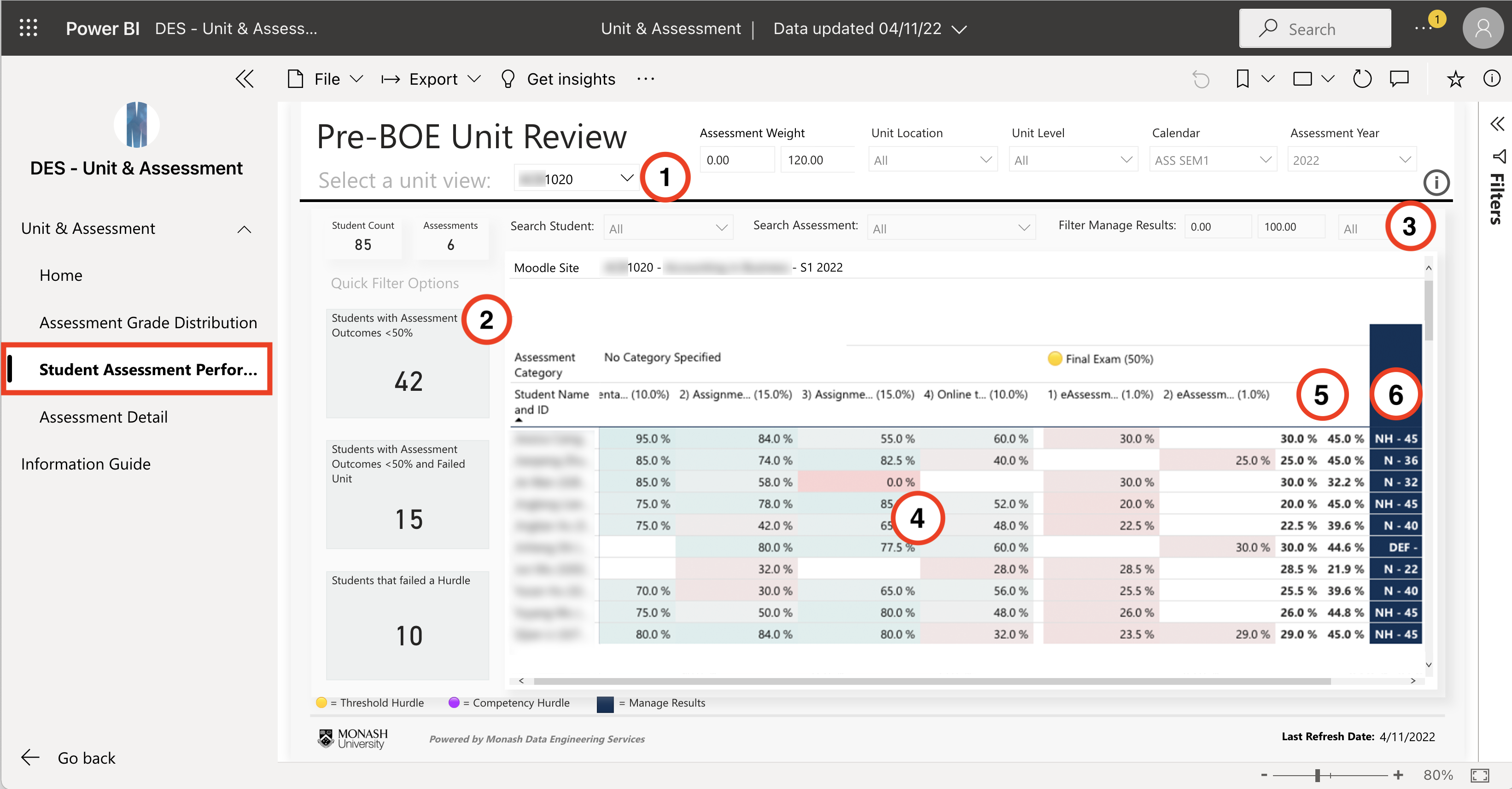
To view the Student Assessment Performance Report, select Student Assessment Performance from the Pages panel on the left hand side of the page. The Student Assessment Performance Report provides data about the assessment performance for all students in the unit for all assessments. You can filter results in a number of different ways.
Assessment Details Report
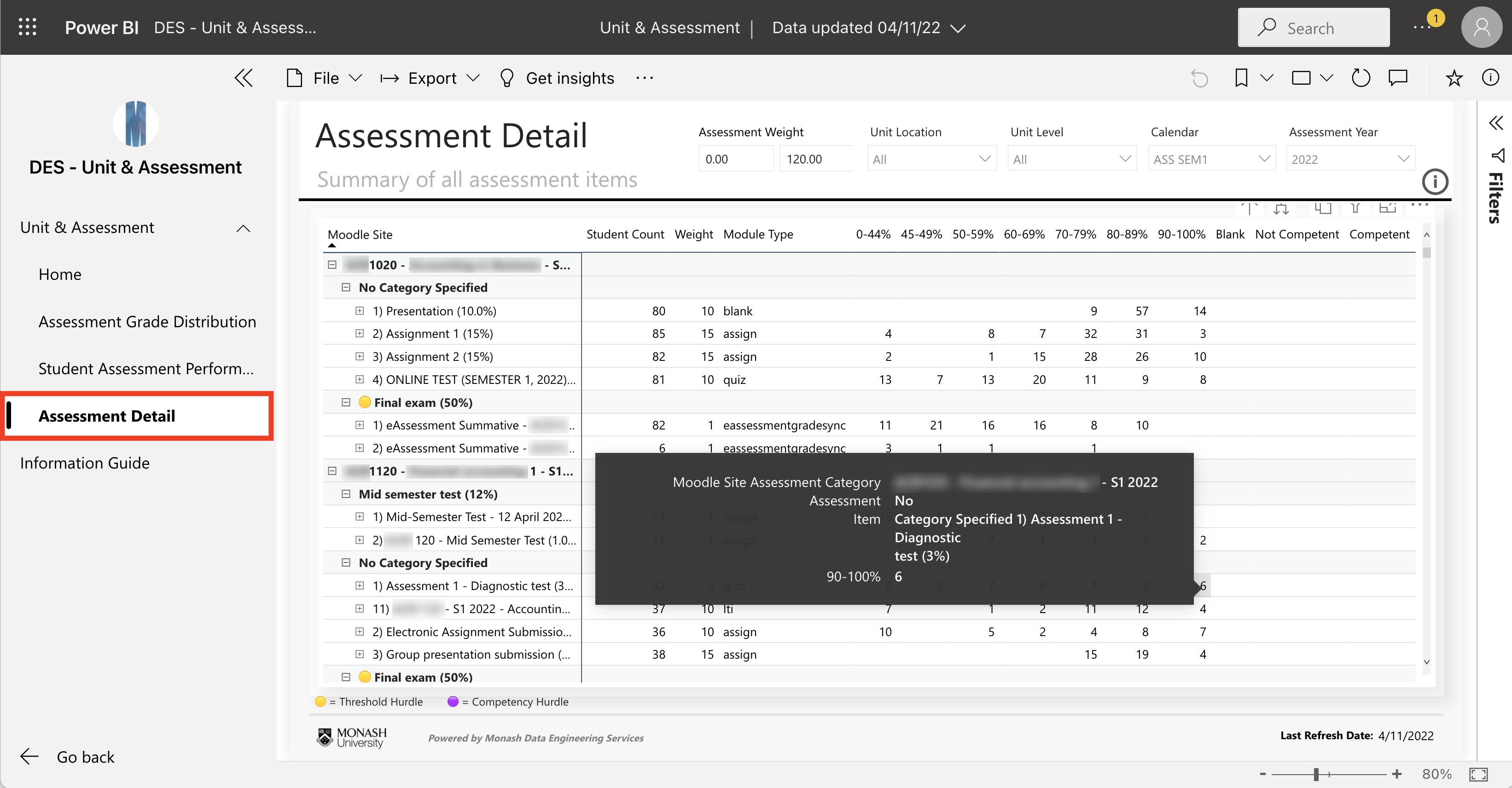
The Assessment Detail page provides assessment grade distribution data via an interactive table for all assessment items within a unit. The units you can view in this table are determined as per your level of access enabled within this report. The filters you set for the table will influence the data that is displayed accordingly. You can hover over any field to view more information.
Note: If you cannot view the link to this report or your unit is not displaying in the report, please contact Servicedesk Online for assistance.
Export reports
- To export the page to PDF, click on Export from the main menu, then PDF.
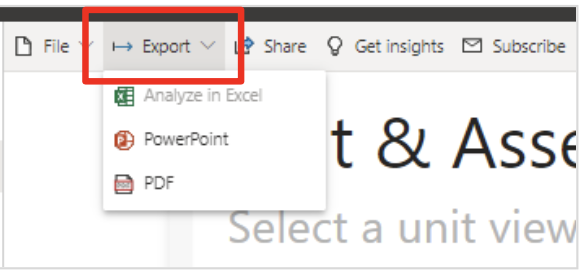
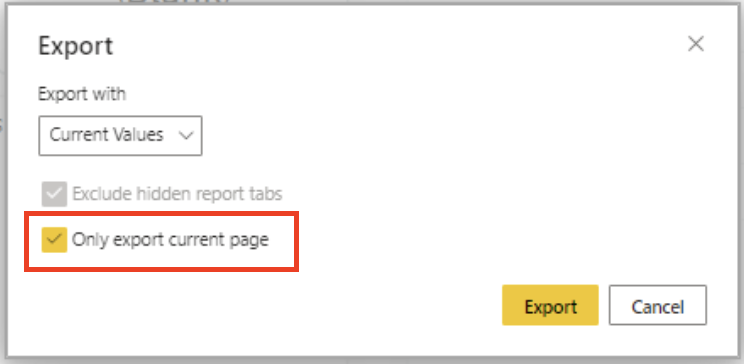
- Select the checkbox for Only export the current page then click Export.