
Wikis (Moodle activity)
At a glance
Set up and manage a Wiki activity in Moodle to let participants create and edit web pages individually or collaboratively. Explore suggested uses, learn how to create a wiki and add pages, and discover the actions available for editing, commenting on and managing wiki content.
The Wiki activity in Moodle allows you to enable participants to add and edit a collection of web pages individually or collaboratively.
Suggestions on how to use this tool:
- Co-create information with students collaborating on building content.
- Organise information on a wiki set up to only allow editing by the lecturer.
- Create individual wikis for summative assessment.
- Using a wiki in group work, with each group using a separate wiki to create a portfolio or add research.
- Create different wikis for students to brainstorm an idea in groups
Create a wiki
- In the top right hand corner of the page, switch Edit mode to ON(Blue).

- In the section where you would like to add a resource or activity, click +Add an activity or resource.

Note: You can add new resources or activities above or below any existing activities or resources.
- Select Wiki.
- In the Name field, give your wiki a title.
- In the Description field, enter a short description which will be displayed when respondents click on your Wiki activity.
- Enter a title for the first page of the wiki in the First page name field.
- Edit the remaining wiki properties as required.
- Once you have finished editing the properties of your wiki, click Save and display.
Wiki pages
Once you have created your wiki and adjusted the properties as necessary, you can start to create a page for your wiki.
- From your unit page, click on the wiki. This will open the create page.
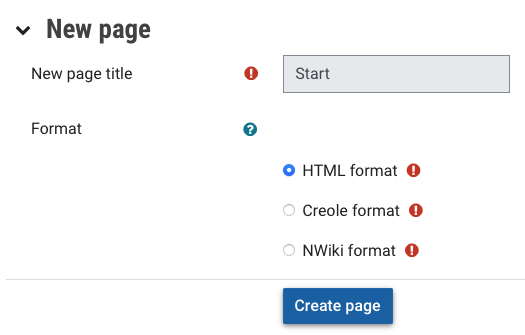
- Enter a name for the New page title.
- Select a format for your wiki page.
- Click Create page.
Wiki actions
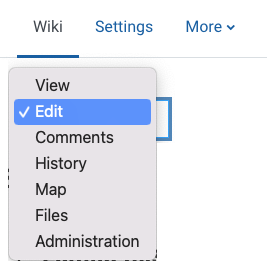
Once you have set up your wiki with at least one page, you can access different actions with the wiki dropdown menu:
- View your wiki pages
- Edit wiki pages: Make changes to your wiki page. Once you have finished editing the wiki page, click Save
- Comment on wiki pages. Click on the Add comment link, add your comments into the Comment field and click Save changes.
- View wiki history
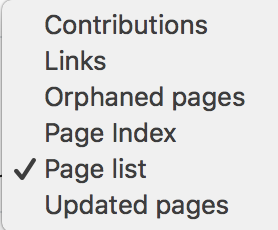
- Map wiki pages. Choose what you would like to see from the Map menu drop down menu.
- See files associated with this wiki. Click Edit wiki files to edit the files associated with this wiki.
- Wiki Administration. Remove pages or delete page revisions.
Adding more pages
- In your current page, type the name of your new page inside double brackets.
- Press the save button.
- Now click the link in italics for one of the pages and you will be prompted to create it in the same way you create the first page.
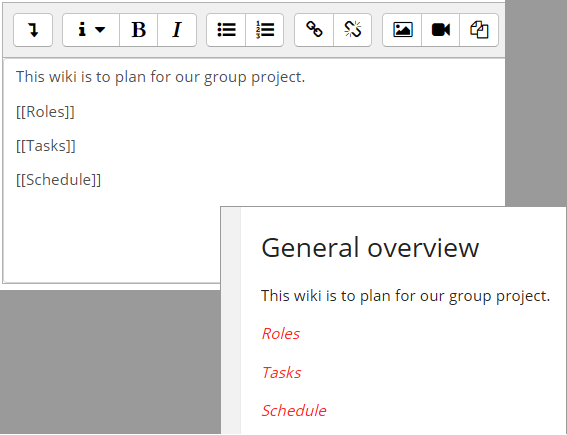
- Once the page is created, the page name will appear as a regular hyperlink, rather than italics.
- Links to previously created pages can be added in the same manner.
Note: Page names are case sensitive.