
Enable the academic integrity notice in Moodle
At a glance
Decide whether to enable Moodle's built-in academic integrity notice for a graded activity, and learn how to turn it on or off. This page explains when the notice is appropriate, such as for summative assessments, and how to enable it in the activity settings so students must accept it before proceeding.
Research shows that regular reminders of academic integrity form an integral part of an effective “honour code” for students (Tatum, 2022). Moodle has a built-in tool that allows you to add an academic integrity notice to any graded activity that students must accept before they can progress.This is in addition to the existing academic integrity notice that appears when students submit to the Moodle Assignment activity (set up using Turnitin similarity report settings in the assignment activity settings).
NoteConsider whether it is appropriate to enable the academic integrity notice for your assessment:
|
Enable the Academic Integrity notice
- In the top right corner, switch Edit mode on(Blue).

- Navigate to any graded activity in Moodle (Assignment, Quiz, Forum, etc.)
- Click on options (three dots) and select Edit settings.
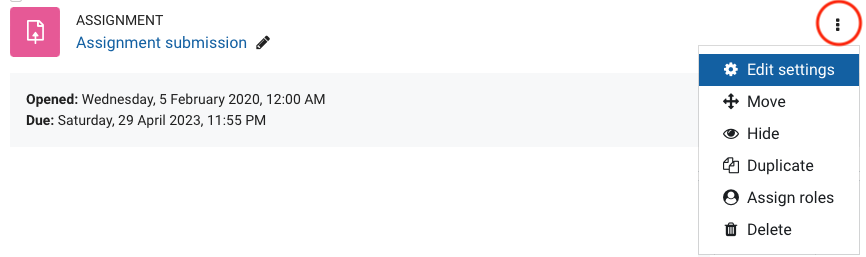
- On the activity settings page, scroll down and expand the Academic integrity section.
- For Display academic integrity notice, select On or Off from the dropdown list as appropriate.
Note: The default is On for Assignment and Quiz, and Off for other activities, but this can be changed for each individual activity.
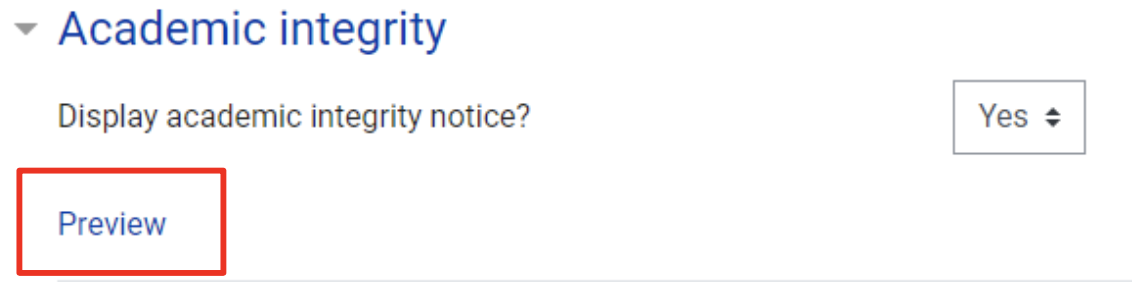
- You can click Preview to view the text of the notice. This text is set at the site level and cannot be altered individually.
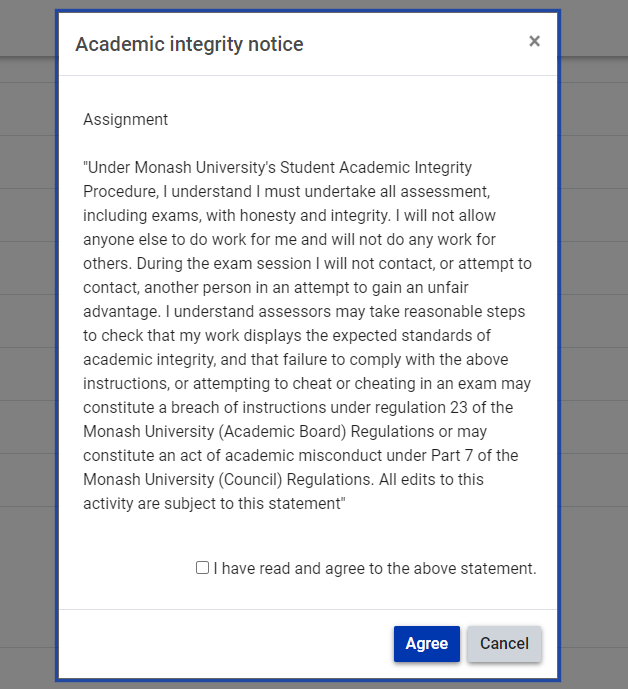
- If the notice is set to On, students will see the popup upon first accessing the activity. They will not be able to proceed to the activity without accepting the popup text.
Please note: If an External Tool is set to open in a new window from the front page of the unit, this will bypass the academic integrity notice.